
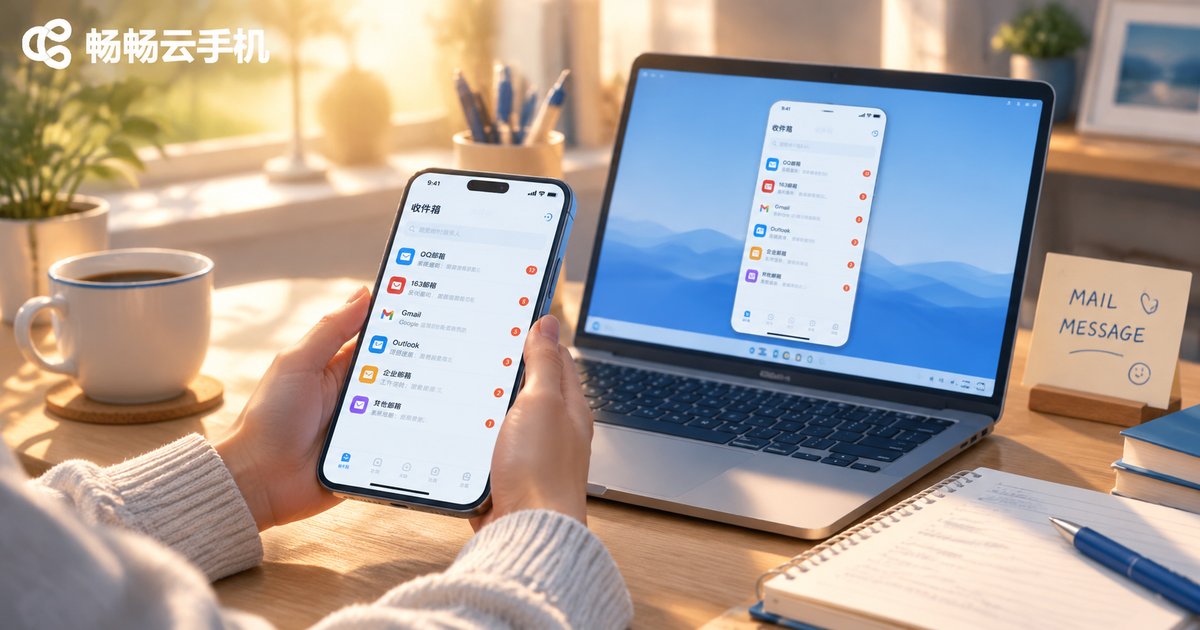
Cloud Phone Email and Message Management: Multi-Account Switching and Notification Tips
Why It Is Worth Tidying Up Email and Messages on a Cloud Phone
Many people treat a cloud phone as just another Android device sitting somewhere in the cloud. They install apps and never look back. Two weeks later the inbox holds hundreds of unread items, the notification bar rings from morning to night, and the messages that actually matter are buried. The real value of a cloud phone is not running more apps at once, but gathering scattered work and personal accounts into one place that stays online. This article starts from the two most overlooked parts of the job, multi-account switching and notification settings, and lays out a method you can follow directly.
1. Three Practical Benefits of Using a Cloud Phone as Your Message Hub
Always online, nothing missed. The instance runs in the cloud. Even when your local phone is off, offline or out of battery, the instance stays logged in and the messages are still there when you return.
Account isolation. Work mail, personal mail and store support accounts live in separate instances, so switching does not mean logging out and back in, and personal notifications never leak into your work flow.
Data stays in the cloud. Change phones or computers, sign in with the same account, and your folder structure and read states are still intact.
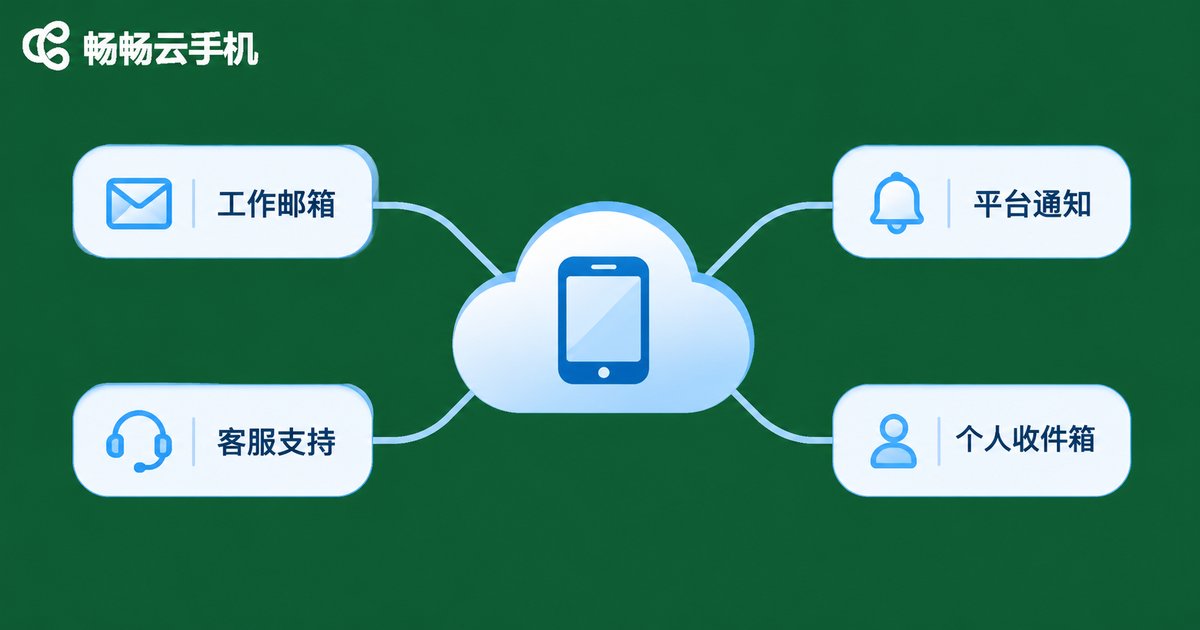
2. Multi-Account Switching Starts With Classification
Slow switching is usually not a tooling problem. It is a classification problem. Start by laying every account out in a table:
| Account type | Typical use | Alert priority | Suggested placement |
|---|---|---|---|
| Primary work mail | Clients, contracts, quotes | High, real-time | Dedicated instance, always online |
| Platform notice mail | Verification, billing, system mail | Low, daily digest | Same instance as work mail, separate folder |
| Store and support accounts | Order questions, after-sales follow-up | High, business hours only | Dedicated instance, scheduled alerts |
| Personal mail and social | Private messages, subscriptions | Low, muted | Separate instance, silent at night |
Once accounts are classified, switching becomes a matter of changing instance or changing tab instead of retyping a password. Three small habits help:
Name things clearly. Call instances Work-Primary or Store-Support rather than leaving default instance numbers.
Keep folders shallow. Limit each mailbox to three top-level folders: To Do, Filed and Archive, and keep the inbox close to zero.
Fix your sender identity. Set a signature and default sender per account so you never reply to a client from the wrong address.
3. Setting Up Multiple Accounts on CcloudPhone
With CcloudPhone (ccloudphone), the principle is one instance per purpose, with important accounts kept permanently online:
Step 1, create instances by purpose. Create the cloud phone instances you need in the console, one each for work mail, support accounts and personal use, and name them clearly.
Step 2, install and sign in. Open each instance, install your usual mail app and add accounts one by one. Most clients offer an add another account flow that manages several mailboxes in one place.
Step 3, tune sync frequency. Keep important accounts on real-time push and set notice-only accounts to sync every 15 to 30 minutes. This cuts pointless alerts and data use noticeably.
Step 4, build a notification allowlist. In system notification settings, allow only mail, messaging and calendar apps and turn the rest off. The notification bar gets much calmer.
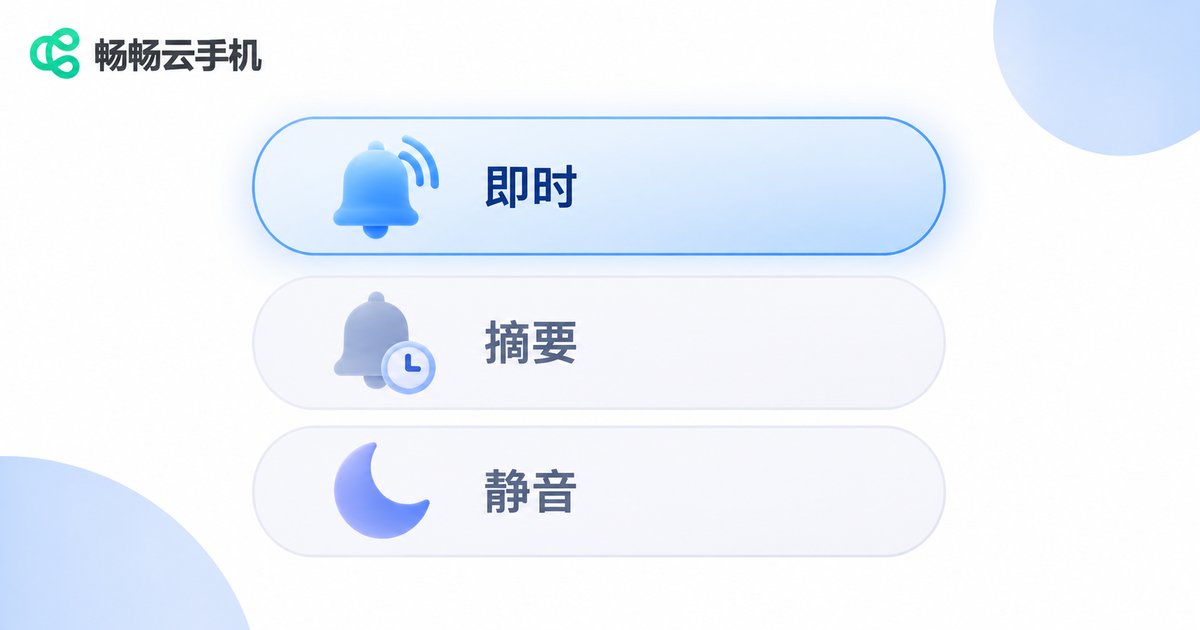
4. Notification Settings: Three Tiers Are Enough
The goal is not to switch everything on, but to let what matters ring and let the rest stay quiet. A simple three-tier model works well:
Tier 1, instant. Direct client email, mentions, meeting invites. Banners and sound allowed, all day.
Tier 2, digest. Platform notices, bills, subscriptions. Summarised once at midday and once in the evening.
Tier 3, silent. Marketing mail and group chatter. Badge only, no pop-up and no sound.
Add two more settings on top: quiet hours, for example muting everything from 22:00 to 07:30 except allowlisted contacts, and notification grouping, which folds alerts from the same account into a single line instead of flooding the screen.
5. Small Details That Trip People Up
Avoid signing the same account into several instances. Some providers trigger extra security checks, which makes logging in harder rather than easier.
Check sync status now and then. If an account goes quiet for too long, first check whether the battery policy is restricting background sync.
Move important attachments out. Cloud storage is finite, so contracts and invoices are better archived to a drive or locally on a schedule.
Turn on two-factor authentication. Cloud phones are convenient, but account security still depends on a strong password plus a second factor.
6. Frequently Asked Questions
Q1: How many mailboxes can one cloud phone handle at once?
That depends on the mail client. Most support five or more accounts. If the accounts serve very different purposes, splitting them across instances gives cleaner isolation.
Q2: Do I still receive mail when my local phone is off?
Yes. The instance keeps running in the cloud and stays logged in, so messages arrive and are stored in the inbox until you open the instance again.
Q3: Why are notifications sometimes delayed?
The usual causes are a long sync interval, battery policies limiting background activity, or notification permissions not fully granted. Checking each in turn normally solves it.
Q4: Will work and personal accounts blur together?
With the classification table above and different alert levels and folders per account, the risk is low. For sensitive business, a dedicated instance is still the safer choice.
Q5: Does multi-account management cost extra?
Multi-account support inside mail clients is generally free. Cloud phone instance pricing follows the specifications and rates published on the CcloudPhone website.


