
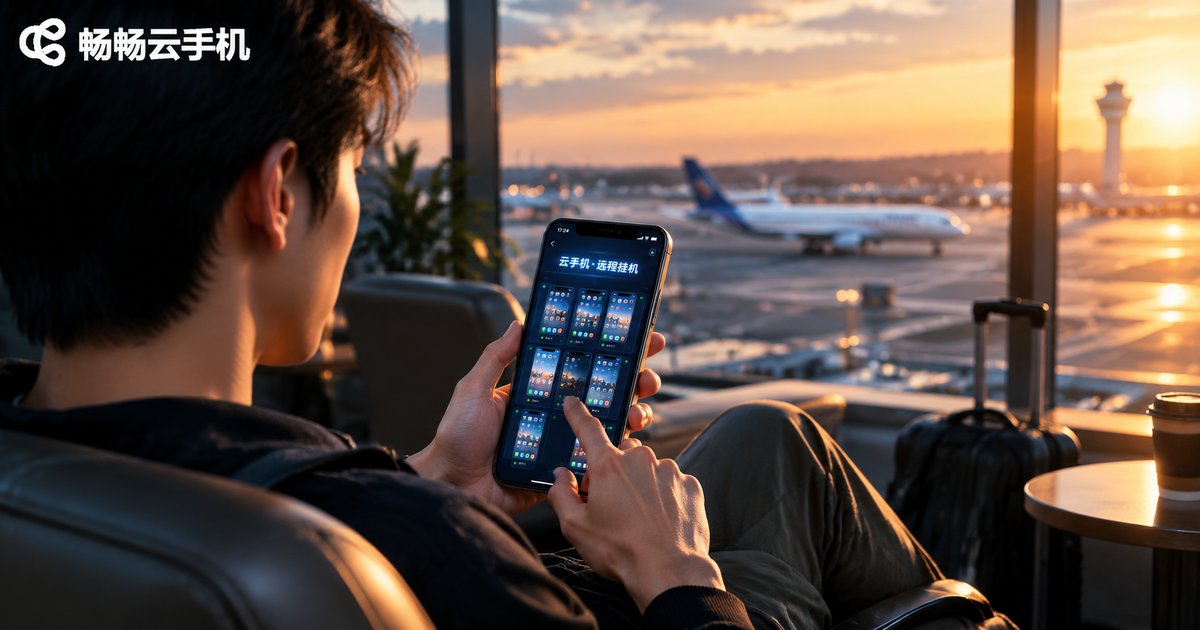
How to Run Cloud Phones Remotely? Methods to Manage Cloud Devices While Away
What Is Cloud Phone Remote Idle Running?
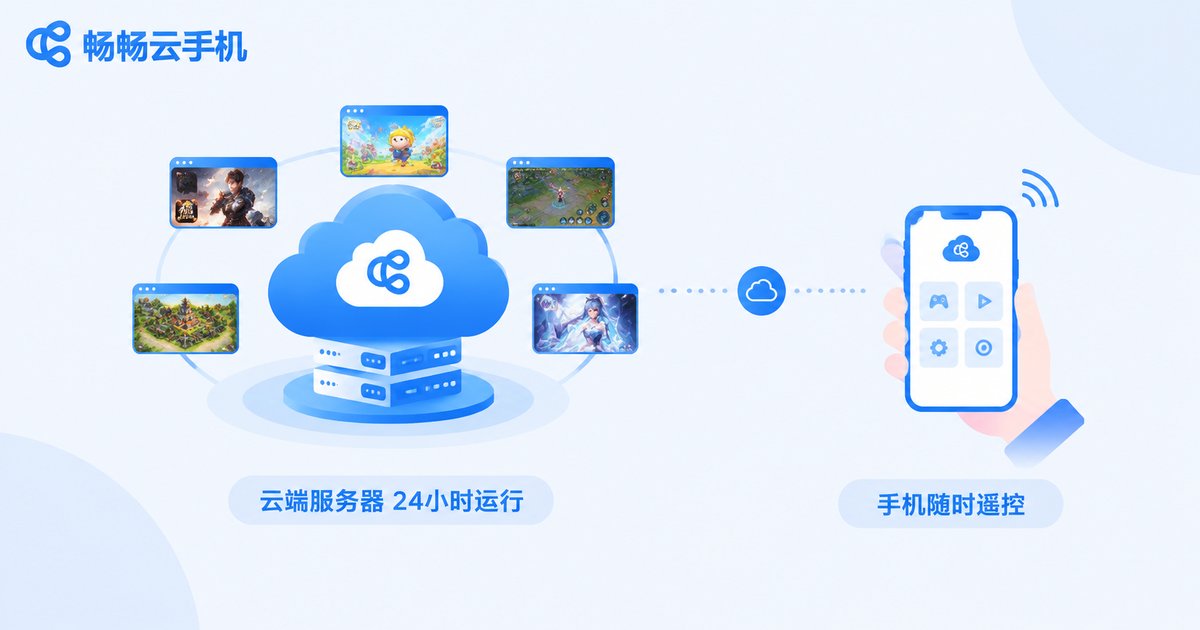
Cloud phone remote idle running means keeping your apps or games running continuously on cloud servers. Your local phone can be turned off, locked, or even replaced at any time, while the apps in the cloud keep running 24/7. Idle running (also known as AFK running) refers to letting games or apps perform tasks automatically in the background, such as auto-farming dungeons, auto check-ins, or auto-collecting resources.
Traditional idle running requires keeping your local phone on all the time — it drains battery, generates heat, and risks disconnections. A cloud phone moves the entire Android system to the cloud, where apps actually run on servers, and your phone becomes just a remote control. This is why more and more players and multi-account users choose cloud phones for idle running.
What Scenarios Suit Remote Idle Running?
Remote idle running isn't just for gamers. Its applications are broader than many people imagine:
- Mobile game leveling: Auto-farm dungeons and materials overnight without slowing down your daytime work;
- Multi-account management: Run multiple cloud devices at once with unified logins and operations;
- Long-running apps: Apps that need to stay online are more stable in the cloud than on local devices;
- Uninterrupted while away: Check cloud status anytime during business trips, travel, or commutes.
Three Ways to Manage Cloud Devices While Away
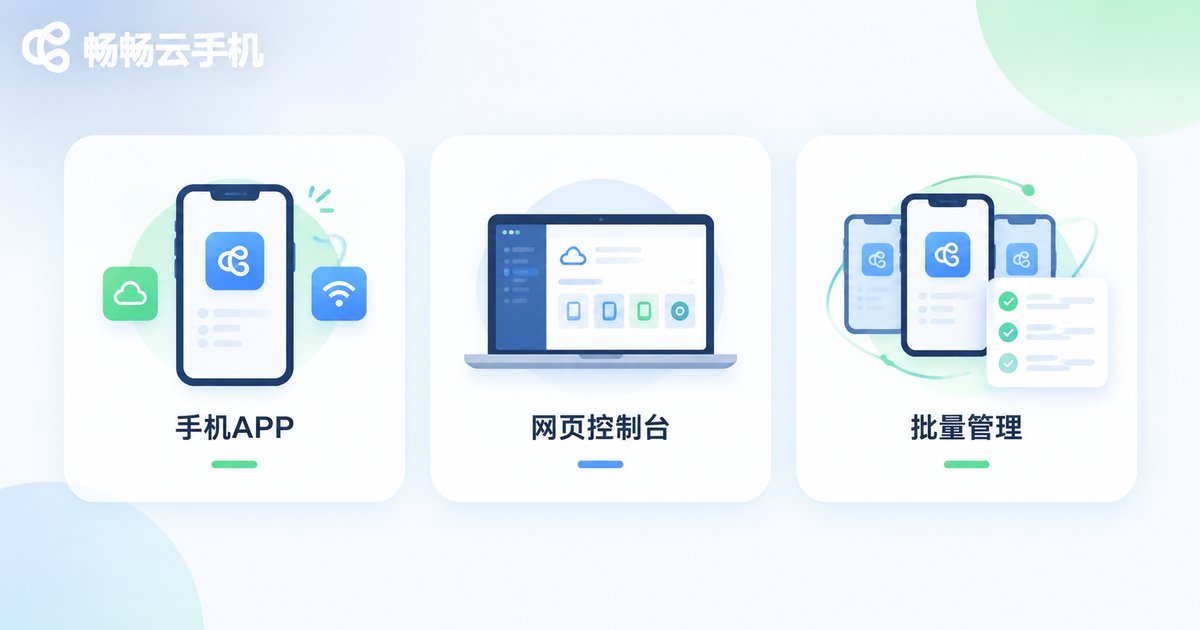
When you're not at your computer, how do you manage cloud devices? There are three main methods:
| Method | Best For | Highlights |
|---|---|---|
| Mobile App | Anywhere, anytime | Most flexible — check with your phone in hand |
| Web Console | Anywhere with a computer | Large screen, easy operation |
| Batch Management | Multi-device users | Control multiple cloud phones with one action |
You can combine all three: use the mobile app for quick checks on the go, switch to the web console when you need detailed control, and rely on batch management when you have many devices to handle.
Steps to Set Up Remote Idle Running with CC Cloud Phone
Using CC Cloud Phone as an example, setting up remote idle running is simple:
- Register and log in: Download CC Cloud Phone from the official site or app store, then register and log in;
- Activate a cloud device: Choose a cloud phone configuration that fits your needs;
- Install apps: Install the games or apps you want to idle-run inside the cloud phone;
- Set up idle tasks: Enable in-game auto-task features or the app's built-in automation settings;
- Disconnect locally: Once set up, simply exit — the cloud keeps running;
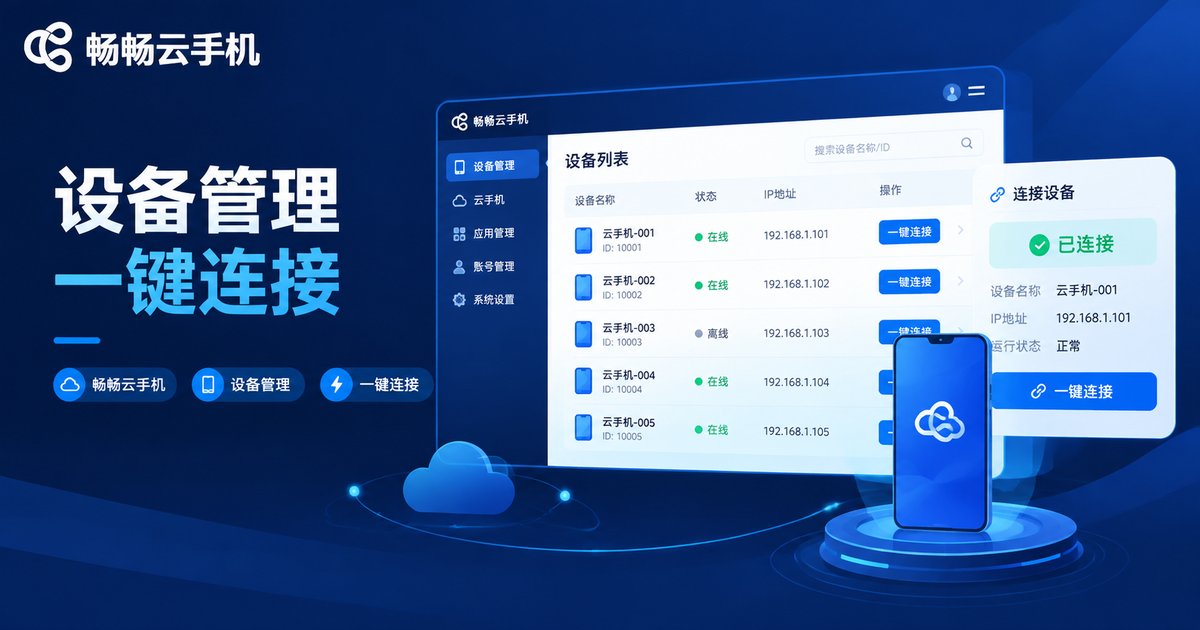
- Check anytime while out: Use the mobile app or web console to connect to your cloud device and check its status.
The core of the whole process: idle tasks run in the cloud, and your local device is just a window for viewing and control. You can even turn off your local phone completely, and the cloud phone will keep running.
Things to Keep in Mind for Remote Idle Running
Although cloud phone idle running is convenient, a few details deserve attention:
- Network stability: Cloud running doesn't depend on your local network, but viewing and managing requires a connection;
- App rules: Some games restrict idle behavior. Learn the game rules first to avoid account risks;
- Configuration choice: Cloud device performance depends on your chosen configuration. For heavy idle running, higher configurations are recommended;
- Regular checks: Even the smartest idle setup needs occasional manual checks to prevent tasks from getting stuck.
FAQ
Q: Does my local phone need to stay on while the cloud phone idles?
No. Idle tasks run on cloud servers. Your local phone can be turned off, locked, or even replaced with another device, and the cloud apps will keep running.
Q: Can I only manage cloud devices with my phone while away?
No. Besides the mobile app, you can manage through the web console. Any device with a browser and a network connection works — computers, tablets, and more.
Q: Will cloud phone idle running disconnect?
Cloud server networks are stable, so disconnections are rare. If an app itself runs into issues, reconnecting to the cloud device restores your view.
Q: Can I manage multiple cloud devices together?
Yes. CC Cloud Phone supports multi-device management, ideal for multi-account users and studios that need unified operations.
Q: Does cloud phone idle running drain my local phone's battery?
No. The cloud phone runs on cloud servers. Your local device only uses a small amount of data and battery when viewing and controlling.


