
Cloud Phone Remote Control: Connection Methods, Permissions and Operation Logs
What remote control of a cloud phone actually means
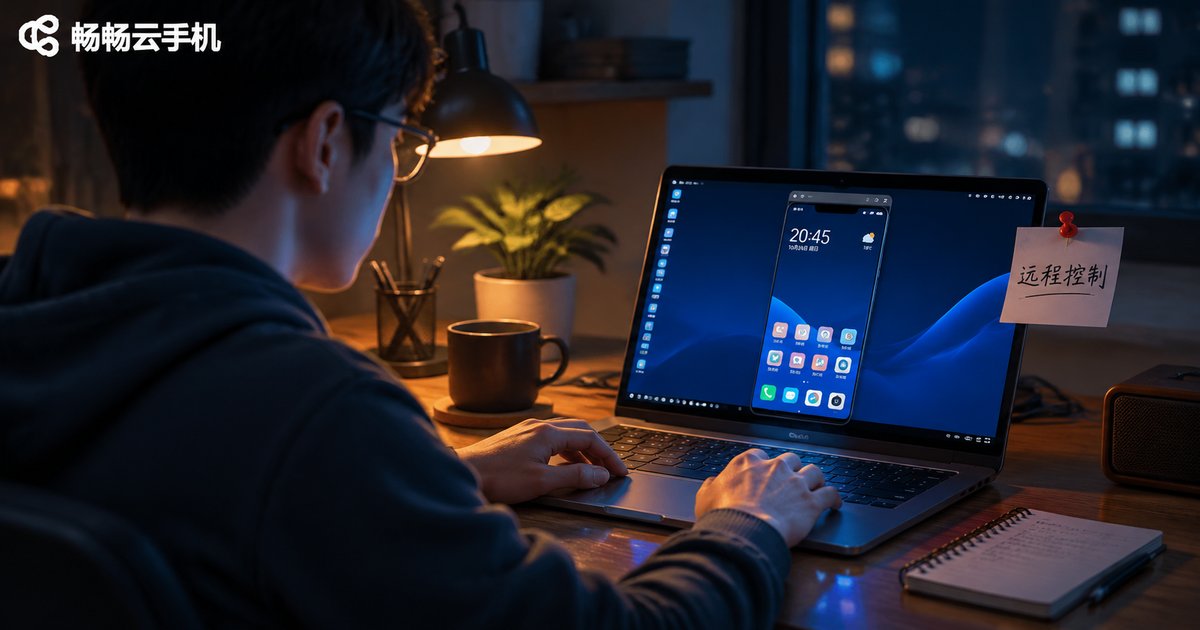
A cloud phone is really a virtual handset running on a server in a data centre. The laptop, tablet or second phone in your hand is only a remote controller: the screen is streamed to you as video, and your taps and swipes are sent back.
That means remote control has to solve three problems: connecting (connection methods), governing (permission settings) and tracing (operation logs). Miss any one of them and teamwork starts to break down - sessions lag and drop, anyone can change the configuration, or nobody can say afterwards who did what.
Connection methods: pick the one that fits the job
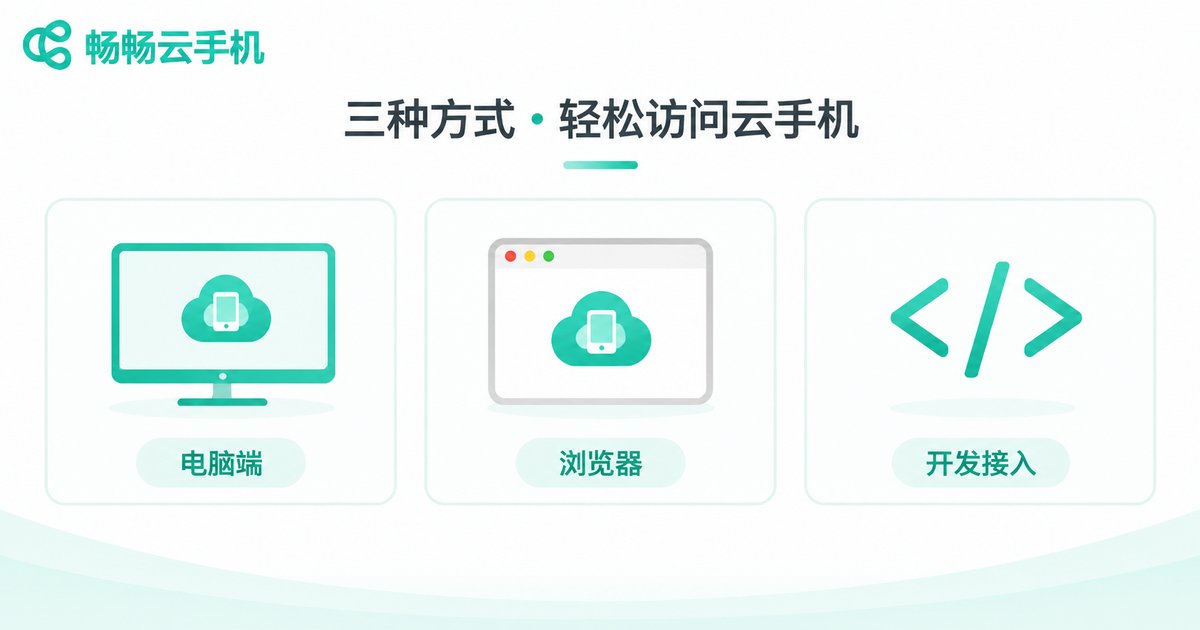
Cloud phone services usually offer three access paths. They are not substitutes for each other; each covers a different situation.
Desktop client: requires installation, but offers the lowest latency and the most stable image, plus keyboard shortcuts, tiled multi-window views and drag-and-drop file upload. Best for operators and QA engineers who watch several devices every day.
Web browser: log in and go, nothing to install. Good for quick checks, a short window granted to an external colleague, or working from a borrowed computer. The trade-off is higher sensitivity to network jitter and slightly less precise control.
API calls: send commands through open interfaces or debugging channels so scripts can install apps, launch them, capture screenshots and read device state in bulk. Ideal for automated testing, batch jobs and monitoring; not the right choice for game scenarios that need fine human control.
| Connection method | Learning curve | Perceived latency | Best suited to |
|---|---|---|---|
| Desktop client | Low | Lowest, feels responsive | Daily operations, app testing, long shifts |
| Web browser | Very low | Medium, network dependent | Quick checks, cross-device access, external collaboration |
| API calls | Higher | No screen latency involved | Batch jobs, automated testing, status polling |
In practice most teams settle on "client first, browser as backup, API for bulk work", with all three sharing one account system so nobody has to relearn the interface when switching.
Permission settings: decide who can do what, first
The most common permission mistake is giving everyone the highest level just to save time. Then a device gets misconfigured or a setting gets wiped, and there is no way back. A four-tier structure works well:
Owner: usually the account that purchases the cloud phones. Can add or remove devices, assign people and change billing. Does not take part in day-to-day operation.
Administrator: manages devices within a group - restart, reinstall, adjust resolution - but cannot touch account or payment details.
Operator: can enter assigned devices to tap, type and upload files, without seeing backend configuration.
Read-only viewer: can watch the screen but cannot interact. Useful for training, demos and quality review.
Beyond roles, a few switches are worth turning on: device grouping so each person only sees their own fleet, time windows to keep people out of off-hours sessions, source allowlists to restrict logins to the office network or a known region, and two-factor authentication as an extra gate for administrator accounts.
Operation logs: if something breaks, you can find out why
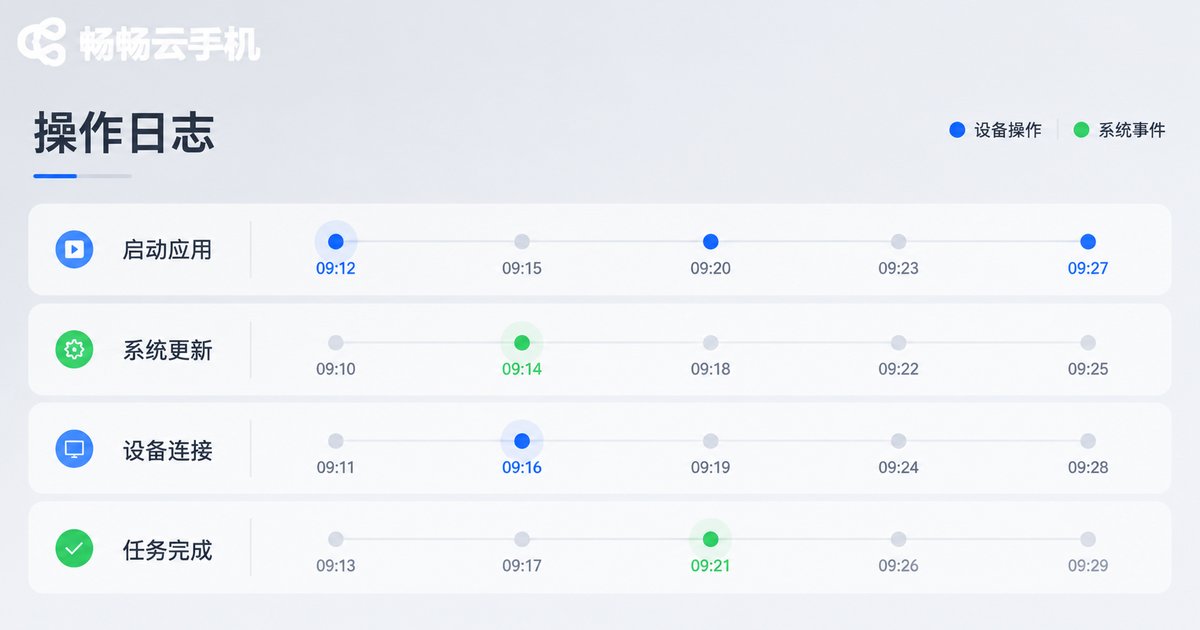
Operation logs are not only for assigning blame after the fact. They are a troubleshooting tool. When an app crashes, a device reboots unexpectedly or an account gets kicked offline, reading the log is often faster than asking around.
A complete log entry should carry at least these fields:
| Field | Description | How it helps |
|---|---|---|
| Operator | Account and role | Confirm who touched the device |
| Timestamp | Accurate to the second | Match against app-side error times |
| Device ID | Device number or group | Separate a single-device issue from a fleet-wide one |
| Action type | Login, restart, install, config change | Locate the trigger of the failure |
| Result | Success, or failure reason | Distinguish human error from system fault |
| Source | Client type and network origin | Spot abnormal logins |
Where compliance requirements are stricter, session replay can record a whole operation, which is far more intuitive than text alone. Keep in mind that logs are sensitive too: viewing rights should be narrower than operating rights.
A configuration checklist you can follow
Putting it all together, a new team can set things up in this order without missing much:
Step 1 - map people to devices. List who needs to operate, who only needs to watch, and which project group each device belongs to. Get this right and the rest is filling in blanks.
Step 2 - create roles and groups. Build owner, administrator, operator and viewer roles, then assign people and devices into matching groups.
Step 3 - tighten the entry points. Enable two-factor authentication for administrators, set source allowlists and login windows, and handle external collaboration through short-lived grants.
Step 4 - enable logging and retention. Confirm that log fields are complete, that retention matches business needs, and that viewing rights are clearly scoped.
Step 5 - run a drill. Try a high-risk action from a low-privilege account and check that it is blocked, then read the logs back to confirm the whole sequence can be reconstructed.
ccloudphone provides device grouping, member role assignment and operation log review in its console. Walking through the five steps above covers most day-to-day collaboration risks before they happen.

Frequently asked questions
Q: Does remote control need a fast network?
Ordinary office broadband is enough for daily use. Video streams are sensitive to packet loss, so prefer wired or stable wireless connections. On weak networks the browser version lowers image quality automatically and control feels laggy; switch to the desktop client if timing matters.
Q: Can several people control the same cloud phone at once?
They can, but conflicts are likely. Keep a single operator at any moment and let others join as read-only viewers. If parallel work is genuinely needed, split devices into groups so two people never fight over the same screen.
Q: How long are operation logs kept?
Default retention varies by service. Confirm it at sign-up and set retention to match your business needs. For external-facing or compliance-sensitive work, export backups on a regular schedule.
Q: What if permissions are configured wrongly?
The owner account can adjust member roles and groups at any time, and changes usually take effect immediately. As a safety net, keep at least one backup administrator account that is used only for management.
Q: Can a read-only viewer see files?
Normally they only see the live screen and cannot download files or perform actions. If even the screen should not be visible, do not assign the device group at all rather than relying on the role limit.
Q: Do automation scripts and human operators interfere with each other?
They can. Give scripts a dedicated batch of devices, or agree that scripts only run during off-peak hours, and make sure the account used by scripts is clearly distinguishable in the operation logs.


