

Cloud Phone Remote Assistance: Screen Sharing, Collaborative Operation and Security Tips
Why remote assistance keeps getting stuck at “I can't see it”
A parent's phone suddenly loses its network connection, a colleague in another city can't get a workflow to run, a customer is stuck on the final step of an app setup. All these situations share one thing: the problem lives on the other person's screen, and all you have is your ears. Ten minutes of “tap the one at the bottom left — no, not that one, the one next to it” later, both sides are exhausted and nothing has changed.
Cloud phone remote assistance exists to close exactly that invisible gap. Screen sharing lets people see, collaborative operation lets people act, and security mechanisms let people trust. Remove any one of the three and remote assistance degrades into shouting across a distance.
Screen sharing: put both sides on the same screen first
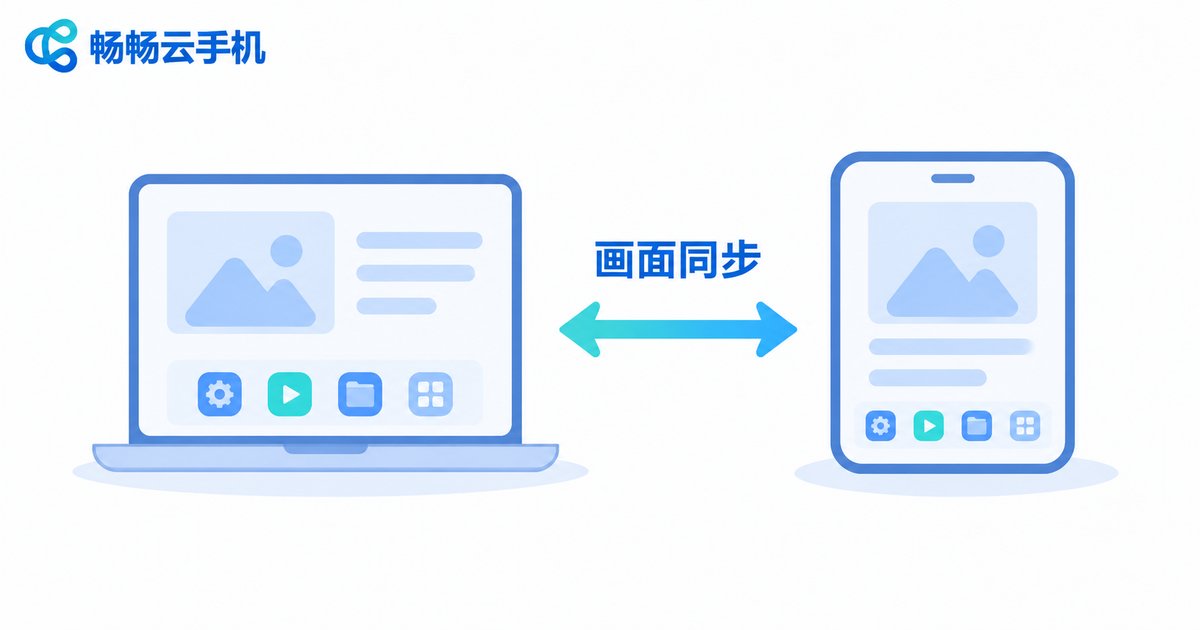
The first step of remote assistance is not operating — it is seeing. In a cloud phone setup, the phone is not a physical handset in someone's palm; it is a virtual phone instance running in the cloud. Whether you connect from a laptop, a tablet or a phone, you see the same screen, the same progress, the same data.
That brings several very practical benefits:
- Synchronized viewing: the helper and the person being helped look at one identical screen. No more arguing about “it looks different on my side” — the button, the colour and the error message are exactly the same.
- No burden on local devices: the helper does not hand over a personal phone or install a pile of apps on the spot; opening a client or a browser is enough.
- Sessions can be reviewed: keeping the assistance inside a controlled session makes it far easier to retrace which step went wrong afterwards.
Many remote support failures come down to mundane causes: mismatched resolution, an input method covering the field, a different page cache. A single shared cloud instance removes those differences by design — visual consistency is itself a form of efficiency.
Collaborative operation: from “I say, you do” to “we do it together”
Seeing comes before doing. The most common failure point in remote assistance is a blurry permission boundary — either everything is granted or nothing is. A better pattern is task-based, tiered authorization.
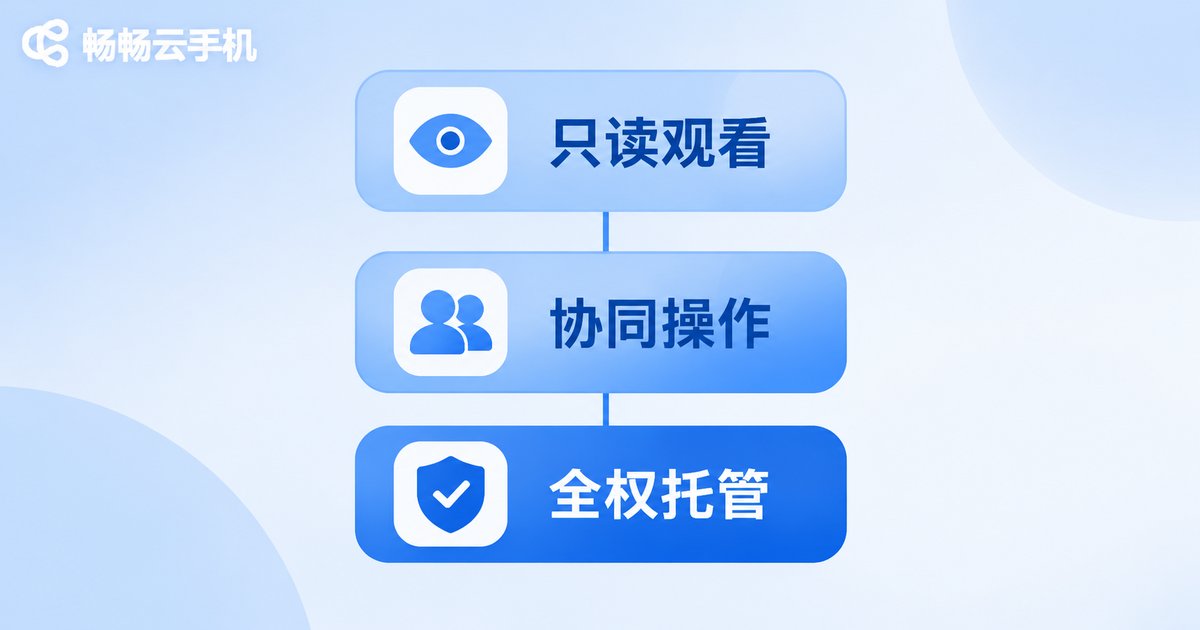
Three levels cover most needs:
- View only: the helper can watch but not tap. Ideal for diagnosis — “just show me exactly what error appears”. Lowest risk.
- Collaborative operation: the helper can tap and type on the screen, but critical actions (payments, deletions, authorizations) require confirmation from the device owner. Suits configuration and walkthrough tasks.
- Full handover: the helper completes the whole flow independently while the owner can interrupt at any moment. Reserve this for high-trust, time-critical situations and keep it short.
One underrated detail: make the pointer visible. Every tap the helper makes should be visible to the other person, instead of the screen jumping around on its own. It is a small design choice that decides whether the person being helped feels confident or nervous.
How the three common approaches compare
| Approach | What it can do | Main limitation |
|---|---|---|
| Phone or text guidance | Always available, no preparation needed | No visibility of the screen; high communication cost and rising confusion |
| Video call pointed at the device | Rough view of the screen, can demonstrate | Blurry, shaky, obstructed; small text and details are unreadable |
| Cloud phone remote assistance | Shared screen + tiered collaborative operation + interruptible sessions | Requires stable networks on both sides and a pre-agreed permission scope |
Security reminders: five things people skip
Remote assistance inherently means handing a screen to someone else, so security reminders are not fine print — they are part of the procedure. Build these five habits in:
- Confirm identity before granting access: when you receive a “can you help me with this” request, call back through another channel to rule out impersonation.
- Apply least privilege: if view-only solves it, do not enable collaborative operation; if a single app is enough, do not hand over the whole device.
- Keep sessions visible and interruptible: the person being helped must always see the “sharing now” indicator and be able to end the session with one tap, without asking anyone for help.
- Cover sensitive content proactively: close unrelated apps before starting and leave payment, banking and gallery screens, so nothing private is exposed by accident.
- Revoke access afterwards: disconnect and withdraw temporary permissions as soon as the task is done — do not leave them “for next time”.
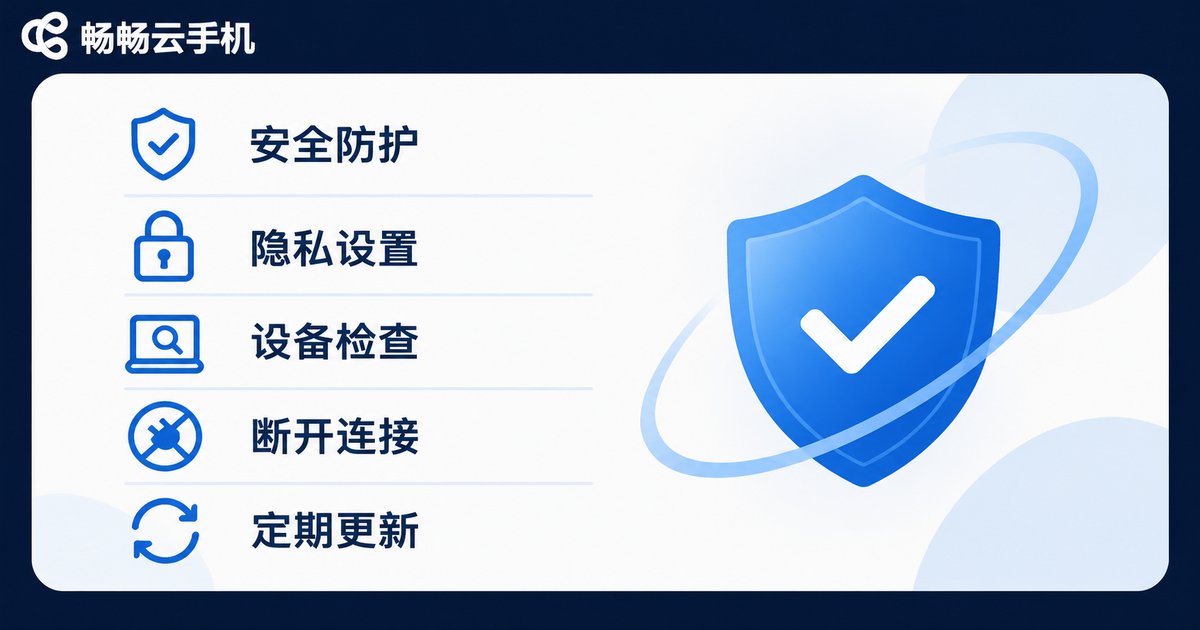
Turn these into fixed steps and remote assistance finally moves from emergency measure to everyday tool.
Where ccloudphone fits in
畅畅云手机 (ccloudphone) provides virtual phone instances that run in the cloud: apps are installed, signed in and executed on the cloud side, and users connect through a client. That structure suits remote assistance well — both sides connect to one device instead of two handsets with different caches, so the screen matches by default and there is no back-and-forth about “what do you see on your side”.
At the same time, the cloud instance stays separate from the user's own physical phone. Demonstrations, tests and temporary sign-ins during an assistance session can all live inside that cloud device, so nobody has to hand over a personal handset. For teams that need long-running hosting or several people taking over the same device in sequence, this also makes permissions and records easier to keep straight. For exact capabilities and usage, refer to the official ccloudphone documentation.
FAQ
Q: Can the other person see my private data during remote assistance?
A: It depends on the permission scope. Close unrelated apps before starting, leave payment and gallery screens, and prefer view-only mode where possible. Disconnect as soon as the session ends.
Q: Do both sides need to install the same software for cloud phone remote assistance?
A: Usually not. The helper connects to the cloud device through a client or a browser, while the person being helped follows the official onboarding steps. Check the latest guidance on the ccloudphone website for the exact process.
Q: Can collaborative operation cause mistakes?
A: Tiered permissions control this. Use view-only for diagnosis, collaborative operation with confirmation for critical actions during configuration, and reserve full handover for short, high-trust, time-critical cases.
Q: Does it still work on a poor network?
A: The cloud phone stream adapts its quality to the network, prioritizing responsiveness over sharpness when bandwidth is limited. Save important operations for a stable connection.
Q: Which scenarios benefit most?
A: Walking an older relative through phone settings, demonstrating an app flow to a remote colleague, cross-device testing and acceptance, unified inspection of store or team devices, and any task where several people take over the same device in turn.


