

Cloud Phone for Meetings: Screen Sharing, Audio Setup, and Network Prep
Why meetings are a natural fit for cloud phones
In many meetings you only have a phone at hand. You need to demo a mini app to a client, walk a colleague through a setting, or explain an app flow in a review. But the phone screen simply will not share properly. Pointing a camera at the display gives you glare and blur, and screen mirroring tools often refuse to connect.
A cloud phone puts a complete Android device in the cloud. You connect to it from your own phone, tablet, or computer and operate it there. When it is time to present, you share the cloud phone screen into the meeting. Your personal phone stays untouched, and the device you are already using for the call is not disturbed. For anyone who runs online demos regularly, it works like a clean demo device that is always with you.
Screen sharing: getting the cloud phone onto the meeting screen
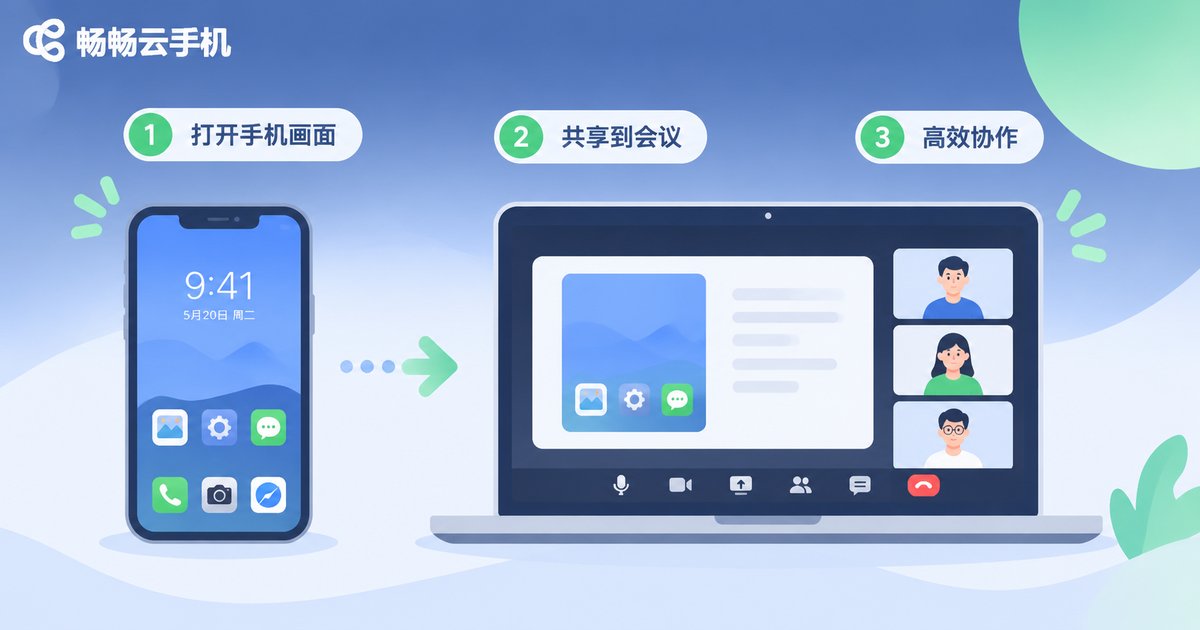
Screen sharing is where meetings break down most often. The usual failures are a black shared screen, a blurry mess, or a share that drops halfway through. Follow this order and you avoid most of them.
- Connect before you join: connect to the cloud phone, confirm the screen is already smooth locally, then join the meeting and start sharing.
- Share a window, not the desktop: share the cloud phone client window so chat panels, email, and unrelated tabs stay out of frame.
- Match the resolution: set the cloud phone display to the same level as the meeting share (typically 720p or 1080p) so it does not turn soft when scaled up.
- Do not multitask during the share: avoid opening several apps or uploading large files mid-demo, or the stream will start dropping frames.
Quick tip: before the real presentation, watch your own share preview inside the meeting. Phone interfaces use small text by default, so bump the cloud phone system font up one step first. It makes a visible difference on the other side.
Audio setup: do not let echo ruin the call
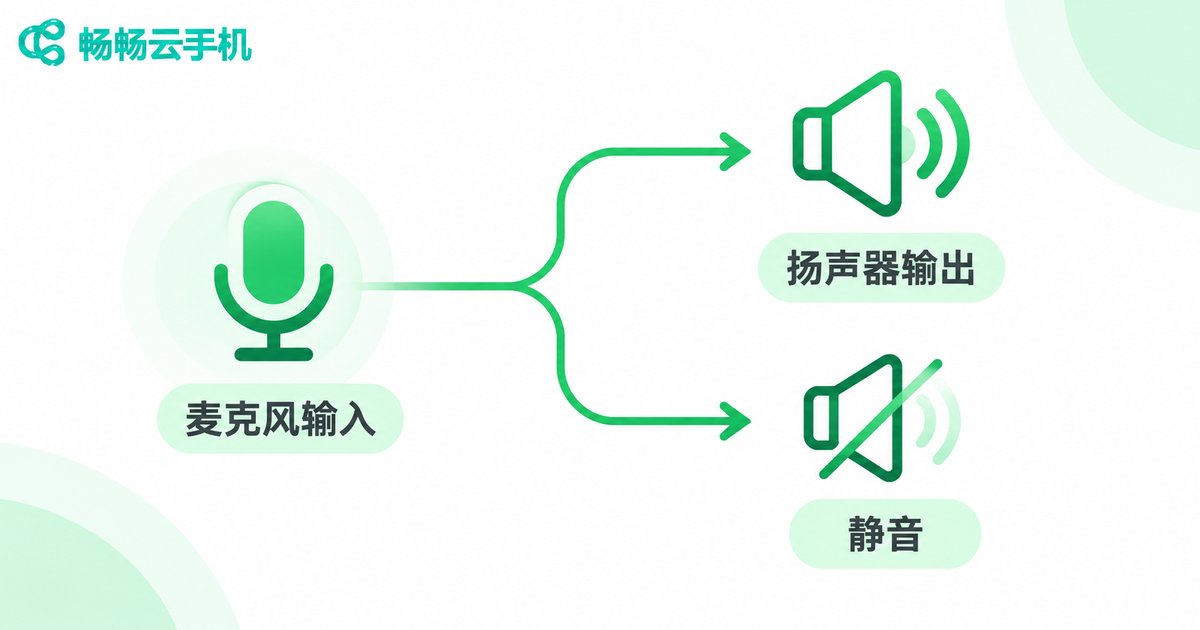
When you share a screen, audio often gets shared along with it. If the meeting room speakers are also playing out loud, you create an echo loop and everyone hears themselves talk. The fix is simple: decide first whether this session needs sound at all.
- Visual demo only: turn off audio sharing and just use your local microphone. Simplest and most reliable.
- Sound matters: enable device audio sharing and mute your local microphone so only the cloud phone audio path stays open.
- Test it beforehand: play a short clip on the cloud phone and confirm which path the sound takes, rather than discovering it mid-meeting.
- Headphones are safest: when the presenter wears headphones, most echo paths are cut immediately.
One more note: audio from the cloud phone follows the device you are connected from by default. If the sound stutters, suspect your local network before you start swapping equipment.
Network prep: five minutes before the call
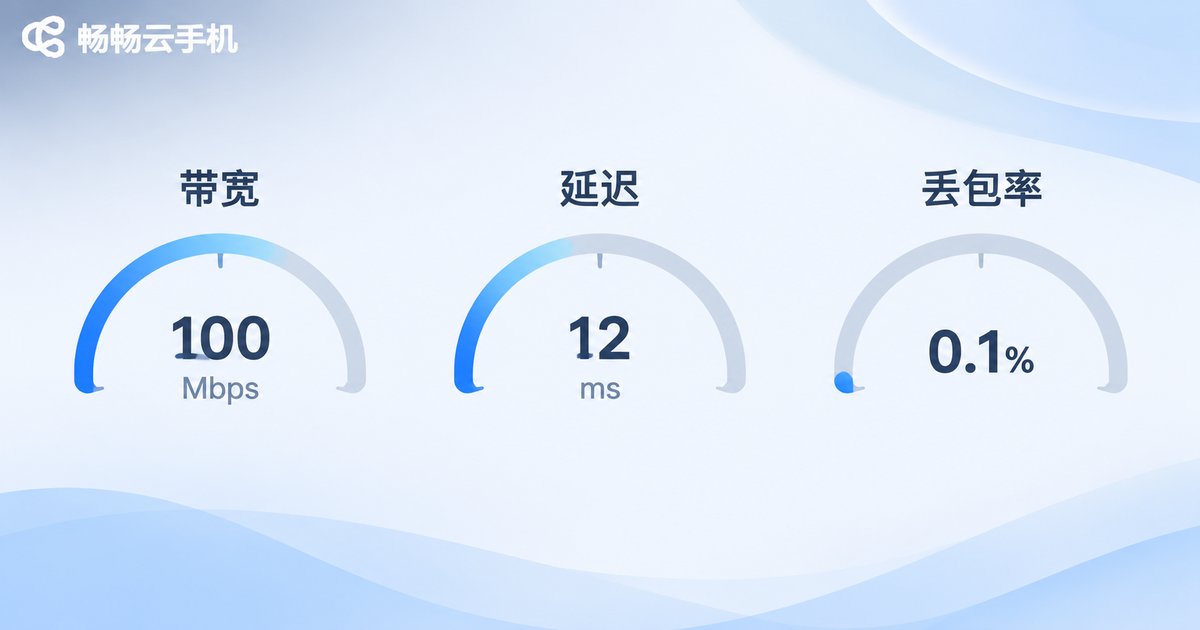
A cloud phone streams its screen in real time, so network quality directly decides how clear and responsive it feels. Five minutes of checks saves half an hour of awkwardness later.
| Check | Target | Notes |
|---|---|---|
| Upload bandwidth | ≥ 2 Mbps | Enough for a 720p shared screen |
| Upload bandwidth (1080p) | ≥ 4 Mbps | Safer for detail-heavy interfaces |
| Latency | < 100 ms | Above 150 ms the lag becomes obvious |
| Packet loss | < 1% | Higher loss causes artifacts and stutter |
The easiest latency test is a single ping from your computer or phone. Just read the summary line at the end:
ping -c 10 your-meeting-server.comIf latency is high, move to 5GHz Wi-Fi or plug in an Ethernet cable. If you are on a phone hotspot, put the hotspot where reception is good and turn off background updates and cloud drive sync. Those background tasks eat far more upload bandwidth than people expect.
A pre-meeting checklist you can copy
- Log in to the cloud phone 10 minutes early and open the target page in the app you plan to demo.
- Increase the cloud phone system font size, enable do-not-disturb, and silence notifications and incoming call pop-ups.
- Do one test share inside the meeting and check clarity plus the audio path.
- Run a latency test and switch networks if needed.
- Have a fallback: if sharing fails, switch to screenshots or a screen recording instead of troubleshooting live.
What it is like to run a meeting on ccloudphone
ccloudphone is an Android device running in the cloud. You connect to it through a web page or a client app, and both the screen and the data live in the cloud. For meeting scenarios, a few traits are genuinely useful:
- Always on: the cloud phone keeps running in the cloud, so you do not have to leave a local phone open waiting for it to load.
- Multiple endpoints: connect from a computer, tablet, or phone. Sharing a window from a computer is the smoother option during a call.
- A clean environment: only the apps you need for the demo live inside the cloud phone, with no private chats or notifications stealing the frame.
- State persists: demo pages and login states stay in the cloud and are ready for the next session.
If you regularly need to show people something on a phone, start by checking the ccloudphone official site for the current connection options and available features, then decide whether it belongs in your meeting workflow.
FAQ
Q: The other side only sees a black screen when I share the cloud phone. What now?
You are usually sharing the wrong target. Change the share target to the cloud phone client window and make sure the client is not minimized or sitting on another desktop.
Q: Can the sound inside the cloud phone be shared into the meeting?
Most meeting apps support sharing device audio. Once you enable it, mute your local microphone so the two audio paths do not stack up and create echo.
Q: Will a phone hotspot make the cloud phone lag?
It depends on signal quality. A good 5G signal is usually enough. If measured latency goes above 150 ms, move to Wi-Fi or a wired connection.
Q: How much bandwidth does a cloud phone meeting need?
For visuals alone, roughly 2 Mbps upload handles a 720p share. For text-dense interfaces, aim for 4 Mbps upload or more.
Q: Does meeting content stay on the cloud phone?
The cloud phone is a separate environment, so demo apps and login states stay inside it. If sensitive information is involved, simply sign out inside the cloud phone after the demo.


