

Using Feishu on a Cloud Phone: Meetings, Docs and Message Sync
Why put Feishu on a cloud phone
A cloud phone is essentially an Android device that runs in the cloud: the system, apps and data all live on a server, and you control it remotely from your own phone or computer. Once Feishu is installed there, the biggest change is that it never goes offline. Even if your phone is switched off, you step out during a meeting, or you close your laptop at the end of the day, Feishu on the cloud phone keeps running. Messages are not missed and meetings can be joined at any time.
It is especially useful for a few groups of people: sales staff who are constantly on the move with only one device; managers who need separate accounts for different teams; and users whose phones are short on storage and who would rather not install too many office apps.
Step one: install and sign in to Feishu on the cloud phone
The process is almost identical to installing an app on a real phone, and takes four steps:
- Open the ccloudphone client and enter your cloud phone instance;
- Search for Feishu in the cloud phone app store and tap install;
- Open Feishu and sign in with your phone number or enterprise account;
- Allow the four permissions when prompted: notifications, microphone, camera and storage. Without them, meetings and files will misbehave.
Once installed, do two things right away: turn on new message notifications inside Feishu settings, and add Feishu to the background whitelist in the cloud phone system settings so it is not cleared out. Getting these two steps right saves a lot of trouble later.
Meetings: join and start Feishu video meetings from the cloud phone
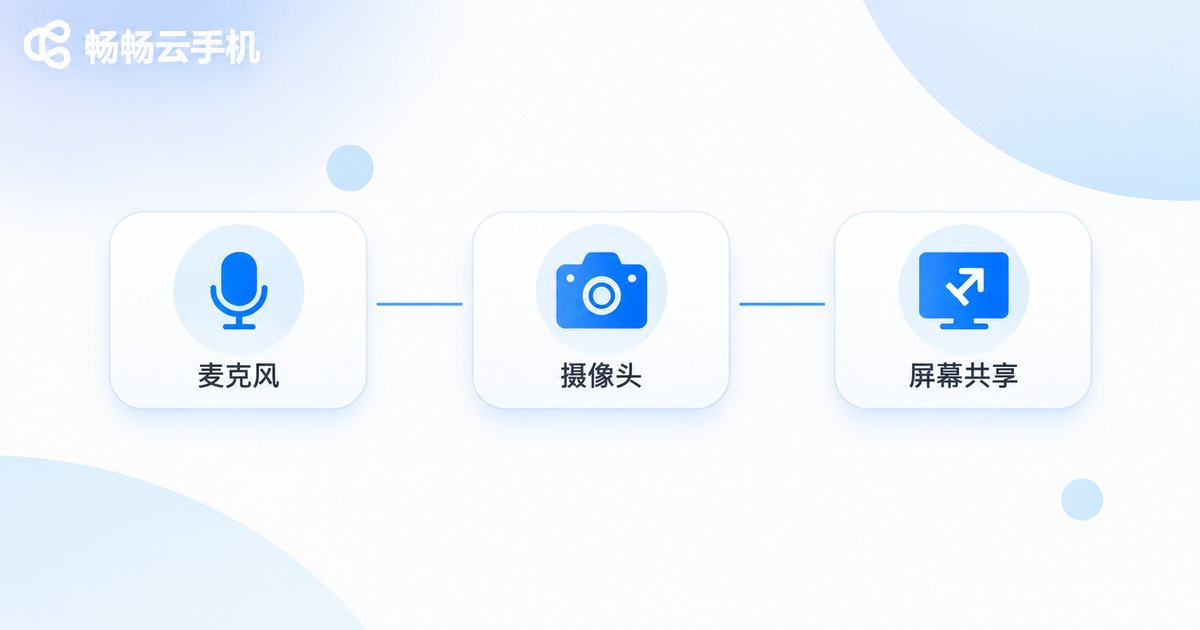
There are usually two ways to join: tap the meeting card in a chat window, or enter the meeting ID on the meeting page. Inside a meeting, get familiar with a few buttons first:
- Microphone: join muted and unmute when you need to speak;
- Camera: the cloud phone's virtual camera is off by default, turn it on when needed;
- Screen sharing: share the cloud phone desktop, which is very handy for demonstrating flows inside an app;
- Chat and raise hand: ask questions in text when you cannot speak without interrupting others.
One thing to know in advance: the cloud phone renders the screen in the cloud and then streams it to you, so network quality directly determines how smooth the meeting feels. Use a stable Wi-Fi or 4G/5G connection, and run the device check in the meeting settings before you start to test audio and network.
For long meetings, a pair of earphones makes a noticeable difference: echo and background noise drop, and the other side hears you more clearly.
Documents: read, edit and collaborate on Feishu docs in the cloud phone
Opening Feishu docs on a cloud phone is simple: tap a document link sent in a chat, or go to the cloud docs entry point and find the file under recent, starred or shared.
Working with documents on a cloud phone should be positioned as reading plus light editing:
- Reading, commenting and @mentioning colleagues work perfectly;
- Fixing typos, adjusting paragraphs and ticking off task lists are all comfortable;
- Complex table layouts and heavy image insertion are better done on a desktop, where both speed and precision are higher.
A small tip: star the documents you use most, and next time you can open them in two taps on the cloud phone instead of scrolling through folders. Feishu docs save in real time, so there is no save button to press; close and reopen and your content is still there.
Message sync: keeping the cloud phone consistent with your other devices
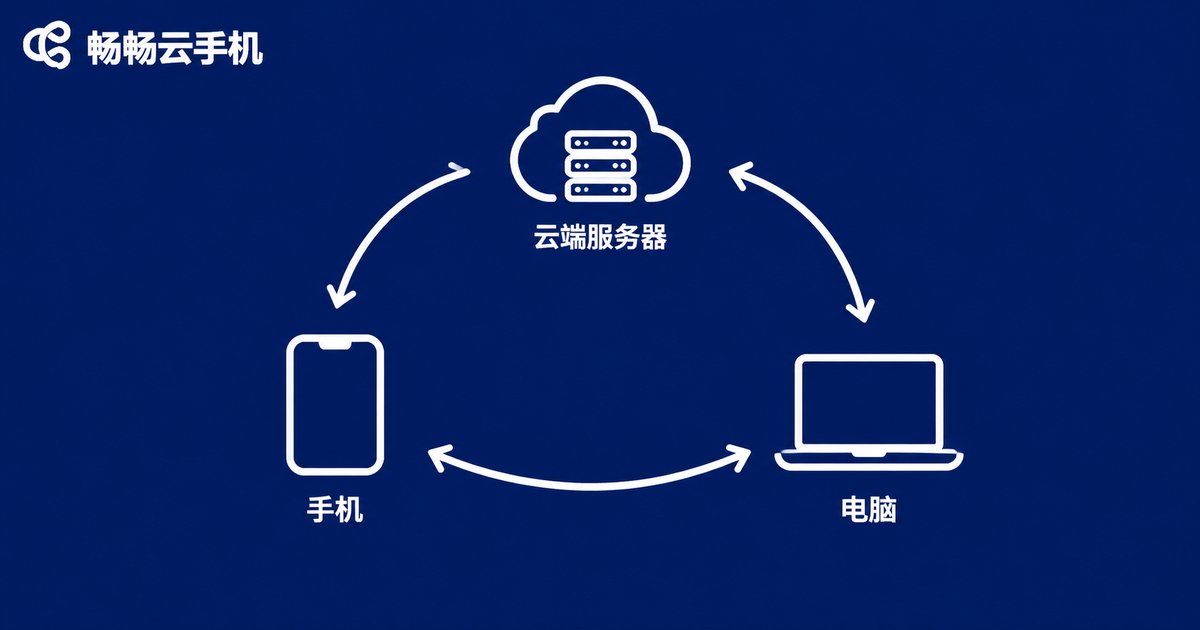
Feishu is built for multi-device sync: sign in with the same account on phone, computer and web, and your chat history stays in the cloud, so switching devices loses nothing. The value of the cloud phone is that it gives you one more device that is always online, watching messages for you.
Think of it as a message duty device. Three common ways to use it:
- During the day, focus on your own work while the cloud phone holds group chats; review the important items later in one pass;
- Before bed, set your local Feishu to do not disturb while the cloud phone keeps receiving; check unread items the next morning;
- Sign different team accounts into separate cloud phone instances so they never interfere with each other and switching is fast.
To keep sync stable, watch three things: keep the cloud phone running, do not turn off Feishu notification permissions, and avoid repeatedly switching the same account between many locations. Do these and messages rarely arrive late or go missing.
Local Feishu vs Feishu on a cloud phone
| Item | Feishu on your own device | Feishu on a cloud phone |
|---|---|---|
| Online after device shutdown | Offline | Stays online |
| Multiple accounts at once | Requires frequent switching | Separate instances |
| Storage and battery usage | Higher | Lower |
| Meeting smoothness | Depends on device performance | Depends on network quality |
| Complex document editing | Full experience | Best for reading and light edits |
As the table shows, the two are not replacements for each other: leave heavy editing and presenting to your local device, and hand message duty and instant meeting access to the cloud phone. Using both together is the most efficient setup.
Recommended: keep Feishu always on with ccloudphone
If you want Feishu to truly never drop offline, you can hand that job to ccloudphone. It provides independent Android instances in the cloud that you control remotely through a client. Apps keep running in the cloud even when your own device is switched off. Multiple instances can run in parallel so work and team accounts stay separate, and data lives in the cloud, so signing in from another device lets you carry on.
To learn about instance configurations and how to get started, visit the ccloudphone official website and pick an instance that matches how heavily you plan to use it.
FAQ
Q: Will Feishu on a cloud phone receive message notifications?
Yes, as long as new message notifications are enabled in Feishu, notification permission is allowed in the cloud phone system settings, and Feishu is on the background whitelist. With all three in place, alerts arrive normally.
Q: Does a Feishu video meeting lag on a cloud phone?
Smoothness depends mainly on your network rather than local hardware. With a stable connection it works well; during network fluctuations you may see delayed video or choppy audio, so run a device check before the meeting.
Q: Will using the same account on the cloud phone and my own device conflict?
No. Feishu supports multiple simultaneous logins and syncs history through the cloud. The cloud phone is better for long-term standby, while your own device is better for deep editing and presenting.
Q: Does the cloud phone keep running after I close the client?
Yes. The cloud phone runs on a cloud server; closing the local client only disconnects the remote screen. The app keeps receiving messages, and you can see everything that happened once you re-enter the instance.
Q: Can I lose a document I edit on the cloud phone?
Feishu docs save in real time, so under normal conditions nothing is lost. To be safe, keep a stable connection when editing long content and copy an important version before making major changes.


