
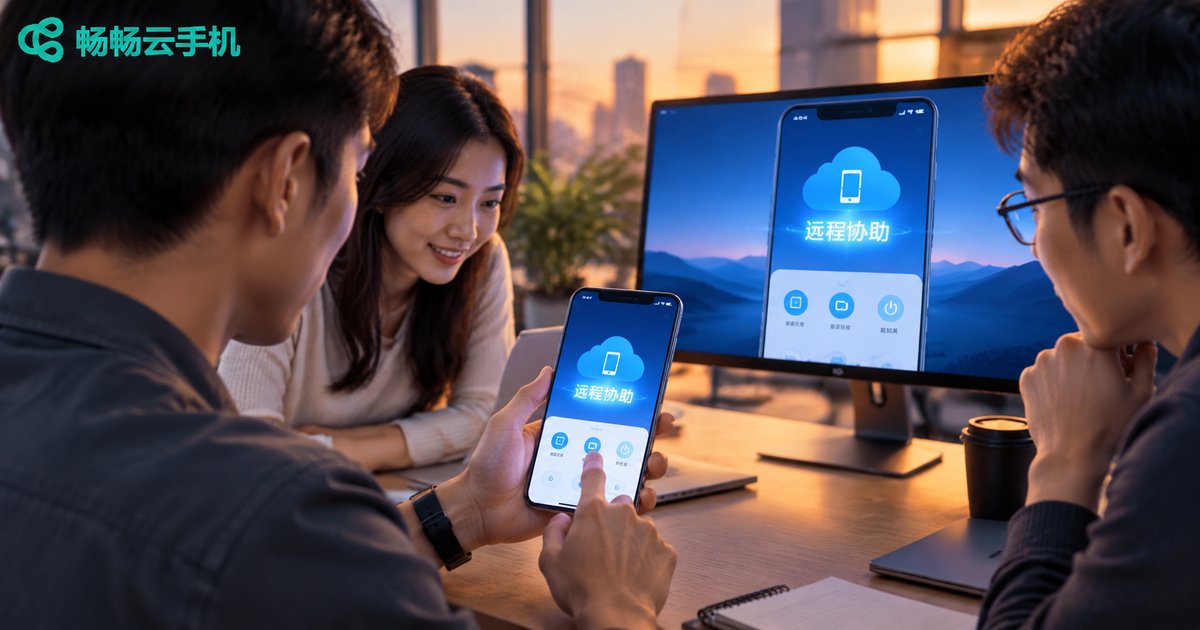
Cloud Phone Remote Assistance Tutorial: Team Collaboration, Screen Sharing, and Permission Assignment
What Is Cloud Phone Remote Assistance?
Cloud phone remote assistance means using an Android device that runs in the cloud, so team members can view and operate the same phone without meeting in person or interrupting each other. Traditional remote assistance usually requires the other party to install software, tap confirm, or even hand over account credentials. A cloud phone, however, stays online around the clock in the data center—anyone with permission can connect at any time, making the whole process smoother and safer.
Why Cloud Phones Work Better for Team Collaboration
Start with a quick comparison:
| Item | Traditional Remote Assistance | Cloud Phone Remote Assistance |
|---|---|---|
| Cooperation required | The other party must install software and confirm | Anyone with permission can connect directly |
| Device availability | Depends on the other party staying online | The cloud device runs 24/7 |
| Multi-user collaboration | Usually one-to-one | Multiple members collaborate by role |
| Account security | Credentials can easily leak | Accounts stay in the cloud, never on local devices |
In short, a cloud phone decouples people from devices: game guild management, multi-account social media operations, and batch app testing can all be handed off between members in different locations, while accounts and data remain in the cloud.
Screen Sharing: Make Assistance Visible
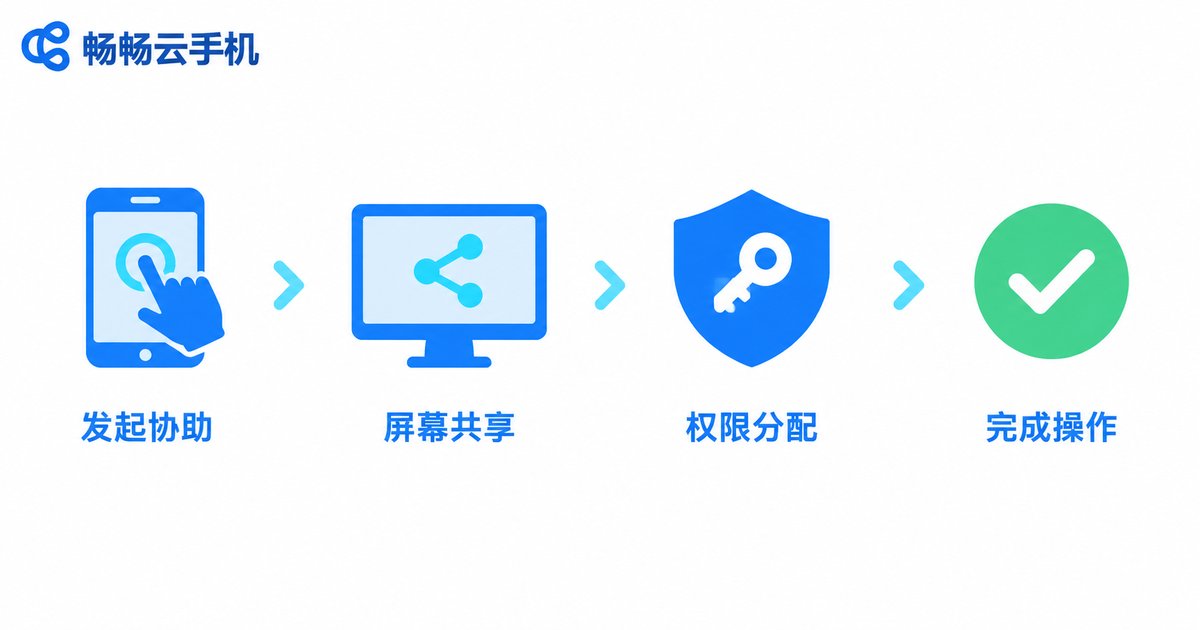
Screen sharing is the first step of remote assistance. A typical workflow looks like this:
1. The admin selects the target cloud phone in the console and clicks Screen Share;
2. Send the sharing invitation to the member who needs help;
3. The member opens it on a PC or phone and sees the cloud phone screen in real time;
4. The presenter operates while talking, and both sides watch the same screen—no more guessing which button the other person means.
Because the stream comes from a cloud device rather than a personal phone, no private data is exposed. Simply end the session when the assistance is done.
Permission Assignment: Everyone Does Only What They Should
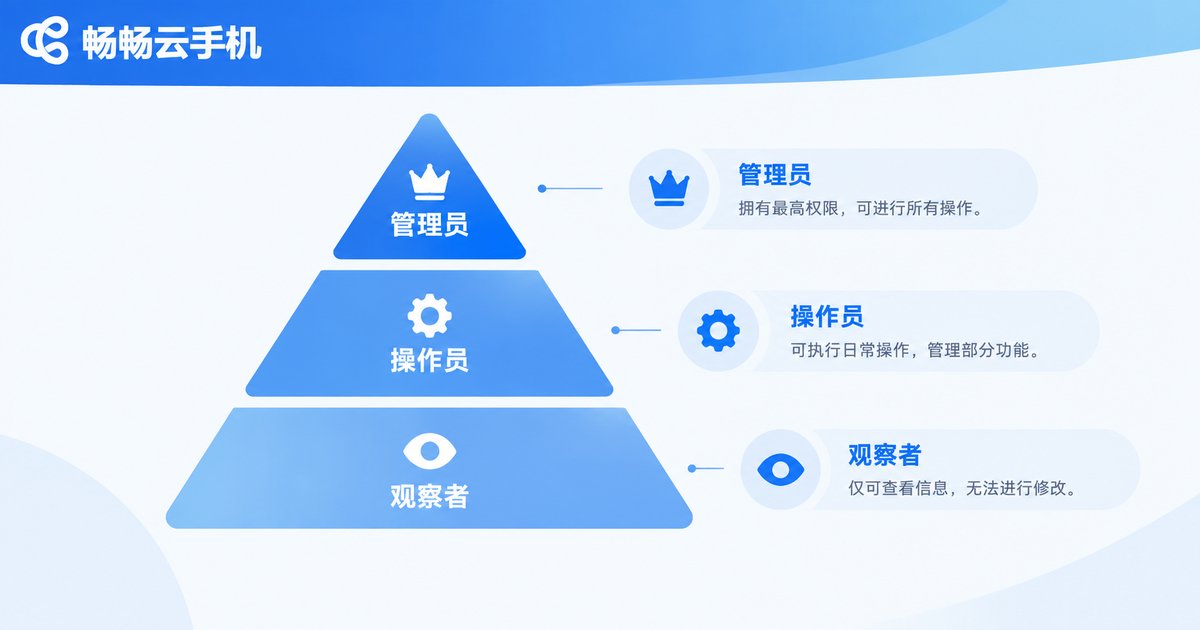
Permission management is the core of team collaboration. We recommend role-based access:
| Role | Typical Permissions | Suitable For |
|---|---|---|
| Admin | Assign permissions, add or remove devices, view operation logs | Team leaders |
| Operator | Install apps and perform daily tasks on authorized devices | Frontline members |
| Viewer | View the screen only, no control | New-hire training, external consultants |
Three practical principles: least privilege (grant only what the task requires), temporary authorization (revoke promptly when the task ends), and traceability (keep records of important operations).
Hands-On Tutorial: Five Steps to Complete Remote Assistance
1. Prepare: The admin logs into the ccloudphone console and confirms the target cloud phone is online;
2. Authorize: Assign proper permissions to the assisting member and define the scope;
3. Connect: The member signs in with their own account, opens the authorized cloud phone, and starts screen sharing;
4. Assist: Both parties work on the same screen; hand over control by adjusting permissions whenever needed;
5. Wrap up: End sharing, revoke temporary permissions, and verify that apps are running normally.
Why Choose ccloudphone for Team Collaboration
ccloudphone provides Android devices running in the cloud, supporting remote access anytime, anywhere, unified multi-device management, and flexible member collaboration—ideal for teams that need multiple people managing cloud devices together. Visit the official ccloudphone website for more feature details and choose a plan that fits your team size.
FAQ
Q: Can several people use one cloud phone at the same time?
Yes. With permission assignment, multiple members can manage the same cloud phone by role—for example, one person operating while others observe—avoiding the risk of sharing account credentials.
Q: Will my personal phone content be visible during remote assistance?
No. Screen sharing displays the cloud device only, fully isolated from any personal phone. Just close the session when finished.
Q: How do I revoke temporary permissions after a task?
The admin can adjust or remove member permissions in the console. Make it a habit to revoke access as soon as a task ends, keeping permissions minimal.
Q: What scenarios suit cloud phone remote assistance?
Common cases include multi-account game guild management, social media matrix operations, batch app testing, and demo training—any scenario where several people share cloud devices.


