
How to Record and Replay Operations on a Cloud Phone? A Practical Tutorial on Script Recording and Automated Execution
What Is Operation Recording and Replay on a Cloud Phone?
Operation recording captures every tap, swipe, text input, and wait on your cloud phone and turns them into a reusable operation script. Replay means the cloud phone executes that script, reproducing your actions exactly as recorded. Think of it as recording a video of your phone—except what gets captured is not footage, but a precise sequence of commands.
Setting up automation on a physical phone often means wrestling with complicated tools and risking system instability. A cloud phone is different: it runs on remote servers and naturally supports multiple instances, batch management, and 24/7 uptime. Combined with script recording and automated execution, an operation recorded once can be dispatched to many cloud phones at the same time, handing repetitive work entirely over to machines.
Which Scenarios Benefit Most from Script Automation?
Script recording is not just for tech enthusiasts. The three scenarios below apply to almost everyone:
Daily game tasks: check-ins, stamina collection, routine dungeons, and material farming are fixed flows. Record once, and they complete themselves every day.
App compatibility testing: developers repeat the same operations across many devices to verify features. Script replay dramatically shortens test cycles.
Routine account operations: community check-ins, content publishing, and data reviews can be scheduled to run automatically.
| Comparison | Manual Operation | Script Recording + Automation |
|---|---|---|
| Initial investment | None | One 10-30 minute recording session |
| Daily time cost | Repeated effort every day | Nearly zero |
| Multi-device parallelism | One device at a time | Many devices simultaneously |
| Error rate | Fatigue leads to missed steps | Identical execution every time |
| Scheduling flexibility | Requires a human present | Runs at any scheduled time |
How Script Recording Works
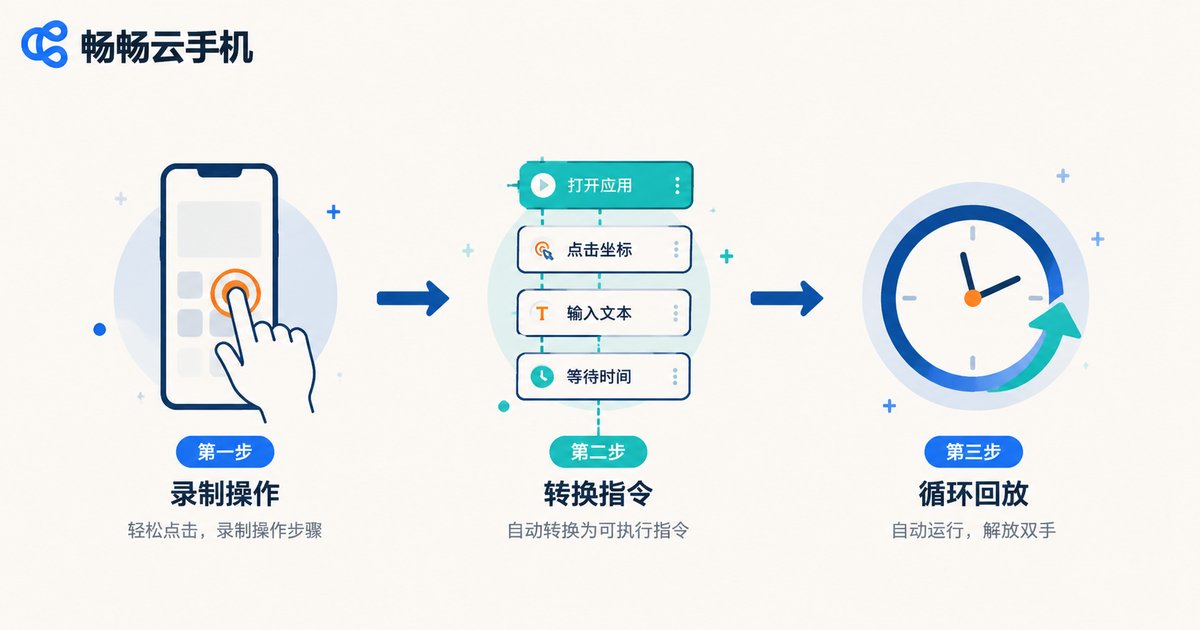
Script recording is essentially a three-stage process of capture, convert, and replay:
1. Capture: once recording starts, the system monitors every touch on the cloud phone screen, logging coordinates, action types, and time intervals.
2. Convert: captured actions are translated into structured script commands such as “tap (540, 1200),” “wait 3 seconds,” or “input text.”
3. Replay: during execution, the cloud phone restores each action in order, and intervals can be adjusted as needed.
A recorded script looks roughly like this:
tap(540, 1200)              // tap the check-in button
wait(3)                     // wait 3 seconds for the page to load
swipe(540, 1600, 540, 600)  // swipe up to browse content
input('daily check-in')     // fill text into the input box
Once you understand this principle, it becomes clear why pacing matters during recording—the script faithfully reproduces every operation, including unnecessary taps.
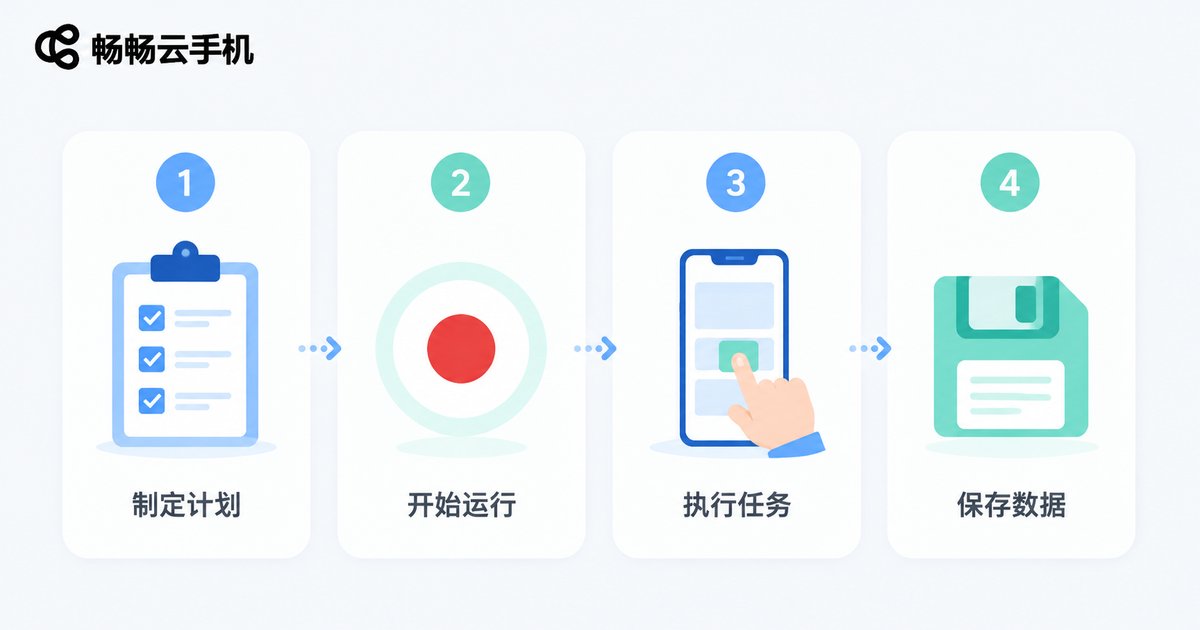
Step-by-Step Tutorial: Record an Operation in Four Steps
Step 1: Plan and rehearse the flow. Before recording, walk through the entire flow manually on the cloud phone and confirm the order and position of each step. Trim the flow down to only the necessary actions—the fewer taps, the better.
Step 2: Start recording. Open the operation recording (or automation) entry in your cloud phone management console and start recording. Every touch on the cloud phone screen will now be logged.
Step 3: Execute the flow completely. Follow your rehearsed flow calmly from start to finish. Keep natural pauses between actions, avoid rapid tapping, and do not exit or switch screens midway.
Step 4: Stop recording and save the script. Stop recording when finished and give the script a clear name (for example, “Daily Check-in - Game A”) for easy management and batch deployment.
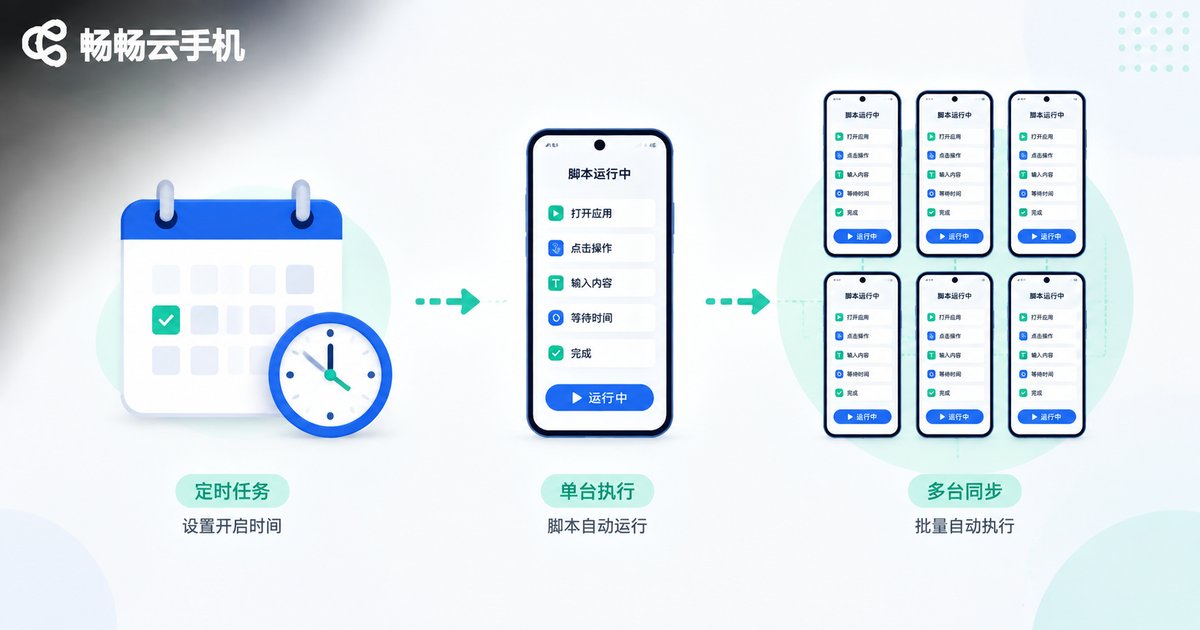
How to Replay Scripts and Set Up Automated Execution
Single replay: verify the script first. After saving, replay the script once on a single cloud phone and watch each step closely. If a tap lands in the wrong place, fix it and re-record that segment.
Scheduled execution: run scripts at set times. Most cloud phone platforms let you attach an execution plan to a script, such as “run once every day at 8 a.m.” Once set, the cloud phone completes the task on schedule even when you are away.
Loops and batches: run on multiple cloud phones simultaneously. Dispatch the script to a device group so multiple cloud phones run the same operations together. Combined with loop settings, the script can repeat rounds automatically.
Five Practical Tips for More Stable Scripts
1. Rehearse before recording: walk through the flow once to reduce hesitation and mistakes during the actual recording.
2. Keep a steady pace: leave natural gaps between actions; rapid tapping can cause inaccurate replay.
3. Keep the interface state consistent: start from the same screen in both recording and replay, such as the app home page.
4. Add wait times: loading speeds vary. Adding waits before and after key steps helps the script cope with fluctuations.
5. Review scripts regularly: app updates can change interfaces. Replay periodically and re-record when something breaks.
Why Choose ChangChang Cloud Phone for Automation?
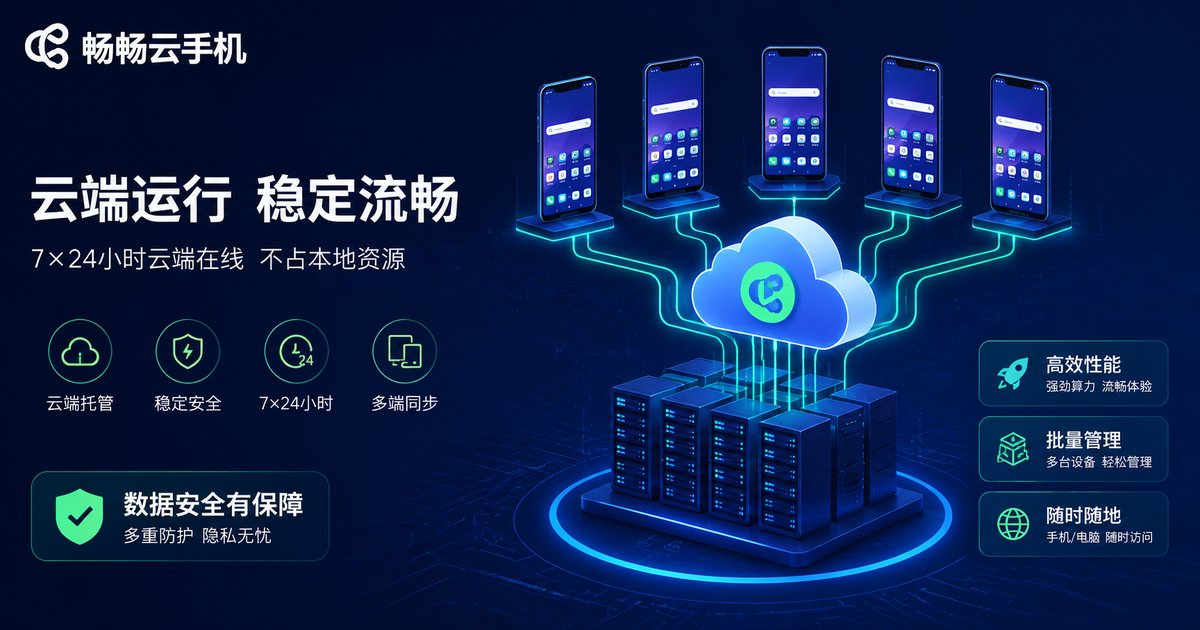
ChangChang Cloud Phone (ccloudphone) runs your devices on remote servers, keeping them online 24/7 without consuming local resources—ideal for long-running, unattended automation tasks. With device group management, you can dispatch recorded scripts to multiple cloud phones for large-scale execution. Whether it is daily task delegation or batch testing, it saves remarkable amounts of time.
FAQ
Q: Do I need programming skills to record a script?
No. Operation recording is what-you-see-is-what-you-get: simply perform the flow once, and the system generates the script automatically—no coding required.
Q: Can one script run on multiple cloud phones?
Yes. As long as the resolution and interface layout are consistent, the same script can be dispatched to many devices and executed simultaneously.
Q: What if a script fails halfway through replay?
Check whether the interface at the failing step has changed (pop-ups, update prompts). Fix it and re-record that segment, or add wait times to key steps for better fault tolerance.
Q: Will scripts keep running after I close the local client?
Yes. Cloud phones run on remote servers, so even if you close the local client, the cloud device stays online and the script continues as scheduled.
Q: What should I keep in mind when using automation?
Follow the rules of the apps and platforms involved, and use automation for reasonable daily tasks and testing scenarios.


