
Can Cloud Phones Access Cameras and Microphones? A Complete Setup Guide for Local Hardware
Can Cloud Phones Actually Use Your Camera and Microphone?
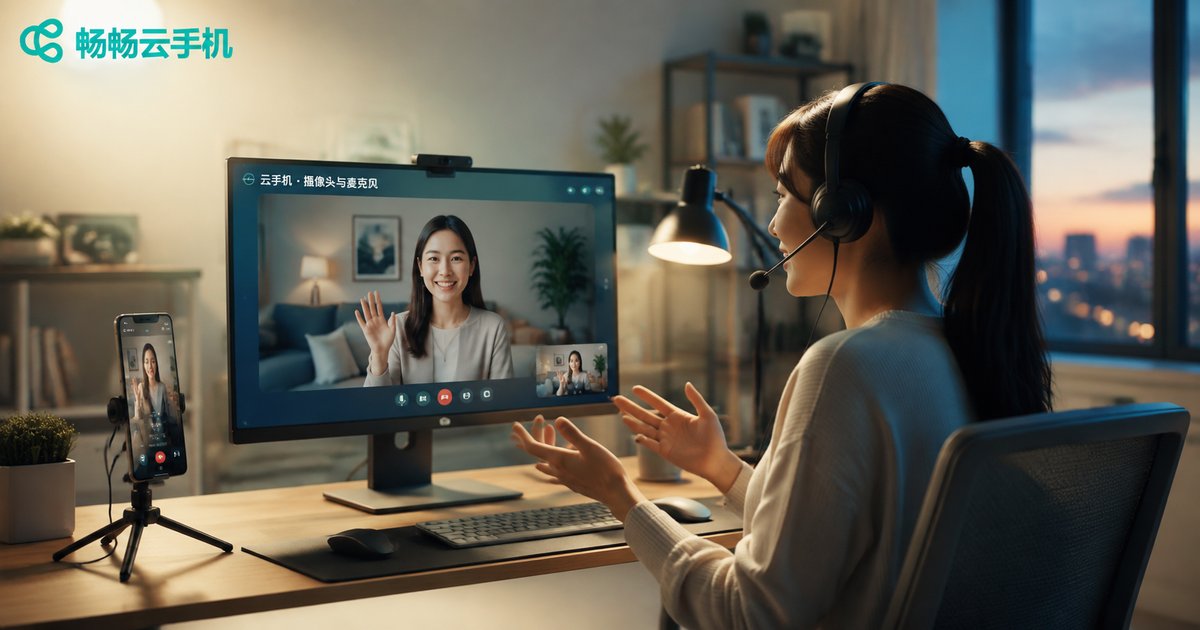
This is the question most newcomers ask: the phone system runs on a remote server, while your camera and microphone sit on your own computer or phone—can they work together across the network? The answer is yes. Mainstream cloud phone services use a technology called hardware redirection to stream your local camera feed and microphone audio to the cloud in real time. When an app inside the cloud phone requests the camera, it receives a fully functional camera and microphone.
In other words, whether you are starting a live stream, making a video call, or completing a face-verification identity check, a cloud phone can handle audio and video interaction just like a physical device.
How It Works: Hardware Redirection in Three Steps
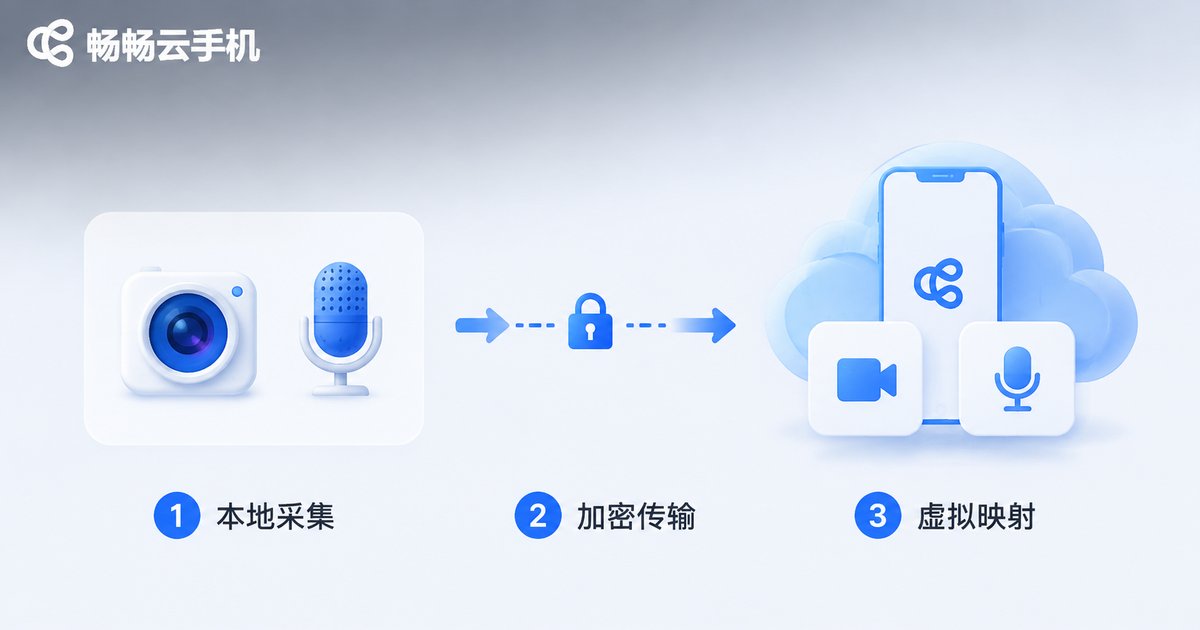
The entire process can be broken down into three steps:
Step 1: Local capture. The cloud phone client on your computer or phone calls the local camera and microphone to capture video and audio.
Step 2: Encrypted transmission. The audio-video stream is compressed and encrypted, then transmitted to the cloud server over the internet in real time.
Step 3: Virtual mapping. The cloud maps this stream to a virtual camera and virtual microphone, so apps inside the cloud phone see an ordinary Android audio-video device.
From the app's perspective, the permission request and calling flow are identical to a physical phone, which keeps compatibility intact.
Setup Guide for Every Platform
Windows / Mac Client
1. Open the cloud phone client and connect to your cloud phone;
2. Inside the cloud phone, open an app that needs the camera or microphone (for example, a live streaming or video app);
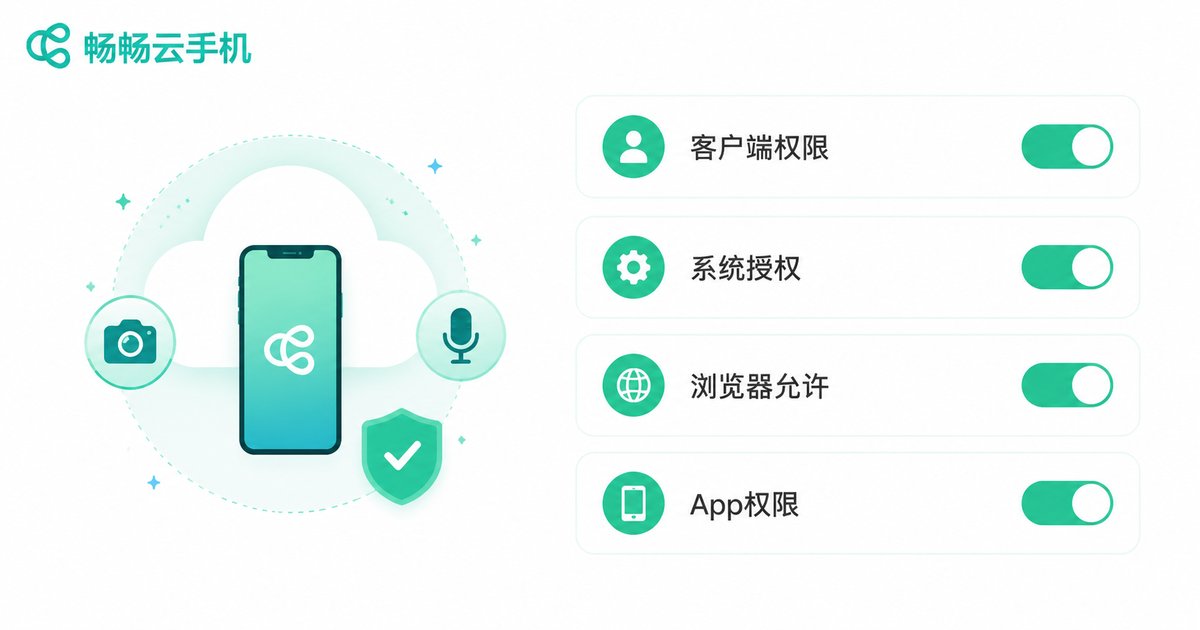
3. On first use, the client will prompt for local permission—click Allow;
4. Inside the cloud phone's Android system, grant camera and microphone permission to that app as well;
5. If it still does not work, open the client's settings panel and make sure the camera and microphone redirection switches are turned on.
Android / iOS Mobile App
1. Install the cloud phone app on your phone and sign in;
2. After connecting, the app will request local permission the first time the camera is used—tap Allow;
3. Go to your phone's system settings and confirm camera and microphone permissions are enabled for the cloud phone app;
4. Grant the permission again to the target app inside the cloud phone, and you are good to go.
Web Browser
1. Open the web version of the cloud phone in a mainstream browser such as Chrome or Edge;
2. After connecting, the browser will ask for permission the first time the camera is called;
3. Click Allow, and use the permission panel to pick the specific camera and microphone devices;
4. If no prompt appears, click the lock icon next to the address bar and manually set camera and microphone permissions to Allow.
Typical Use Cases
Live streaming and short video: When running multiple accounts on a cloud phone, starting streams, joining co-host sessions, and recording voiceovers all require a camera and microphone—hardware redirection makes it all possible in the cloud.
Video meetings and online interviews: Install a meeting app on your cloud phone and join calls with full audio and video.
Face verification and identity checks: Finance and government apps often require facial verification; the cloud phone can complete the process by calling your local camera.
Social apps and video chat: Video calling features in social apps work just as well on a cloud phone.
Troubleshooting Common Issues
| Symptom | Likely Cause | Solution |
|---|---|---|
| Black screen | Local permission not granted | Check camera permission in the client or browser |
| No sound on the other end | Microphone occupied by another program | Close the conflicting program and re-authorize |
| Laggy or blurry video | Insufficient upload bandwidth | Switch to a more stable network or lower the resolution |
| App cannot detect the camera | Outdated client version | Update to the latest client |
Why We Recommend ChangChang Cloud Phone
For scenarios that rely on audio and video interaction, ChangChang Cloud Phone (ccloudphone) is a worry-free choice. It supports calling your local camera and microphone from the client—simply connect and complete the authorization prompts, with no complicated configuration. Clients are available for both desktop and mobile, so you can manage permissions quickly wherever you are. Its cloud data centers deliver stable networking with low audio-video latency, making live streaming and video calls smoother. If you are looking for a cloud phone that supports local hardware access, visit the official ChangChang Cloud Phone website to learn more.
FAQ
Q: Does using my local camera on a cloud phone compromise my privacy?
A: The audio-video stream is only transmitted while you actively use it, and reputable providers encrypt the transmission. Grant permission only when needed and review permissions on your local device regularly.
Q: Do all apps work with the camera?
A: The vast majority of regular apps work fine. A small number of apps with strict device-environment checks may behave differently, so testing first is recommended.
Q: What are the network requirements?
A: Camera footage must be uploaded from your local device in real time, so use a network with sufficient upload bandwidth and low latency—Wi-Fi or a wired connection gives the best experience.
Q: Can I connect a USB camera or a standalone microphone?
A: Yes. As long as your computer recognizes the hardware, simply select it in the client's or browser's device picker, and the cloud phone will use the external device.
Q: Can the camera and microphone be used at the same time?
A: Yes. Both can be redirected simultaneously, so video calls with synchronized audio and video work without issues.


