
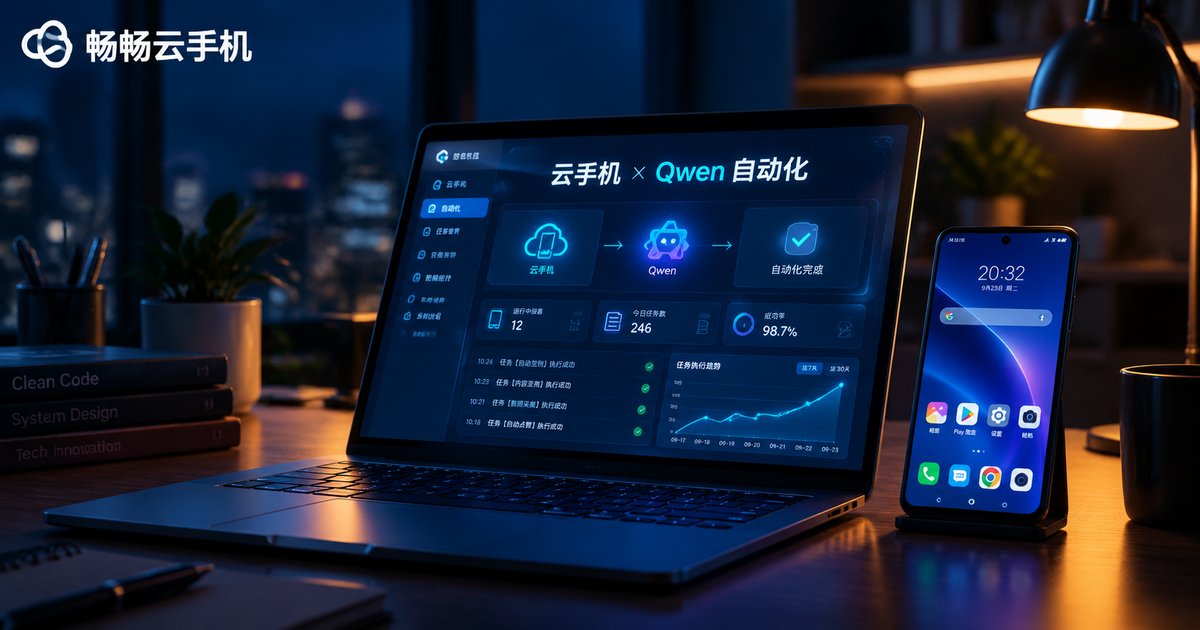
How to Use LLM-Driven Automation on Cloud Phones! Qwen Integration Tutorial
What Is LLM-Driven Cloud Phone Automation?
Traditional automation scripts follow a fixed playbook: pre-recorded taps and coordinates, replayed mechanically. The moment an app updates its interface or an unexpected popup appears, the script breaks. LLM-driven automation works differently — the AI actually looks at the screen, understands what it sees, and decides the next action like a human would. Combining a cloud phone with the Qwen large language model gives you eyes (screenshots), a brain (LLM decisions), and hands (automated taps) running in the cloud, working unattended 24/7.
In short, the whole system is one closed loop:
screenshot → send to Qwen → get an action → execute on the cloud phone → screenshot again → repeat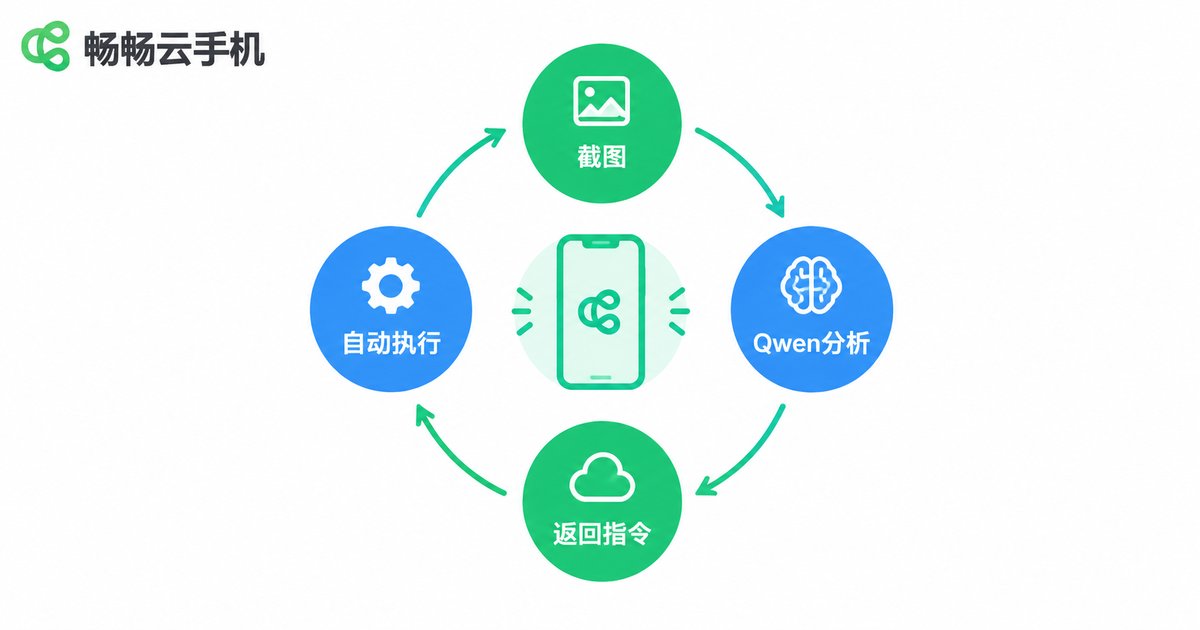
Why Run LLM Automation on a Cloud Phone?
Why not just use your own handset? Four solid reasons:
1. Your real device stays free: automation tasks run for hours on end; a cloud phone handles them in the datacenter while your daily driver stays yours.
2. Always on: no battery drain, no random reboots, no home Wi-Fi drops — cloud instances keep running overnight.
3. Scale by adding instances: one cloud phone is a worker; a dozen is a workshop running the same script in parallel.
4. Clean, resettable environments: messed up the environment during testing? Spin up a fresh instance.
| Dimension | Traditional macro scripts | LLM-driven automation |
|---|---|---|
| UI changes | Coordinates break, script dies | AI reads the screen and adapts |
| Unexpected popups | Script gets stuck | Recognized and handled |
| Learning curve | Recording, coordinate hunting | Basic Python is enough |
| Where it runs | Local physical phone | Cloud phone, scales on demand |
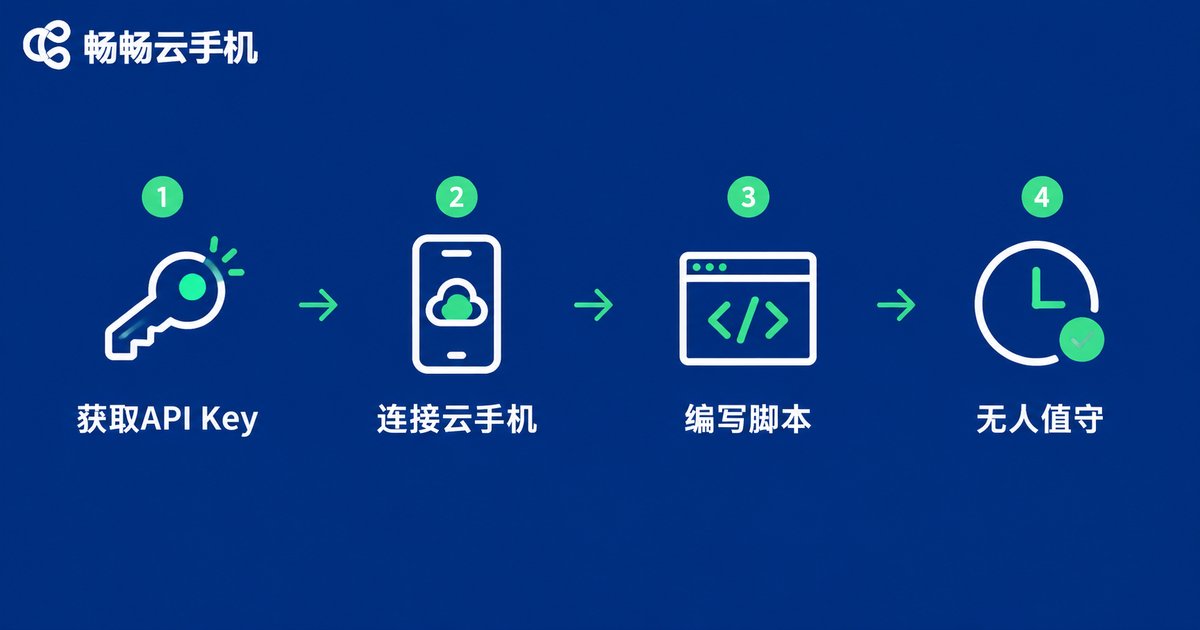
Prerequisites: Three Things
1. A ccloudphone instance. Sign up at ccloudphone and provision a cloud phone. Check the console or the official help docs for its remote debugging (ADB) entry — that is the channel your script will use to control the device.
2. A Qwen API key. Register on the Qwen open platform and create an API key. Enable access to both qwen-plus (text decisions) and qwen-vl-plus (screen understanding).
3. A computer or server with Python. The script is lightweight; any normal machine works. For true unattended operation, put it on an always-on server.
Step-by-Step: Five Steps to a Working Loop
Step 1: Connect to the cloud phone
Grab the ADB address and port from your ccloudphone console (see official docs for the exact entry point), then run:
adb connect your-instance-address:port
adb devices   # device state means connected
adb -s your-instance-address:port shell wm size   # check the real resolution
Step 2: Install dependencies
pip install requestsScreenshots and taps use plain adb commands — no heavy frameworks needed.
Step 3: Write the core script
A minimal, working look-decide-act loop you can copy and run after filling in three config values:
import base64, json, subprocess, requests

ADB_ADDR = 'your-cloud-phone-adb-address:port'
API_URL = 'https://dashscope.aliyuncs.com/compatible-mode/v1/chat/completions'
HEADERS = {'Authorization': 'Bearer YOUR_QWEN_API_KEY'}

def sh(cmd):
    return subprocess.run(cmd, shell=True, capture_output=True)

def screenshot():
    sh('adb -s %s shell screencap -p /sdcard/s.png' % ADB_ADDR)
    sh('adb -s %s pull /sdcard/s.png .' % ADB_ADDR)
    with open('s.png', 'rb') as f:
        return base64.b64encode(f.read()).decode()

def ask_qwen(img_b64, task, w, h):
    prompt = ('You are an Android automation agent. Screen resolution: ' + str(w) + 'x' + str(h) + '. '
              'Task: ' + task + '. Look at the screenshot and return ONLY one JSON object: '
              'to tap, return {action: tap, x: number, y: number}; '
              'when done, return {action: finish}. No other text.')
    body = {
        'model': 'qwen-vl-plus',
        'messages': [{'role': 'user', 'content': [
            {'type': 'text', 'text': prompt},
            {'type': 'image_url', 'image_url': {'url': 'data:image/png;base64,' + img_b64}}
        ]}]
    }
    r = requests.post(API_URL, headers=HEADERS, json=body, timeout=60)
    return r.json()['choices'][0]['message']['content']

def tap(x, y):
    sh('adb -s %s shell input tap %d %d' % (ADB_ADDR, x, y))

task = 'Open the gallery and view the latest photo'
W, H = 720, 1280  # replace with your cloud phone's real resolution
for i in range(20):
    data = json.loads(ask_qwen(screenshot(), task, W, H))
    print('Round', i + 1, ':', data)
    if data.get('action') == 'finish':
        print('Task finished!')
        break
    tap(data['x'], data['y'])
Tip: Qwen occasionally wraps its JSON in markdown code fences. In production, strip those before parsing and add try/except with retries.
Step 4: Run and watch it work
Run python auto.py and watch the log: each round prints Qwen's decision, then the script taps accordingly. The first rounds may feel slow (a few seconds for screenshot plus inference) — that is normal.
Step 5: Go unattended
Move the script to an always-on server (with adb and the Python dependencies installed), wrap it in a scheduler such as cron, and let your ccloudphone instance work overnight. Keep each round's decision log and screenshot so you can replay and debug anytime.
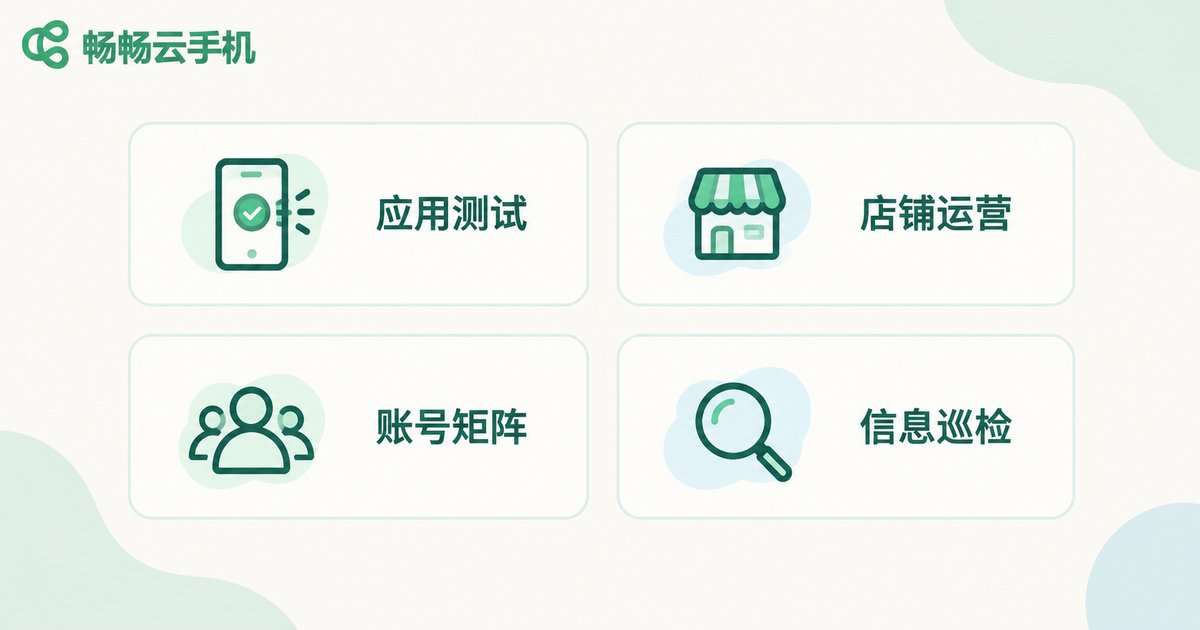
Four High-Value Use Cases
1. App UI regression testing: schedule a daily walk-through of core flows with archived screenshots; spot layout breakage immediately.
2. Store operations: scheduled listing checks, price verification, and draft replies to customer inquiries (human confirms before sending) across multiple instances.
3. Content account matrices: one account per cloud phone; Qwen drafts persona-consistent posts for scheduled publishing.
4. Information patrol: open designated apps on a schedule and let Qwen summarize key on-screen info into a daily report.
Five Tips for Stable, Cost-Effective Automation
1. Define done clearly in the prompt: tell the model what completion looks like, and cap the loop with a max-round guard to prevent endless runs.
2. Align resolutions: pass the real screen resolution into the prompt, or scale model-returned coordinates by the screenshot-to-device ratio.
3. Add fallbacks: wrap JSON parsing and API calls in try/except with one retry, then skip or re-screenshot on failure.
4. Control costs: use plain scripts for fixed flows and call the LLM only for judgment steps; use qwen-plus for text decisions and reserve qwen-vl for screen reading.
5. Log everything: archive each round's decision and screenshot; replay makes debugging trivial.
Why ccloudphone for LLM Automation?
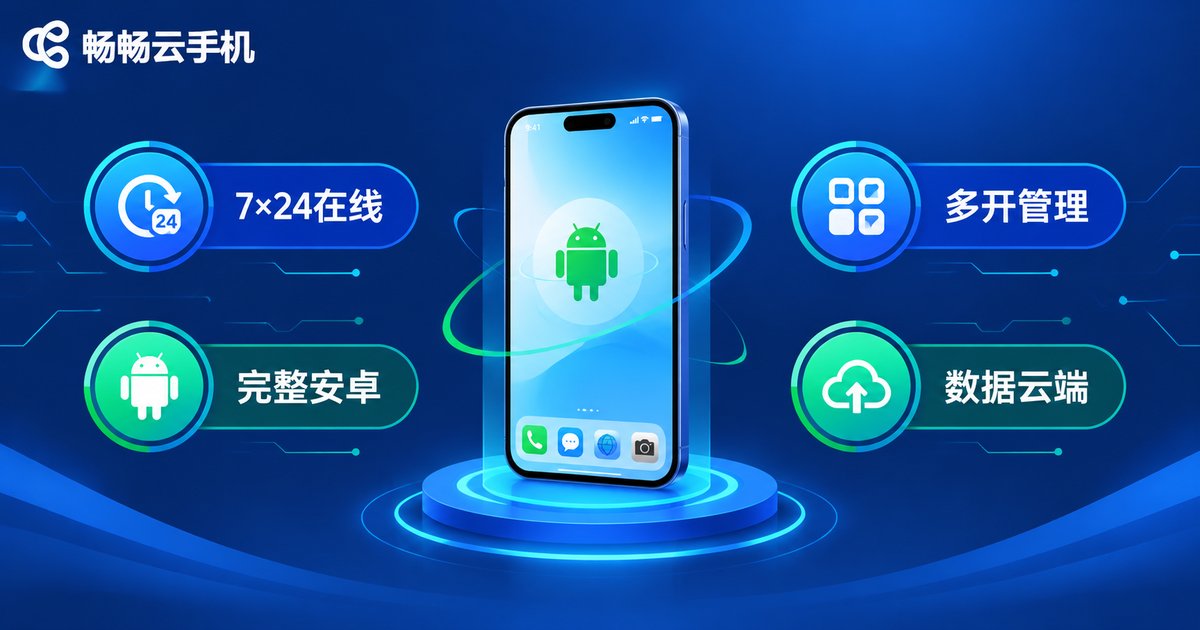
LLM-driven automation is demanding on the phone side: it needs to stay online for long stretches, scale into multiple instances, and integrate smoothly with scripts. ccloudphone fits the bill:
· Stable 24/7 uptime: datacenter-grade power and network keep your scripts running overnight.
· Flexible multi-instance management: one task per instance, add more anytime, fully isolated from each other.
· Full Android environment: a real Android system in the cloud that scripts and tools can integrate with (see the official site for supported capabilities).
· Cloud-side data: screenshots, logs, and app data stay in the cloud — switch computers without losing a thing.
FAQ
Q: I can't code — can I still use this?
Yes, with a small catch: you need basic Python to run the loop. The good news is the core pattern is only a few dozen lines, and you can ask an AI coding assistant to adapt the sample above to your task.
Q: Does calling Qwen cost money?
The Qwen open platform offers free quota, and beyond that billing is per token. A personal automation task calling the model a few hundred rounds a day usually costs very little; start small, then scale.
Q: How many tasks can one cloud phone run?
One automation session per instance is the most stable. Need more? Provision more instances and run them in parallel.
Q: Will it be laggy?
Screenshots and taps travel over datacenter networks and are generally smooth. Deploying your script on a well-connected server improves the experience further.
Q: Is this compliant?
Use automation only where you have the right to do so — testing your own apps, managing your own stores and accounts — and always follow the target platform's terms of service. Never use it for fake engagement or other abusive purposes.


