
Cloud Phone Python Automation: From ADB Connection to Production-Ready Task Scripts
Why Run Python Automation on Cloud Phones
\n\nWhen teams first approach app automation, the default instinct is to buy a pile of physical devices. But the problems of real-device setups surface quickly: high hardware costs, dedicated maintenance, downtime from power or network failures, and painful batch management. Cloud phones move the entire Android system into the cloud—each cloud phone is an independently running Android environment, naturally suited for 24/7 unattended automation.
\n\nCombining cloud phones with Python delivers immediate advantages:
\n\n1. No physical hardware required: an ordinary computer can control dozens of cloud phones at once without draining local resources;
2. Always-on stability: cloud phones run continuously in data centers, unaffected by your local machine reboots or network drops;
3. Built for scale: one script can run concurrently across many devices, multiplying throughput;
4. A mature Python ecosystem: libraries like adbutils and uiautomator2 make controlling Android devices as easy as writing a normal script.
 \n\n
Step 1: Connecting to a Cloud Phone via ADB
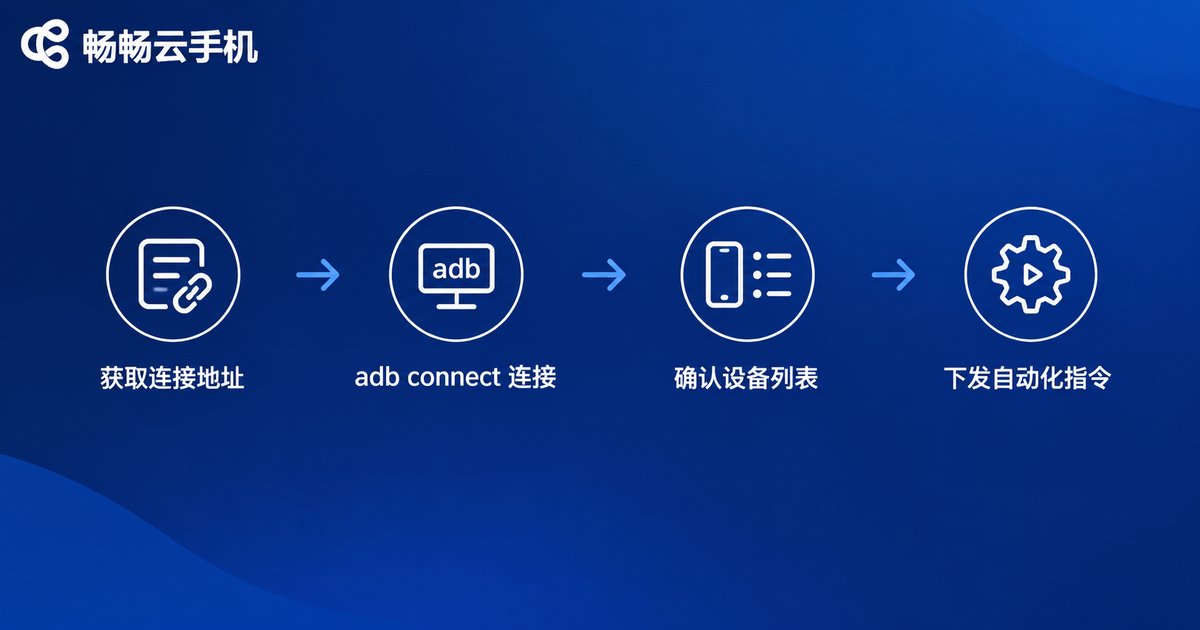
\n\nADB (Android Debug Bridge) is the standard channel for controlling Android devices. Mainstream cloud phones support ADB over the network—you only need the connection address and port from your provider's console, and you can control the cloud phone as if it were plugged into your desk.
\n\nAfter installing the ADB platform tools locally, run:
\n\nadb connect 127.0.0.1:5555\nadb devicesIf your cloud phone appears in the device list with 'device' status, you are connected. Common pitfalls to know in advance:
\n\nConnection failed: double-check the address and port, then confirm your local network can reach the provider's node;
Shows offline: re-run adb connect, or restart the local ADB server first with adb kill-server;
Multiple devices: target a specific device with the -s flag, e.g. adb -s 127.0.0.1:5555 shell.
Step 2: Python Basics—Tap, Swipe, Type, Screenshot
\n\nStart with adbutils, a pure-Python library that installs with a single command:
\n\npip install adbutils pillowThe following example covers the most common operations:
\n\nimport adbutils\n\n# Connect to the cloud phone; get the address and port from the ChangChang Cloud Phone console\ndevice = adbutils.connect('127.0.0.1:5555')\n\n# Tap a coordinate\ndevice.shell('input tap 540 960')\n\n# Swipe from bottom to top\ndevice.shell('input swipe 540 1500 540 600 300')\n\n# Type text\ndevice.shell('input text hello_cloud')\n\n# Press the back key\ndevice.shell('input keyevent 4')\n\n# Take a screenshot and save it locally\nimg = device.screenshot()\nimg.save('screen.png')The logic is simple: every action is ultimately a shell command sent to the Android system. input tap taps, input swipe swipes, input text types. Screenshots return an image object you can save for records or hand to an image-recognition module for further checks.
\n\nStep 3: Precise UI Element Location with uiautomator2
\n\nPure coordinate tapping has an obvious weakness: coordinates drift across resolutions, and any UI redesign breaks the script. The sturdier approach is uiautomator2, which lets the script see interface elements the way a human does:
\n\npip install uiautomator2import uiautomator2 as u2\n\nd = u2.connect('127.0.0.1:5555')\n\n# Tap by button text\nd(text='Login').click()\n\n# Tap by resource-id (the most stable option)\nd(resourceId='com.example.app:id/btn_submit').click()\n\n# Wait for an element, up to 10 seconds\nif d(text='Home').wait(timeout=10):\n print('Home screen reached')\n\n# Scroll a list until the target item is visible, then tap it\nd(scrollable=True).scroll.to(text='Settings')Prefer resource-id, then text, and only fall back to coordinates last—this is the golden rule of script stability. Combined with wait calls, it prevents the classic failure of acting before the UI finishes loading.
\n\nStep 4: Engineering It—From It Runs to It Runs Reliably
\n\nWriting a script that runs takes ten minutes; keeping it stable in production takes engineering. Four things matter most: retry on failure, structured logging, screenshots on error, and task scheduling.
\n\n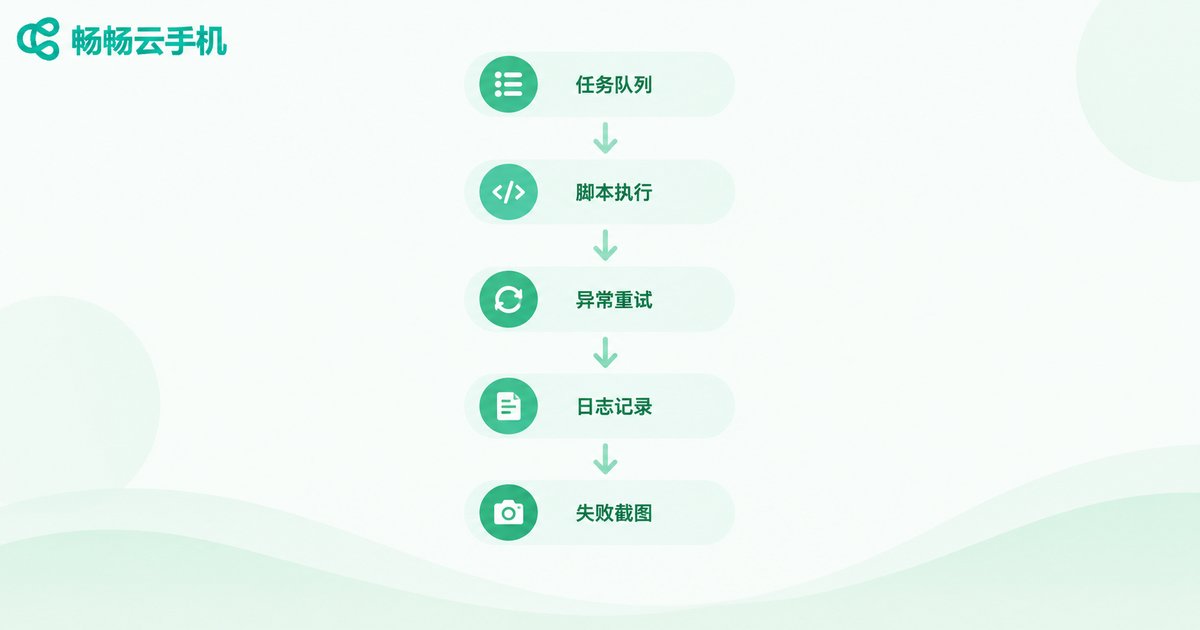 \n\n
import time\nimport logging\nimport adbutils\n\nlogging.basicConfig(\n level=logging.INFO,\n format='%(asctime)s %(levelname)s %(message)s'\n)\nlogger = logging.getLogger('cloud_task')\n\ndef run_task(device, max_retry=3):\n # Automation task with retries\n for attempt in range(1, max_retry + 1):\n try:\n device.shell('input tap 540 960')\n time.sleep(2)\n device.shell('input swipe 540 1500 540 600 300')\n logger.info('Task succeeded')\n return True\n except Exception as e:\n logger.warning('Attempt %s failed: %s', attempt, e)\n time.sleep(5)\n # Retries exhausted; capture evidence\n device.screenshot().save('error.png')\n logger.error('Task failed permanently, screenshot saved')\n return FalseThe gap between a throwaway script and a production-grade one shows up in these dimensions:
\n\n| Dimension | Throwaway script | Production script |
|---|---|---|
| Logging | print statements | Leveled logging, fully traceable |
| Error handling | Crashes immediately | Auto retry with failure screenshots |
| Execution | Manual trigger | Scheduled jobs and task queues |
| Scale | One device, serial | Many devices, concurrent batch control |
| Troubleshooting | Blind guessing | Logs plus screenshots pinpoint issues fast |
Step 5: Batch Control of Multiple Cloud Phones
\n\nThe real value of cloud phones is scale. With Python's built-in thread pool, the same task can run concurrently across many devices:
\n\nfrom concurrent.futures import ThreadPoolExecutor\nimport adbutils\n\n# Connection addresses of multiple cloud phones\nDEVICE_LIST = [\n '127.0.0.1:5555',\n '127.0.0.1:5556',\n '127.0.0.1:5557',\n]\n\ndef batch_run(addr):\n device = adbutils.connect(addr)\n return run_task(device)\n\nwith ThreadPoolExecutor(max_workers=len(DEVICE_LIST)) as pool:\n for addr, result in zip(DEVICE_LIST, pool.map(batch_run, DEVICE_LIST)):\n print(addr, 'OK' if result else 'FAILED')Once you scale past dozens of devices, introduce a task queue (a database or Redis works fine to start) and decouple the device pool from the task pool: tasks enqueue on arrival, idle devices claim them, and failed tasks re-queue automatically. This pattern supports large automation fleets running around the clock.
\n\nChoose the Right Cloud Phone Platform
\n\nEven the best script needs a stable environment underneath. When evaluating cloud phone providers for automation, focus on four things: connection stability, device uptime, batch-management capability, and overall cost.
\n\nAmong the options available, ChangChang Cloud Phone (ccloudphone) deserves a close look. It provides independent Android cloud environments with unified multi-device management, and devices stay online in the cloud continuously—ideal for long-running Python automation workloads. Paired with the engineering practices in this article, you can focus on business logic instead of worrying about dropped devices or crashed environments.
\n\n \n\n
FAQ
\n\nQ: Does connecting to a cloud phone via ADB require root?
No. ADB access is a standard capability provided by the service. Grab the address and port from the console and connect directly—everyday automation such as tap, swipe, type, and screenshot never touches root.
Q: Do I need to keep the cloud phone screen open while scripts run?
No. The cloud phone runs independently in the cloud; the script sends commands over ADB and your local machine only dispatches commands and receives results. Closing the display view does not affect task execution.
Q: Should I use coordinate taps or UI element location?
Prefer uiautomator2 with resource-id or text locators—far more stable than hard-coded coordinates. Fall back to coordinates plus image recognition only for surfaces without accessible elements, such as game scenes.
Q: How many cloud phones can one computer control at once?
It depends on task complexity and bandwidth. Lightweight jobs such as scheduled taps and check-in routines easily run dozens of concurrent devices on a single machine; for heavier workloads, split across machines or reduce concurrency, and monitor every device through logs.
Q: What if a task fails in the middle of the night?
That is exactly what the engineering layer solves: automatic retries, screenshots on failure, and logging that records the full timeline. The next morning, logs and error screenshots tell you immediately whether it was a network blip, a UI change, or a script bug.


