

Can You Layer a Proxy IP on a Cloud Phone? Key Considerations for Network Proxy Configuration
The Short Answer: Yes, You Can — But Method Matters
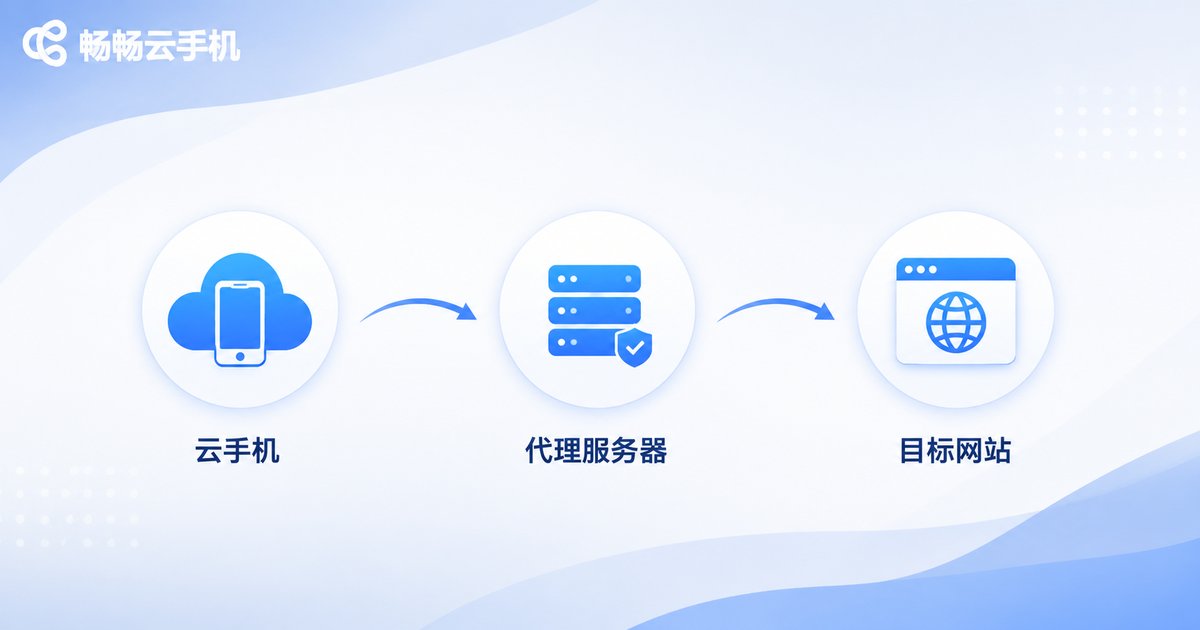
Many users new to cloud phones ask the same question: since a cloud phone already runs in the cloud, can you layer a proxy IP on top of it? The answer is yes. A cloud phone is essentially an Android device running on a remote server, and its traffic exits through the data center's IP by default. If you configure a proxy inside the cloud phone, the traffic path becomes 'cloud phone → proxy server → target website', creating a second hop for your IP.
However, 'it works' and 'it works well' are two different things. Layering a proxy involves latency, IP quality, DNS leaks, timezone consistency, and other details. Mishandle any of these, and you may end up with a degraded experience or even trigger platform risk control. This guide walks through the principles, configuration methods, and key considerations.
How Cloud Phone + Proxy IP Works
To understand the combination, you first need to see how traffic flows. By default, apps inside a cloud phone access the internet directly through the data center network. Once a proxy is configured, all requests pass through the proxy server first, which then forwards them to the target website. The website sees the proxy server's IP, not the data center's IP.
The value of this combination lies in double-layer isolation: the cloud phone isolates the device, while the proxy IP isolates the network exit. Together, each cloud device gets its own independent network identity.
Three Common Configuration Methods
Method 1: Install a proxy app inside the cloud phone. This is the most universal approach. Deploy a proxy tool that supports SOCKS5 or HTTP protocols inside the cloud phone, then enter the proxy server's address, port, username, and password. It is simple and quick, but some apps may bypass the proxy and connect directly.
Method 2: Use the app's built-in proxy settings. Some business apps support configuring a network exit natively. Just enter the proxy details in the app itself — no extra tools needed. This approach is lightweight but has limited coverage.
Method 3: Platform-level network configuration. Some cloud phone services allow binding a proxy exit at the device or group level, which is ideal for managing many cloud devices at scale and avoids configuring each one manually.
Five Key Considerations When Layering a Proxy
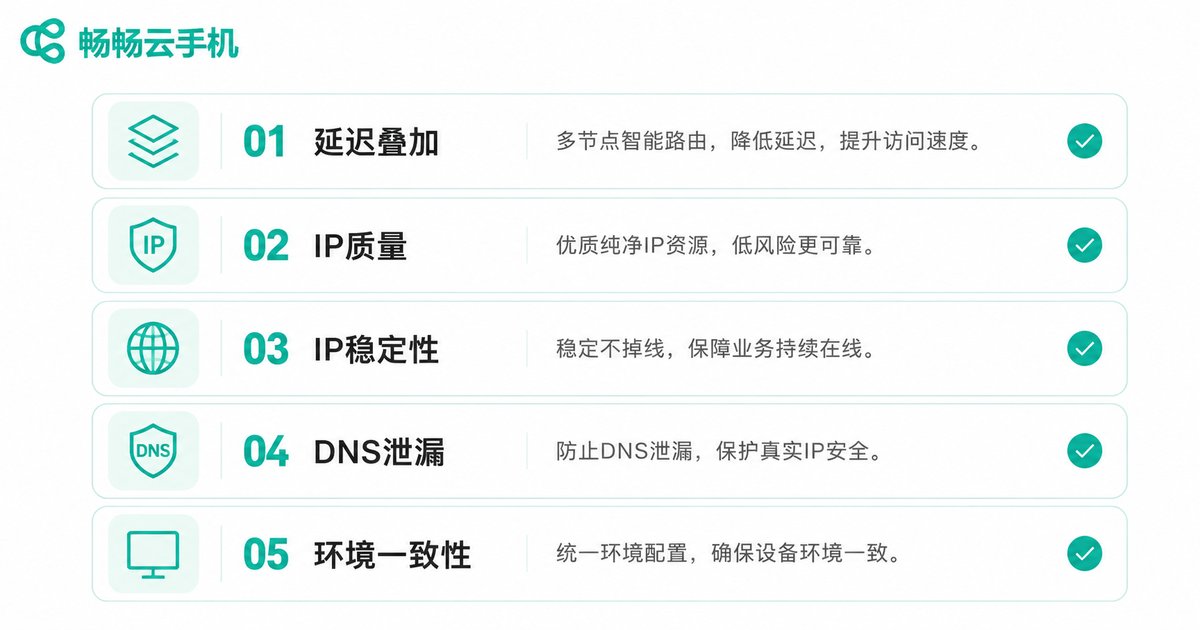
1. Latency stacks — do the math first. Cloud phones already have streaming latency, typically tens of milliseconds. A proxy adds another hop; with a poor-quality node, total latency can exceed 150ms and noticeably degrade responsiveness. Choose low-latency nodes and test after configuration.
2. IP quality determines success. Platform risk-control systems classify IP types. Data center IPs are easily flagged, while residential IPs look more like real users. Matching the IP type to your use case is the single most important step.
3. IP stability beats IP quantity. Many users assume rotating IPs frequently is safer. In reality, a device that constantly changes its exit IP is a classic risk signal. For long-term account operations, use static IPs and keep a stable device-to-IP mapping.
4. Watch out for DNS leaks. Some proxy tools only forward HTTP traffic, while DNS requests still go through the cloud phone's default network, exposing the real exit. After configuration, verify with an IP-checking site that the DNS exit matches the proxy IP.
5. Keep the environment consistent. The proxy IP's location, the cloud phone's timezone, and the system language should match. A US-based proxy IP paired with an East-Asia timezone is an obvious contradiction that is easy to flag.
Choosing the Right Proxy Type
| Proxy Type | Characteristics | Best For |
|---|---|---|
| Static residential | High stability, higher cost | Long-term account operations |
| Rotating residential | Large IP pool, rotatable | Data collection, bulk tasks |
| Data center proxy | Fast, low cost | Use cases tolerant of IP quality |
Do not blindly chase expensive options — the key is matching the IP type to your business scenario: account operations prioritize stability, while collection tasks prioritize pool size.
Common Mistakes and Troubleshooting
If you configure a proxy but the IP does not change, check three things first: whether the protocol is correct (SOCKS5 and HTTP are not interchangeable), whether the credentials are right, and whether the app is bypassing the proxy. If the IP changes but everything lags, the proxy node's latency is too high — switch nodes or upgrade your proxy service.
Why Choose CCLOUDPHONE
In proxy-combination scenarios, the stability of the cloud phone itself is critical. CCLOUDPHONE provides a stable cloud runtime environment and supports freely installing all kinds of apps inside the cloud device, laying a reliable foundation for layering proxy IPs. Whether you are running multiple accounts or managing bulk tasks, you can flexibly combine network solutions on CCLOUDPHONE.
FAQ
Q: Will layering a proxy IP make my cloud phone noticeably slower?
It depends on the proxy node's quality. With a low-latency, high-bandwidth node, daily operations feel nearly identical; with a poor node, stacked latency will noticeably degrade responsiveness. Test first, then deploy at scale.
Q: How many cloud phones can share one proxy IP?
Technically there is no hard limit, but from a risk-control perspective, it is best to assign one dedicated IP per device to avoid linking multiple devices through the same exit.
Q: What is the difference between a proxy IP and the cloud phone's built-in IP?
The built-in IP is the data center's network exit, shared with other cloud devices by default; a proxy IP is an independent exit you actively configure, giving each device its own IP.
Q: How do I verify the proxy is working?
Open an IP-checking website in the cloud phone's browser, confirm the displayed IP matches the proxy IP, and check that the DNS exit also points to the proxy's region.


