
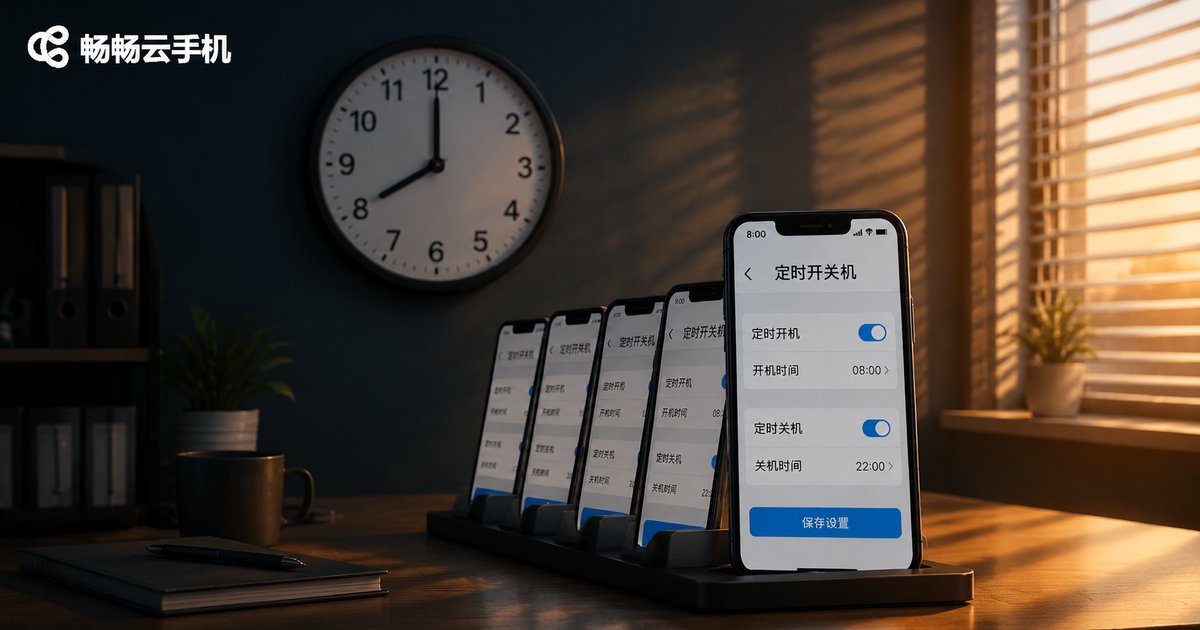
How to Set Up Scheduled Power On/Off for Cloud Phones: An Automation Solution for Scheduled APP Task Execution
What Is Scheduled Power On/Off for Cloud Phones?
Scheduled power on/off for cloud phones refers to virtual phone instances running on cloud servers that automatically boot up, shut down, or restart according to a preset time plan. Since a cloud phone is essentially a virtual device in a data center, the power on/off process is actually the starting and suspending of an instance, usually completed within seconds—much faster than a physical phone, with zero hardware wear.
You can think of it as setting an 'alarm clock' for your cloud phone: it boots up on schedule, completes its tasks, and shuts down automatically, all without manual intervention—ideal for users who need long-term idle running or batch management of multiple devices.
Why Do Cloud Phones Need Scheduled Power On/Off?
1. Save resources and costs
Some cloud phone services charge by usage time. Automatically shutting down at night or during task gaps avoids unnecessary resource consumption, making every penny count.
2. Simulate real usage habits
Real people do not use their phones 24/7. Scheduled power on/off keeps device behavior closer to the rhythm of real users, helping accounts maintain a natural, healthy profile in platform risk control systems.
3. Free up system resources and stay smooth
Long continuous running accumulates caches and background processes. A scheduled restart works like a 'deep clean' for your device, keeping the cloud phone running smoothly at all times.
4. Close the loop with automated tasks
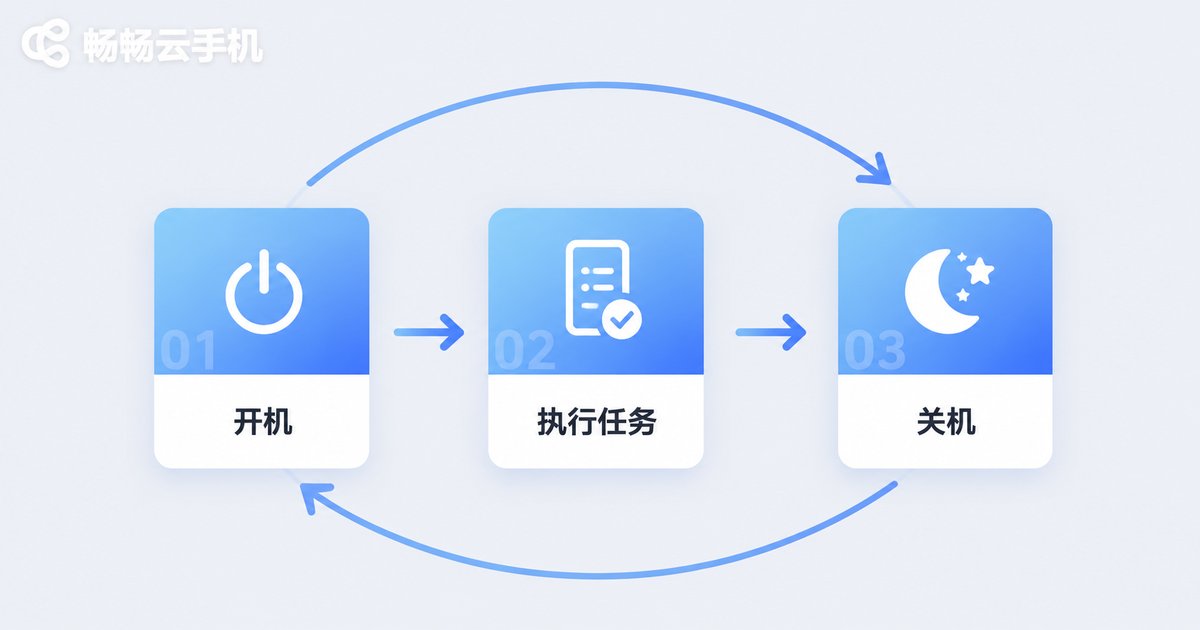
Scheduled power on/off is the first link in the automation chain: boot up → execute tasks → shut down. Connected together, they achieve true 'unattended' operation.
ccloudphone: How to Set Up Scheduled Power On/Off
With ccloudphone, setting up scheduled power on/off takes just four steps:
Step 1: Enter device management
Log in to the ccloudphone console and locate the target cloud phone in the device list.
Step 2: Find the scheduling settings
In the device details or function menu, select the 'Scheduled Tasks' or 'Scheduled Power On/Off' option.
Step 3: Set the execution time
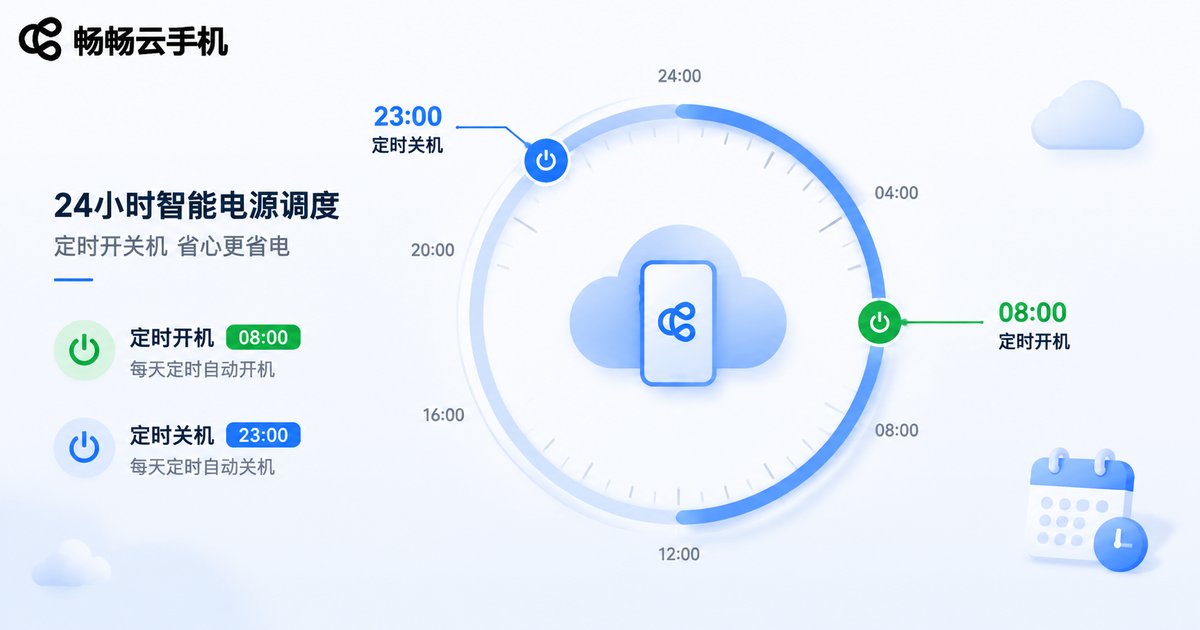
Set the daily power-on and power-off times according to your needs—for example, automatically booting at 8:00 AM and shutting down at 11:00 PM every day.
Step 4: Save and verify
After saving, observe for one or two days to confirm the device starts and shuts down on time before rolling it out to batch use.
An Automation Solution for Scheduled APP Task Execution
Scheduled power on/off answers the question of 'when the device is online,' while scheduled task execution answers 'what the APP does and when.' Combining the two creates a complete automated workflow:
Plan 1: Scheduled boot + auto-launch APP
Set the cloud phone to boot at a fixed time each day, automatically launch the designated APP after booting, complete daily tasks such as check-ins and reward collection, then shut down on schedule—all without any manual operation.
Plan 2: Scheduled restart + idle running tasks
For scenarios that require long-term idle running, schedule a daily restart in the early morning to clear caches and free up memory. After the restart, the device automatically resumes its idle running state, ensuring continuous and stable task execution.
Plan 3: Staggered scheduling for multiple devices
When managing multiple cloud phones, stagger the power on/off times of different devices to avoid all devices being online simultaneously. This prevents resource strain and makes overall behavior patterns closer to those of real user groups.
Typical Application Scenarios
| Scenario | Scheduling Strategy | Automated Tasks |
|---|---|---|
| Game daily tasks | Boot at 8:00, shut down at 23:00 daily | Auto login, check-in, collect daily rewards |
| APP check-ins | Boot at fixed time slots daily | Automatically open the APP to complete check-ins |
| Multi-account management | Staggered power on/off | Simulate real usage rhythm, keep accounts active |
| Idle data collection | Daily scheduled restart at midnight | Clear cache and resume idle running state |

Tips and Precautions
1. Avoid on-the-hour peak times
A large number of devices booting at the same hour may cause congestion. It is recommended to spread out boot times, such as 8:03, 8:07, and 8:11.
2. Reserve enough time for tasks
The shutdown time should leave sufficient margin for tasks to complete, preventing them from being forcibly interrupted halfway.
3. Check execution records regularly
Make it a habit to review task execution records and adjust time plans or task configurations promptly when anomalies are found.
4. Choose a stable provider
Whether an automation solution can be implemented depends largely on the stability of the cloud phone itself. ccloudphone provides stable cloud instances and convenient device management features, making it a reliable choice for building automated workflows.
FAQ
Q: Will running tasks be lost after a scheduled shutdown?
A scheduled shutdown is equivalent to a normal shutdown. It is recommended to confirm tasks are completed before the set shutdown time, or reserve sufficient execution time to avoid interruption.
Q: Does the scheduled power on/off setting take effect permanently once set?
Yes. Once saved, the schedule continues to execute in cycles unless you manually modify or disable it.
Q: Can I set up multiple schedules?
Yes, you can set them up flexibly according to actual needs—for example, using different power on/off strategies on weekdays and weekends to keep device behavior closer to real usage scenarios.
Q: Will scheduled power on/off affect data in the cloud phone?
No. Cloud phone data is stored in the cloud. Powering on/off only switches the device running state; installed APPs, accounts, and data are fully preserved.
Q: Is this automation solution beginner-friendly?
Yes. ccloudphone features a clean, intuitive interface with clear guidance for scheduled power on/off and task settings, allowing beginners to quickly build their own automated workflows.


