

2026 Cloud Phone Privacy Settings Guide: Reduce Information Exposure and Permission Abuse
Why Phone Privacy Deserves More Attention in 2026
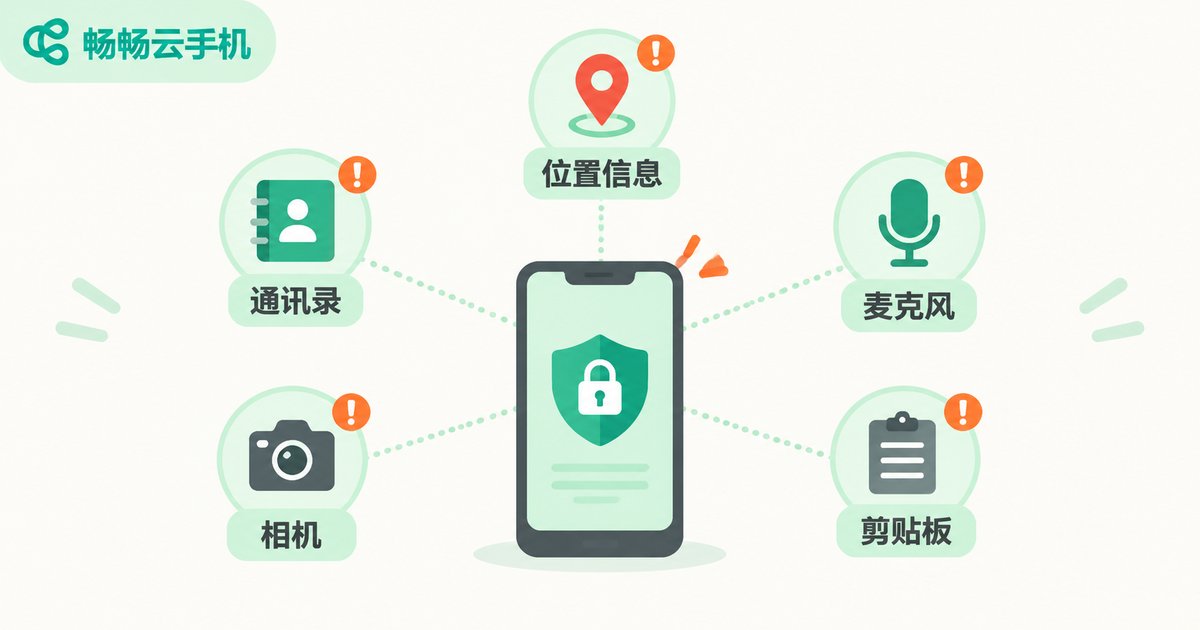
Open any frequently used phone and you will find that almost every app wants more permissions: location, contacts, photo albums, microphone, clipboard... Many apps have weak reasons for requesting them, yet the data they collect keeps growing. Once personal information is over-collected, the mildest outcome is targeted spam; the worst is identity misuse and fraud.
In 2026, tracking techniques such as embedded analytics and device fingerprinting have become more invisible, and ordinary users can hardly tell how much they have exposed. Rather than accepting passively, take action — take back control of your privacy settings.
Cloud Phones: Adding an Isolation Layer for Your Privacy
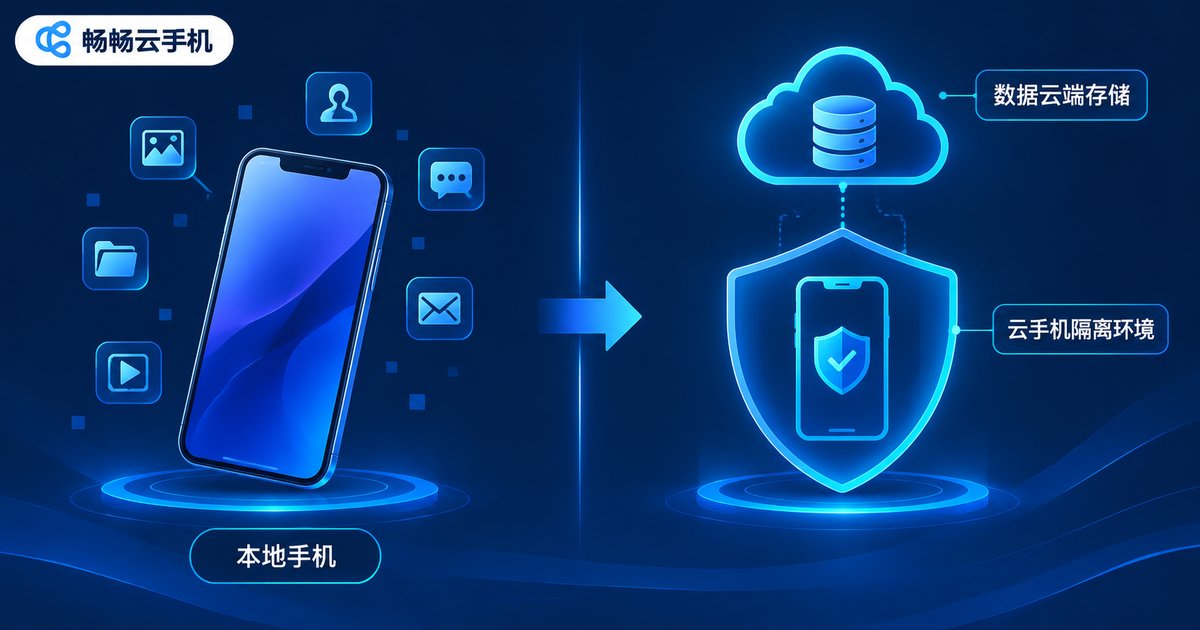
A cloud phone is, simply put, a virtual smartphone running in a cloud data center. It is a fully separate environment from the physical phone in your hand: apps are installed on the cloud phone, and the data they generate mainly stays in the cloud instead of landing directly on your physical device.
This brings three direct privacy benefits:
1. Data stays off your device: chat history, browsing traces, and cached files are stored in the cloud, so a lost or temporarily borrowed physical phone carries no sensitive leftovers.
2. Environments can be isolated: work and personal life, primary accounts and secondary accounts can live on different cloud phones, preventing apps from linking your identity through local data.
3. Easy full reset: apps and data you no longer need can be wiped directly inside the cloud phone — more thorough than repeatedly uninstalling and cleaning on a physical device.
Cloud Phone Privacy Checklist: Verify Item by Item
Whether on a physical phone or a cloud phone, the checklist below is worth going through. Review it once every quarter.
| Item | Common Risk | Recommended Setting |
|---|---|---|
| Location | Continuous background tracking exposes your movements | Switch to allow only while using; disable precise location |
| Contacts / SMS | Uploads your social graph | Turn off unless truly necessary |
| Microphone / Camera | May be invoked in the background | Grant only to apps that clearly need it; watch status-bar indicators |
| Clipboard | Reads copied passwords and verification codes | Disable clipboard access for sensitive apps |
| Personalized ads | Behavior-based profiling and targeting | Turn off personalization switches inside app settings |
| Notifications | Lock-screen previews leak message content | Hide details on the lock screen |
Hands-On Permission Management in Five Steps
With the checklist in hand, how do you actually do it? Using a cloud phone as an example, follow these five steps:
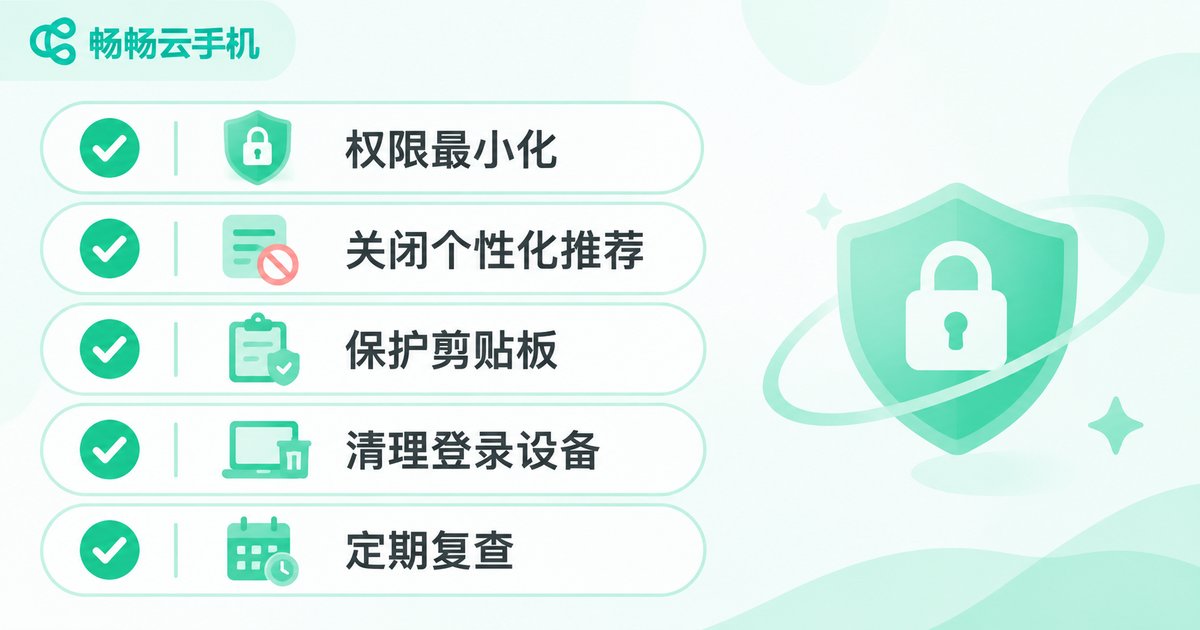
Step 1: Take inventory. In the cloud phone settings, review apps by permission type (location, camera, microphone, etc.) instead of app by app — it is far more efficient.
Step 2: Cut the biggest offenders first. Prioritize apps with the most unreasonable requests — for example, a utility app demanding access to your contacts should be shut off immediately.
Step 3: Downgrade instead of blocking everything. Change allow-all-the-time to allow-only-while-using to keep functionality while reducing background collection.
Step 4: Turn off tracking switches. Disable advertising identifiers and personalization options in system settings to reduce cross-app profiling.
Step 5: Review regularly. Check permissions whenever you install a new app, and do a full review every month.
Daily Habits That Make Privacy Protection Sustainable
Settings are a one-time action; habits are the long-term defense. A few low-cost habits are worth keeping:
Separate contexts. Run sign-ups and less-trusted apps on a cloud phone, and keep only core apps on your physical device to shrink its exposure surface.
Think twice before one-tap authorization. Third-party login is convenient, but it means your data flows across platforms. For important accounts, register independently with unique passwords.
Retire promptly. Uninstall or disable apps you no longer use, and check the logged-in device list on important platforms to remove unfamiliar devices.
Beware public environments. Avoid public charging stations, unknown QR codes, and sensitive operations on unfamiliar networks whenever possible.

ChangChang Cloud Phone: Privacy Protection in the Cloud
If you want to take the isolation layer further, try ChangChang Cloud Phone (ccloudphone). Apps run in an independent cloud environment, so data does not depend on any single physical device; multiple cloud phones stay separate from each other, letting you divide privacy zones by purpose; and you can manage everything through your account from anywhere, without leaving local traces when you switch devices.
Combined with the permission checklist in this guide — tightening permissions app by app inside the cloud phone — you get dual protection: cloud isolation plus permission minimization. To learn more, visit the official website at ccloudphone.
FAQ
Q: Is data on a cloud phone safe?
Cloud phone data is stored in the provider's data center, which typically offers professional operations and disaster-recovery mechanisms — more controllable than data scattered across personal devices. Still, enable two-factor authentication on your account and never share credentials.
Q: With a cloud phone, can I ignore permissions on my physical phone?
No. The cloud phone handles isolation and separation, but you should still audit permissions on your physical device using the checklist — manage both sides.
Q: Will turning off all permissions break my apps?
Some features will be affected — map apps need location, for example. Prefer downgrading: change allow-all-the-time to allow-only-while-using to balance function and privacy.
Q: How often should I review my privacy settings?
Do a full review quarterly, check permissions after each new app install, and investigate immediately if you notice unusual pop-ups or battery drain.
Q: Who is ChangChang Cloud Phone for?
Anyone who needs multi-account separation, wants sensitive apps isolated from daily apps, or switches devices often. Visit ccloudphone to see whether it fits your needs.


