

Cloud Phone Performance Testing in 2026: Latency, Frame Rate, and Display Stability Evaluation
Why Cloud Phone Performance Testing Matters
As cloud computing matures, cloud phones have become essential tools for multi-instance gaming, app hosting, and batch operations. Yet the real-world experience varies dramatically across providers, data centers, and network conditions. Only systematic performance testing can reveal whether a cloud phone truly meets your needs. This guide helps you build a reusable testing workflow across three dimensions: latency, frame rate, and display stability.
Preparation Before Testing
Complete the following steps before testing, or your data will lose its reference value. First, fix your network environment: use a wired connection or stable 5GHz Wi-Fi whenever possible, and record your local bandwidth and ping as a baseline. Second, unify testing time slots: peak hours (such as 8-11 PM) can differ noticeably from off-peak hours, so test both. Third, prepare your tools: a frame rate overlay, a speed test website, a stopwatch, or a phone capable of 120fps video recording. Fourth, define your test scenario: pick one or two frequently used apps or games as the standard workload and keep them consistent across runs for comparable data.
Latency Testing: Evaluating the Full Touch-to-Screen Chain
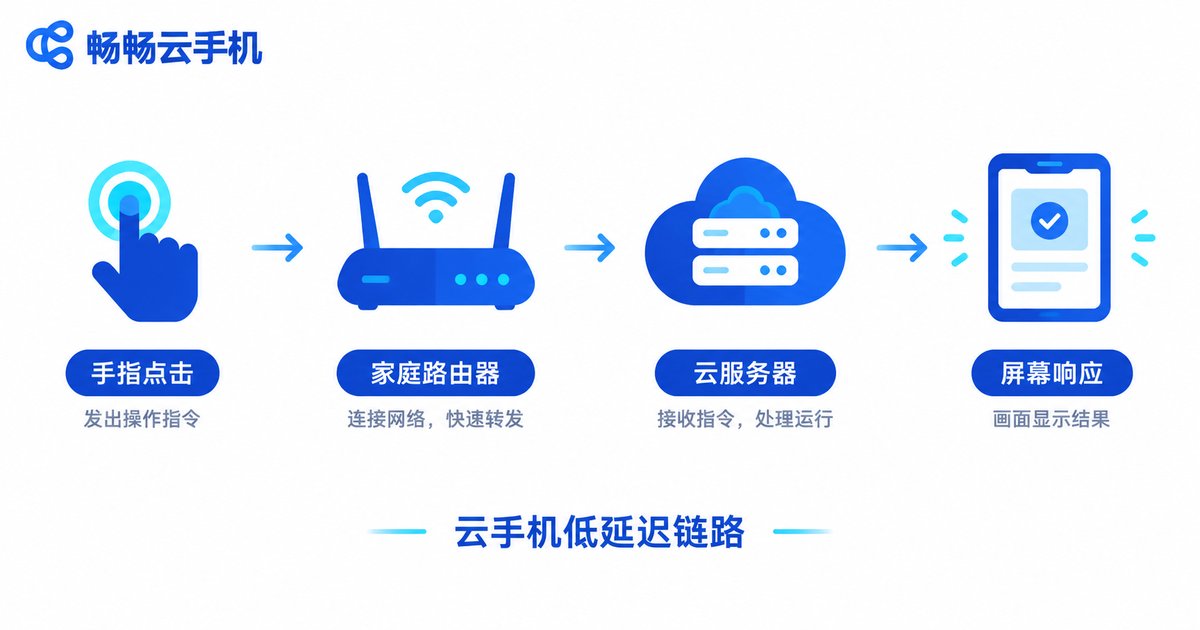
Cloud phone latency is the sum of several segments: local network → cloud data center → app response → video stream back. A problem in any segment shows up in how controls feel. Use three methods to isolate the bottleneck. Method one, network latency: open a speed test website inside the cloud phone and record ping and jitter; lower ping within the same region is better, and jitter under 10ms is ideal. Method two, touch response: film your finger tapping the screen and the on-screen reaction with another phone recording at 120fps or higher, then count the frames between the two events and convert to milliseconds (about 8.3ms per frame at 120fps). Method three, in-game feel: perform a fixed input sequence (rapid taps, quick swipes) in a competitive or rhythm game, repeat it at least 20 times, and track the ratio of responsive to unresponsive inputs.
| Test Item | Tool / Method | Metric | Reference |
|---|---|---|---|
| Network latency | Speed test inside the cloud phone | Ping, jitter | Lower ping is better; jitter under 10ms is ideal |
| Touch latency | High-frame-rate filming, frame-by-frame analysis | Milliseconds | Lower and more consistent is better |
| Input feel | Repeated fixed input sequences | Responsive ratio | Higher is better |
Frame Rate Testing: Exposing Every Stutter
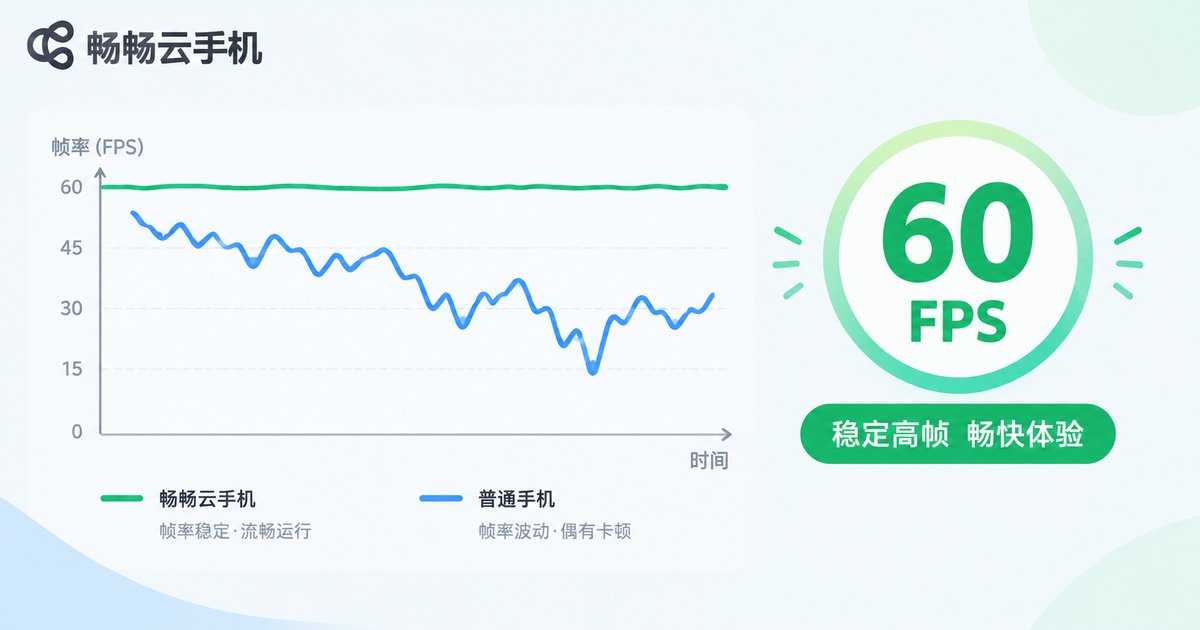
Frame rate (FPS) directly determines how smooth the picture feels. Do not rely on the average alone — pay attention to fluctuations: an average of 60fps that keeps dipping to 30fps often feels worse than a steady 50fps. The procedure: enable the FPS overlay in cloud phone settings or in-game; run a standard scenario for 10-15 minutes covering loading, combat, and menu navigation; record average FPS, minimum FPS, and the frame rate curve; repeat three times and average the results to filter out random spikes. If possible, capture the screen and use frame-by-frame analysis to count dropped frames. Consecutive drops (two or more frames at once) hurt the experience far more than scattered single-frame dips, a detail many users overlook.
Display Stability Evaluation: Details Define the Experience
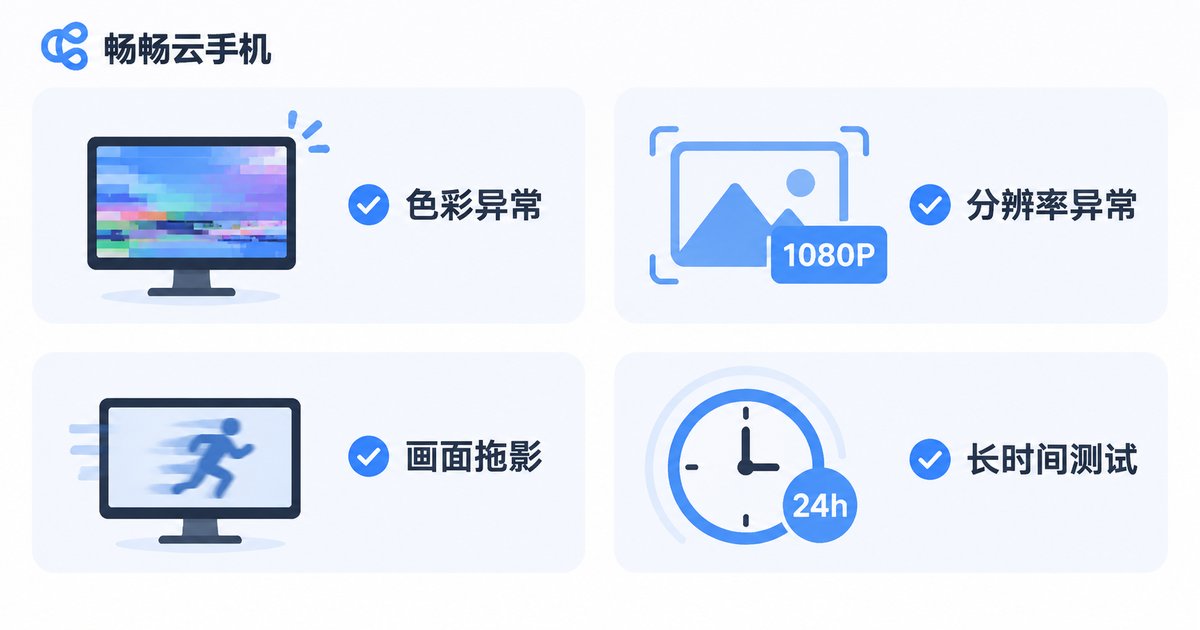
Display stability is the most overlooked metric. Watch for four issues: artifacting and color blocks, which typically appear during network swings or bitrate changes — frequent occurrences point to a fragile encoding pipeline; sharpness fluctuation, since some cloud phones adjust image quality dynamically and constant shifts between crisp and soft are a red flag; tearing and ghosting, visible during fast scrolling or high-speed motion, which can mislead your inputs when severe; and long-session degradation, so run for over two hours and check whether thermal throttling increases dropped frames or lowers image quality. Score each issue from 1 to 5 for frequency and impact, then combine them into a simple stability score for easy comparison.
Scoring and Recommendations
Once the three tests are done, combine them with weights: latency 40%, frame rate 35%, display stability 25%. Adjust to your use case — raise the latency weight for competitive gaming, or the stability weight for unattended hosting. If you are looking for a dependable cloud phone, we recommend ChangChang Cloud Phone (ccloudphone), which is optimized for multi-instance and long-duration scenarios. For current plans and data center locations, always refer to the official website ccloudphone.com. Run one round of testing with the methods above, and you will have a first-hand, data-backed judgment of its latency and stability.
FAQ
Q: My ping is low, but controls still feel laggy. Why?
Network latency is only one segment of the chain. The cause may be high server load, slow video encoding and streaming, or limited decoding performance on your local device. Isolate the bottleneck by testing network, touch, and in-game feel in order.
Q: How long should a frame rate test run to be accurate?
At least 10 minutes per run, covering loading, combat, and menu navigation, repeated three times and averaged. A few dozen seconds of data is easily skewed by random spikes.
Q: Is occasional screen artifacting normal?
A single occurrence during severe network swings is normal. If it appears every ten-plus minutes or comes with long freezes, the pipeline stability is questionable — retest at a different hour or on another node.
Q: Performance drops noticeably during peak hours. What should I do?
First determine whether your local bandwidth is congested or the provider is crowded at peak times. Log data across different time slots; if only peak hours degrade, try switching data center nodes or contact the provider.


