
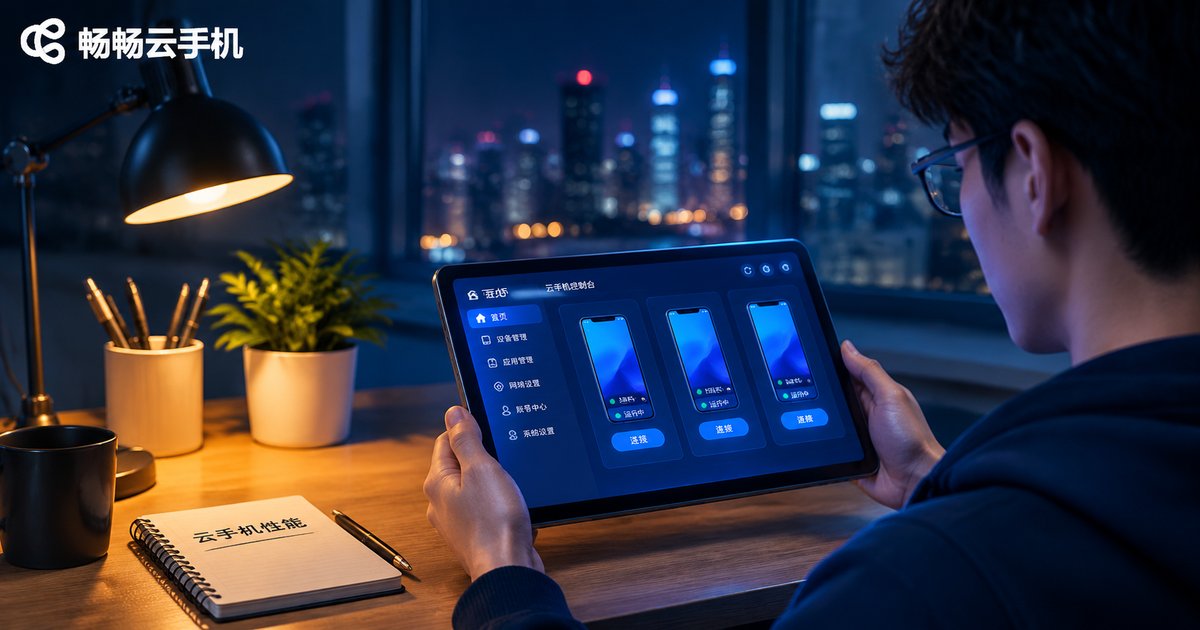
How to Judge Cloud Phone Performance: Startup Speed, Input Latency and Visual Smoothness
Why the Spec Sheet Never Tells the Whole Story
Most people start by comparing CPU cores and RAM. But a cloud phone is really an Android device sitting in a data center: what you see is a video stream that has been encoded and sent to you, and every tap has to travel back to the server before anything happens. Performance is not one number, it is a chain — instance scheduling, rendering and encoding, network transit, and local decoding.
High specs only mean the ceiling might be higher. If any link in that chain is throttled, the extra horsepower will not make the device feel responsive. To judge a cloud phone quickly, watch just three things: startup speed, input latency, and visual smoothness.
1. Startup Speed: From Tapping the Icon to Actually Working
There are two very different cases, and mixing them up leads to bad conclusions.
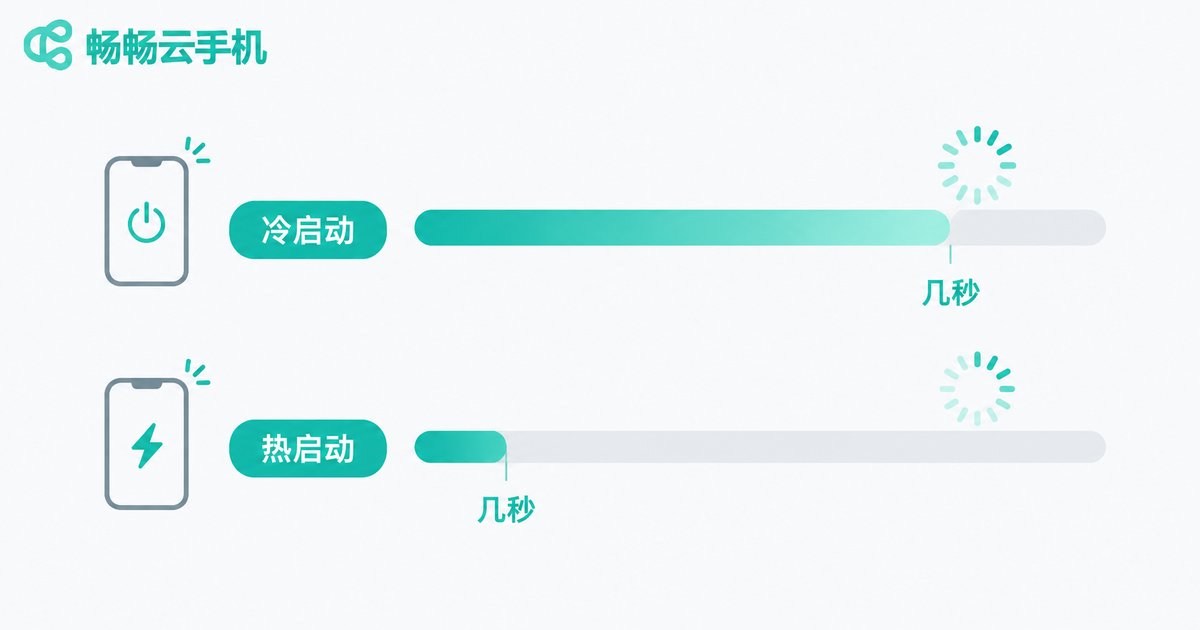
Cold start: no instance has been assigned to you yet, so the platform has to spin up a device and load the system image. This is slow by nature and tens of seconds is normal.
Warm start: your instance is already running in the background, so opening it is mostly establishing a connection. A few seconds is the expected range.
Image size, the number of preinstalled apps, scheduling policy and peak-hour load all affect this. Test by opening and closing three times and average the last two runs, since the first usually includes extra scheduling overhead.
A practical rule of thumb: if a warm start keeps spinning for more than ten seconds, there is a bottleneck in scheduling or connection setup, and the rest of the session probably will not feel great either.
2. Input Latency: How Long Between Your Tap and the Screen
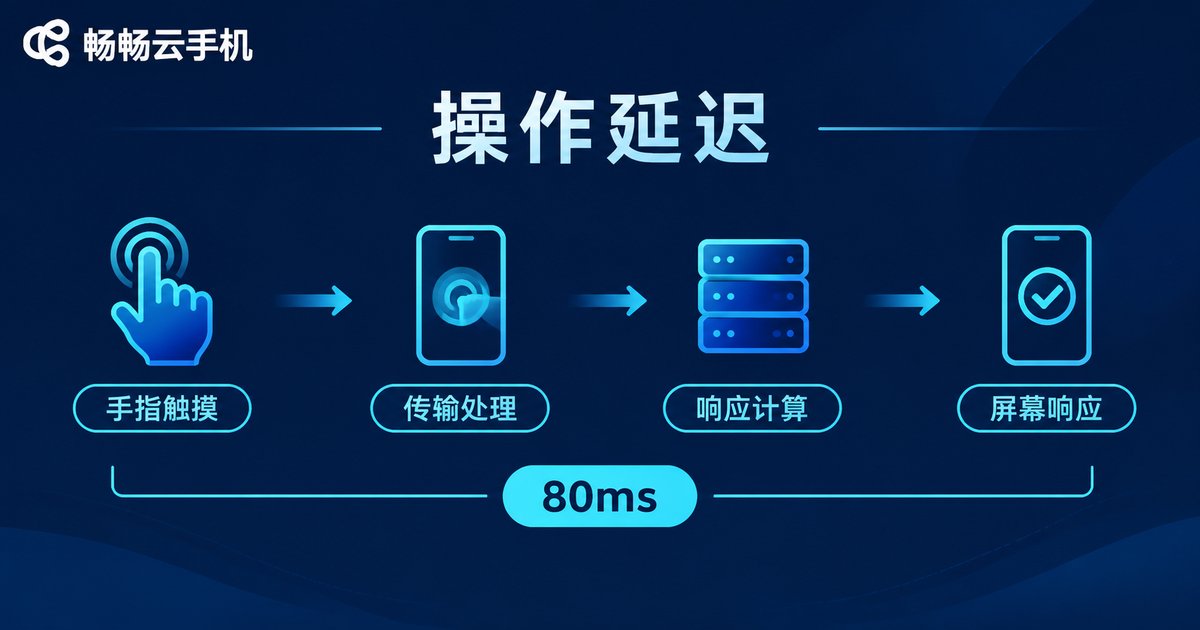
Latency is what makes a cloud phone feel responsive or sluggish. Every interaction travels four stages: local touch capture, network uplink, cloud rendering, encoded video downlink, and local decoding and display. Slow down any one of them and the whole experience suffers.
From experience, an end-to-end latency under 80 ms feels natural for most mobile games, short videos and chat support work. Between 80 and 150 ms you start to feel a slight lag. Above 150 ms, swipes and taps leave a visible trail and precise control becomes frustrating.
Network quality matters more than raw bandwidth. Two 50 Mbps connections can behave very differently: a jittery, lossy line will feel far worse than a stable one. Use reliable Wi-Fi or 5G, and pay attention to how far you are from the chosen node.
3. Visual Smoothness: Stability Beats Peak Frame Rate
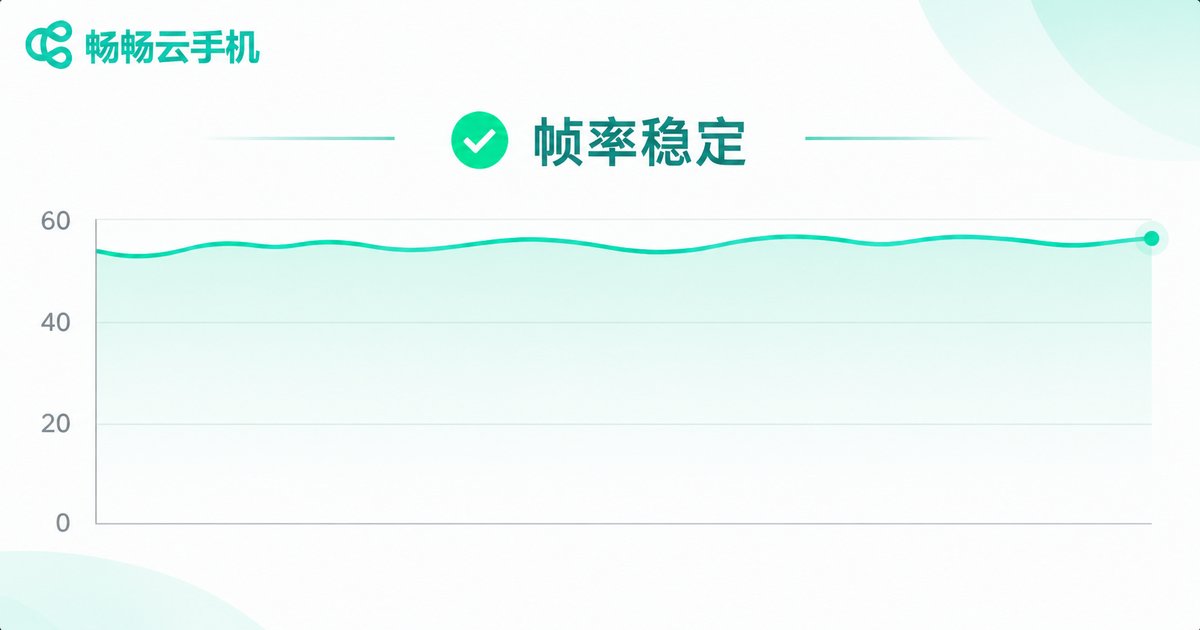
Smoothness comes down to three things: average frame rate, frame rate stability, and bitrate quality. A cloud phone that advertises 60fps but drops frames every second often looks worse than a steady 30fps. Human eyes are very sensitive to sudden stutters and surprisingly tolerant of small, consistent variation.
There is also a trade-off people overlook: resolution and frame rate compete for the same resources. Push quality to maximum and the frame rate tends to fall; prioritise frame rate and the image may look slightly softened. Good cloud phones adapt bitrate dynamically, protecting the frame rate and lowering quality first instead of freezing entirely.
| What to watch | How to check | Practical reference |
|---|---|---|
| Average frame rate | Enable frame rate display where available | 30fps is usable, 60fps feels smoother |
| Stutter frequency | Swipe a long list for 30 seconds | Occasional is fine, frequent means contention |
| Image clarity | Look at small text and thin lines | Edges stay sharp with no visible blocking |
| Adaptability | Switch networks and observe | Quality drops first, no black screen or disconnect |
Reading the Three Metrics Together
Looking at one metric in isolation is misleading. Fast startup with high latency means tapping and waiting; low latency with an unstable frame rate is still painful for precise work. Only the combination tells you what the device really feels like.
| Metric | What it measures | Practical reference | What you notice |
|---|---|---|---|
| Startup speed | Time until the instance is ready | Warm start under 5 seconds is good | Waiting at launch, quick task turnaround |
| Input latency | End-to-end feedback | Under 80 ms feels responsive | Tap accuracy, swipe comfort |
| Visual smoothness | Frame stability and stutter | Steady 30fps or above, few drops | Viewing comfort, timing judgement |
| Long-run stability | Degradation over hours | No disconnects, no gradual slowdown | Idle farming, hosting, bulk management |
Test It Yourself: Five Minutes Is Enough
1. Slow-motion capture: film your finger tapping and the screen response at high frame rate, then count the frame gap to estimate latency.
2. Dual stopwatch: open a stopwatch app on both the cloud phone and your local device, take one screenshot, and compare the two times.
3. Continuous swipe: scroll a long list quickly for 30 seconds and feel whether it tracks your finger or stutters rhythmically.
4. Weak network switch: move from Wi-Fi to mobile data and watch whether the image degrades gracefully or simply freezes and reconnects.
Choose Based on What You Actually Do
If you mainly use it for idle tasks, long-running hosting or managing multiple accounts, prioritise stability and uptime — short latency spikes barely matter. For live streaming, cloud gaming or short video editing, latency and frame rate come first. If you only log in occasionally to handle something, startup speed shapes your mood the most.
Take ccloudphone as an example: it runs Android instances in the cloud while your local device only handles display and input, so hardware requirements on your side stay low and phones, tablets and computers can all connect. Before choosing a tier, run the three tests above against your own scenario, and refer to the official site for current specifications and plans.
FAQ
Q: Does a higher-spec cloud phone always feel smoother?
A: No. Higher specs raise the ceiling, but a jittery network or conservative encoding still produces a laggy feel.
Q: Why does it work fine in the morning but stutter at night?
A: Evening is peak shared-resource time. If scheduling is not flexible, instances compete for compute, which shows up as frame drops and higher latency.
Q: What latency is acceptable?
A: Around 100 ms is generally fine for office work and browsing. For gaming and precise control, aim for under 80 ms.
Q: Does maxing out image quality improve smoothness?
A: Usually the opposite. Higher quality increases encoding and bandwidth pressure, making the frame rate less stable. Protect the frame rate first.
Q: Does a cloud phone use a lot of data?
A: It streams video, so consumption depends on the quality tier. Use stable Wi-Fi for long sessions and lower quality on mobile data.
Q: If I can only check one metric, which should it be?
A: Match it to your main use: low latency for responsiveness, long-run stability for hosting, fast startup for frequent switching.


