

Cloud Phone Free Trial Guide: Application Process, Trial Duration and Test Checklist
Why You Should Try Before You Buy
A cloud phone is essentially an Android device running in a remote data center. You stream its screen to your own laptop or phone over the network and operate it like a real handset. It does not consume your local hardware, and it keeps running tasks even when your own device is off, which is why people use it for app multi-instancing, long-hour background tasks, remote work and team testing.
That said, actual performance depends heavily on your network and your specific use case. Someone else's smooth experience does not guarantee that the apps you rely on will feel the same in your city. The smartest approach is to use the free trial quota to run your real scenarios first, then decide whether a long-term plan makes sense.
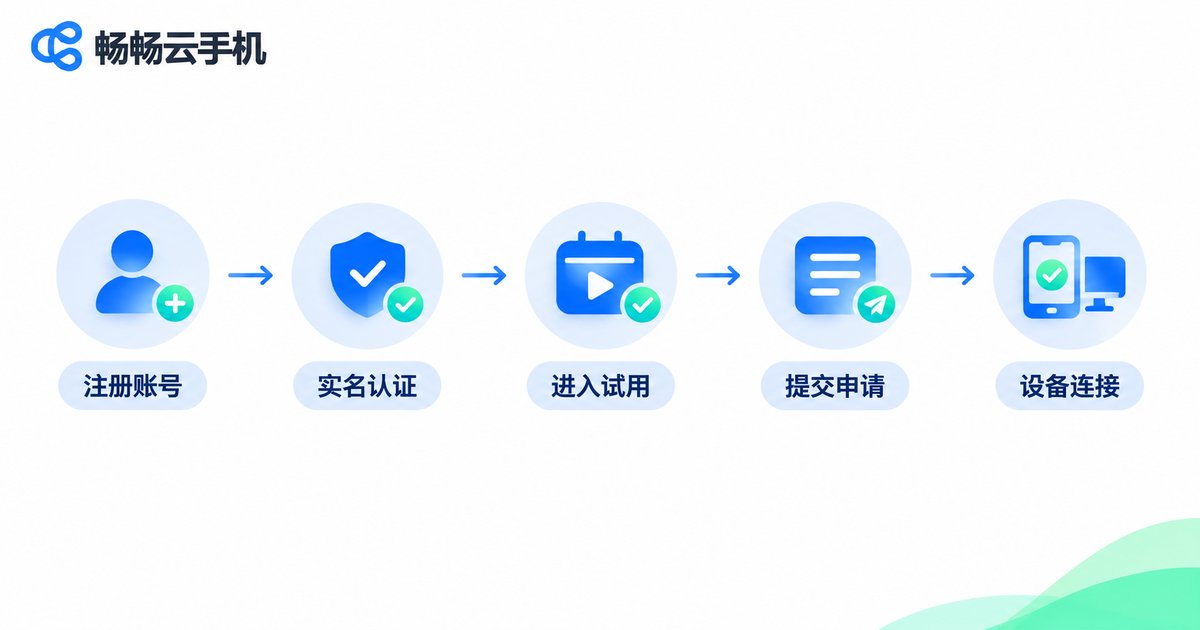
How to Apply for a Cloud Phone Free Trial: Five Steps
Layouts differ slightly between platforms, but the process is broadly the same. The five-step method below applies to the free trial offered by ccloudphone.
Step 1: Create an account. Go to the official website, register with your mobile number and log in. Use a number you will keep long-term and can receive verification codes on, so account recovery never becomes a headache.
Step 2: Complete identity verification. Cloud phones are remote computing resources, so real-name verification is usually required before activation. Have your ID ready, follow the on-screen prompts to upload a photo, and approval typically takes just a few minutes.
Step 3: Find the free trial entry. Look for a 'Free Trial' or 'Experience Zone' entry on the homepage or inside the console. If you cannot find it, ask live support directly whether trial slots are currently available.
Step 4: Submit your request and confirm the specs. Choose the device specification and system version you want to test, then submit. Trial slots can be limited at certain times and are often first-come-first-served, so do not sit on the entry page too long.
Step 5: Connect and start testing. Once activated, your instance appears in the console list. Click connect and a full Android desktop opens in your browser or client, ready for installing apps, signing in and swiping around just like a physical phone.
How Trial Duration Is Counted, and the Traps to Avoid
Trial time is usually measured in hours and starts counting from the moment the instance is activated, not from the moment you first click connect. This matters: plenty of people apply, leave the instance idle, and discover later that their quota is already gone.
The exact duration and specifications available vary between campaign batches. For the current trial length, supported models and restrictions, always refer to what ccloudphone publishes on its official website. Here are the traps beginners fall into most often:
| Common trap | What happens | How to avoid it |
|---|---|---|
| Timer starts on activation | Hours are consumed from the moment your request succeeds | Only apply on a day you can actually start testing |
| Idle time still counts | Not connecting or not operating consumes the same quota | Shut down or release the instance once you finish |
| Limited device specs | The trial may only expose certain configurations | Read the notes first; do not judge high-end tiers by a low-end trial |
| Mismatched network | Testing over cellular data skews the results | Test on stable Wi-Fi or a wired broadband connection |
Seven Tests Worth Running During the Trial
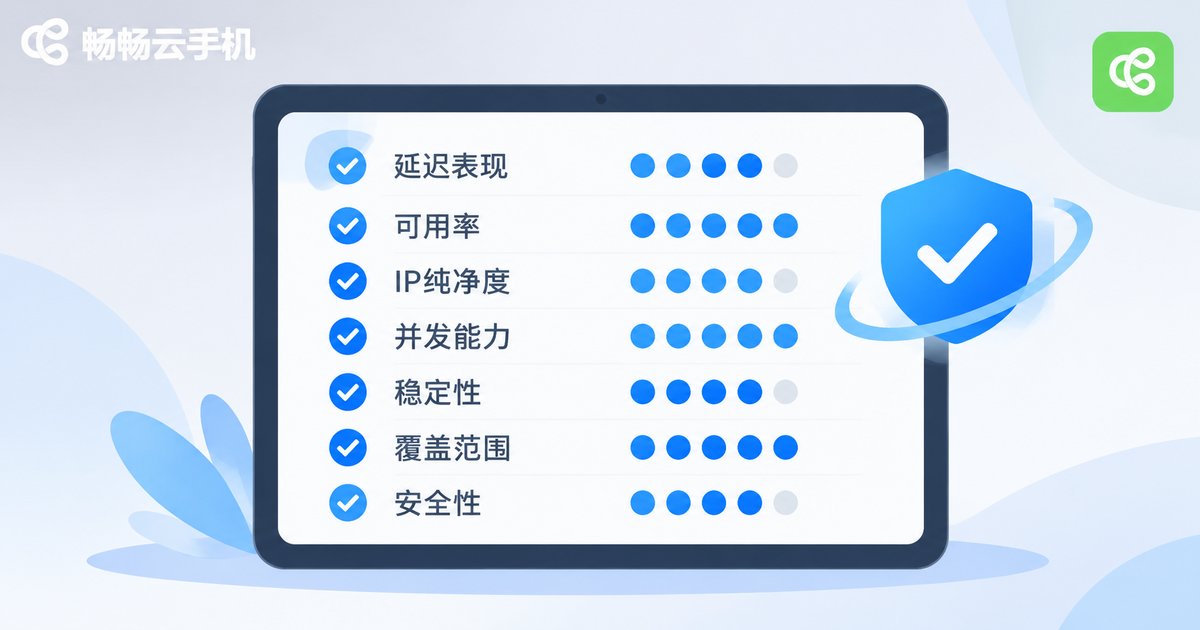
Free hours are precious, so work through the list below in order, moving from 'does it work' to 'does it work well'.
1. Boot and launch speed. Time how long it takes from clicking start to seeing the Android desktop. This is your most immediate first impression.
2. Input responsiveness. Scroll a list quickly, open the app drawer, switch screens. Feel how closely the picture follows your finger. A high-latency cloud phone where every tap takes half a second becomes exhausting fast.
3. Long-hour stability. Leave a familiar app running for two to four hours without disconnecting, and watch for drops, crashes or black screens. This is the core value of a cloud phone.
4. App compatibility. Install every app you actually plan to use, and focus on the features that break most often: sign-in, payments, location and push notifications.
5. Multi-instance capability. If you manage multiple accounts, run two or three instances at once and check whether they interfere with each other and how smoothly you can switch between them.
6. Visual quality and frame rate. Play a high-definition video or run a game and check whether the image stays sharp or develops visible blocking and blurring.
7. File transfer. Upload an installation package or a batch of images and note the speed and success rate, since this determines how efficiently you can deploy things later.
A Test Record Sheet You Can Copy Directly
Writing results down as you go beats relying on memory. Screenshot the table below, fill in one row per test.
| Test item | How to test | Reference standard |
|---|---|---|
| Boot speed | Click start, time until desktop appears | Under half a minute is acceptable |
| Input latency | Continuous swiping, rapid tapping | Tracks your finger, no obvious lag |
| Background stability | Run continuously for 2-4 hours | No disconnects, no crashes |
| App compatibility | Install 3-5 core apps | Sign-in and payments work normally |
| Multi-instance isolation | Run 2-3 instances at once | They do not interfere |
| Visual quality | Watch video, run a game | Clear image, no frame drops |
| File transfer | Upload a package and images | Stable speed, high success rate |
Four Questions to Ask When the Trial Ends
Once you have run through a full round, do not decide on a vague 'it felt fine'. Judge against these four angles instead.
One: stability. Background tasks are the main event for a cloud phone. If long sessions drop offline, everything else deserves a discount.
Two: network routing. Good providers optimize routes for different regions. Lower latency means the device feels closer to a physical phone.
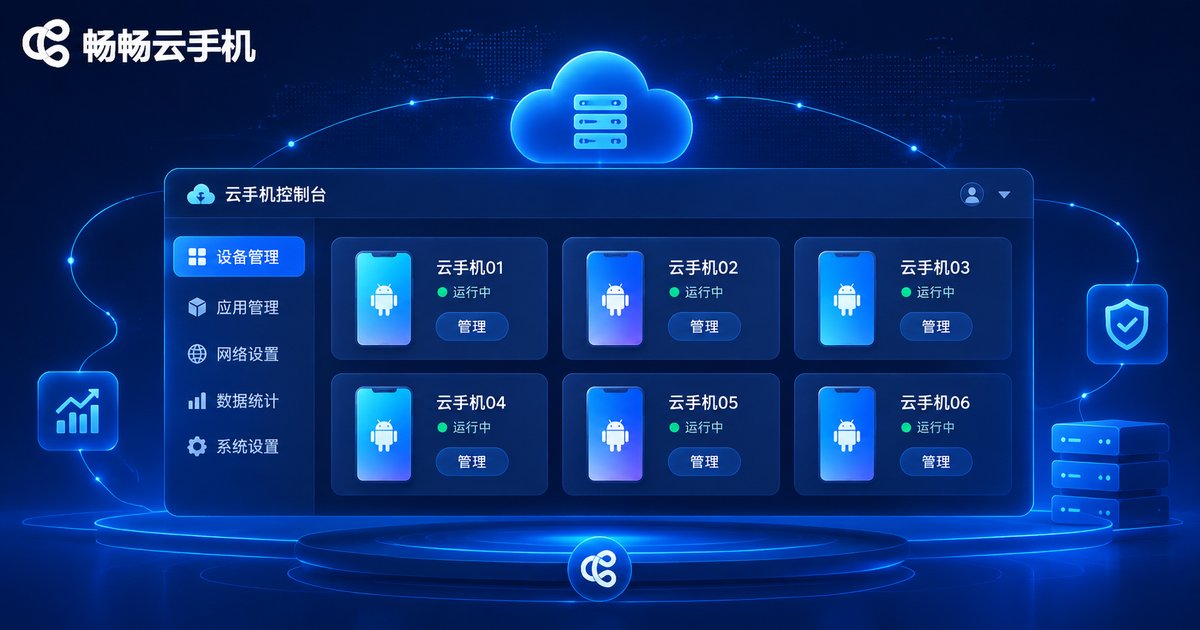
Three: management capability. Do you need batch startup, one-click installation, grouped management or remote viewing? If you manage more than one device, console usability matters more than raw single-device performance.
Four: support responsiveness. Deliberately raise one question with support during the trial and observe the reply speed and quality. That is usually the service level you will get after paying.
Frequently Asked Questions
Q: Do I need to bind a payment method for the free trial?
Follow what the official page states. Some campaign channels only require registration and identity verification, so read the page carefully before submitting to avoid unnecessary binding.
Q: Does trial time start when my request succeeds or when I first connect?
Usually from the moment the instance is successfully activated, and it is consumed even if you never connect. Confirm you have time to test on the same day before you submit.
Q: Can I install my own apps and sign into my own accounts during the trial?
Yes. A trial instance works much like a paid one, so you can install apps and sign in normally to verify compatibility and get a genuine feel for daily use.
Q: Is my data still there after the trial ends?
Trial instances are typically reclaimed on expiry, and the apps and data inside may not be preserved. Export and back up anything important in advance rather than storing it only on the cloud phone.
Q: Can I test using mobile data?
You can, but results will be less reliable. Cloud phones are sensitive to network quality, so test on stable Wi-Fi or wired broadband to get a realistic conclusion.
Q: If one trial is not enough, can I apply again?
Whether repeat applications are allowed depends on the campaign rules in effect at the time. Ask ccloudphone's official support team directly about the experience options currently available.
Q: The trial went well, so how do I choose a configuration?
Start from your use case: occasional remote access needs only a basic setup, while long-hour background tasks and multiple instances call for stability and instance count rather than simply stacking specifications.


