
What to Do When Cloud Phones Lag During Peak Hours: Resource Scheduling and Usage Time Optimization
Peak-hour lag: don't rush to replace the device
A cloud phone is not a physical handset on your desk. It is a virtual phone running on cloud servers. During peak hours, many users connect, stream screens, and read or write storage at the same time, so shared resources become tight. Lag is often caused by resource contention and usage habits, not simply by weak hardware.
Common signs include dropped frames, touch delay, slow app switching, and queued uploads or downloads. First check whether lag is continuous or only appears at certain times, then decide whether to adjust resource scheduling or optimize usage time.
Four common sources of peak-hour lag
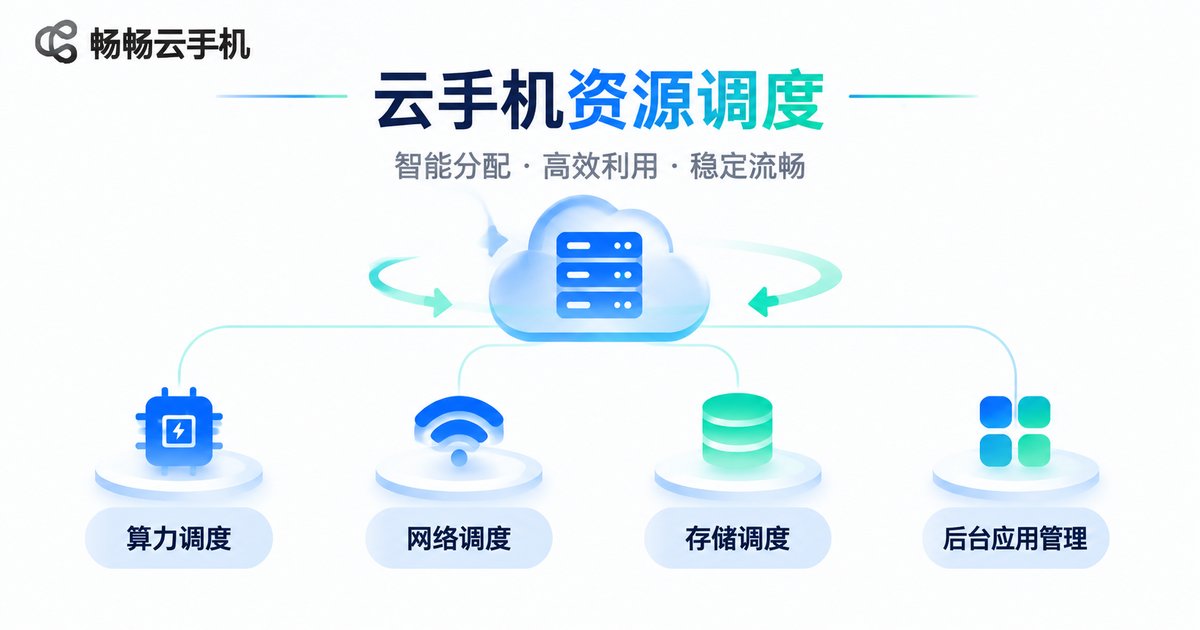
Compute contention: running heavy apps or many instances at the same time increases CPU and memory pressure. Network fluctuation: home broadband and mobile networks are more likely to be congested in the evening, and high video bitrate adds delay. Storage read and write: installs, updates, screen recording, and large file transfers compete for disk throughput. Background processes: auto-sync, push notifications, and apps left open keep using resources.
Resource scheduling: put compute where it matters
Resource scheduling should not be complicated. It should make important tasks come first. Divide cloud phone tasks into two groups: must be real-time and can be queued. Remote work, live interaction, and customer service are real-time tasks. Bulk installs, file sync, and idle-running tasks can be queued or moved to off-peak hours.
In settings, lower resolution and frame rate for non-critical apps, turn off unnecessary background refresh and auto-update, and clean up unused apps regularly. When running multiple instances, do not start all of them at once. Start them in batches and watch resource usage; this can clearly reduce peak-hour slowdowns.
| Symptom | Likely cause | Action |
|---|---|---|
| Blurry screen and dropped frames | Bandwidth pressure or high quality | Lower resolution and frame rate at peak |
| Slow touch response | Too many background apps or low memory | Close auto-start and unused apps |
| Slow installs and updates | Storage read and write queue | Move bulk tasks off-peak |
Usage time optimization: off-peak use and task orchestration
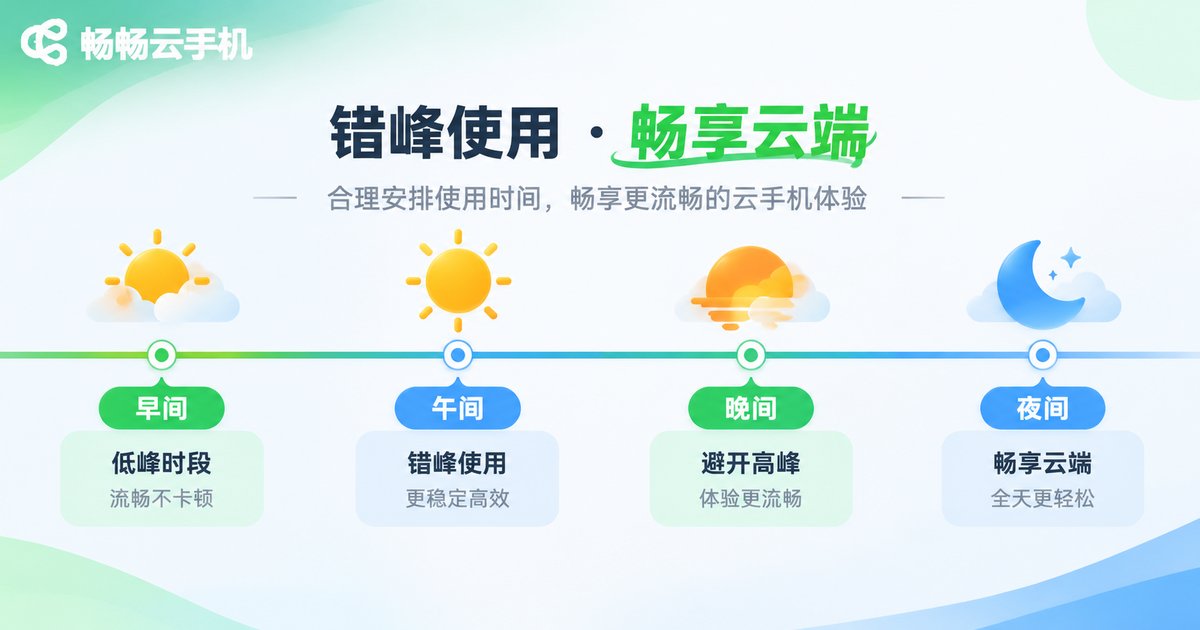
If lag is concentrated between 8 p.m. and 11 p.m., your usage overlaps with the resource peak. Move software updates, asset sync, bulk uploads, and screen recording exports to early morning or midday. Keep real-time tasks in time windows with more stable network conditions.
The key to task orchestration is set priorities first, then set times. List the cloud phone tasks you do each day, mark whether each must be real-time, and give bulk tasks a fixed window. This protects key work and reduces competition for resources during peak hours.
An actionable peak-hour checklist
1. Before entering the cloud phone, close unneeded background apps and auto-sync. 2. At peak hours, use a stable network and switch networks to test if needed. 3. Lower resolution and frame rate for non-critical screens while keeping touch response smooth. 4. Start multiple instances in batches and watch for a few minutes before adding more. 5. Move installs, updates, and exports to off-peak hours. 6. Record when lag happens and what task was running, so you can tell resource issues from network issues.
Why you can try ccloudphone
ccloudphone provides a cloud phone environment for remote work, app testing, multi-instance management, and idle-running scenarios. When peak-hour lag appears, start with resource scheduling by adjusting image quality, background tasks, and instance start rhythm, then arrange tasks at off-peak times. For available configurations and features, refer to the official ccloudphone website, and choose a setup that matches your workload instead of piling on resources blindly.
Frequently asked questions
Q: Does peak-hour lag mean the cloud phone is broken?
Not necessarily. In most cases, shared compute, bandwidth, or storage is being heavily used at the same time. Resource scheduling and off-peak testing are more useful first steps.
Q: Will lowering image quality affect operation?
It may reduce clarity a little, but it often brings steadier touch response. Lower resolution and frame rate at peak, then restore them off-peak.
Q: Do more instances always mean more lag?
More instances add compute and memory pressure. Start them in batches, close unused instances, and reduce background sync to lower the chance of slowdowns.
Q: How can I tell network issues from resource issues?
If the screen is blurry but taps respond, it is more like network fluctuation. If taps and switching are both slow, it is more like resource pressure. Record the time and task type, then rule out causes one by one.
Q: Is ccloudphone suitable for peak-hour use?
You can match configuration and usage time to your task types. Define real-time tasks and bulk tasks first, then choose a suitable setup based on the official website guidance for a steadier experience.


