
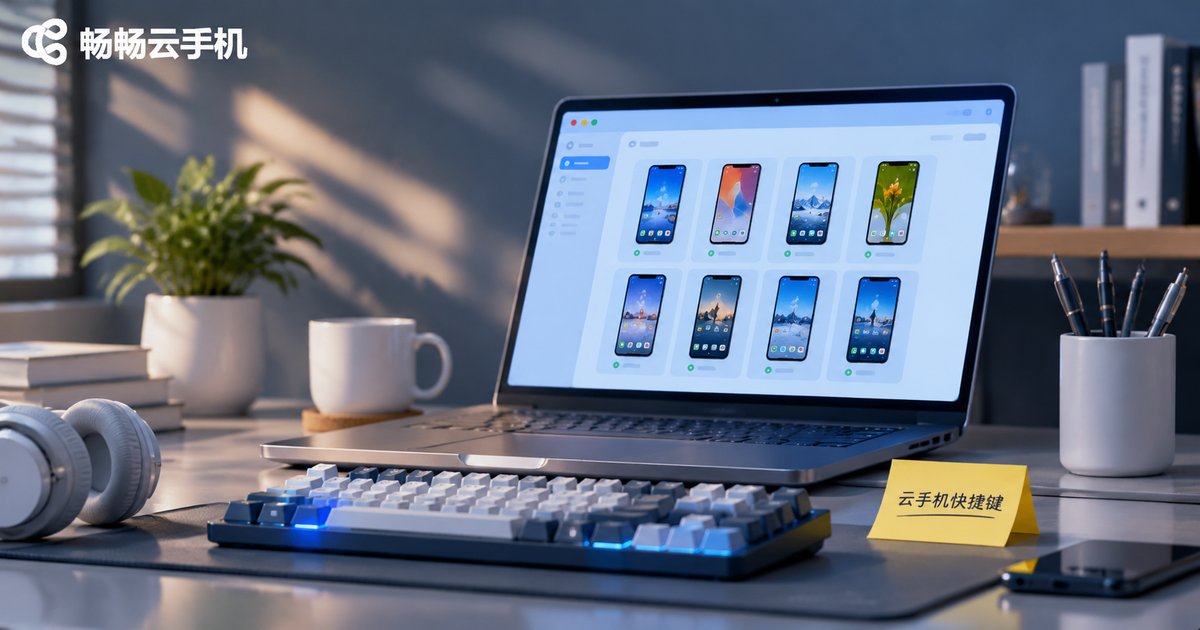
Cloud Phone PC Shortcut Key Settings: Common Operations and Efficiency Tips
Why Shortcut Keys Are Worth Setting Up on Cloud Phone PC
Many people still use a mouse to tap Back, switch apps, or take screenshots when running a cloud phone on a computer. Each click may only cost a second or two, but over a day it breaks your rhythm. Binding frequent actions to the keyboard makes switching multi-instance windows, returning to the home screen, taking screenshots, and recording screens much smoother, especially when you manage several cloud phone instances at once.
The point of shortcuts is not to show off. It is to reduce mouse travel and mis-clicks. Start with the 3 to 5 actions you use most, then add more as you get comfortable.
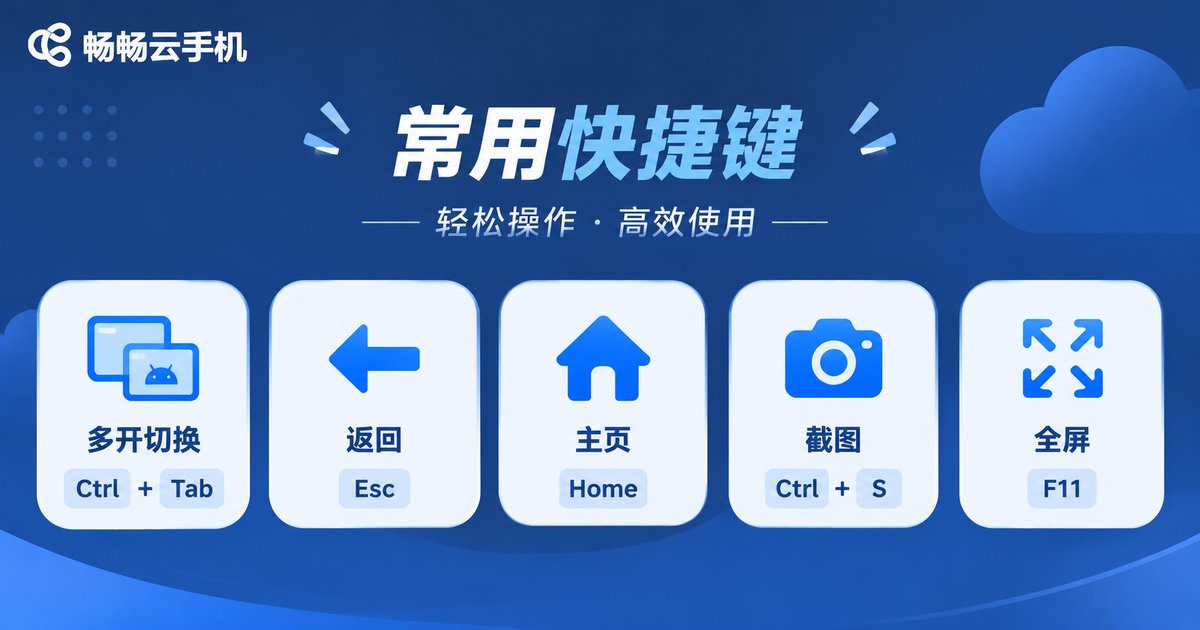
Common Shortcuts and What They Do
Default keys vary by cloud phone client and version. The examples below are common actions and sample key combinations. Always follow the settings page in the CcloudPhone PC client. Put your most-used actions where your left hand can reach them easily.
| Action | Sample Combination | Best For |
|---|---|---|
| Switch multi-instance | Ctrl + 1 / 2 / 3 | Managing multiple accounts or tasks |
| Go back | Alt + Left Arrow | Browsing inside an app |
| Return to home screen | Alt + H | Quickly leaving the current app |
| Screenshot | Ctrl + Shift + S | Saving an activity page or error prompt |
| Screen recording | Ctrl + Shift + R | Recording a workflow or reproducing an issue |
| Full screen / exit full screen | F11 | Focused work or demonstrations |
| Rotate screen | Ctrl + R | Landscape games and video apps |
| Volume up / down | Ctrl + Up / Down Arrow | Quick media volume adjustment |
| Paste text | Ctrl + V | Entering long text into the cloud phone |
If a combination conflicts with the system or another app, do not force yourself to remember it. Change it in the settings to something that feels natural.
Set Up Shortcuts in Three Steps
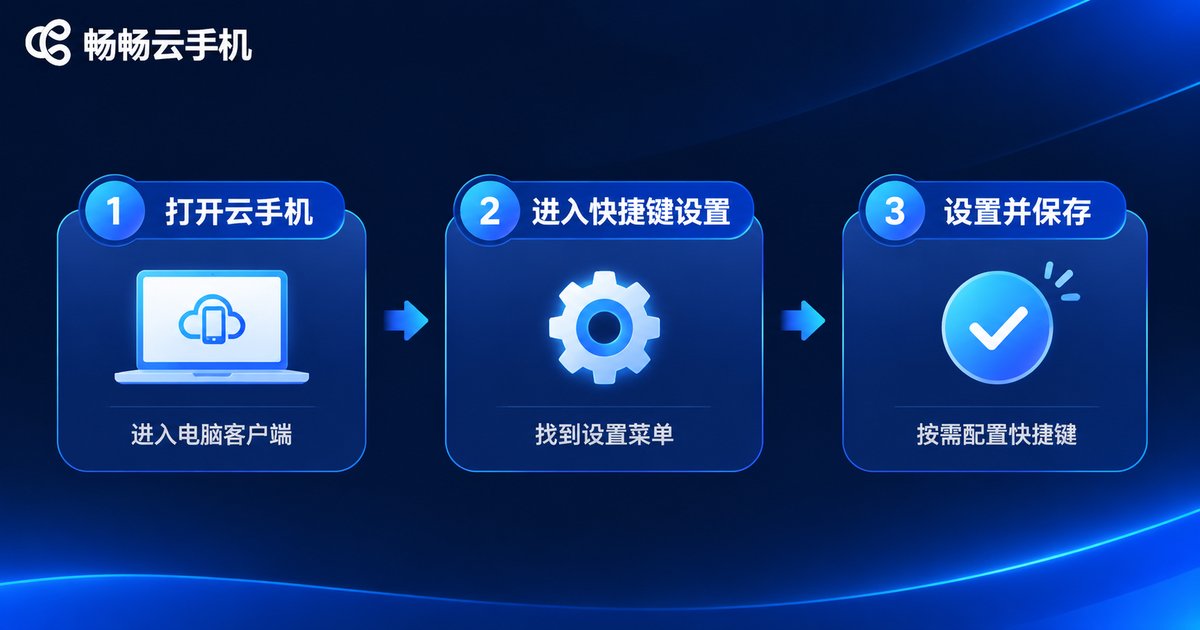
Using the CcloudPhone PC client as an example, the usual path is below. Menu names may vary slightly by version:
1. Open the client and go to the Settings or Shortcuts panel.
2. Find the action you want to bind, click its current key, and press the new combination.
3. Save the settings, return to the cloud phone screen, and test once to confirm there is no conflict.
Follow one simple rule: use single or double keys for high-frequency actions, and combinations for low-frequency actions. For example, set screenshots to Ctrl+Shift+S and use Ctrl+number to switch instances, reducing finger travel.
Six Practical Efficiency Tips
1. Sort by frequency. Set up the actions you use every day first. Do not bind dozens of keys at once.
2. Group multi-instance windows. Put instances for the same project in one group and use Ctrl+number to switch quickly, cutting down window-hunting time.
3. Separate screenshot and recording keys. Screenshots are for evidence, while recordings are for reviewing flows. Do not put both on the same combination.
4. Use full screen wisely. Enter full screen for continuous work, then exit to handle other tasks. This reduces accidental taps.
5. Avoid input method conflicts. If Ctrl+Space is taken by your input method, change it to Alt+Space or Ctrl+Shift+Space.
6. Clean up unused shortcuts regularly. Too many bindings are easy to forget. Keep only the actions you truly use often.
Shortcut Conflicts and Troubleshooting
If nothing happens after setting a shortcut, the cloud phone itself is usually not the problem. Check in this order:
| Symptom | Possible Cause | What to Do |
|---|---|---|
| No response to the combination | Occupied by the system or browser | Choose another combination or close the app using it |
| Input method pops up | Conflicts with the input method switch key | Use an Alt or Ctrl+Shift combination |
| Only some instances respond | The shortcut only works in the focused window | Make sure the target cloud phone window is focused |
| Stops working after restart | Settings were not saved | Open settings again and click Save |
| Differs from an older version | Client version differences | Follow the settings page in your current version |
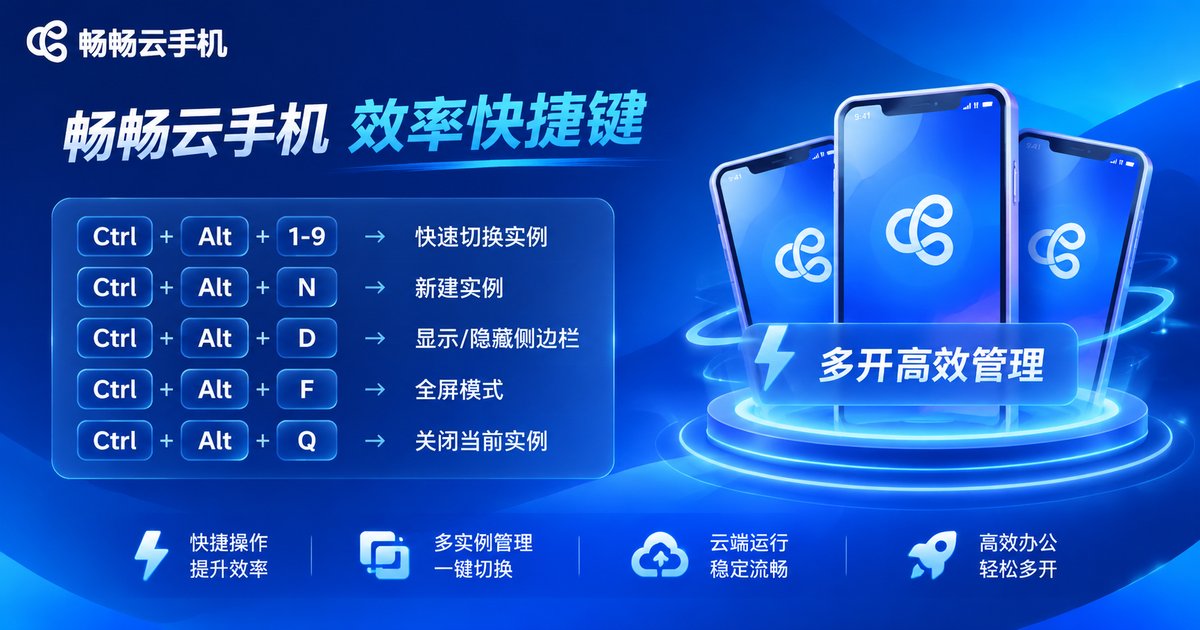
Improve Efficiency with the CcloudPhone PC Client
If you need to manage multiple cloud phone instances on one computer, the CcloudPhone (ccloudphone) PC client can be a practical daily tool. It provides a desktop entry point and shortcut customization, making it suitable for multi-instance management, app testing, and everyday background tasks. For specific features and entry points, refer to the official CcloudPhone website and your current client version. Start with 3 to 5 high-frequency shortcuts as described above, then adjust over time.
Frequently Asked Questions
Q1: Do cloud phone PC clients have default shortcuts?
Most clients provide default combinations and also support customization. Defaults may vary by version, so check the settings page.
Q2: Why does Ctrl+1 not switch instances?
First make sure the cloud phone window is focused. Then check whether the combination is occupied by your browser, input method, or another app.
Q3: Can a shortcut apply to only one cloud phone instance?
Shortcuts usually work on the currently focused window. For independent control, assign different combinations to different instances or switch focus first.
Q4: Where can I change the default screenshot and recording keys?
Open the shortcuts or toolbar options in the client settings, find the screenshot and recording actions, and bind them again.
Q5: Will many shortcuts slow down the cloud phone?
Shortcuts themselves use very few resources. Smoothness depends more on instance configuration, network quality, and the number of apps running at the same time.
Q6: Do shortcuts stay after I change computers?
Shortcuts are usually stored in the local client. You will need to set them again on a new device, so it helps to write down your favorite combinations.
Start with your most-used actions and turn mouse clicks into keyboard commands. You will find that managing a cloud phone on your computer feels much more consistent.


