

Cloud Phone App Group Management Guide: Bulk Organizing, Searching and Quick Launch
Too Many Apps Is Not the Problem — Missing Layers Is
Most cloud phone users share the same experience: you start with a handful of apps, and before long you have one set for work, another for gaming accounts, and a third for a test environment. Dozens of apps on a single cloud phone is normal. Icons cover every screen, finding anything means swiping through pages, and the moment you reset the system you have to organize everything from scratch.
The problem usually is not that there are too many apps — it is that the apps have no layers. The efficient way to work has three steps: sort apps into groups by purpose, use bulk operations to handle an entire group at once, and then rely on search plus quick-launch entries so anything opens in seconds. This method works on any cloud phone. Here it is, step by step.
Step One: Set the Grouping Rules Before You Touch Anything
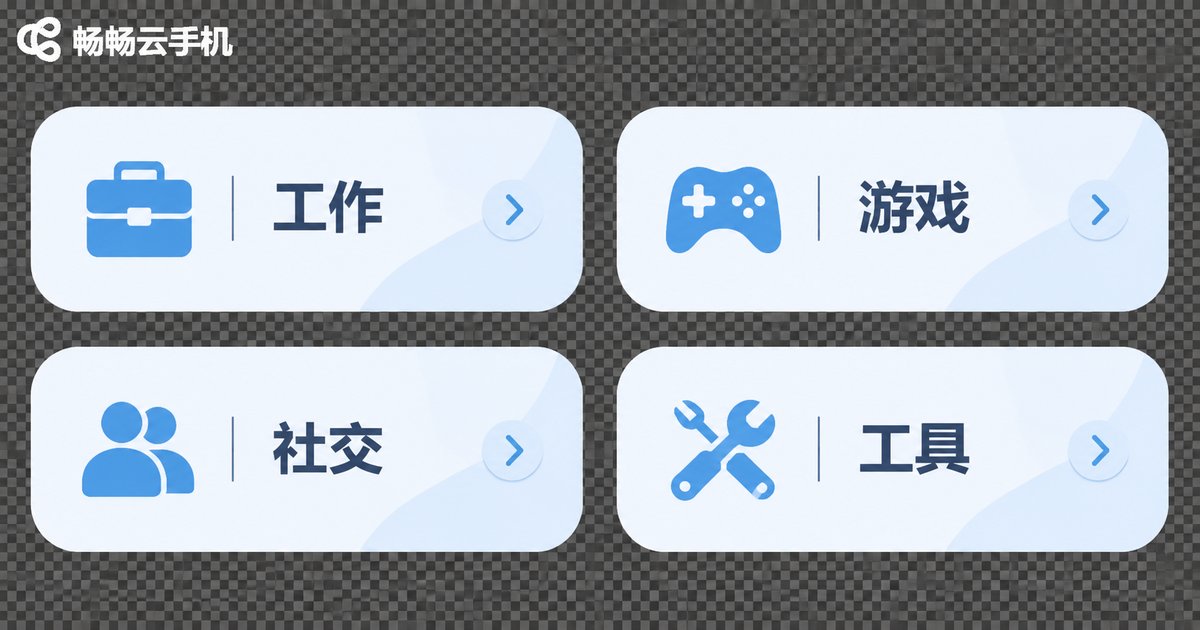
The worst way to group apps is by gut feeling. Today you sort by color, tomorrow by letter, and eventually you cannot remember your own system. Decide on one rule up front and push every app through it. There are three common approaches:
| Grouping approach | Best for | Advantage | Watch out for |
|---|---|---|---|
| By purpose (work / gaming / social / tools) | Most everyday users | Clear logic, easy to find things at a glance | Keep it to five categories or fewer, otherwise it is not grouping at all |
| By account (main / alt / project A) | Multi-instance users, operations staff | No cross-account mistakes, clean data boundaries | Always include a number in the name, e.g. 'ProjectA-01' |
| By usage frequency (frequent / occasional / backup) | People with a very large app count | Fastest launching, cleanest home screen | Needs periodic review |
If you only run one or two cloud phone instances, grouping by purpose is the easiest choice. If you keep several instances running for different jobs, make 'by account' your primary rule and use purpose as a second level inside each group. Once the rules are settled, write them in the instance notes so you do not have to reconstruct them at the next login.
Step Two: Bulk Organizing — Handle a Whole Group at Once
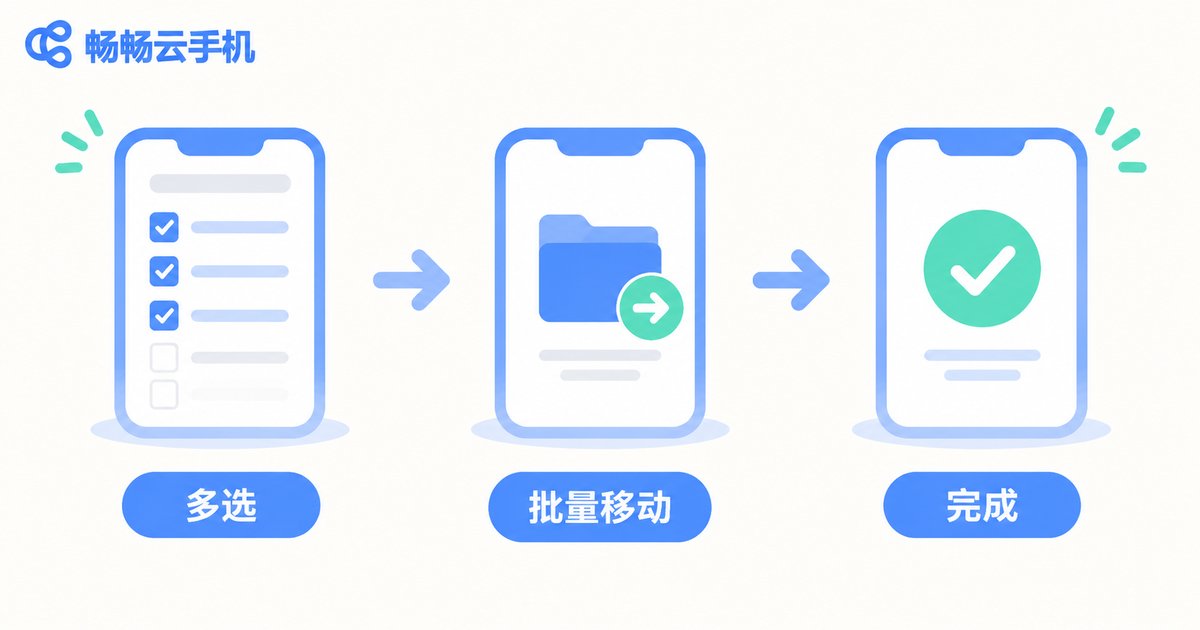
The real value of grouping is that it makes bulk operations possible. Working app by app is always linear; a group is a single unit, and one action covers every member. The tasks most worth batching:
- Bulk move — drag a dozen apps of the same type into a new group in one pass instead of long-pressing each one.
- Bulk uninstall — when a project ends, select the entire 'Project A' group and remove it, leaving nothing behind.
- Bulk add to home screen — push high-frequency groups to the first home screen and leave low-frequency groups in the app list.
- Bulk freeze or disable — freeze a group you are not using temporarily and unfreeze it as a whole later, which is far less work than uninstalling and reinstalling.
Compare the two ways of organizing and it becomes obvious why ten minutes of grouping pays off:
| Task | One by one | After grouping | Time change |
|---|---|---|---|
| Uninstall 10 apps you no longer use | Long-press and confirm each | Select the group, uninstall once | ~3 min → ~30 sec |
| Move 10 apps to a new page | Drag them one at a time | Move the whole group | ~2 min → ~20 sec |
| Find a rarely used app | Swipe pages and scan visually | Type its initials in search | ~30 sec → ~3 sec |
Bulk operations come with one precondition: verify the group members first. Before a bulk uninstall or freeze, take a quick look at the group on the home screen and make sure nothing that should stay has slipped in.
Step Three: Search Beats Scrolling Ten Times Over
No matter how tidy your groups are, they will not solve the case where you cannot remember which group an app went into. That is the moment to stop scrolling and search instead. A few habits that improve your hit rate:
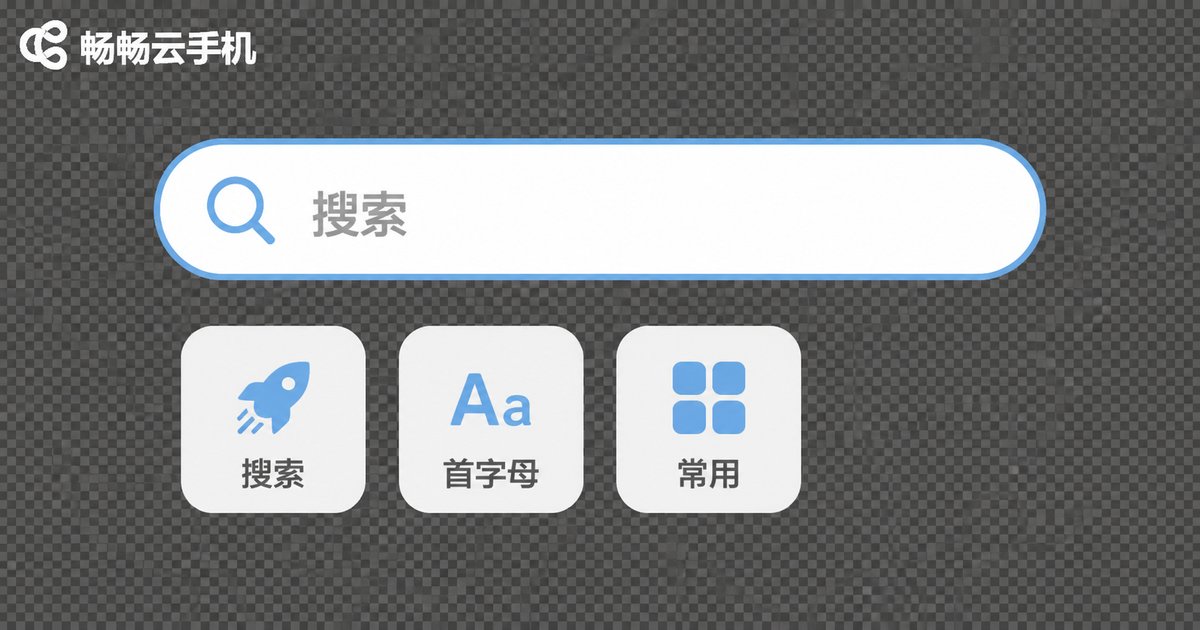
Typing the initials of an app name is usually faster than typing the full name, and most system-level search supports fuzzy matching and pinyin initials. If you only remember what the app does, search for the function keyword — typing 'notes' finds a whole class of tools. Results are typically ordered by recent use, so your frequent apps already float to the top without extra maintenance.
Good grouping also improves search in return: group names themselves are searchable, so if you name groups clearly — 'ClientComms-WeChat', 'Testing-Toolset' — searching a group name effectively searches a batch of apps at once.
Step Four: Quick Launch — Keep Frequent Apps Within Reach
The final step has a single goal: fewer taps for the things you do most. Three common techniques stack well:
- Home screen folder — pin your most-used group as a folder on the home screen; one tap expands it.
- Dock or fixed slots — place three to five daily essentials in fixed positions and let muscle memory do the work.
- Shortcuts — for apps you open and leave immediately, create a direct entry and get out fast.
The point of quick launch is not to put everything on the home screen, but to keep only the small high-frequency set there. The fuller the home screen, the slower the launch.
Multi-Instance Scenarios: Rules Should Follow the Instance
Running multiple instances is the most typical cloud phone use case — and the easiest place to get messy. With several instances online at once, each with its own pile of apps, identical group names make it very easy to act on the wrong window.
A reliable approach is to make the layers line up: instance name, group name, and app name. If the instance is called 'Ops-01', name its groups 'Ops-01 / Comms' and 'Ops-01 / Tools'. Then even with four or five windows open, one glance at the title bar tells you which machine you are working on. Also keep only the apps the current project needs inside each instance, and clean out the whole group when the project ends rather than carrying last quarter's apps forever.
Putting the Method to Work on ccloudphone
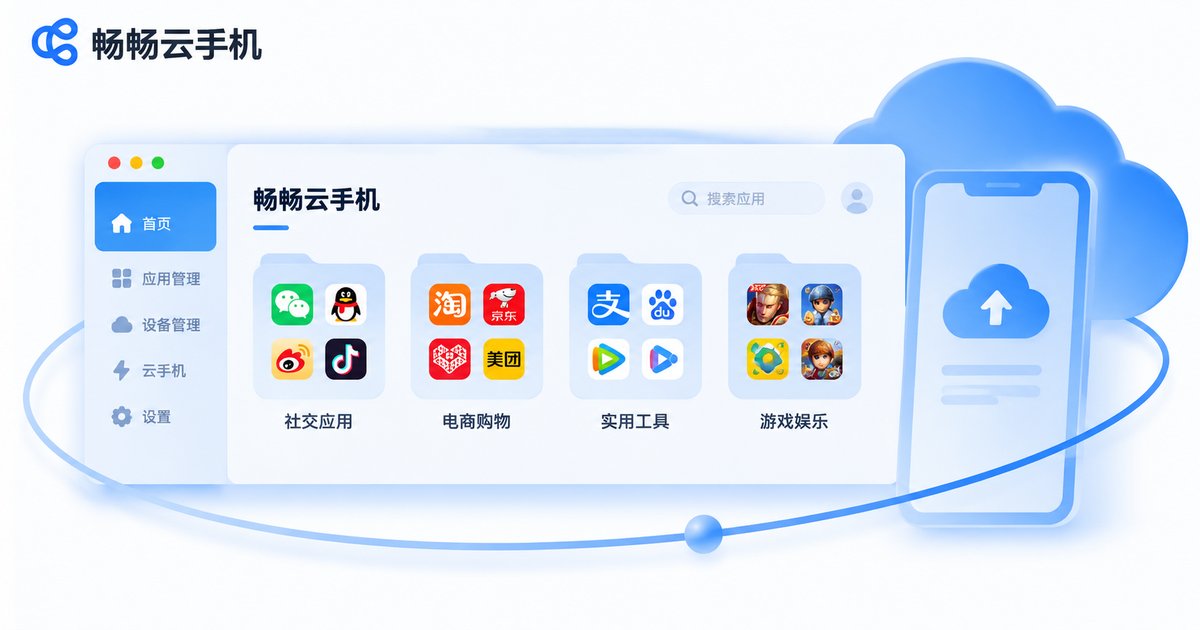
The method itself is device-agnostic, but it feels more natural on a cloud phone because each instance is an isolated environment with very clear boundaries: one instance equals one complete organizing unit, and instances do not interfere with each other.
On ccloudphone, work in this order: give every instance a meaningful name, create the first-level groups inside the instance using either the by-account or by-purpose rule, freeze the apps you rarely use, and finally pin your high-frequency group to the home screen. Every time you add a new app afterwards, decide which group it belongs to first — avoid the 'install now, organize later' habit, because that 'later' almost never arrives.
For how many instances are available and what each configuration includes, check the official website for current information and choose based on your actual workload rather than immediately reaching for the highest spec.
Frequently Asked Questions
Q: How is app grouping on a cloud phone different from folders on a regular phone?
Both are containers for apps, but cloud phone groups are usually tied to an instance. Groups you create inside one instance only apply there, and you will need to organize again on a different instance — which is exactly why writing your grouping rules into the instance notes is worth the effort.
Q: How many groups is the right number?
Keep first-level groups to three to five. Going beyond that usually means the classification dimension itself is wrong. If you truly have a lot of apps, add a second level rather than endlessly adding first-level groups.
Q: Will a bulk uninstall delete something important?
Looking over the group icons first is essential. A safer pattern is two steps: move the apps you plan to handle into a temporary group, confirm the contents, then uninstall or freeze the whole group.
Q: What if search cannot find an app?
First confirm you typed the app's initials rather than a full pinyin string, then check whether the app has been frozen or disabled. If your group names are clear, searching a group name will also locate a batch of apps.
Q: I have so many instances open that I lose track. What should I do?
Reducing the number of simultaneously open instances is the most direct fix. Keep only the instance you are working in, close the rest, and reopen them when you return. Closing windows is far less tiring than double-checking five of them repeatedly.
Q: How often does this need maintenance?
Do a full group cleanup at the end of every project, and spend ten minutes once a month reviewing your first-level groups to move out apps you no longer use. The maintenance cost is low, and it keeps things clean over the long run.


