

How to Use Cloud Phone Operation Log Audit: Permission Tiers and Behavior Tracing for Team Collaboration
Why Teams Using Cloud Phones Must Keep an Eye on Operation Logs
When teams first adopt cloud phones, many simply share account credentials with every member: anyone uses any device, and nothing gets recorded. It feels efficient at first, but problems surface quickly — an ad budget gets changed by mistake and nobody knows who clicked; customer data gets deleted and no one admits it; device settings get scrambled and troubleshooting turns into guesswork. The operation log audit feature is the core tool that solves these problems: it automatically records every critical action on each cloud phone — who did what, on which device, and when — all backed by evidence. For collaborating teams, this is not an optional luxury; it is the infrastructure that upgrades your management from trust-based to system-based.
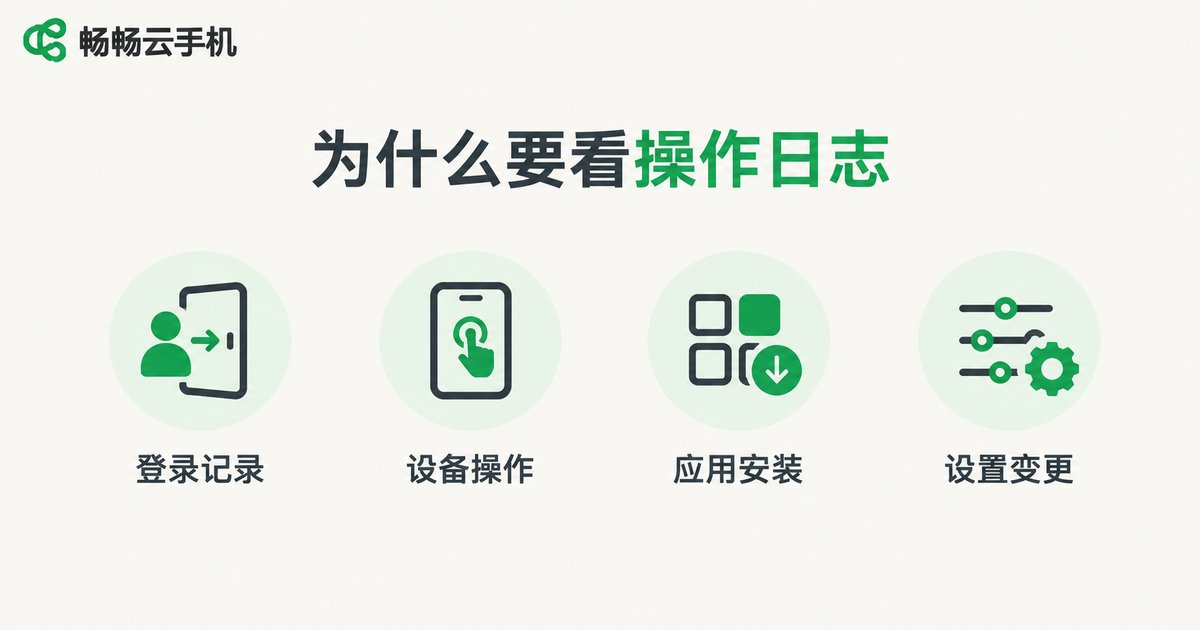
What Exactly Does the Operation Log Record?
Taking a cloud phone service with centralized multi-device management such as ChangChang Cloud Phone (ccloudphone) as an example, operation logs typically cover the following key actions:
Accounts and logins: when members sign in to the console, from which IP and device, plus abnormal login attempts;
Device operations: device start-up, shutdown, restart, and batch group-control commands;
Apps and files: app installation, uninstallation, updates, and file uploads or downloads;
Configuration changes: device parameters, proxy settings, permission changes, and other sensitive operations.
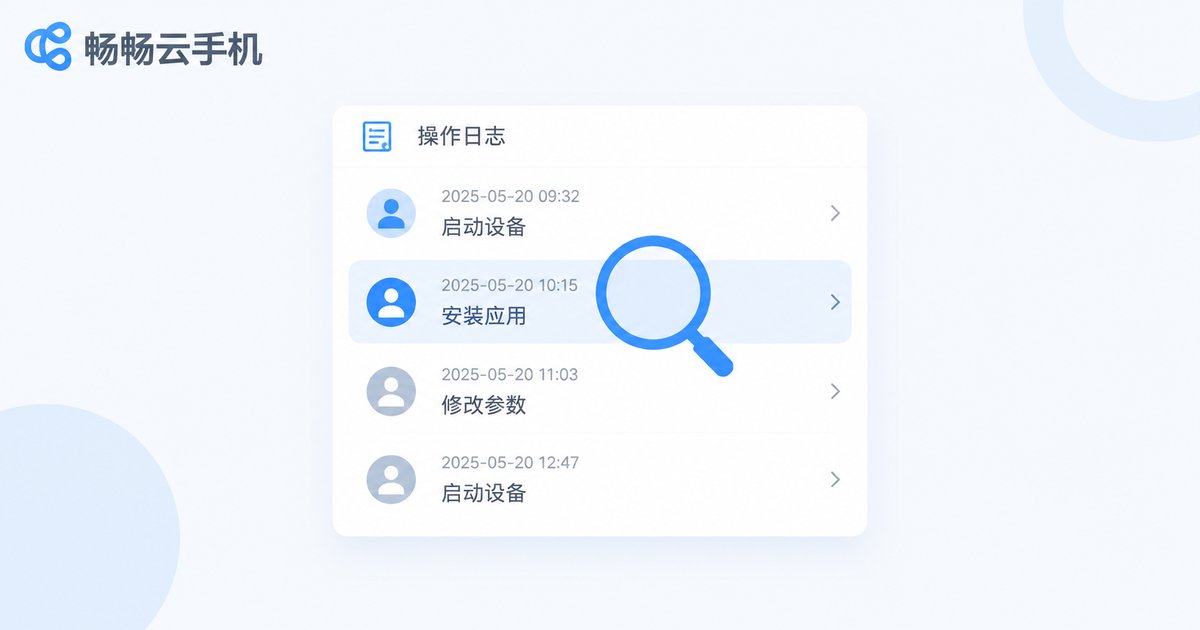
Each entry should carry four elements: the operator, the time, the target object, and the result. The worst kind of audit log shows outcomes without context; a proper one lets you reconstruct the full story behind every action.
Permission Tiers: Let Everyone Do Only What They Should
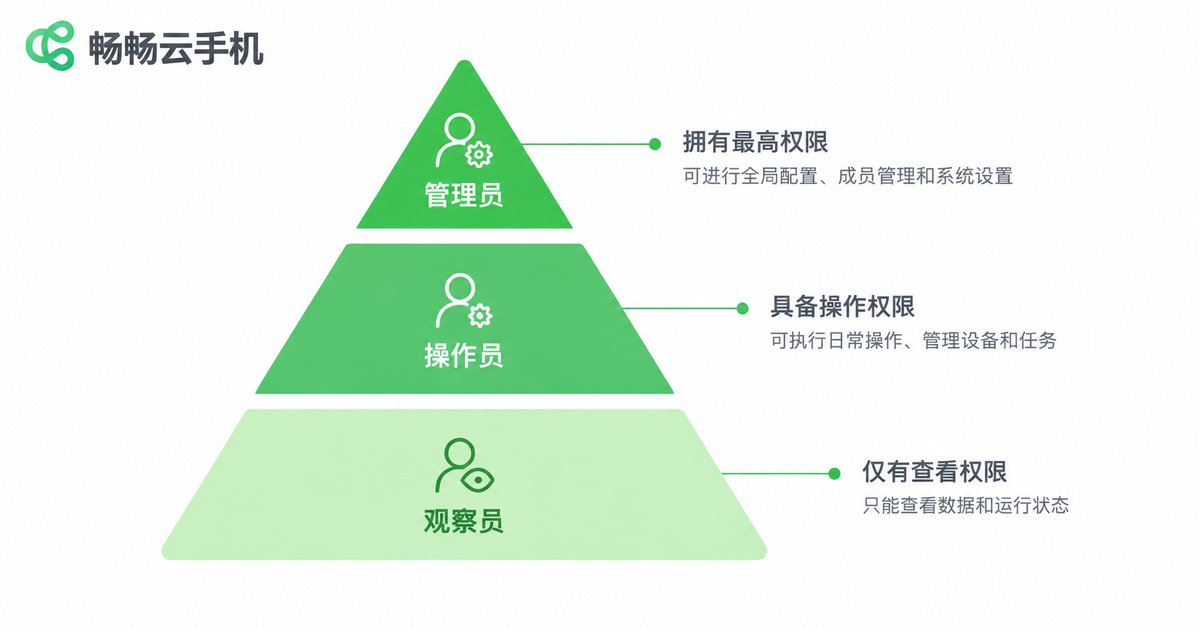
Logs handle tracing after the fact; permission tiers handle prevention before it happens. A solid setup for team collaboration usually splits members into three tiers:
| Role | Typical Members | Can Do | Cannot Do |
|---|---|---|---|
| Admin | Team lead | Everything, including assigning permissions and viewing logs | — |
| Operator | Frontline staff | Daily operations on assigned devices, app usage | Change permissions, delete devices, view all logs |
| Viewer | Support, QA, newcomers | View device status and assigned content | Any write operations |
Follow two principles when assigning permissions: least privilege — grant only what the job requires and nothing more; and device isolation — group devices by project or business line so each member only touches the group they are responsible for, avoiding the chaos of one device shared by the whole team.
Behavior Tracing: Locate the Problematic Action in Three Steps
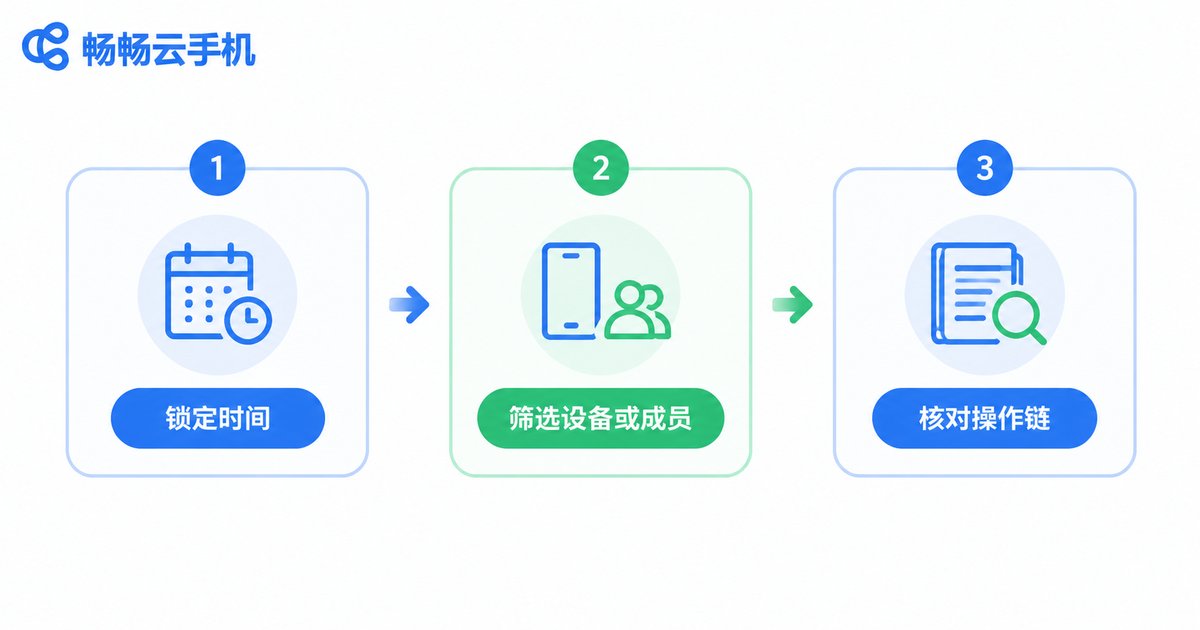
When something goes wrong, how do you quickly find the responsible action? Follow these three steps:
Step 1: Lock in the time range. Narrow the window to when the issue likely occurred — say, yesterday between 3 p.m. and 6 p.m.
Step 2: Filter by device or member. If you know which device misbehaved, filter logs by device; if you suspect a certain role, filter by member, then cross-check both.
Step 3: Read the action chain. Sort the filtered records chronologically and see who did what first and what was changed afterward. A few connected entries usually reveal the root cause.
If your platform supports log export, make it a habit to export and archive logs weekly — handy for weekly reviews and an intact evidence chain if disputes ever arise.
High-Frequency Scenarios for Three Types of Teams
Matrix account studios: dozens or hundreds of devices distributed across operators, permissions divided by device group, logs spot-checked daily — abnormal actions on any account can be traced the same day.
E-commerce and support teams: agents share a pool of devices in shifts; handovers are verified against logs, ending the inherited mess with no known owner.
Social media agencies: clients care about compliance; sending periodic log-based briefings shows professionalism and draws a clear line of responsibility in writing.
Why We Recommend ChangChang Cloud Phone for Team Collaboration
If you are evaluating options, take a close look at ChangChang Cloud Phone (ccloudphone). Built for multi-device, multi-user scenarios, it offers a centralized management console with sub-account permissions, device group authorization, and operation record tracking, letting admins handle device assignment, member management, and log reviews in one place without juggling multiple tools. For teams moving from personal multi-account use to organized team operations, getting permissions and logs right first is what keeps things tidy as you scale. For the latest feature details and plans, check the official ChangChang Cloud Phone website and choose based on your team's actual size.
FAQ
Q: Do operation logs consume device performance?
No. Logging happens in the cloud backend and does not interfere with the apps running on your devices — you won't notice it in daily use.
Q: Can regular members delete their own operation records?
Best practice is to reserve log management for admins only; regular members can view records related to themselves. This keeps logs tamper-proof by design.
Q: How long are logs retained?
Retention policies vary by platform — confirm the retention period with ChangChang Cloud Phone directly during evaluation, and make regular exports a habit. For key projects, keep records for at least one full business cycle.
Q: Our team is only three to five people. Do we still need permission tiers?
Yes. Small teams have fewer conflicts, but a single misoperation can still be hard to attribute. Even a simple two-tier setup (admin plus operator) with log tracking costs almost nothing and pays off immediately.
Q: How do we onboard a new member quickly?
Create a sub-account for the relevant device group, grant the matching permissions, then walk the newcomer through that group's recent operation logs — within half a day they will know the daily usage rules.


