
How to Use the Cloud Phone OpenClaw Plugin: Power On/Off, Screenshots, Taps and Input via Natural Language
What Is the OpenClaw Plugin? Let AI Run Your Cloud Phone for You
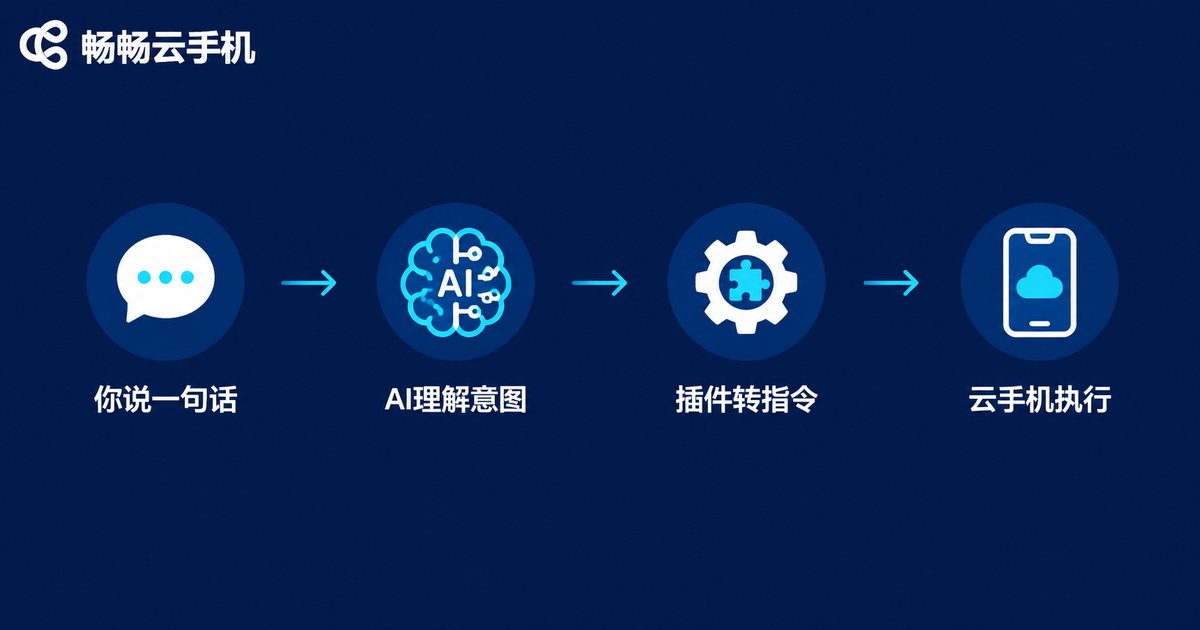
Anyone who has used a cloud phone for a while knows the feeling: the features are all there, but tapping through the same steps every day gets old fast. The OpenClaw plugin was built to fix exactly that. It connects CCloudPhone to your AI assistant, so all you do is send a message like “power on my device”, “take a screenshot of the current screen” or “tap the button in the bottom-right corner” — and the plugin translates your words into control commands and executes them on the cloud phone right away.
In short, instead of hunting for buttons and memorizing steps, one natural-language sentence now covers the core operations: power on/off, screenshots, taps and text input. That is the most tangible value of pairing AI with a cloud phone: you talk, the AI operates.
Three Things to Prepare Before You Start
Make sure the following three items are ready:
1. A CCloudPhone account and device: Register and sign in on the CCloudPhone official website, and make sure you have at least one cloud phone that is online and remotely controllable;
2. A running OpenClaw environment: OpenClaw should already be deployed on your computer or server, able to start normally and open the chat interface;
3. Device authorization credentials: Generate the authorization details from the device page in the CCloudPhone console — the plugin uses them to build a secure connection to your cloud phone.
Install and Configure the Plugin in Three Steps
The whole setup boils down to three stages: install, bind, test.
Step 1: Install the plugin. Find the cloud phone plugin in OpenClaw's plugin manager and install it (check the official docs for the exact command), for example:
openclaw plugin install ccloudphoneStep 2: Bind your device. Paste the device ID and authorization token from the CCloudPhone console into the plugin configuration file to create a one-to-one binding between the device and your AI assistant:
provider: ccloudphone
device_id: your-device-id
token: your-auth-token
Step 3: Test with a chat message. Save the configuration, then send “check my cloud phone status” in the chat. If the AI replies with the device's online status and battery info, the connection works and you are ready to go.
Core Commands in Action: Power, Screenshots, Taps and Typing in One Sentence
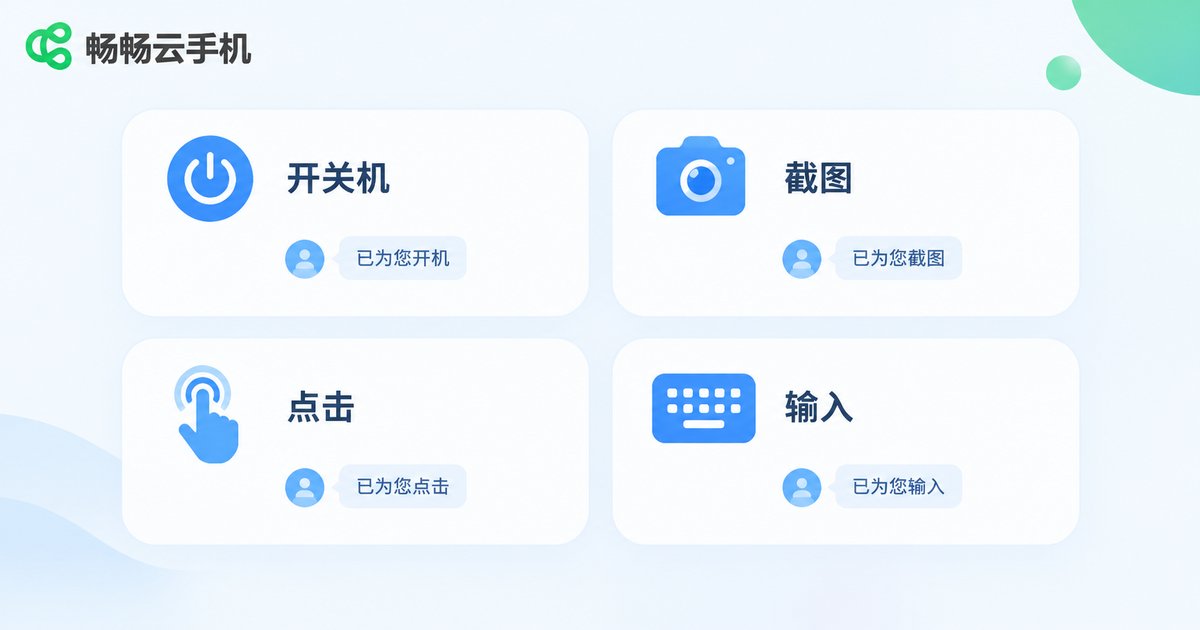
Once the plugin is configured, daily use becomes effortless. Here is how the four most common operations compare:
| Operation | Manual way | One OpenClaw sentence |
|---|---|---|
| Power on/off | Open the console and find the power button for each device | “Shut down device 2 and restart it in an hour” |
| Screenshot | Enter the device screen and capture manually | “Take a screenshot of the current screen and send it to me” |
| Tap | Locate the spot on screen and tap by hand | “Tap the Start button in the middle of the screen” |
| Type | Bring up the keyboard and type character by character | “Type daily check-in in the search box and send” |
Even better, these commands can be chained into multi-step tasks. For example: “At 8 a.m., power on the device, open the check-in app, tap the check-in button, then send me a screenshot.” The plugin breaks the sentence into an action sequence and runs it in order. You describe the goal; the AI does the work — that is the real magic of natural-language cloud phone control.
Advanced Playbook: Scheduled Tasks, Batch Checks and Auto Typing
Once you are comfortable, the OpenClaw plugin can take on even more repetitive work:
Scheduled power cycles: Have your cloud phone power on and off automatically at set times — perfect for keeping apps alive or staggering tasks, with no need to babysit anything;
Batch status checks: Ask the AI to go through multiple devices one by one, verify their online status and screenshot each screen to confirm everything looks normal, alerting you when something is off — multi-device management made easy;
Automated typing and submission: Hand repetitive form filling, searching and messaging to the AI, which types your copy accurately and cuts down manual typos.
Why Run the OpenClaw Plugin on CCloudPhone
Stable AI automation needs a solid device underneath. CCloudPhone (ccloudphone) is a particularly good match for the OpenClaw plugin:
Always online: The cloud Android environment runs around the clock, independent of your local devices, so the AI can reach your cloud phone and run commands at any time;
Unified multi-device management: Manage many cloud phones from one place, and with the plugin you can broadcast commands in batch — one sentence sets every device in motion;
Standard interface, smooth integration: The official device control capabilities are well standardized, so the plugin connects cleanly — configure once, use reliably long term.
If you already have a CCloudPhone device, try the OpenClaw plugin today: start with a simple “take a screenshot for me” and feel what it is like to manage your cloud phone by voice alone.
FAQ
Q: Do I need coding skills to use the OpenClaw plugin?
No. Follow the official documentation step by step for setup, and everyday use is pure natural-language chat — if you can send a message, you can use it.
Q: Can one sentence control multiple cloud phones at once?
Yes. After authorizing several devices to the plugin, just say “take a screenshot on every device and send them to me” — the AI executes on each device and summarizes the results.
Q: How do I confirm an action actually succeeded?
After any power, tap or input action, you can ask the AI to send back a live screenshot. The picture is the proof, keeping every execution transparent and controllable.
Q: What if a command is misread?
Be specific: include the device number, app name and action order, e.g. “Device 3, open Settings, tap About phone.” The clearer the instruction, the more precise the execution.


