
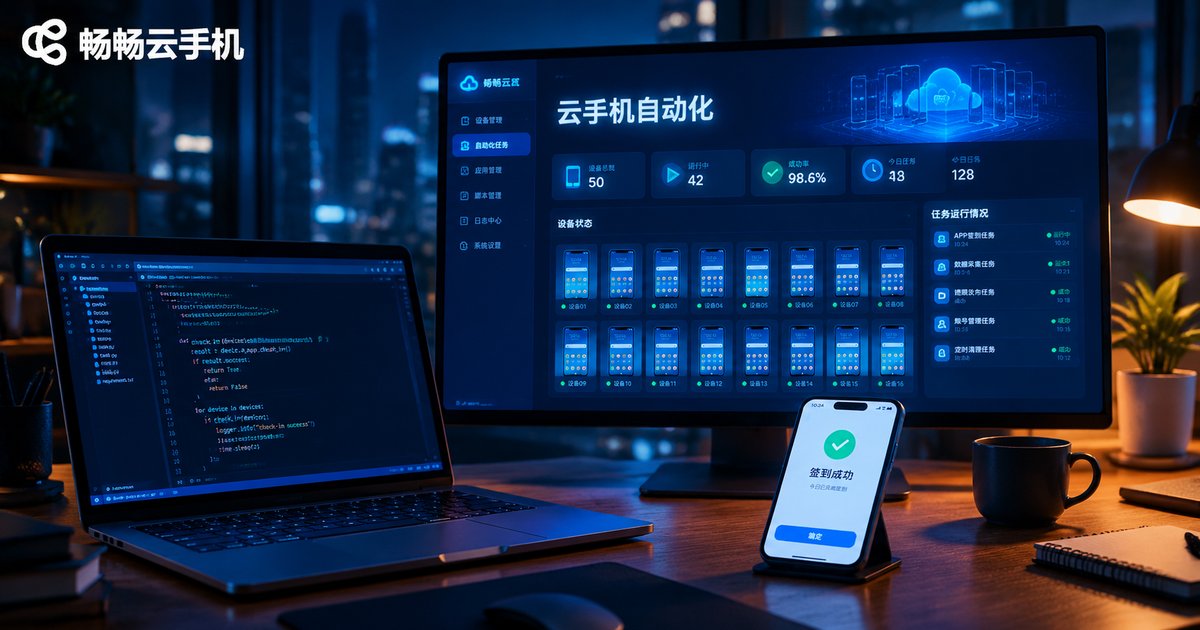
How to Integrate a Cloud Phone Automation SDK: From Goal Description to Workflow Script Generation
First, Understand What a Cloud Phone Automation SDK Actually Solves
Traditional app automation means recording and replaying taps step by step, or hand-writing hundreds of lines of script that break the moment the UI changes. A cloud phone automation SDK takes a fundamentally different approach: you describe the goal in natural language, and the cloud handles parsing, generation, and execution.
For example, you tell the system 'open a certain app at 9 a.m. every day, check in, and claim the reward.' The pipeline automatically turns that sentence into an executable workflow script, runs it on a cloud phone instance, and returns the results to you. That pipeline is the backbone of this article: goal description → intent parsing → script generation → cloud execution → result delivery.
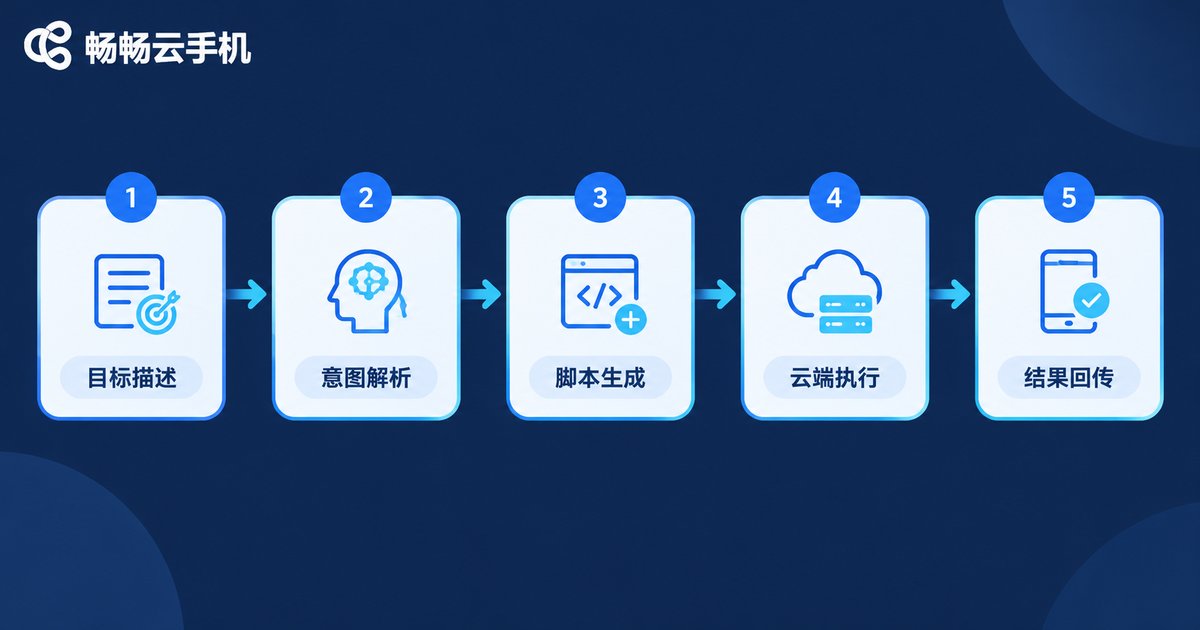
Pipeline Overview: Five Stages, Each With a Clear Job
| Stage | Who Does It | Output |
|---|---|---|
| Goal description | You (developer or operator) | A clearly structured natural-language goal |
| Intent parsing | Cloud parsing engine | Structured task intent (target, actions, conditions) |
| Script generation | Cloud generation engine | An executable workflow script |
| Cloud execution | Cloud phone instance | Real operation logs and screenshots |
| Result delivery | SDK callback or polling | Execution results and error details |
The biggest benefit of understanding this pipeline is fast troubleshooting: a vague goal is an upstream problem, parsing drift can be fixed by refining the description, and execution failures point to device state or script logic.
Three Things to Prepare Before Integration
First, get your account and credentials: create an app in the ChangChang Cloud Phone (ccloudphone) console and obtain your API key, the pass for every request. Second, set up your environment: Python 3.8 or above plus the official SDK package is recommended. Third, prepare cloud phone instances: automation runs on cloud devices, so your local computer can stay off.
Step 1: Write a Clear Goal Description (The Most Underrated Stage)
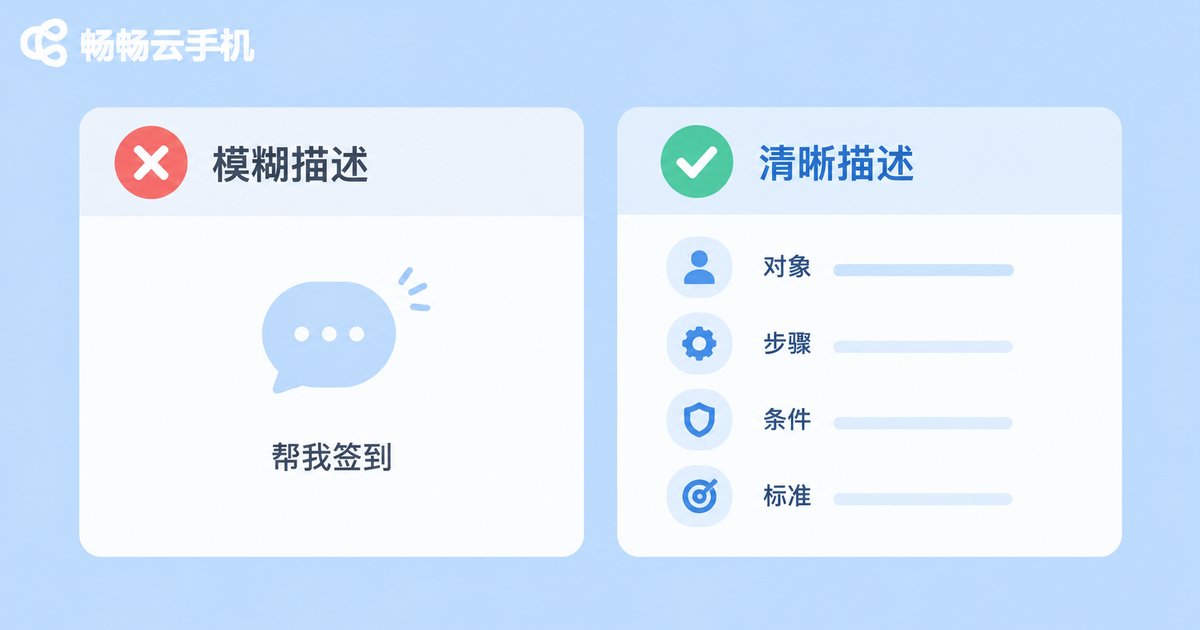
When the generated script 'does not do what I meant,' nine times out of ten the goal description is to blame. A good description covers four elements: target (which app, which page), action sequence (what happens in what order), branch conditions (what to do when a popup appears), and success criteria (what counts as done).
Compare: a vague goal says 'check in for me'; a clear goal says 'open the app, go to the profile page, tap the daily check-in button, close any ad popup first, and take a screenshot to confirm success.' The more specific the description, the more accurately the engine understands the intent, and the higher the first-pass rate.
Step 2: Install the SDK and Authenticate
The following Python snippet illustrates the pipeline shape; refer to the official documentation for exact interfaces:
pip install ccloudphone-sdk

from ccloudphone import Client

client = Client(api_key='YOUR_API_KEY')
devices = client.devices.list()
print(devices)
If this runs and lists the cloud phone instances under your account, authentication works. Keep the key in an environment variable instead of hard-coding it.
Step 3: Submit the Goal and Generate the Workflow Script
task = client.workflows.generate(
    device_id='DEVICE_ID',
    goal='Open the app, go to the check-in page, tap the check-in button, handle possible popups, take a screenshot when done'
)
print(task.workflow_id)
print(task.script)
The returned script is the generated workflow, including every action, wait condition, and error branch. Trial-run it on a single device before rolling it out in bulk.
Step 4: Execute, Monitor, and Collect Results
run = client.workflows.execute(
    workflow_id=task.workflow_id,
    device_ids=['device-1', 'device-2', 'device-3']
)

status = client.workflows.status(run.run_id)
print(status.state, status.screenshots)
Watch two metrics during execution: success rate and duration per run. Cloud phones stay online around the clock, which makes them ideal for scheduled and long-running jobs; for batch runs, start with a small canary group before full rollout.
Step 5: Debug Failures and Iterate
When a run fails, walk the pipeline in order: is the goal description vague → does the parsed intent match expectations → is the generated script logic sound → is the device healthy (storage, network, app version)? Change one variable per iteration to isolate the cause quickly.
Why ChangChang Cloud Phone Works Well for Automation
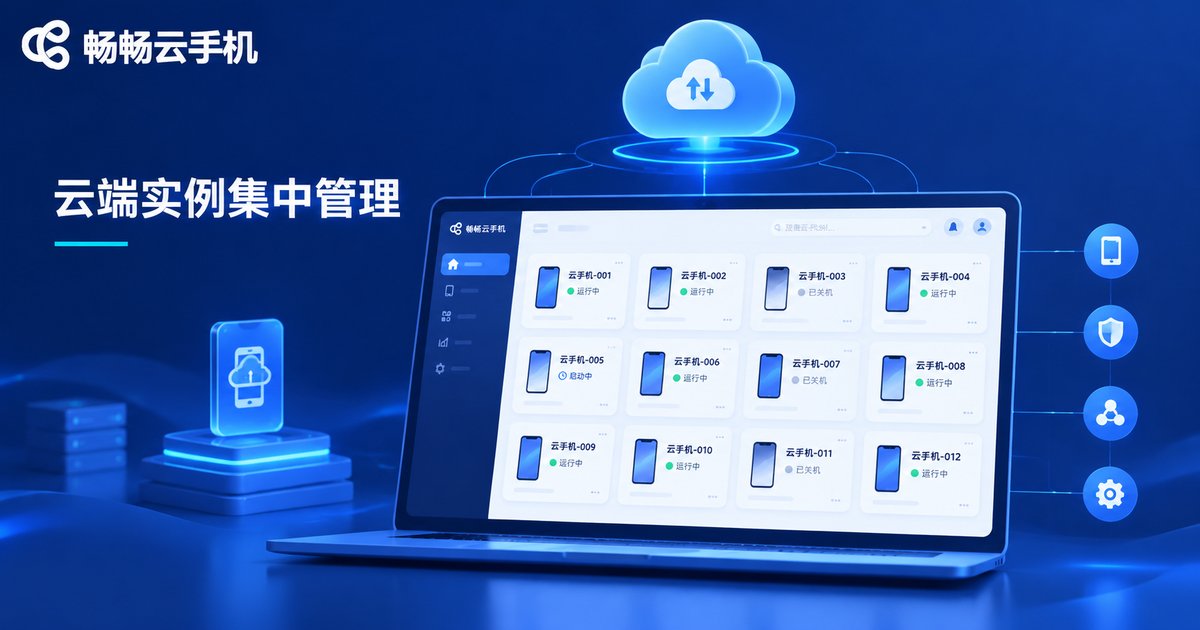
When choosing a cloud phone platform for automation, focus on three things: instance stability, batch management, and API friendliness. ChangChang Cloud Phone (ccloudphone) provides Android instances in the cloud that stay online around the clock, with centralized management of multiple devices. Combined with the automation pipeline, it covers high-frequency scenarios such as check-ins, routine inspections, and content publishing. Visit ccloudphone.com to learn more.
FAQ
Q: Can I use it without coding skills?
Yes. The core of the pipeline is describing the goal in natural language; the script is generated in the cloud, so calling an API or using the console is enough.
Q: The generated script failed on the first run. What now?
Check whether the goal description is specific enough, add branch conditions and success criteria, then regenerate. Review the execution logs to locate the failing step and adjust.
Q: Can one cloud phone run multiple automation jobs at once?
Run jobs serially on a single device to avoid conflicting taps; for concurrency, create multiple instances and run jobs in parallel.
Q: Does my local computer need to stay on?
No. Jobs run on cloud devices; your local machine only submits goals and receives results.
Q: Will scripts break when an app UI changes?
That is exactly the advantage of natural-language workflow generation: re-describe the goal and regenerate, far faster than hand-maintaining scripts.


