
Cloud Phone Network Settings: Latency, Disconnection, Reconnection and Weak-Network Solutions
A Slow Cloud Phone Is Rarely a Slow Device
A cloud phone works by running an Android instance inside a data center while your phone, tablet or laptop acts purely as a remote control and display. That means no matter how powerful your local device is, a shaky network will still make the picture stutter and your taps feel floaty.
When you run into high latency, sudden disconnections or failed reconnects, the right place to start is the network path, not a newer handset or another round of memory cleanup. This guide breaks the problem into its distinct parts and then gives you a set of steps you can actually follow.
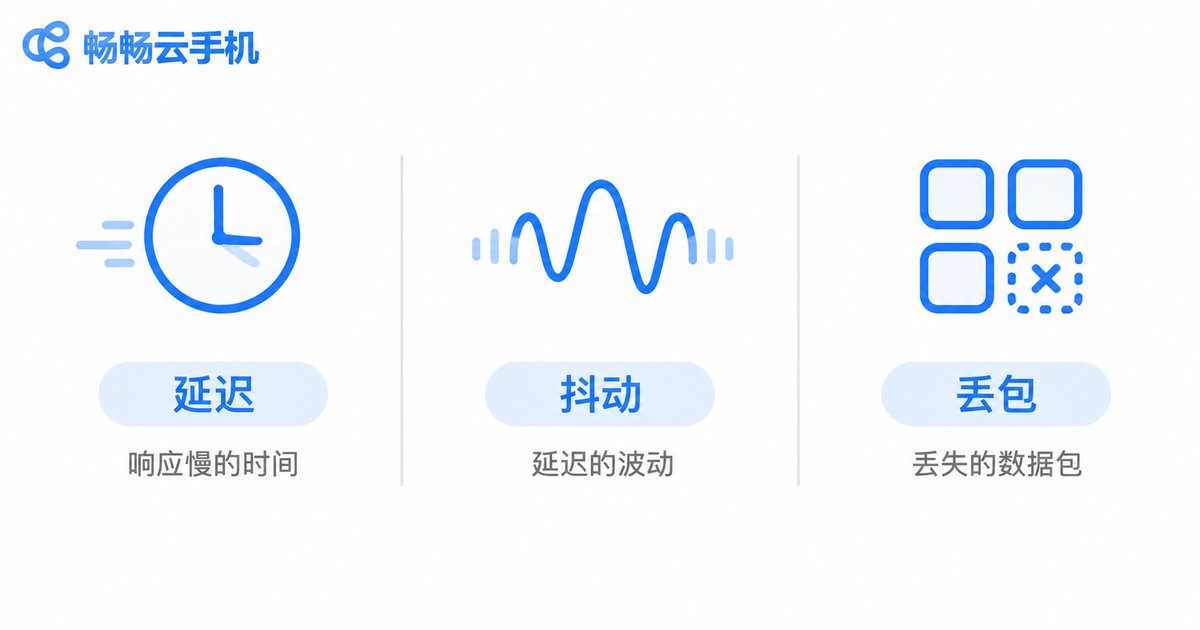
Separate Three Different Problems First: Latency, Jitter, Packet Loss
Most people describe everything as lag, but these are three different issues with three different fixes.
| What you see | What is really happening | How it feels |
|---|---|---|
| A tap takes half a second to register | High latency | Scrolling trails behind your finger |
| Smooth one moment, stuck the next | High jitter | The rhythm keeps breaking up |
| Blocky picture, choppy audio | Packet loss | Mosaic artifacts or brief black frames |
Telling them apart saves a lot of wasted effort. When packet loss is severe, lowering image quality barely helps, while switching to a different route can fix it immediately.
What You Can Actually Change on the Client Side
There are not many knobs to turn in a cloud phone client, but the few that exist matter a lot.
- Prefer 5GHz Wi-Fi or a wired connection. The 2.4GHz band penetrates walls well but is crowded, and neighbouring routers, Bluetooth devices and microwaves all compete for the same channels.
- Stop background downloads and sync. Cloud backups, system updates and video caching can saturate your upload bandwidth, and cloud phones are especially sensitive to the upstream direction.
- Do not stack extra proxies or boosters on top. Every extra hop means a longer detour, which raises latency and makes the path less stable.
- Turn off battery saver. Power-saving policies throttle background network activity and can cut the connection when the screen dims or the app goes to the background, which shows up as mysterious disconnects.
- Switch to a public DNS resolver. Slow DNS lookups delay both the first connection and reconnection. A reliable resolver often shortens that initial wait noticeably.
Weak Networks: Lower the Demand, Keep the Connection
Subways, elevators, hotel Wi-Fi and older apartment buildings all share the same traits: unstable bandwidth and elevated packet loss. The goal here is not a crisp picture, it is keeping the session alive.
The idea is simple: reduce the transmission load so the link has headroom to absorb errors.
- Drop quality and resolution. Going from HD to standard definition lowers the bitrate, so packet loss damages the picture far less.
- Lower the frame rate. Thirty frames per second is plenty for idle tasks, office work and document reading, and it keeps bandwidth usage steadier.
- Mute audio for now. Audio is a continuous stream and is the first thing to break on a weak link. Disabling it noticeably improves input responsiveness.
- Shorten the auto-reconnect interval. Make reconnection more aggressive so you are not forced to tap manually after a brief outage.
- Do not switch networks when the signal is already poor. Bouncing between mobile data and Wi-Fi usually triggers a full disconnect and reconnect cycle.

Disconnections and Reconnection: Minimise the Damage
Many people assume a disconnect means their cloud app was shut down. It does not. A disconnect only breaks the link between you and the cloud, and the cloud instance usually keeps running. In most cases you return to the same screen after reconnecting.
What actually deserves attention is this:
- Do not start long tasks on a weak network. Large updates, long unattended sessions and bulk import or export jobs are expensive to roll back if the connection drops midway.
- Enable auto-reconnect. Letting the client retry on its own is faster and less frustrating than tapping repeatedly.
- Note roughly when the disconnect happened. After reconnecting, confirm whether the task is still running so you do not submit the same job twice.
- Check your local network if disconnects are frequent. If other apps on the same device also keep dropping, the problem is almost certainly on your side.
The Provider Side Sets the Ceiling on Your Experience
Client-side tweaks only go so far. The quality of the network path and the provider's infrastructure decide the rest. When choosing a cloud phone service, what matters is not the spec sheet in the marketing copy but node location, route quality and connection stability.
Ccloudphone runs Android instances in the cloud so local devices only handle display and input, which means it works on ordinary phones and tablets as well. It supports multiple instances and batch management, which suits scenarios where several instances need to be maintained at once, and users can connect through a nearby node to shorten the data path. For exact instance specifications, activation methods and available regions, refer to what is published on the official Ccloudphone website, and confirm before signing up whether your region and typical use case are a good match.

A Troubleshooting Checklist You Can Follow
Next time you hit stutter or a disconnect, work through these in order and you will usually find the cause.
| Step | Check | What it tells you |
|---|---|---|
| 1 | Switch to 5GHz Wi-Fi or a cable | Clear improvement means band interference |
| 2 | Pause background downloads | Latency drops means bandwidth was saturated |
| 3 | Disable battery saver and background cleanup | No more random drops means the system was cutting the link |
| 4 | Turn off proxies and boosters | Lower latency and jitter means you had an extra detour |
| 5 | Reduce quality and frame rate | The session survives means bitrate was too high |
| 6 | Change the access node | Recovery after switching means the original route was poor |
| 7 | Test from a different network | Working elsewhere means your local uplink is the issue |
The rule is to change one variable at a time and watch for a few minutes before touching the next. Change four settings at once and you will never know which one actually helped.
Frequently Asked Questions
Q: What counts as normal latency for a cloud phone?
On a typical home broadband connection, input response under about one hundred milliseconds feels responsive. Past two hundred milliseconds, scrolling and tapping feel noticeably delayed. The exact figure also depends on how far you are from the node and how congested the network is at that moment.
Q: Why is it so much worse in the evening?
Evening is peak hour for residential broadband, so your uplink is shared with neighbours and both jitter and packet loss rise. Try lowering quality, or switch to mobile data briefly to see whether the local broadband or the wider path is to blame.
Q: Does a disconnect shut down my cloud app?
Usually not. The disconnect breaks your link to the cloud while the instance keeps running. Reconnect to the same screen and confirm the task state before continuing.
Q: On a weak network, should I lower quality or frame rate first?
Lower quality and resolution first. Cutting the bitrate relieves bandwidth pressure more directly, while keeping the frame rate steady preserves the feel of input.
Q: Would a better router help?
If your problem is weak Wi-Fi signal or channel congestion causing packet loss, a new router or a better placement will help. If the bottleneck is your broadband uplink or the route itself, a router change does little and you should focus on which access node you connect to.


