
Cloud Phone IP Address Lookup: Network Environment, Login Security and Connection Guide
Why a Cloud Phone Has an IP Address Too
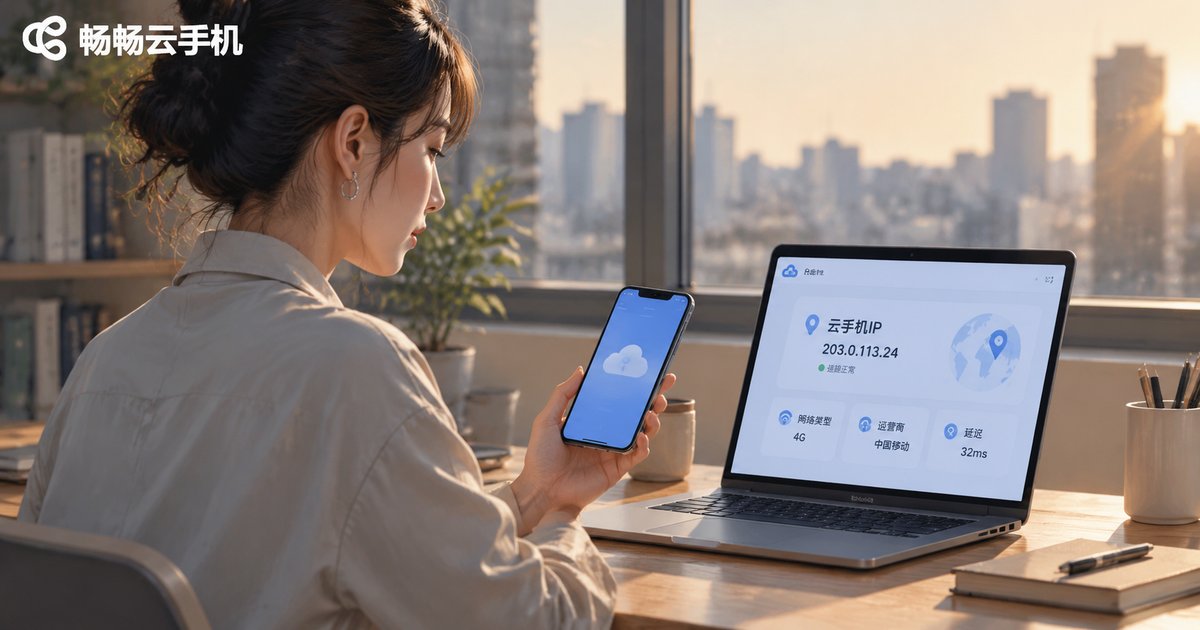
Most people ask the same question the first time they use a cloud phone: if the device is not in my hand, how does it get online? A cloud phone is a virtual device running on a cloud server. Just like a physical phone, it needs a network exit to reach the internet, so it also has an IP address. That address defines the network identity the cloud phone presents when it opens websites, signs into apps, or sends and receives data.
Understanding where that IP comes from, and how to check it, is useful for two things: judging whether the network environment is healthy, for example whether latency is high or the connection is unstable, and protecting account login security, for example spotting unusual logins or confirming that the current network environment is one you recognize.
Where a Cloud Phone IP Address Comes From
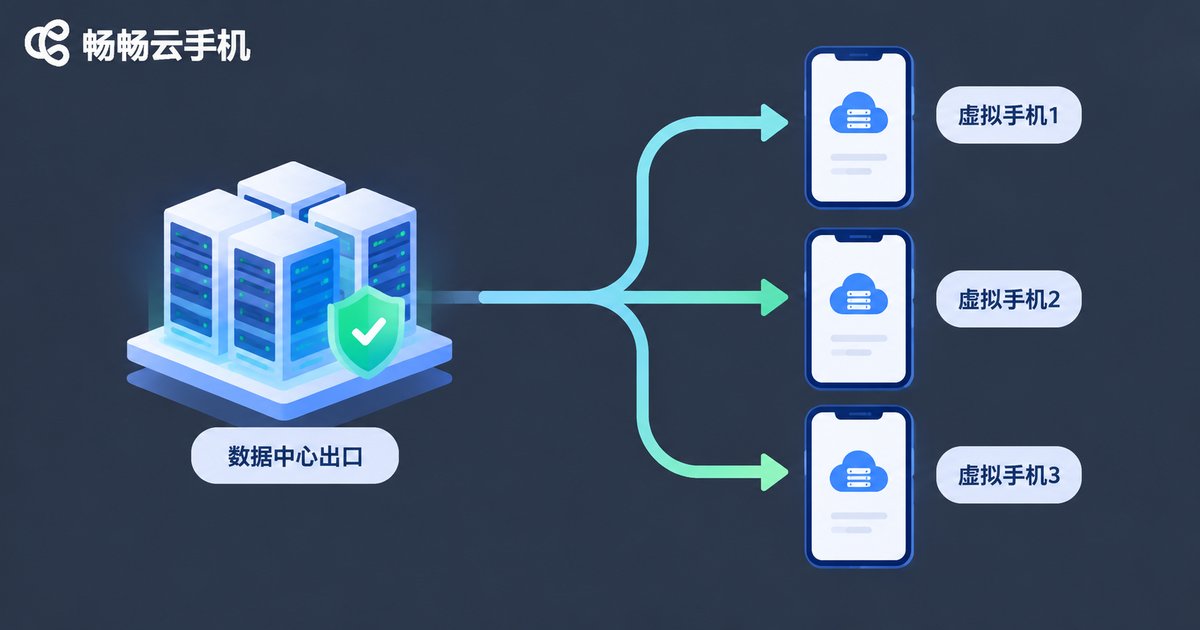
A cloud phone does not use the IP of your home broadband. It runs on servers in a data center and reaches the internet through the network exit provided by that facility or cloud provider. So the IP you see inside a cloud phone is usually a data center exit IP, not the IP of your home router.
This explains a common observation: several cloud phones in the same region may show the same or adjacent IP ranges, while switching region or switching device can change the IP. Different products follow different allocation policies. Some share an exit, some support a dedicated IP. Always refer to the documentation of the platform you actually use.
| Item | Local phone | Cloud phone |
|---|---|---|
| IP source | Home broadband or mobile network | Cloud data center network exit |
| Fixed or dynamic | Mostly dynamically assigned | Depends on platform policy, shared or dedicated |
| Key factors | Router, carrier lines | Data center lines, region, device scheduling |
| How to check | System settings or a lookup website | Device network info or browser lookup |
How to Check the IP Address Inside a Cloud Phone
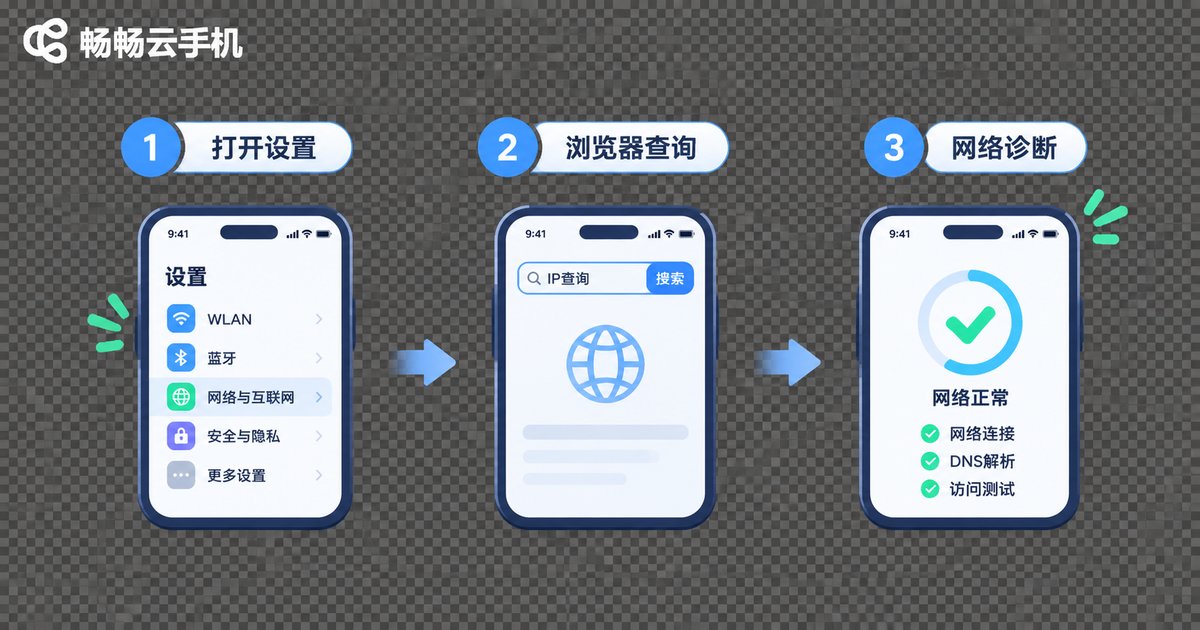
The process is almost identical to a physical phone. The idea is always two steps: open a network-related page inside the cloud phone, then read the result from a lookup service. The three methods below cover most situations.
Method one: device information. After entering the cloud phone desktop, open the system settings or device information page and look for the network status entry. You will usually see the current network type and address details. Menu positions vary slightly between system versions, so follow what you actually see on screen.
Method two: browser lookup. Open the browser inside the cloud phone and visit an IP lookup website. The page shows the current exit IP and an approximate region. This is the most direct method and makes it easy to compare the network environment across different devices.
Method three: in-app network diagnostics. Some apps include a network diagnostic or connection info page in their settings, showing details of the handshake with their servers. Use it as a secondary reference to cross-check the first two methods.
The Relationship Between IP Address and Network Environment
An IP address is just a string of numbers. It does not directly tell you how fast the connection is, but it does help you locate problems. When the cloud phone screen feels sluggish, work through the checks below in order.
Step one: check latency. Open a web page inside the cloud phone. If it loads noticeably slower than on your local phone, link latency is probably high, which may relate to the route between your region and the data center.
Step two: check stability. If the connection drops or reconnects repeatedly, check your local network first, such as Wi-Fi signal strength and router load, then verify the status on the cloud phone side.
Step three: compare. Visit different websites from the same cloud phone. If only one site is slow, the issue is most likely on that site's server. If everything is slow, then it is reasonable to suspect the cloud phone network environment.
Keep in mind that network experience depends on local bandwidth, carrier lines and data center load at the same time. You cannot judge quality from a single IP address. Treat the IP as a troubleshooting clue, not a conclusion.
IP Address and Login Security
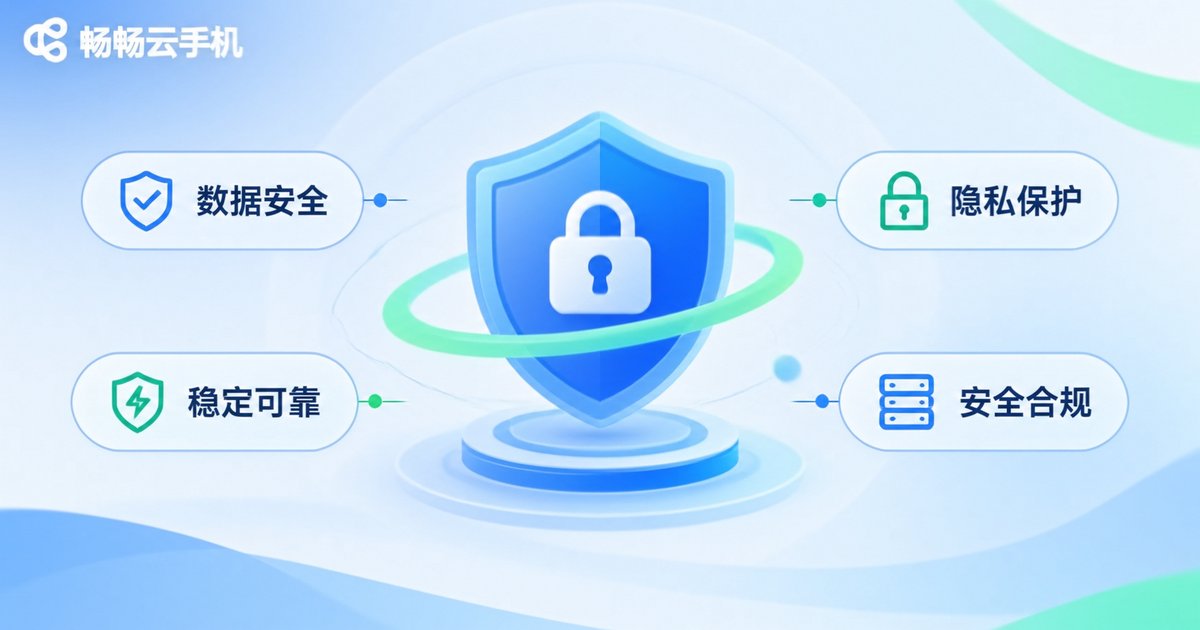
The IP of a cloud phone can affect login risk control on apps and websites. Some platforms record the network environment at sign-in, and several very different IPs appearing within a short period may trigger a security check. When signing into important accounts from a cloud phone, keep the following in mind.
1. Keep the network environment relatively stable. Avoid switching devices or regions frequently while signing into the same account, which reduces unnecessary risk-control triggers.
2. Watch for unusual login alerts. Turn on login notifications for your accounts. If you receive an alert for an action you did not perform, change your password promptly and review your devices.
3. Do not share device details casually. Device identifiers and account binding information are sensitive. Do not send them to strangers or paste them into pages from unknown sources.
4. Manage important accounts separately. Accounts tied to payments or identity information are best kept apart from everyday entertainment accounts, which limits your exposure.
Connection Notes and Common Troubleshooting
When you connect to a cloud phone, the client needs to establish a stable real-time connection with the cloud. If you cannot connect, see a black screen, or experience high input lag, work through the following order.
First confirm your local network is working, and switch once between Wi-Fi and mobile data for comparison. Then check whether the client is on the latest version, since older builds may have compatibility issues. Next, try re-entering the device so the system rebuilds the connection. If the problem persists, contact official support and describe the approximate time and symptoms, which helps locate the cause faster.
In everyday use, a stable connection and clear network information matter more than chasing one specific number. Cloud phone services such as ccloudphone provide device and network information entries inside the client, so users can check the current connection status themselves. If you have network questions, get explanations and support through official channels rather than unofficial advice found elsewhere.
Frequently Asked Questions
Q1: Is the cloud phone IP the same as my local phone IP?
No. A cloud phone runs on a cloud server and uses the data center network exit IP, which is a different address from your home broadband or mobile network IP.
Q2: Why do two cloud phones show the same IP?
Some platforms use a shared exit, so devices in the same region may share or sit on adjacent IP ranges. The exact policy depends on the platform.
Q3: Can the cloud phone IP change?
It can. Device scheduling, region changes and reconnections may all cause the IP to change, which is normal behavior.
Q4: The IP location does not match my city. Is something wrong?
Not necessarily. The IP location reflects where the data center is, and has no required connection to the city where the user is located.
Q5: What should I do if a login shows a network environment warning?
First confirm the action was your own, then keep the network environment stable and try again. If the warning continues, follow the platform security verification process and contact official support if needed.
Q6: Can I assign a specific IP to my cloud phone myself?
That depends on whether the platform offers such a capability. Most users do not need to set it manually, so refer to official documentation and avoid unofficial setting tricks.


