
Cloud Phone Location Features: Permissions, Location Drift, and Privacy Reminders
Cloud Phone Location: Three Things to Understand First
A cloud phone is an Android device running in the cloud. When an app reads location inside a cloud phone, it still goes through Android location permissions, system location services, and the app's own logic. Many users think cloud phone location is just a switch, but it actually involves three layers: whether the app has location permission, whether system location is on, and whether the cloud phone environment can obtain usable location information. Looking at these layers separately makes permission settings, location drift, and privacy easier to understand.
If you only need to test an app's location feature temporarily, use an independent cloud phone environment and keep test accounts, permissions, and daily use separate. Ccloudphone provides cloud Android instances for app installation, permission flow checks, and basic location feature verification. For specific features and activation details, please refer to the official website.
Permission Settings: Choose Precise or Approximate Location Carefully
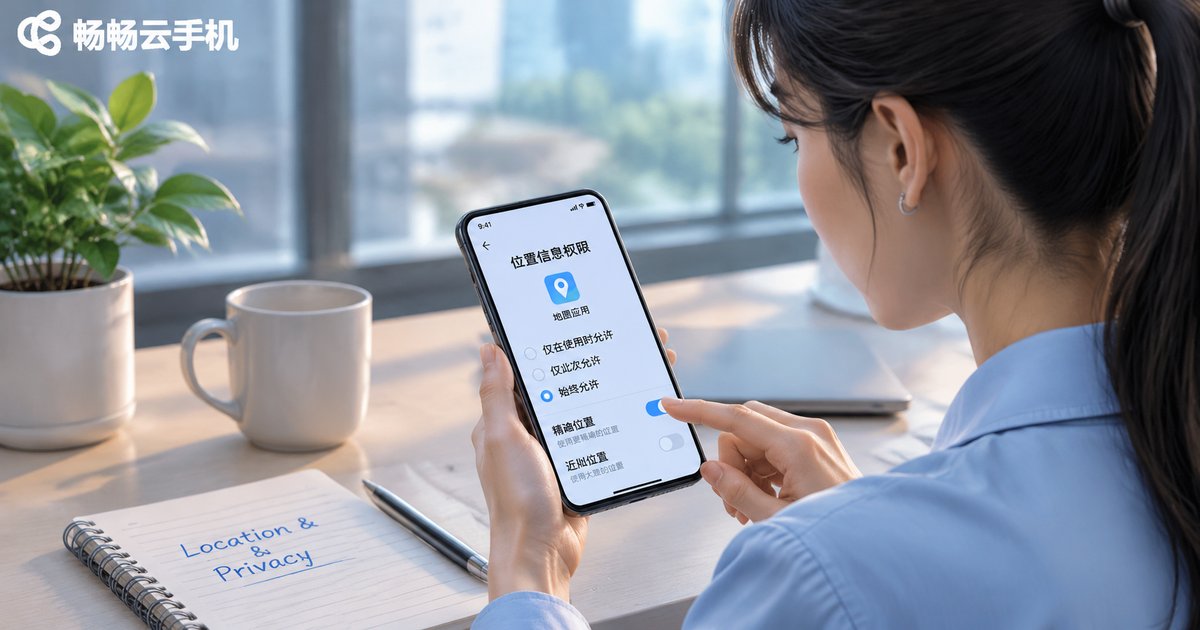
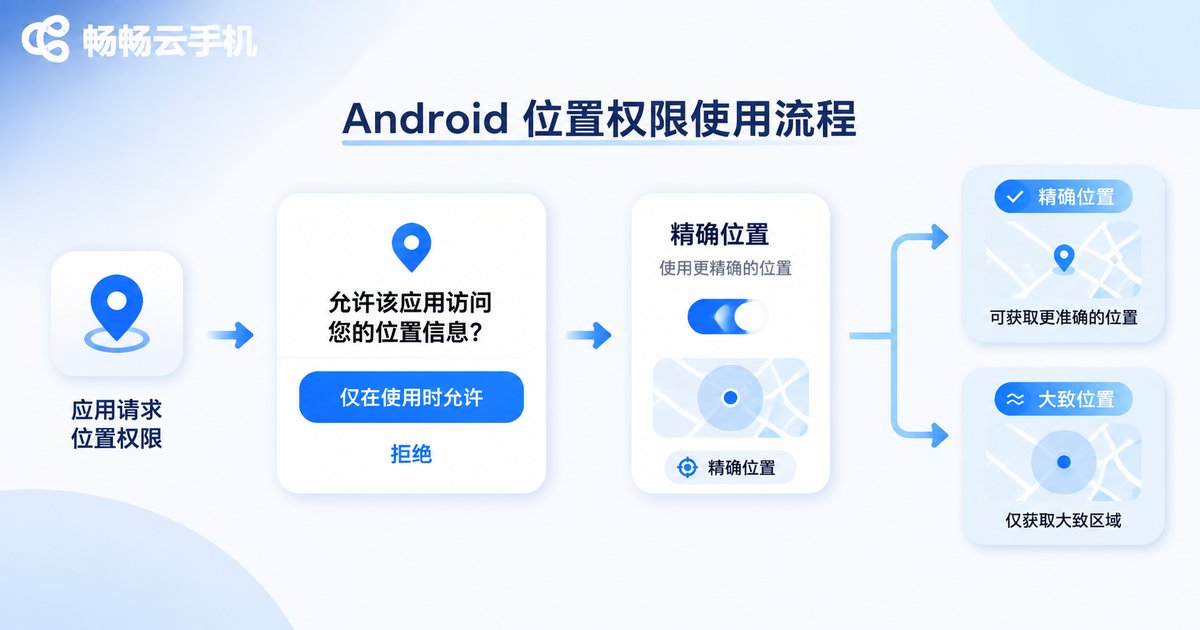
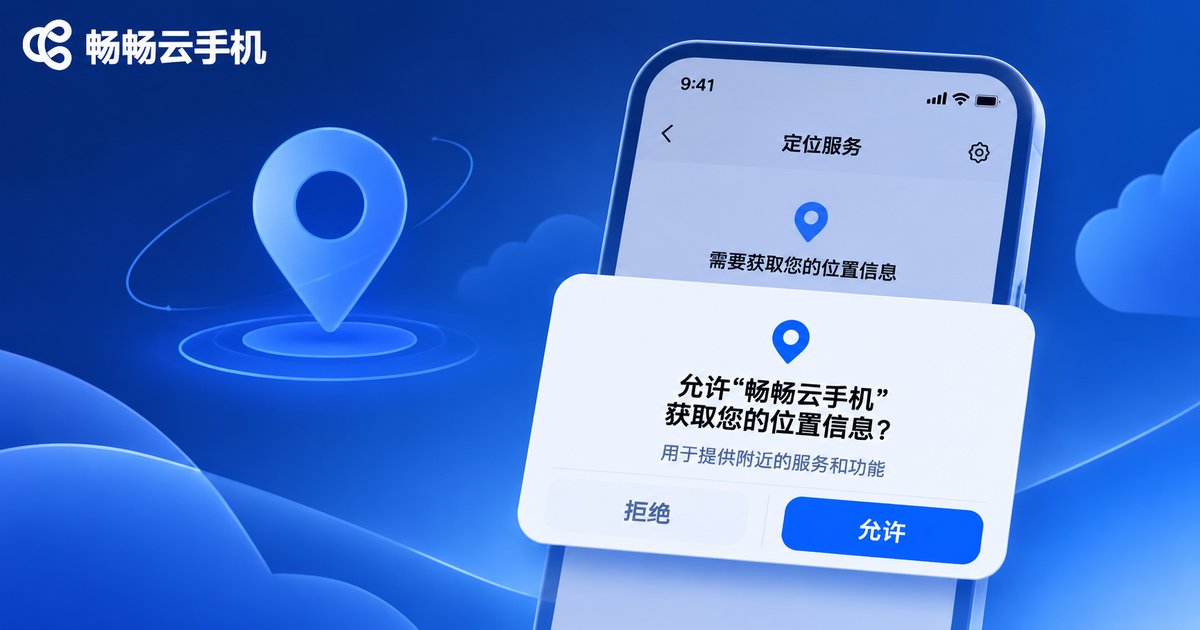
On Android, when an app requests location permission, it usually asks you to choose precise location or approximate location. Precise location uses finer location sources and suits navigation, attendance check-in, and delivery. Approximate location only gives a broader area and suits weather, news, and local recommendations that do not need exact coordinates. You can also view and change app permissions inside the cloud phone, usually under a path like 'Settings > Apps > Permission manager > Location', though the exact path varies by system version.
Besides permissions inside the cloud phone, pay attention to the permissions of the client you use to access it. If the client lacks network or necessary device permissions, the cloud phone connection may be affected, but do not open every permission just because an app asks for location. Ask first: does this app really need precise location?
| Permission Type | Accuracy | Suitable Scenarios | Privacy Impact |
|---|---|---|---|
| Precise location | Fine, possibly meter-level | Navigation, check-in, delivery | Higher; turn off after use |
| Approximate location | Broader, kilometer-level | Weather, news, local content | Lower; suitable for daily use |
Location Drift: Why the Location Point Keeps Jumping
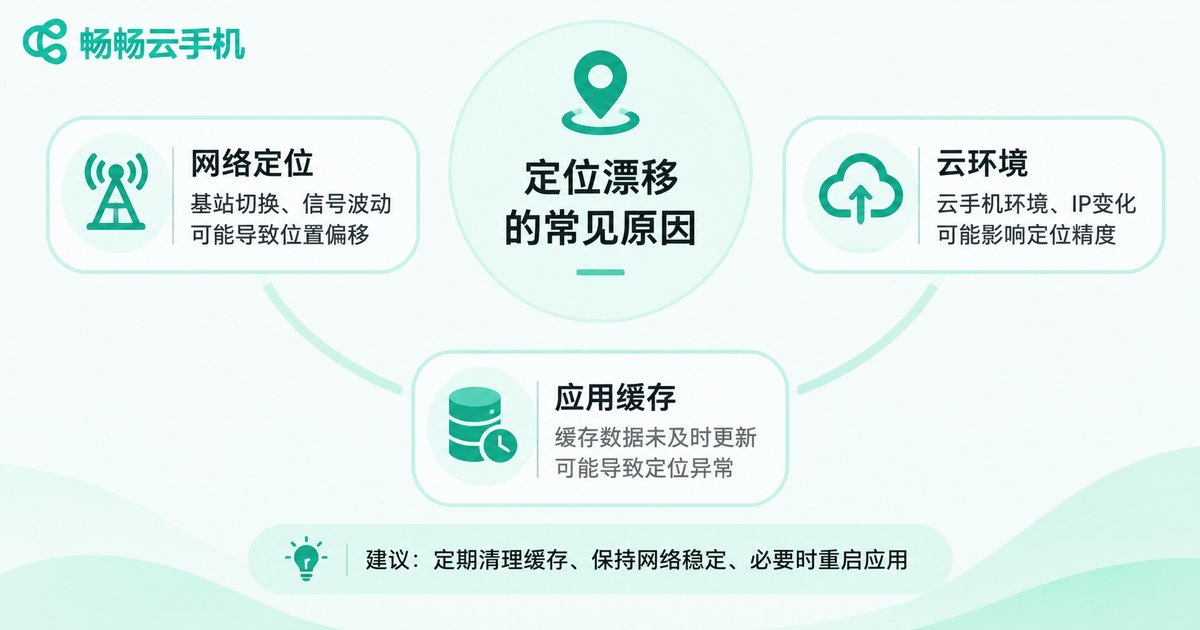
Location drift means the location shown by an app does not match expectations, or it jumps back and forth within a short time. The common cause is not that the cloud phone is broken, but that location sources themselves have errors. A cloud phone runs on a cloud server, and network-based location may refer to the server's network environment. If an app relies on IP, Wi-Fi, or cell information, the displayed location may differ from where you are. Weak indoor GPS signals, cached old locations, and abnormal system time or time zone can also make results look unstable.
- Network location errors: outdated IP databases, Wi-Fi hotspots, and cell data can cause range deviations.
- Cloud environment differences: the network environment of a cloud phone instance may differ from your local one, so location results may not match.
- App cache: after an old location is cached, the app may keep showing old coordinates for a while.
- Mock location or developer options: if mock location is enabled, apps will read the mock result.
- Restricted permissions: when background location is off, an app may use an expired location.
For troubleshooting, follow a sequence: confirm whether the app permission is precise or approximate, check whether system location services are on, clear the app cache and reopen it, and finally compare the same app under different network environments. If only one app drifts, check that app's own location strategy first. If multiple apps are inconsistent, then look at the cloud phone environment and network location factors.
Privacy Reminders: Grant Location Permissions as Needed and Revoke Promptly
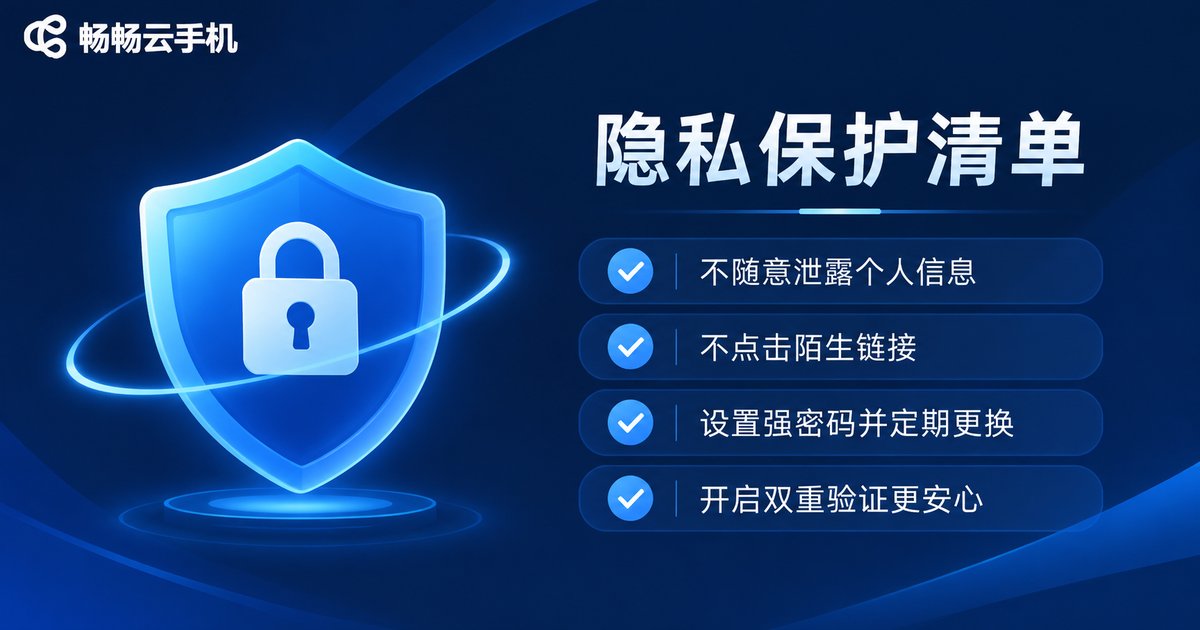
Location information is sensitive personal information. Whether on a physical phone or a cloud phone, follow the minimum necessary principle: grant only the permission needed for the current feature, switch to approximate location when possible, and turn location off after use. Be especially careful when sharing on social media, because original photos may contain location information. For enterprise testing, use independent cloud phones and test accounts so real accounts, real locations, and test data do not mix.
| Scenario | Recommended Practice |
|---|---|
| Weather and news only | Prefer approximate location; no need for precise location |
| Navigation and check-in | Turn on precise location temporarily and turn it off afterward |
| Social sharing | Check whether location is embedded and be careful with original photos |
| Enterprise testing | Use independent cloud phones and test accounts to isolate real data |
| Regular review | Check permission usage records and revoke unneeded location access |
What to Check When Testing Location Features on a Cloud Phone
If you need to repeatedly test an app's location permission flow, location refresh logic, or privacy prompts, the value of a cloud phone is its independent environment, repeatable operations, and no occupation of your daily phone. Ccloudphone can be used to install apps, view permission settings, and verify basic location features, making it suitable for development testing and temporary experience. Note that location performance on a cloud phone is affected by the cloud network environment and the app's location strategy. During testing, record permission status, network environment, and app version to avoid mistaking environment differences for app faults. For specific product capabilities, please refer to the official Ccloudphone website.
FAQ
Q: Is cloud phone location exactly the same as physical phone location?
Not exactly. The permission flow is similar, but a cloud phone runs in the cloud, and network-based location refers to a different environment, so results may differ.
Q: If an app asks for location, must I grant precise location?
Not necessarily. First check whether the feature needs exact coordinates. Weather and news apps usually work with approximate location, while navigation and check-in can temporarily use precise location.
Q: Is location drift a cloud phone problem?
Not necessarily. Network location errors, app cache, system time, and mock location settings can all cause drift. Troubleshoot in the order of permissions, cache, and network environment.
Q: How can I protect privacy when testing location in a cloud phone?
Use an independent test account, grant permissions as needed, turn off location permission after testing, and avoid mixing real accounts and real location information into the test environment.
Q: What location-related scenarios is Ccloudphone suitable for?
It is suitable for app installation, permission flow checks, basic location feature verification, and privacy prompt testing. For specific features and usage, please refer to the official Ccloudphone website (ccloudphone).


