
How to Read Cloud Phone Network Error Codes: Common Messages and Troubleshooting Directions
Start with the message: network error codes are not a mystery
When a cloud phone has a network problem, you often see a code with a minus sign, such as -1001 or -2001. These codes are short hints from the client or platform about which layer may be having trouble. Different versions and clients may use slightly different numbers, so read the full message first, then the code.
A useful order is: local network → client → cloud phone instance → platform announcements. Following this order usually narrows down the issue quickly.
Common network messages and likely causes
The table below groups common messages for easy comparison. Always treat the text shown in your current client as the source of truth.
| Message / code example | Likely meaning | Check first |
|---|---|---|
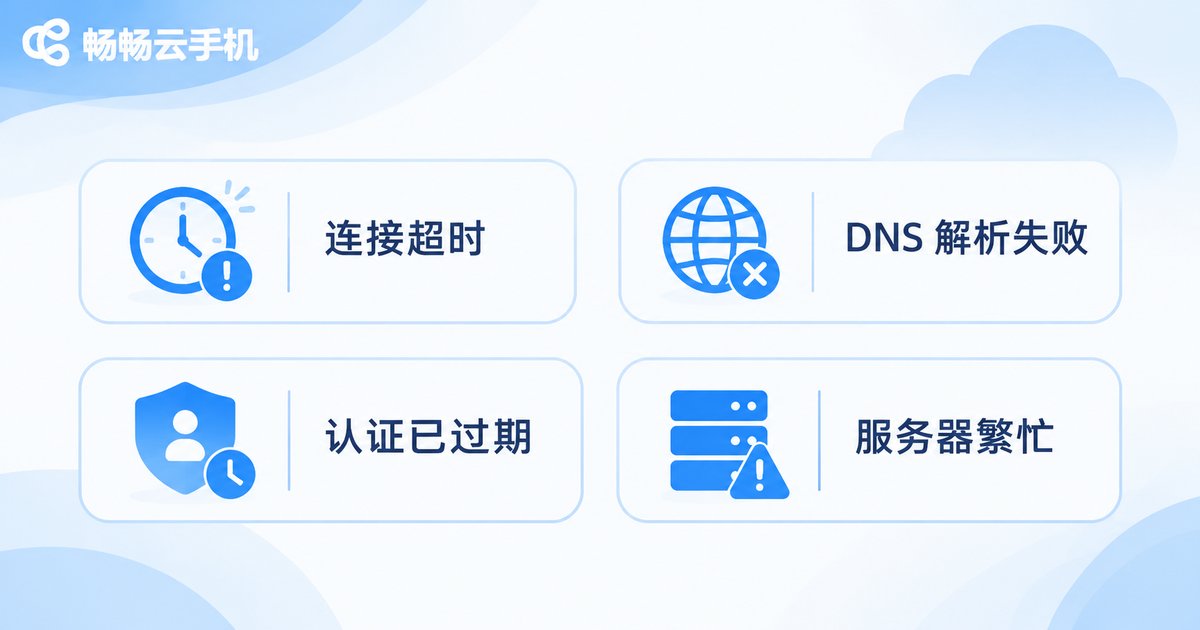
-1001 Connection timed out | Local network unstable, or target node slow | Switch Wi-Fi/mobile data, restart client |
-1002 DNS resolution failed | Domain resolution issue, access address not found | Check DNS settings, switch network and retry |
-1003 Connection refused | Service port temporarily unavailable or under maintenance | Retry later, check platform announcements |
-1004 Network unreachable | Routing or system network settings are blocking | Check system network settings, close unnecessary network filtering software |
-1005 Security verification failed | System time error or certificate chain issue | Sync system time, update client |
-2001 Instance offline | Cloud instance is asleep, restarting, or under maintenance | Check instance status in console, restart instance |
-2002 Login session expired | Account authentication expired | Log in again, check account status |
-2003 Insufficient resources | Bandwidth or resources are tight at peak time | Use off-peak, change access node |
-3001 Service busy | Platform load is temporarily high | Retry later, contact support |
Note: A code is only a clue. Do not judge the fault by one number alone. Record the message, time, and what you were doing; this makes later troubleshooting much faster.
Troubleshoot in order: from local network to cloud instance
Follow these six steps. Each is quick and does not require deep technical knowledge.
Step 1: Record the scene. Take a screenshot of the full message and note the code, time, and action, for example 'opening an app shows -1001'.
Step 2: Check the local network. Open a web page or video to see if it works; switch once between Wi-Fi and mobile data; restart the router and wait one minute before retrying.
Step 3: Restart client and instance. Fully exit the cloud phone client and open it again; restart the cloud phone instance in the console and wait for it to become running.
Step 4: Check system settings. Make sure system time is set automatically and storage is sufficient; if the message says security verification failed, sync the time first.
Step 5: Check instance status and announcements. In the cloud phone console, confirm whether the instance is online or under maintenance; check platform announcements for network adjustments.
Step 6: Change access method. If the client supports switching nodes or regions, try a nearby node; if it still fails, contact support with a screenshot.
Troubleshooting checklist:
1. Screenshot and record code, time, action
2. Switch Wi-Fi / mobile data
3. Restart client and cloud phone instance
4. Sync system time, free up storage
5. Check instance status and platform announcements
6. Change node, contact support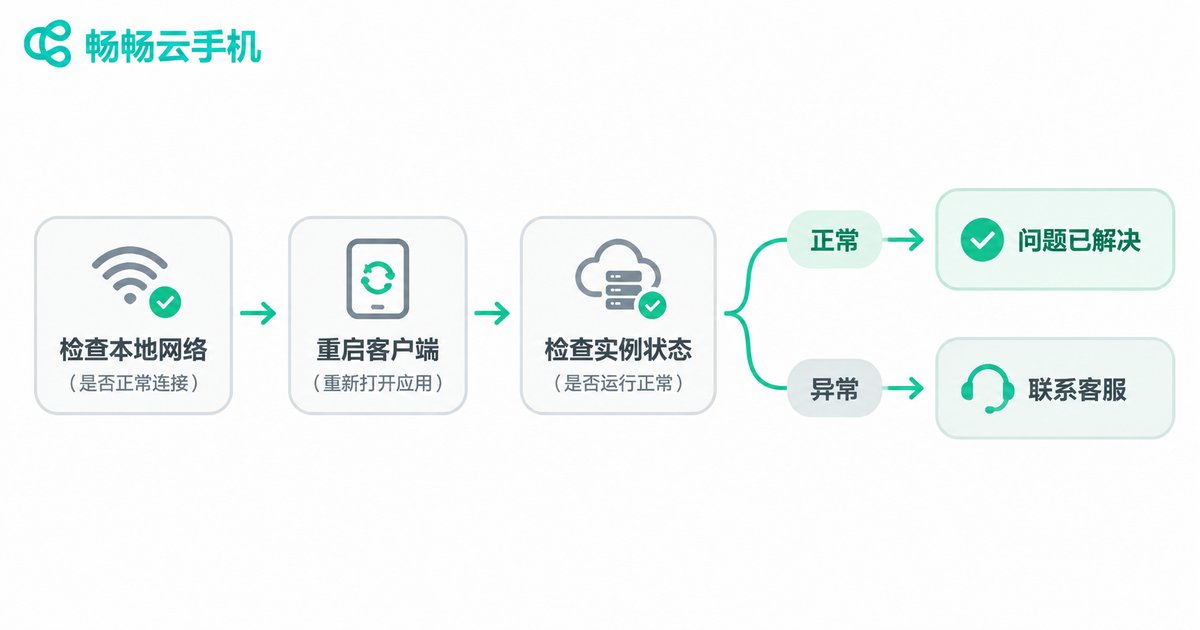
How ccloudphone users can locate issues quickly
If you use ccloudphone, start with the help documents on the official website, then check the instance status in the console. ccloudphone provides cloud Android instances and remote management. Network issues can usually be narrowed down by following 'check instance status — restart instance — switch network — contact support'.
If the same network error keeps appearing, prepare the client version, instance ID, error screenshot, and time for support. Do not trust unofficial 'repair tools', and do not change unfamiliar system network settings. For specific features and support scope, please refer to the official ccloudphone website.
Q&A
Q: The cloud phone shows a network error, but my phone can browse normally?
A: This usually means the local network is basically fine, and the issue may be on the link from the client to the cloud phone instance. Check whether the instance is online, restart the instance and client, then switch networks.
Q: The error code is different every time. What should I do?
A: Do not record only the code. Note the full message and time. Troubleshooting in the order of local network, client, instance, and platform announcements is more effective than reinstalling repeatedly.
Q: Should I change DNS?
A: Try it only when the message says DNS resolution failed. Remember to restore automatic DNS afterwards; if you are not familiar with the settings, contact support first.
Q: Where should ccloudphone users start network troubleshooting?
A: Start with the help documents and instance status page on the official ccloudphone website, and reconnect with the official client. If the issue remains, contact support with screenshots and instance information.
Q: When should I contact support directly?
A: If the same message appears repeatedly, the instance stays offline, or the checklist does not solve the problem, contact support with a screenshot and the time it happened.


