
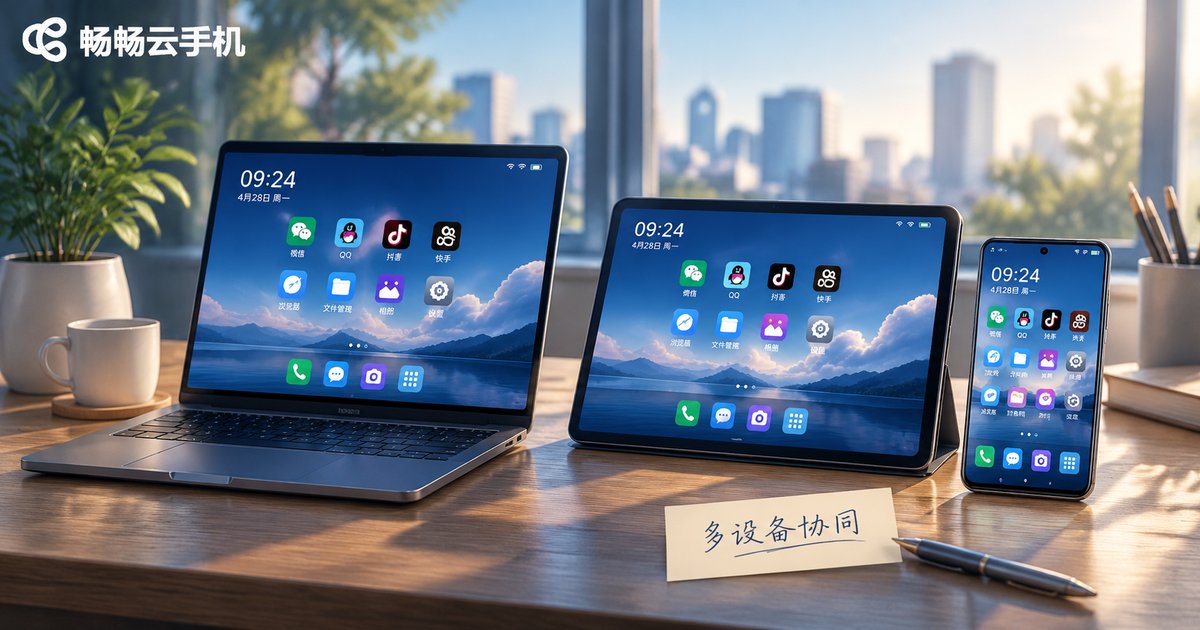
2026 Cloud Phone Multi-Device Collaboration Guide: Account, File and Message Sync
Open the cloud phone on your phone in the morning to clear a few messages, switch to the laptop at noon to continue the same task, then check the results on a tablet in the evening. By 2026 this rhythm is completely normal. The hard part is rarely whether you can log in from multiple devices. The hard part is whether accounts, files and messages actually follow you across them. This guide splits multi-device cloud phone work into three concrete pieces.
1. Where Multi-Device Collaboration Actually Breaks
Many people still think of a cloud phone as simply an Android machine somewhere in the cloud. The moment you start using it from more than one device, three problems show up at once:
Accounts: the same cloud phone, but different accounts on different devices, so the content never matches.
Files: screenshots, documents and installers get shuttled back and forth by sending them to yourself in a chat app.
Messages: a notification lands on your phone, but your laptop stays silent and something important gets missed.
Sort out these three and the cloud phone stops being a remote window and starts behaving like a device you carry with you.
2. Account Sync: Unify the Entry Point First
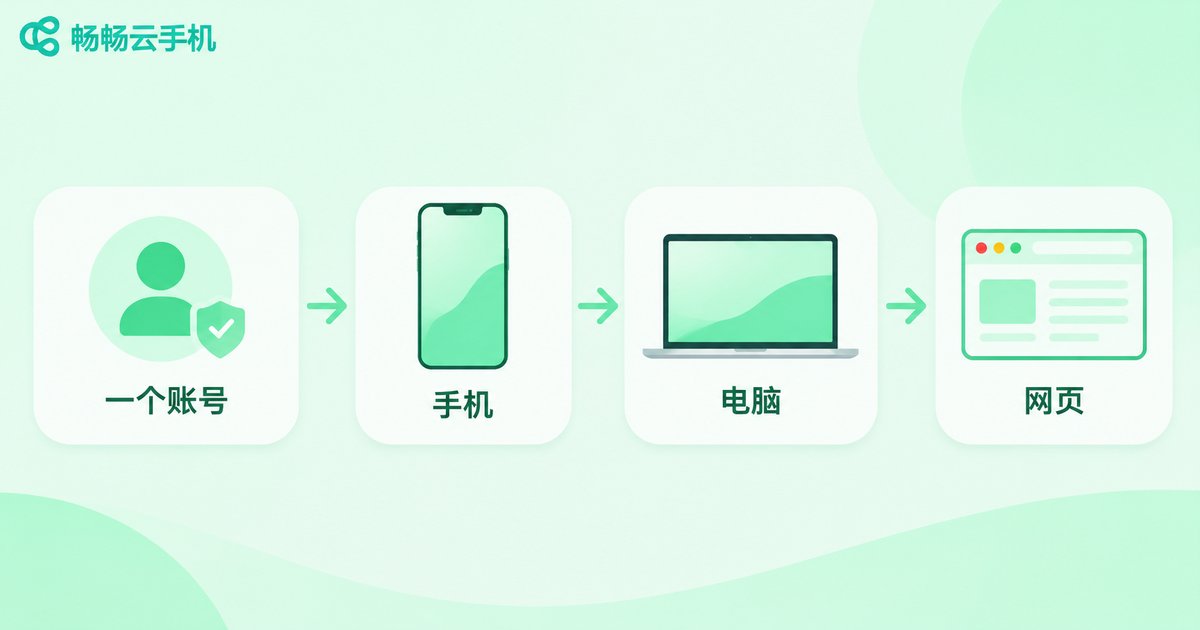
Multi-device work always starts with the account. A cloud phone account is not fundamentally different from any other app account: one account holds your cloud phone instances, and wherever you log in with that account, you see the same set of instances and the same desktop state.
Do one simple grouping pass by purpose, for example work, gaming and testing, and name each instance clearly. When you switch devices you no longer have to guess which one is which. Typical entry points are the mobile client, the desktop client and the web version, so pick whichever is closest to hand.
Three security habits are worth keeping:
1. On a shared computer, log out before you leave instead of relying on auto-login.
2. Use a dedicated strong password that is not reused elsewhere.
3. Check the account device list regularly and deal with anything unfamiliar.
3. File Sync: Keep Files in the Cloud
The most common file mistake is treating the cloud phone like another laptop, downloading everything locally and uploading it again. The easier approach is: move files inside the cloud and use local devices only for viewing.
Three routes cover most needs:
| Method | Best for | Watch out for |
|---|---|---|
| Cloud drive relay | Documents shared across several real devices | Storage limits and sync delay on the drive itself |
| Direct upload and download in the cloud phone | Screenshots, installers, temporary files | Saves local storage, good for large files |
| Shared directory or workspace | Long-running project files | Agree on naming rules up front to avoid version chaos |
One small habit pays off: prefix files with a date, such as 20260312-weekly.xlsx. In multi-device work, rework caused by mixed-up versions usually costs more time than the transfer itself.
4. Message Sync: Receive Everywhere, but Learn to Subtract
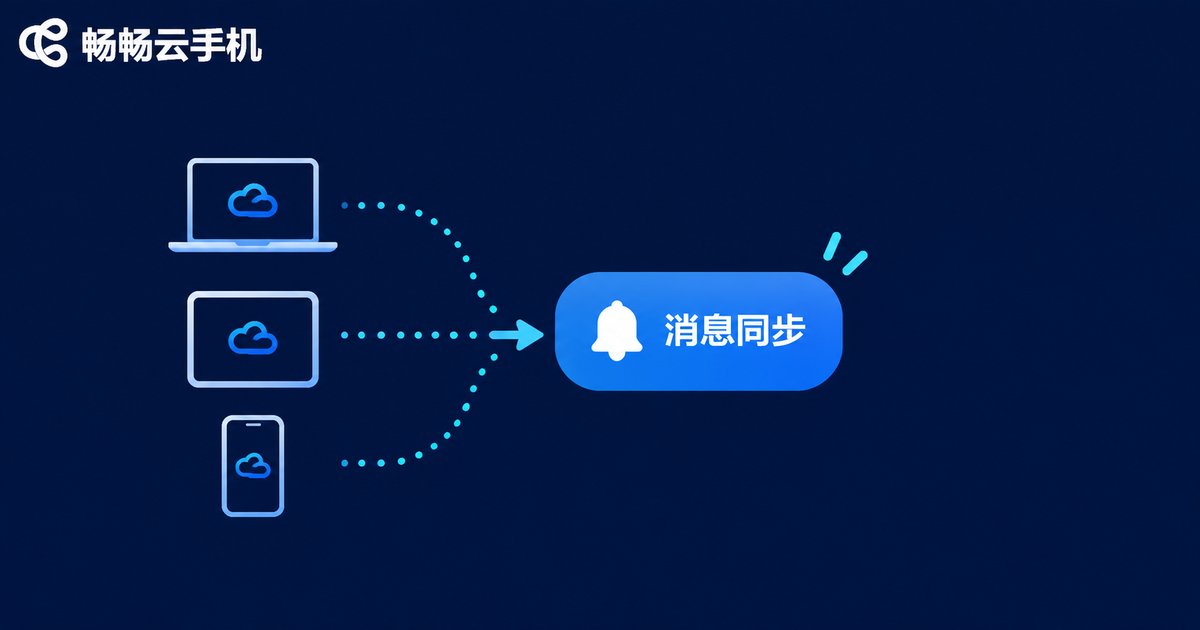
Message sync means when the same cloud phone is online on several ends, notifications reach them consistently. What you read on your phone is still in the same conversation when you switch to the laptop, rather than existing as separate copies.
But syncing everything quickly becomes noise. Subtracting is more practical:
Turn on push only for apps that truly need instant attention; separate work cloud phones from personal ones so messages do not mix; and for apps that just run tasks in the background, switch notifications off and check in when you need to.
5. Direct Recipes for Common Scenarios
| Scenario | What must stay in sync | Suggested approach |
|---|---|---|
| Handle messages on the commute, continue at the office | Account state, conversation history | Log in with one account, avoid reinstalling apps |
| Run tasks by day, collect results on a tablet at night | Run status, result files | Leave files in the cloud and export only when needed |
| Compare results across several cloud phones | Configurations, installers | Name instances by purpose and fix one as the main device |
The “fix one main device” tip matters most. Install apps and change settings on that one, and use the others only for viewing and light actions. State mismatches drop noticeably.
6. Running the Whole Flow on ccloudphone
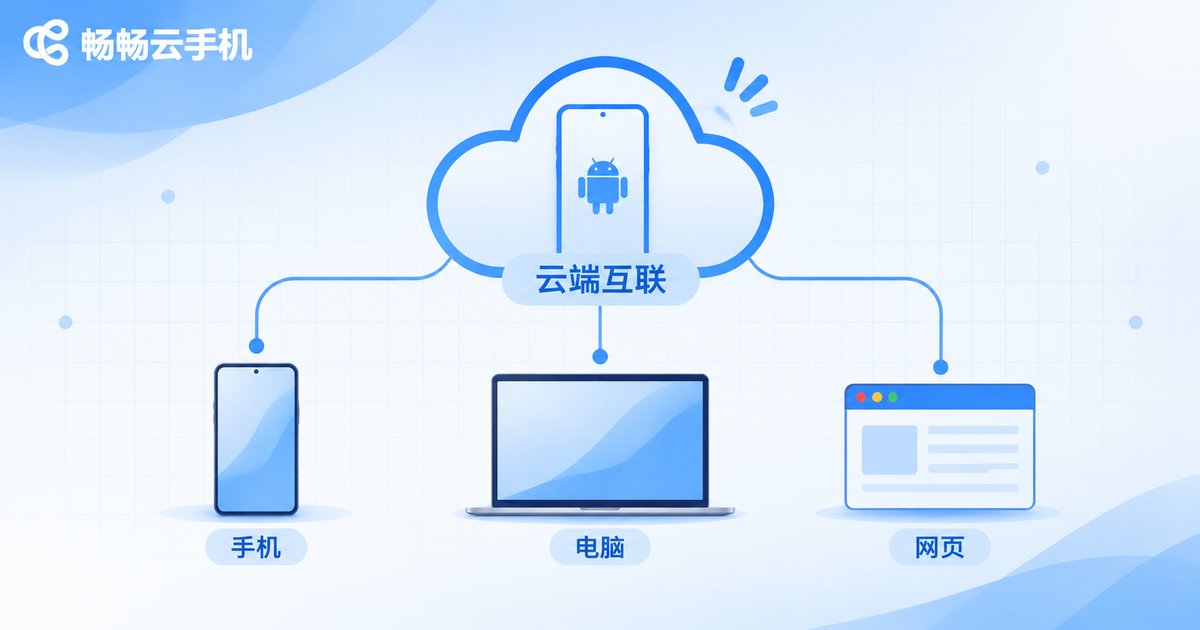
ccloudphone is built around exactly this flow. Cloud phone instances run in the cloud, and logging into the same account from a phone, a computer or the web brings you to the same device, with the same installed apps and the same logged-in state, so nothing has to be configured twice.
For files, uploads and downloads happen inside the cloud phone, while local devices only display them, so large files never have to land on your own drive first. For messages, logging in on several ends keeps one shared conversation state, so switching devices does not mean hunting for context again.
If you are just starting, run one small test: log in on one device, install two everyday apps, put a file inside, then log in on another device and check whether the desktop and the file match. Once that passes, every other device behaves the same way. For currently available features and specifications, refer to the official ccloudphone site.
7. Pitfalls People Overlook
Network differences: operating the same account from a weak connection feels far slower than on other ends and can look like a failed sync. Check the network before switching.
Simultaneous actions: tapping the same spot on two ends at once can overwrite each other, so do the main work on one end at a time.
Ignoring the device list: leaving it unchecked for months tends to leave old logins behind.
FAQ
Q: Does logging into the cloud phone on several devices create different devices?
No. The same cloud phone instance under one account points to the same cloud device across all ends, with consistent desktop and app state.
Q: Do I need to reinstall apps after switching devices?
Usually not. Apps are installed inside the cloud instance, so another device sees the same environment, unless you log into a different cloud phone instance.
Q: Must files be downloaded locally first?
No. Uploads and downloads can happen inside the cloud phone, and local devices only view the result, which also saves storage on your own hardware.
Q: Can I still see messages on the computer that arrived on the phone?
With the same account and multiple logins, the conversation state is shared, so you can continue in the same thread on another device.
Q: What should I do first for multi-device work?
Unify the account and name your cloud phone instances by purpose. Once the entry point is clear, most file and message problems simply disappear.


