
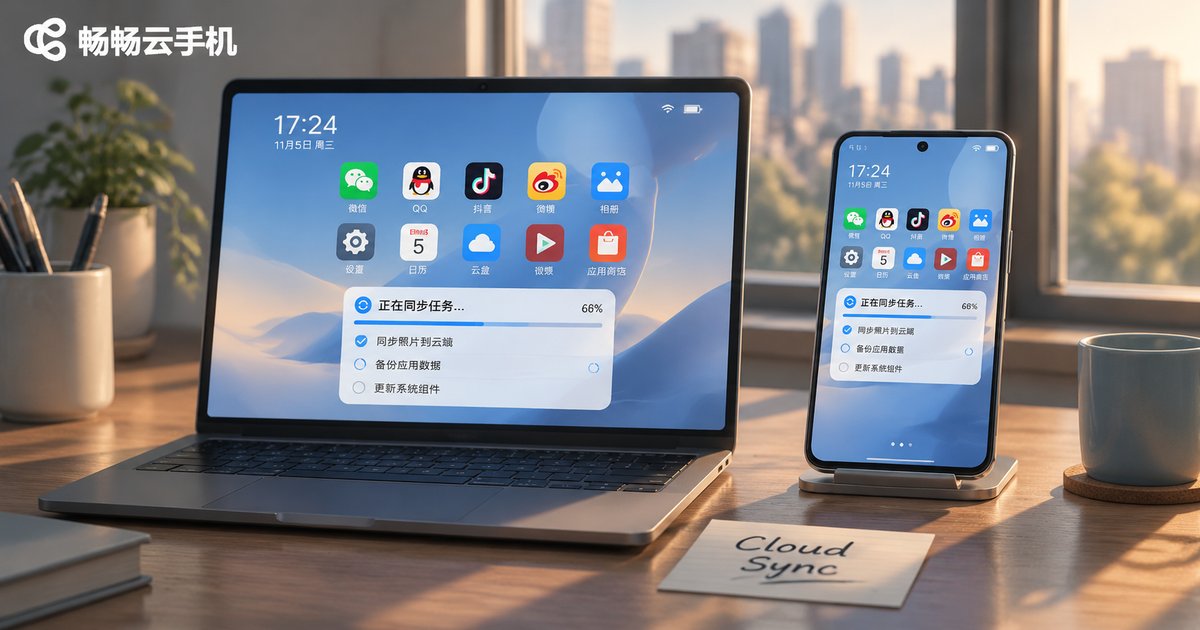
How to Set Up Cloud Phone Cross-Device Sync: Connecting Desktop and Mobile
First, Understand What Cross-Device Sync Actually Syncs
Most people assume that logging in on a second device will show them exactly what they saw on the first one. Then they open the app on their phone and find something completely different from the task that has been running on their desktop. The reason is simple: a cloud phone actually runs in the cloud, and the screen image, copied text, and uploaded files that reach each of your devices travel through separate connection channels.
So cross-device sync really comes down to three things: the same instance under the same account, real-time delivery of the screen, and two-way transfer of clipboard content and files. Break it into those three parts and the setup becomes logical, with no more confusion about why nothing synced after logging in.
Three Things to Prepare Before You Start
1. Use one account. Desktop and mobile must be signed in to the same account and must enter the same cloud phone instance. If you have two accounts, or several instances under one account, it is very easy for each device to end up showing a different machine. Give your main instance a recognizable name in the instance list.
2. Use a stable network. Screen sync is sensitive to latency. Prefer home broadband or a stable Wi-Fi connection, and avoid doing the first-time setup on a mobile network that keeps switching.
3. Use current client versions. Keep the desktop and mobile clients on versions from a similar period. Older builds may lack clipboard sync or file transfer modules, and the settings menus will not match.
Desktop Setup: Put the Cloud Phone on the Big Screen
The desktop client is your control console. The goal of setup is to open the screen, input, and data channels. Work through the steps below in order.
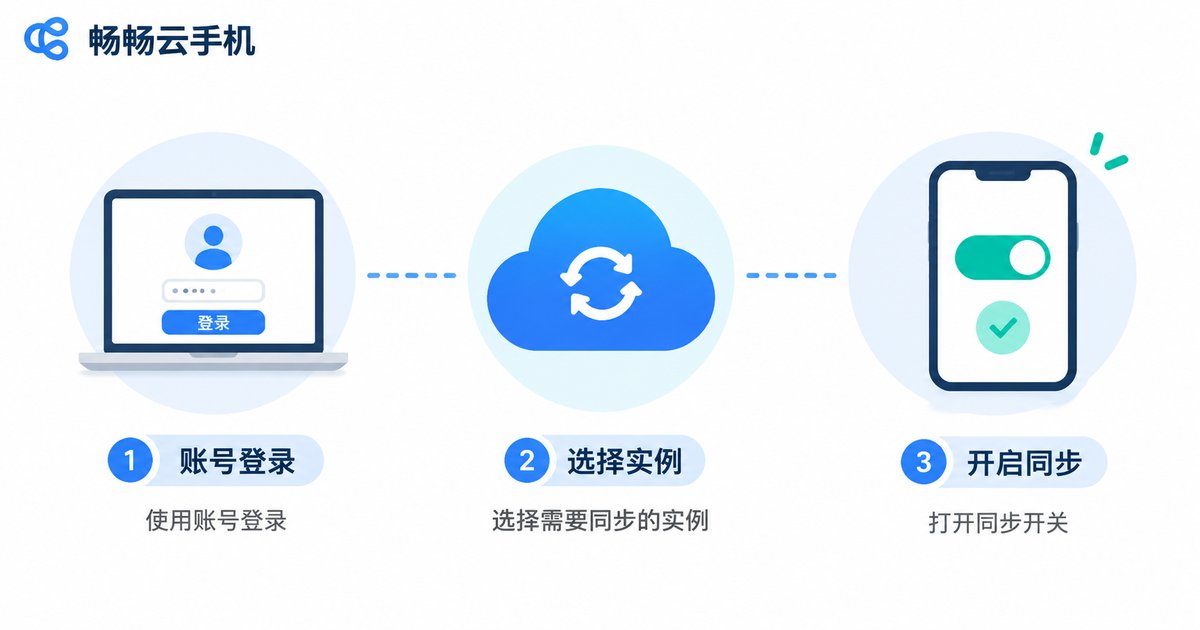
Step 1: Sign in and enter the instance. Open the desktop client, sign in with the same account you use on mobile, find the target device in the instance list, and enter it. Confirm the device status is running; if it is powered off, start it first.
Step 2: Adjust the screen and resolution. Choose the clarity and aspect ratio that suit your connection. Pick high quality when bandwidth is plentiful and drop to standard when the network is average; the screen will feel more responsive. Avoid stretching the window to maximum size, since a bit of margin actually makes dragging and tapping more precise.
Step 3: Turn on input and clipboard sync. Find the clipboard sharing option in the settings panel and enable it. Once on, account names, links, and verification codes you copy on your computer can be pasted directly inside the cloud phone, saving a lot of retyping. Configure key mapping at the same time so common actions can be triggered from your keyboard.
Step 4: Open the file transfer channel. When you need to upload an installer, image, or document, use the client's upload entry to send it straight to the cloud. It is far less trouble than routing through a cloud drive first.
Step 5: Keep the session alive. When leaving the desktop client, distinguish between closing the window and ending the instance. The first usually just disconnects the screen while the cloud task keeps running; the second actually stops the device. Understanding this difference prevents a lot of false alarms.
Mobile Connection: Keep the Phone and Cloud in Step
The mobile client works more like a remote control in your pocket. The key is not configuring everything again, but confirming it has joined the same channel.
Confirm the instance matches. Sign in on your phone with the same account, open the instance list, and check that the device name is identical to the one on desktop. If the names differ, nothing downstream will sync.
Confirm the state is inherited. Normally, an instance running on desktop opens on mobile as the same device with the same screen, and the apps you left open are still where you left them. If you get a brand new home screen instead, you entered the wrong instance or the wrong account.
Grant gesture and clipboard permissions. Some systems restrict clipboard access, so you need to allow it in system settings before copy and paste will work across devices. For touch control, adjust the virtual button placement and sensitivity so operating on a phone feels closer to a real device.
Run a two-way test. Copy some text on your computer and paste it inside the cloud phone on your phone. Then copy something on the phone and paste it back on the desktop. When both work, the channel is confirmed in both directions.
Comparing Three Common Sync Methods
Different situations call for different sync methods. Use the table below to pick the right one.
| Sync method | Best for | Real-time? | Watch out for |
|---|---|---|---|
| Same account, same instance login | Working on desktop and checking the same cloud device on mobile | Yes | Account and instance name must match exactly |
| Clipboard sharing | Moving links, verification codes, and long text between devices | Near real-time | Permissions required in both the system and the client |
| File upload and cloud drive relay | Larger files such as installers, images, and documents | No | Direct upload from the client is faster and steadier |
Troubleshooting Checklist When Sync Fails
If things still do not line up after the steps above, work through this list in order. Most problems can be traced here.
1. Check the account. Sign out and back in on both ends and confirm the accounts are identical. Make sure you did not mix different sign-in methods.
2. Check the instance. Are there several devices in the list? Are the names similar enough to confuse? Open each one and compare.
3. Check the version. When the two clients are far apart in version, some sync modules may not work. Update and try again.
4. Check the permissions. See whether clipboard, storage, or network access has been restricted, especially background limits on mobile.
5. Check the network. Switch networks once, for example from mobile data to Wi-Fi, and see whether the screen and clipboard recover.
Why ccloudphone Makes Cross-Device Work Easier
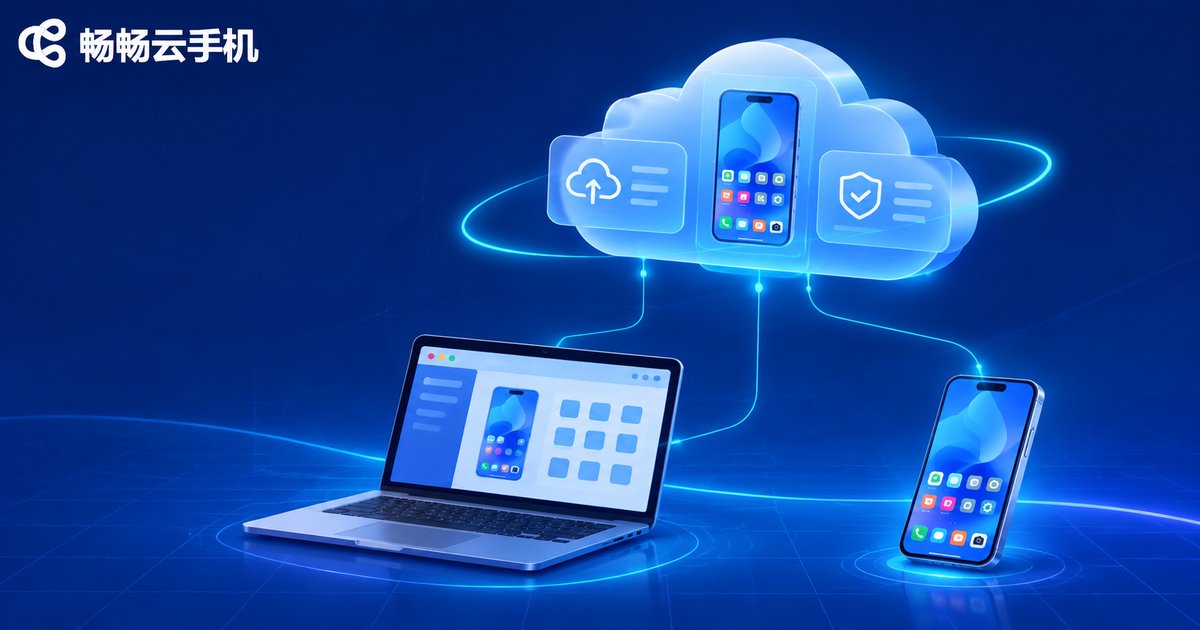
Cross-device experience depends heavily on how stable the cloud device itself is. ccloudphone runs the device environment in the cloud, and you connect through the clients provided on the official website. Signing in with the same account on desktop and mobile gives you access to the same cloud device, so there is no need to move data back and forth between two machines.
For users who need to keep tasks running on a computer for long stretches while checking progress on a phone at any time, this cloud-runs-everywhere pattern fits the actual rhythm of use: the desktop handles precise operation, the mobile client handles quick confirmation, and both share one running environment so switching devices does not lose state. For client downloads, account registration, and feature details, refer to the information published on the official ccloudphone website.
Frequently Asked Questions
Q: If I sign in on desktop and mobile at the same time, will one kick the other offline?
Multi-device sign-in with one account is usually allowed, but the exact policy depends on how many sessions are permitted, so follow whatever the client actually shows. If you do get kicked off, check whether another device is using the same account.
Q: Why does my phone show a brand new home screen while the desktop session keeps running?
Most likely you entered the wrong instance. One account can hold several cloud phones that look similar but are separate devices. Go back to the instance list and compare the names.
Q: Clipboard sync is on but nothing happens. What should I check?
First confirm clipboard sharing is enabled in both clients, then check whether the system restricts clipboard access. Testing with plain text is a clearer signal than copying formatted content.
Q: If I close the desktop window, do tasks inside the cloud phone stop?
Generally not. Closing the window usually only disconnects the screen, and the cloud device keeps running. What actually stops the device is ending the instance or shutting it down, so read the button label before you click.
Q: Will sync be laggy when I am out and using mobile data?
Screen clarity is directly tied to network latency. On mobile data, drop the quality one notch and responsiveness improves noticeably; switch back to high quality only when you need precise operation.


