
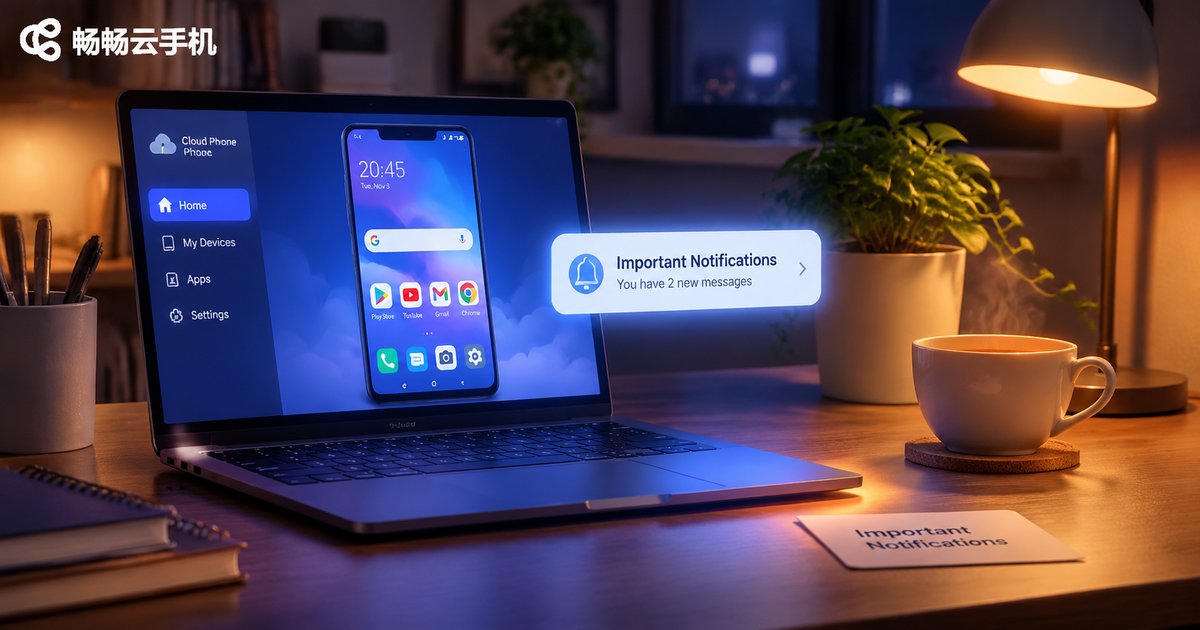
Cloud Phone Message Push and Notification Settings: Configuration Ideas to Never Miss Important Alerts
Why Cloud Phone Notifications Often Feel a Beat Behind
A cloud phone is not a handset sitting in your pocket — its body lives on a server in a data center. A notification created by an app must first be recognized by the cloud phone's system, then travel through the message channel to your local client, and only then light up your screen.
Along that path there are several gates: the app's own notification switch, the notification permission inside the cloud phone's system, background and battery-saving policies, the client's permission to receive notifications, and finally Do Not Disturb and banner styles. If any one of them is switched off, the alert may be delayed, muted, or lost entirely.
So the whole configuration philosophy comes down to one sentence: let the notifications that matter travel the full chain, and let the ones that don't stay quiet.
Understand the Five Gates a Notification Must Pass
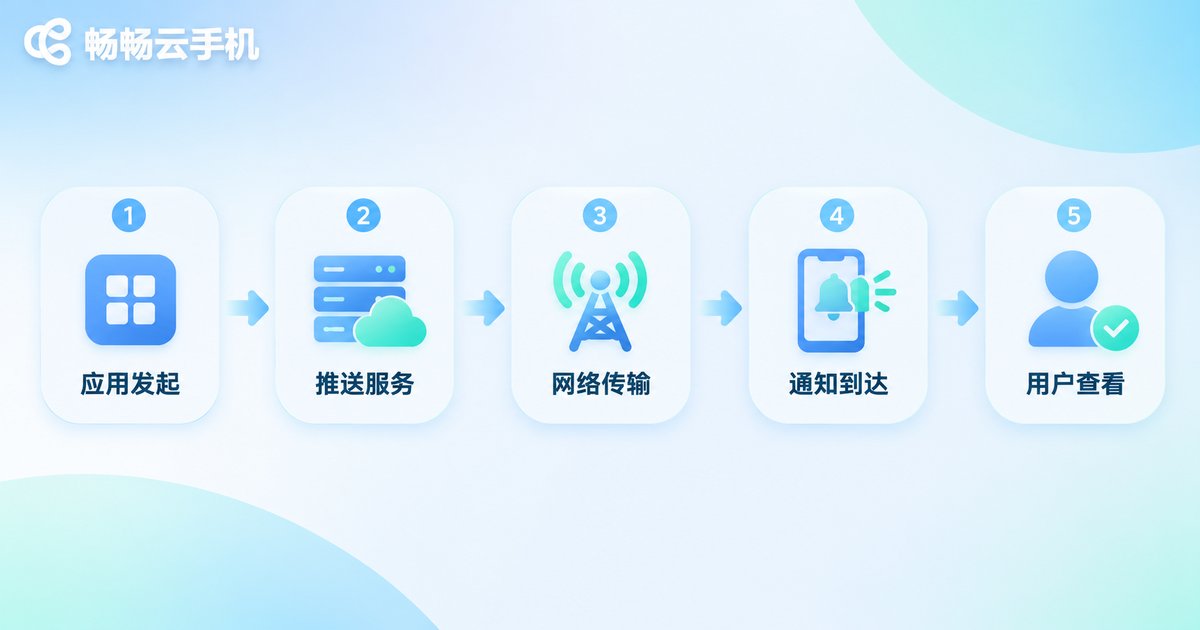
Once you break the chain apart, troubleshooting becomes much more directional. A notification normally goes through five stages before you see it:
Gate 1 — the app itself. Many apps have their own in-app notification switch. Once it is off, the app will not emit a notification at the system level at all.
Gate 2 — cloud phone system permission. This is the Android permission inside the cloud phone. It is a separate setting from your local phone, and many people change one and forget the other.
Gate 3 — background keep-alive. If the cloud phone system restricts or cleans up background apps, the app process gets recycled and notifications simply stop.
Gate 4 — the cloud message channel. This link is handled by the cloud phone provider, which delivers messages to your client. You usually don't configure it manually, but the client does need to stay signed in.
Gate 5 — the local client. The client's notification permission, system Do Not Disturb, banner and sound settings determine how the message finally appears to you.
The Five-Step Base Setup That Prevents Missed Alerts
Complete these five steps in order and most “I'm not getting reminders” problems disappear.
Step 1 — turn on notifications app by app. Open each app inside the cloud phone, find its notification options and enable “allow notifications”, “message reminders” and “sound”. For work apps and verification-code apps this step is mandatory.
Step 2 — check the cloud phone system permission. In the cloud phone settings, go to notification management, confirm the app's notification permission is allowed, and turn on banners and lock-screen reminders.
Step 3 — lift background restrictions. In the cloud phone's app management, set important apps to “allow background running” so battery-saving rules and automatic cleanup don't cut them off.
Step 4 — configure the receiving client. On your local device, confirm the ccloudphone client has notification permission enabled, and add the client to your system's Do Not Disturb allow-list so it isn't muted wholesale during focus mode.
Step 5 — set sounds and vibration. Give apps of different importance different alert tones, so you can judge from sound alone whether a message needs immediate attention.
Different Scenarios Deserve Different Reminder Strategies
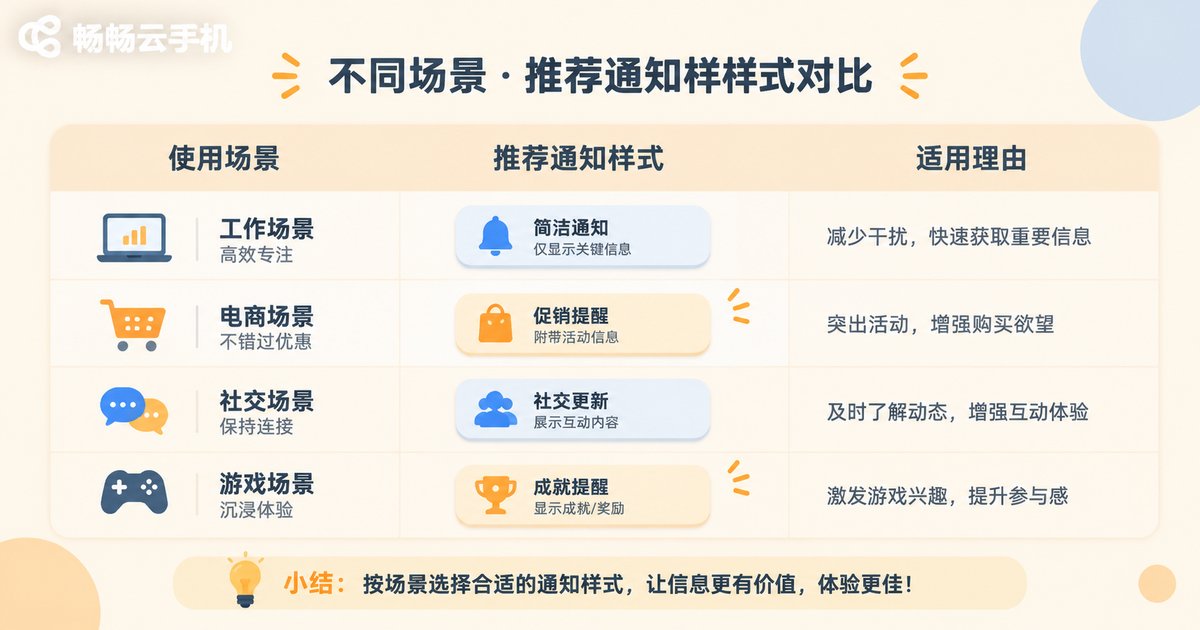
If everything rings at maximum volume, the result is the classic “boy who cried wolf” — eventually you stop checking even the messages that really matter. A smarter approach is to tier your notifications by scenario:
| Scenario | Recommended alert style | Key settings |
|---|---|---|
| Work chat, verification codes | Banner + sound + vibration | Allow background running, remove battery limits, add to Do Not Disturb allow-list |
| E-commerce orders, delivery | Banner + silent | Keep the notification but avoid interruption; check during breaks |
| Social, entertainment, news | Notification center only | Turn off sound and banners to stop pop-ups from breaking focus |
| Game idling, account upkeep | Badge only or off | Focus on keeping the cloud instance online; no real-time alerts needed |
The Four Most Common Reasons Alerts Get Missed
Pitfall 1 — turning off one side only. Someone silences an app on the local phone but forgets it is still active in the cloud phone, or the reverse. Always check both sides separately.
Pitfall 2 — battery saver quietly intercepting. Some systems tighten background activity when the battery drops. The cloud instance stays online, but the app process can still be limited, so add important apps to a protection list.
Pitfall 3 — the client gets cleaned up. A local client left in the background for a long time may be killed, so messages arrive in the cloud but never pop up locally. Set the client to stay resident and allow auto-start.
Pitfall 4 — Do Not Disturb covers the important stuff. Review your scheduled Do Not Disturb window and add key contacts or key apps as exceptions.
ccloudphone: Combine Always-On Cloud Instances with Smart Alert Settings
The real value of a cloud phone is continuous online operation — the instance runs in the cloud and keeps going even when you lock your screen, power off, or switch networks, so apps can keep receiving messages in the cloud. That matters a lot for scenarios where someone must stay reachable, such as customer service shifts, order follow-up, and account maintenance.
The cloud Android instances from ccloudphone can run online for long periods. Combined with the notification configuration approach above, this noticeably reduces the chance of a message arriving but never being seen. A good routine is to set the client's notification permission, Do Not Disturb allow-list and background residency first, then go back into the cloud phone and adjust each app's notification level one by one — forming a complete loop where alerts are generated in the cloud and delivered by the client.
Frequently Asked Questions
Q: Notifications are enabled inside the cloud phone, so why doesn't the local client alert me?
First check whether the client has system notification permission, then whether the system is in Do Not Disturb mode, and finally whether the client has been cleaned up in the background. These three are the most common break points.
Q: Are cloud phone notifications and local phone notifications the same set of settings?
No. The cloud phone runs its own independent Android system, so permissions and notification settings are managed separately from your local phone and must be configured on both sides.
Q: Can I let only important apps make noise and silence the rest?
Yes. Set notification levels app by app: work chat and verification-code apps get banner plus sound, while entertainment and news apps go to the notification center only. That way unrelated messages never interrupt you.
Q: If the cloud phone stays online for a long time, will notifications pile up?
Notifications stay in the cloud phone's notification shade, so clear them periodically. You can also keep notification permission only for important apps to reduce the buildup at the source.
Q: Why do notifications sometimes arrive a few seconds late?
Messages travel over the network from the cloud to your device. A few seconds of delay during network fluctuations or right after the client wakes up is normal, and switching to a stable network usually improves it.


