

Cloud Phone Multi-Instance Tutorial: Setup and Instance Management
What Cloud Phone Multi-Instance Actually Solves
If you run several game accounts, a handful of online stores, or need to test an app across many environments, the hardest part is rarely the work itself. It is the shortage of devices. One physical phone holds one account. Buying ten phones is expensive, takes up space, and means charging and swapping devices all day.
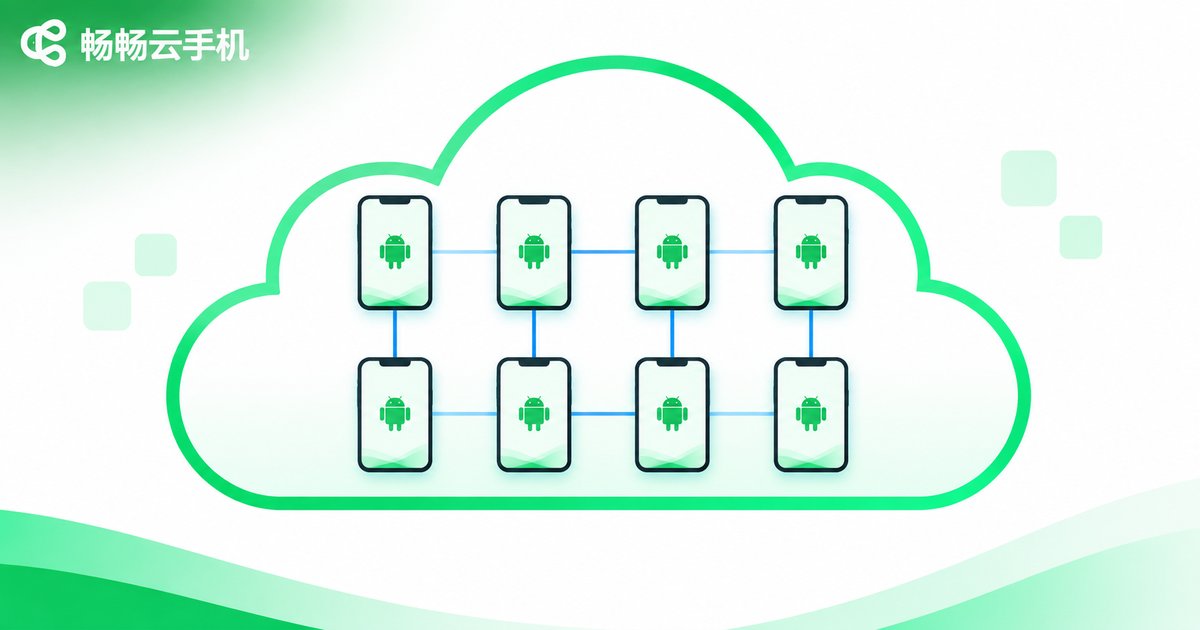
Cloud phones flip that logic. The devices run in a data center, you operate them remotely over the network, and a single computer can show a dozen or even dozens of phone windows at once. That is what people mean by cloud phone multi-instance. It delivers three direct benefits:
First, lower device cost — no need to buy a physical phone for every account. Second, less manual work — multiple windows can be displayed together and operated in batches. Third, no local resource strain — all computing happens in the cloud, and your computer only renders the screen.
Three Things to Settle Before You Open Any Instance
Beginners often create a flood of instances right away and end up with chaos halfway through. Spend ten minutes planning first.
One: define the purpose. Are you running daily game tasks, managing store backends, or testing app compatibility? Different purposes need very different configurations and instance counts. Lightweight tasks can be scaled up; heavy games or long-running jobs need tighter control.
Two: estimate the instance count. One account per instance is the safest mapping. Count your accounts first, then keep one or two spare instances. There is no need to max out on day one.
Three: prepare account details. Put accounts, passwords and binding information into a single list, and log in in that order, so you never finish creating instances only to find you cannot remember which login belongs where.
Multi-Instance Setup: Building the Environment Step by Step
Using ccloudphone as an example, the basic multi-instance flow breaks down into a few steps. The logic is the same as setting up a new phone — you just do it in a browser.
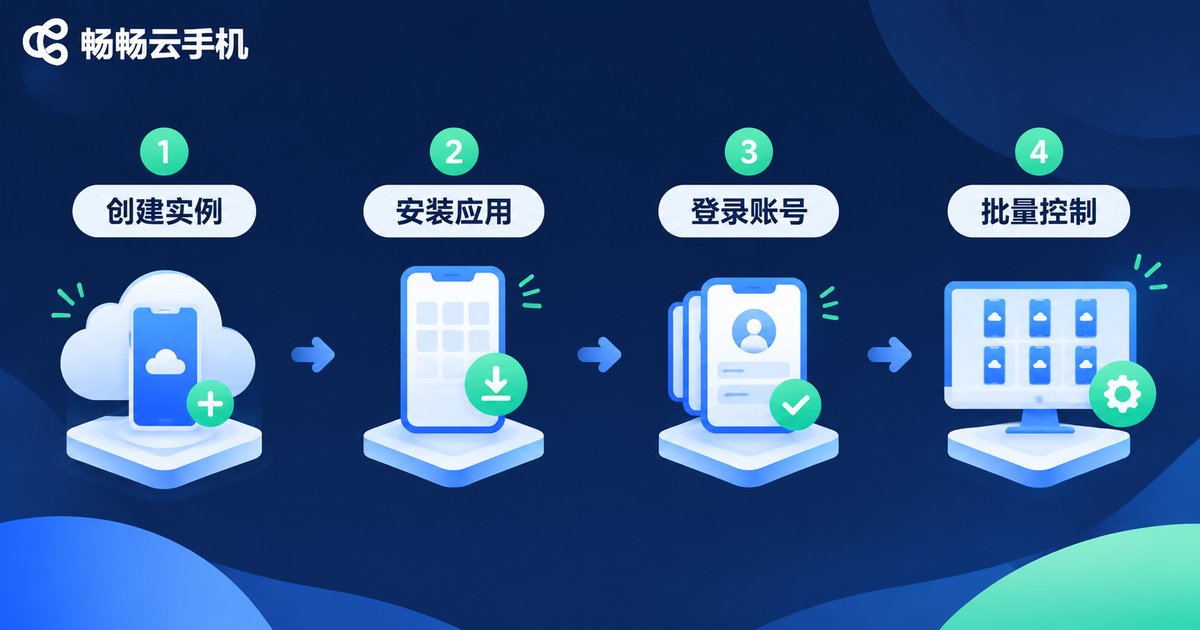
Step 1: Register and open the console. Visit the ccloudphone website, register an account and enter the console. Every instance is displayed and managed from this single page.
Step 2: Create cloud phone instances. Click to create a new instance, choose the system version and configuration you need, then wait for the image to initialize. The first creation takes a few minutes; later boots are near-instant.
Step 3: Install apps on each instance. Open a single instance view and install through the built-in app market or by uploading an installation package. If several instances need the same app, use batch installation to push it to all selected instances at once.
Step 4: Log in and group. Follow your prepared account list and log each instance into its matching account. Rename the instance immediately — for example game-01, game-02, storeA-support — and troubleshooting later becomes far easier.
Step 5: Turn on batch control. When you need synchronized actions, enable the group control view. Actions in the main window are mirrored to every selected instance, which is ideal for repetitive tasks such as starting apps or collecting daily rewards.
Step 6: Set schedules and offline running. Configure recurring tasks to run on a schedule. Cloud phones keep running even when your local computer is off, so you do not need to leave a machine on all day.
Instance Quantity Management: Scale Up and Stay in Control
The real difficulty of multi-instance work is not opening instances — it is managing them. Once the count grows, an unstructured list turns into a wall of indistinguishable windows. These practices cut management overhead significantly.
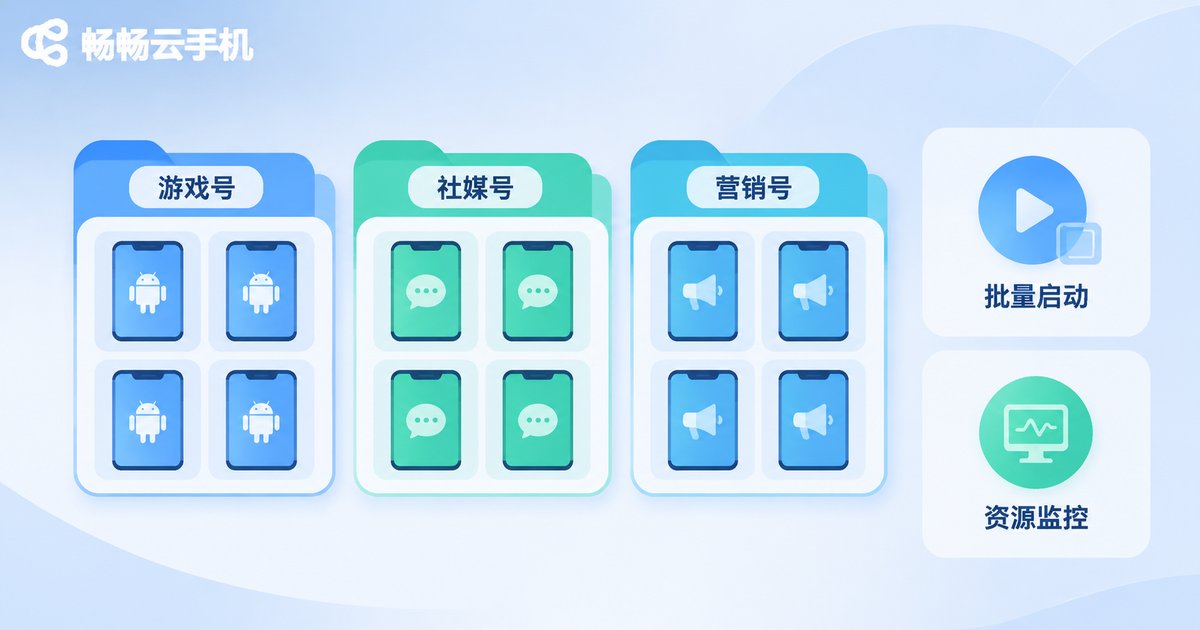
Group by project. Create folders by project, game server, store or test batch, and keep one type per group. Consoles usually support multi-select and whole-group actions, so starting, stopping and rebooting can be done in one move.
Standardize naming. Adopt a fixed format such as project-index-purpose. With consistent naming, even fifty instances remain instantly searchable.
Scale up and down as needed. Open more instances during peak season and shut down the extras during quiet periods. Cloud phones are billed by usage, which is far cheaper than maintaining idle hardware.
Watch the running state. Check online status and resource usage regularly. Restart or rebuild instances that have been abnormal or lagging for a long time so they do not hold back an entire batch.
Cloud Phone Multi-Instance vs Local Multi-Open Tools
| Item | Cloud phone multi-instance | Local multi-open tools |
|---|---|---|
| Where it runs | Cloud data center; local device only renders the screen | Entirely on your own machine |
| Hardware requirements | Low; an ordinary laptop is enough | High; more instances means more RAM and GPU load |
| Keeps running after shutdown | Yes, offline hosting is supported | No; everything stops when the machine is off |
| Concurrent instance ceiling | Can scale to a larger number of instances | Strictly limited by local hardware |
| Best for | Long-running tasks, multi-account operations, batch testing | Short local debugging sessions |
Common Beginner Mistakes
Opening too many instances too fast. Creating thirty instances at once means clicking through thirty windows by hand, which is slower overall. Run a small batch first, confirm the workflow, then add more.
Treating every instance the same. Heavy apps need their own group; mixing them with lightweight tasks slows the whole group down.
Skipping names and notes. You think you will remember. Three days later you will not. Renaming right after creation is the cheapest habit you can build.
Putting all accounts in one group. A single mistaken batch action then hits everything. Splitting into groups is a built-in safety net.
Why ccloudphone Works Well for Multi-Instance Use
ccloudphone treats multi-instance operation as a core capability. The console manages all instances in one place and supports batch creation, batch installation, batch power control and synchronized group control. Instances can be grouped and renamed, which makes splitting work by project straightforward. Cloud phones keep running in the cloud, so shutting down or disconnecting your local device does not interrupt running tasks. Everything happens in the browser — log in from another computer and your environment is exactly as you left it.
For individuals, it is like folding a shelf of physical phones into a single web page. For small teams, a shared instance list makes handovers and collaboration much simpler.
FAQ
Q: Do I need a powerful computer for cloud phone multi-instance?
No. All computing happens in the cloud and your local device only decodes the video stream, so an ordinary laptop or even a tablet works smoothly, and the number of instances is not limited by local memory.
Q: Can one cloud phone hold several accounts?
It is not recommended. One instance per account is the safest pattern: account environments stay cleaner, and management and troubleshooting are much clearer.
Q: How many instances should I open?
There is no fixed number; it depends on the task type and how many accounts you have. Start with a small batch, confirm the workflow runs smoothly and tasks complete reliably, then scale up gradually.
Q: Do cloud phones keep running after I shut down my computer?
Yes. They run in the cloud, so a local shutdown or network drop does not affect scheduled or hosted tasks. Log back into the console to see the current state.
Q: Can I operate several instances at the same time?
Yes. With group control enabled, actions in the main window are mirrored to the selected instances, which suits batch app launching and repetitive taps. Switch back to single-instance control whenever you need individual handling.
Q: What if I lose track of my instances?
Solve it with grouping and consistent naming. Build groups by project or purpose, name instances in a project-index-purpose format, and use the console search and filter — you will rarely open the wrong window again.


