

Cloud Phone Multi-Instance Guide: App Grouping, Shortcuts and Precautions
What Is a Cloud Phone Multi-Instance Tool? The Short Version
Put simply, a cloud phone multi-instance tool runs several virtual phones at the same time on cloud servers. Each one is an independent Android environment with its own device information, storage space and app data. Locally you only need a management interface, where you can browse the status of every device like a wall of monitors and jump into whichever one you want to work with.
Compare it with the common alternatives and the difference becomes obvious:
| Item | Local emulator | Multiple physical phones | Cloud phone multi-instance |
|---|---|---|---|
| Hardware cost | Cheap, but demanding on your PC | One more phone, one more bill | Provision only the devices you need |
| Always online | Stops when you shut down | Needs to stay plugged in | Keeps running in the cloud |
| Device difference | Parameters look nearly identical | Naturally independent | Each device can be configured separately |
| Batch management | Limited | Mostly manual | Grouping and batch actions supported |
| Remote access | Inconvenient | Not easy | Check from phone or PC anytime |
Once this table makes sense, everything else follows: the hard part of multi-instance is not opening devices, it is managing them afterwards.
Step One: Settle Two Things Before You Start
Many people open dozens of devices right away and then, three days later, cannot tell which device holds which account. Decide two things first:
Quantity. Start with a small number and run the whole workflow through: installing apps, logging in, daily operations. Once it is smooth, scale up according to your workload. Opening everything at once and then adjusting backwards usually costs more.
Naming rules. This is the step most often skipped and the one that affects efficiency the most. A good rule tells you the purpose at a glance, for example DY-A-01 or XHS-B-07, meaning platform abbreviation plus batch plus serial number. The numbers alone say nothing; the coding rule is what carries information.
Step Two: App Grouping, the Core of Staying Organised
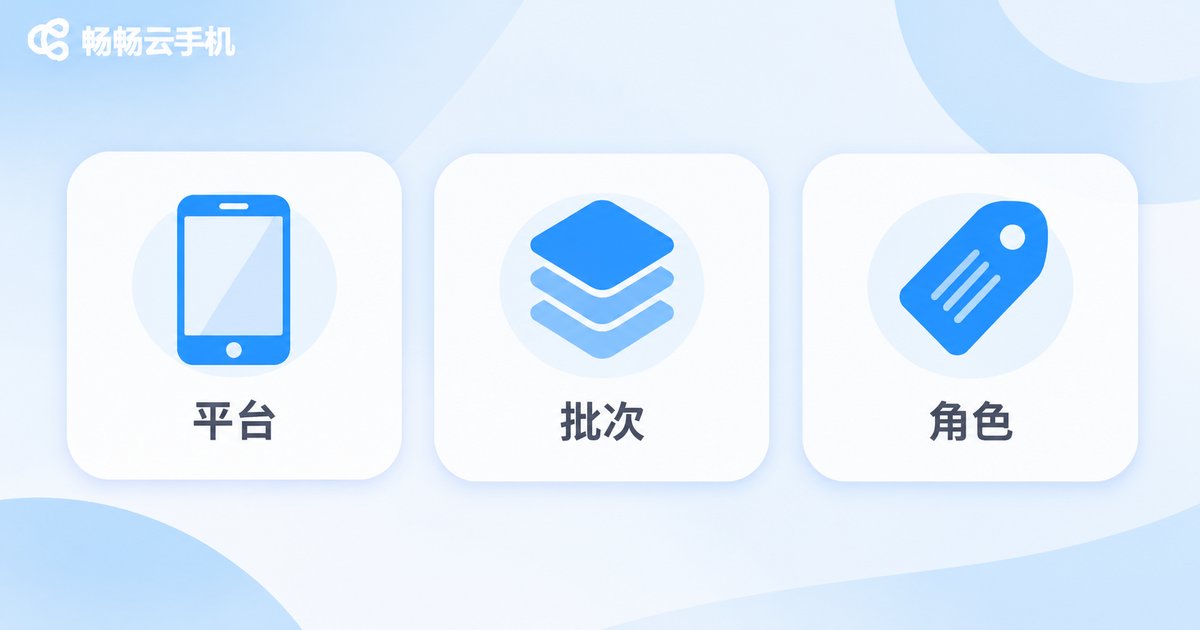
Once the number of cloud phones grows, grouping becomes your navigation system. Three approaches are most common in practice, and they can be used alone or combined:
Group by platform. Keep accounts from one platform in a single group, such as short-video platforms in one group and image-text platforms in another. The benefit is consistent operating habits, synchronized app updates, and no cross-interference.
Group by batch. Separate older accounts from new ones, or split by registration date and operating stage. If something goes wrong, the impact stays contained instead of spreading across the whole account pool.
Group by business role. Publishing, engagement and customer service each get their own group. When a task comes in, you pick a group instead of hand-picking devices, which also makes handovers much easier.
After the groups are set up, keep naming and grouping consistent. If you rename a device, update the group at the same time, or in two weeks you will be facing a mess again. Avoid too many groups as well: five to eight main groups, with sub-groups only when needed, is usually enough. Deep hierarchies make things harder to find.
Step Three: Shortcuts That Take Over the Repetitive Work
Grouping helps you select accurately; shortcuts help you act quickly. Everyday high-frequency actions fall into a few categories:
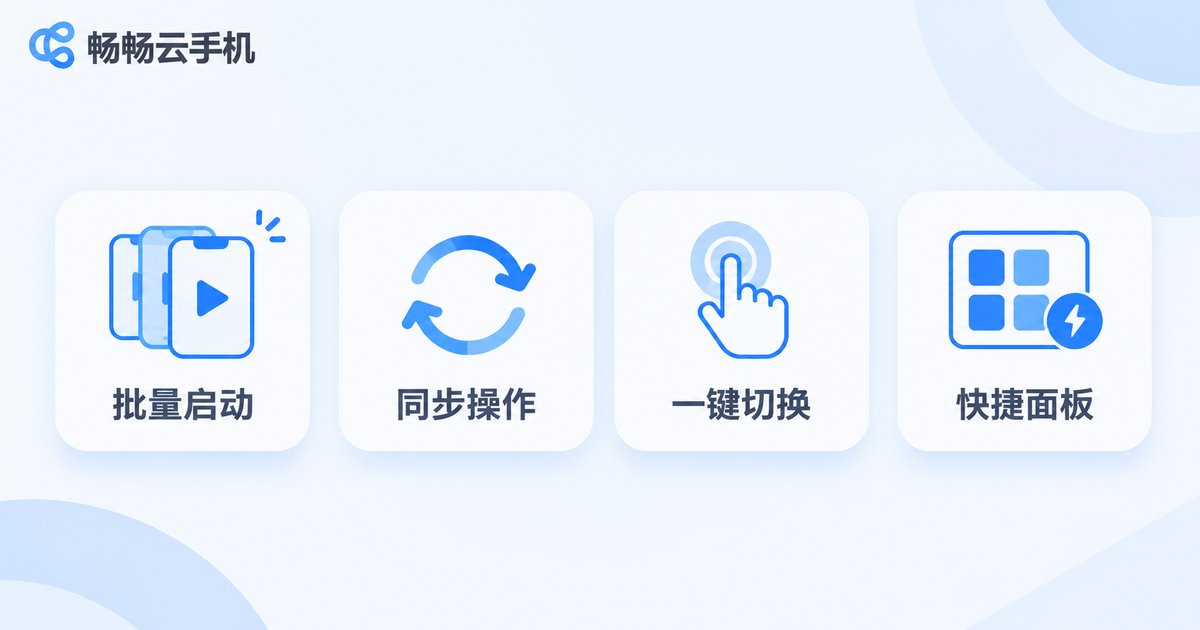
- Batch start and shutdown: wake up a whole group in the morning and close them together at night instead of tapping one by one.
- Batch install and import: push app updates and media files to an entire group in one go.
- Synchronized operation: perform an action on one device and let the rest follow, ideal for repetitive setup.
- One-tap switching: jump between devices without exiting and re-entering, very handy for quick ad-hoc tasks.
- Quick panel: keep frequently used features within reach and cut down on menu digging.
One reminder: test any batch action on a small scale first. Before pushing a new app version to the whole group, confirm on a single device that it opens properly and the login state is intact. Two extra minutes can save an entire group from rework.
Precautions You Really Need to Know
1. Account safety comes before quantity. The point of multi-instance is efficiency, not a contest of who runs the most devices. Do not push a new account into heavy activity the moment it logs in; use it at a normal pace for a few days so the basic behaviour looks natural, then increase gradually. Piling up devices while losing accounts is wasted effort.
2. Device parameters should differ. If every device shares the same model, resolution, time zone and language, that uniformity is itself a noticeable pattern. Cloud phones usually let you configure these parameters individually, so differentiate them by group at provisioning time rather than fixing it later.
3. Do not ignore resource quotas. Every device has limits on memory, storage and running load. Opening too many at once, or running heavy apps on a single device, leads to lag and disconnections. Watch resource usage in the dashboard and scale up or trim down as needed.
4. Match network and region. Keep the network region consistent with the area your accounts target. Frequent switching tends to trigger abnormal-login warnings.
5. Compliant use is the bottom line. A multi-instance tool is an efficiency tool. Using it for bulk registration, fake traffic or spam marketing means you carry the full risk. Account passwords and customer data are sensitive too, so do not store them in plain text on shared devices.
6. Back up and clean up regularly. Keep a separate copy of important login details and key materials. Release devices you no longer use: it saves cost and keeps your device list tidy.
Why We Recommend ccloudphone
In multi-instance work, the real effort is never opening devices, it is managing them. ccloudphone brings the capabilities you need into a single console: device list, group management and batch action entries all in one place, with the Android environment running in the cloud so your local device uses little memory and battery.
After provisioning a new device, you can install apps and import data directly, without wrestling with flashing ROMs or tweaking parameters. That lowers the entry barrier for newcomers and genuinely saves time for people already managing dozens of devices.
We suggest provisioning a small number of devices for a trial round first: get naming rules, group structure and daily rhythm working smoothly, then expand according to your real workload. For specific specifications and pricing, please refer to the official ccloudphone website.

FAQ
Q: Does cloud phone multi-instance require a powerful local PC or phone?
A: No. Computing and storage happen in the cloud, while your local device mainly handles display and the management interface. An ordinary office laptop, or even a phone, is enough to manage several cloud phones.
Q: How many apps can one cloud phone hold?
A: It depends on the device specification you choose. Different memory and storage capacities support different numbers of apps. If you plan to run several heavy apps at once, pick a higher specification to avoid lag.
Q: Can groups be adjusted after they are created?
A: Yes. Devices can be moved between groups and renamed. Update the naming along with the move so the group name and device name stay consistent, otherwise you will lose track again over time.
Q: Will running many devices get accounts banned easily?
A: Cloud phones provide independent device environments, which helps avoid identical device fingerprints, but that does not mean you are automatically safe. Account stability depends on operating rhythm, content quality and whether you follow platform rules. The tool only solves the environment layer.
Q: Can I manage cloud phones from my phone when I am out?
A: Usually yes. Mainstream cloud phone services provide both mobile and desktop management entries. After logging in you can check device status and run batch actions, which is convenient for handling ad-hoc tasks.
Q: How many devices should a beginner start with?
A: Two or three is a good start. Get grouping, naming and batch operations working, confirm the workflow is smooth, then increase gradually based on your workload and budget. It is safer than provisioning everything at once.


