
How to Choose Cloud Phone AFK Software: Game Idling and Long-Run Setup Guide
Why Use a Cloud Phone for Idling Instead of Your Own Device
Most people start idling a game by leaving an old phone on the desk. It works for the first few hours, and then the problems appear: the phone gets hot, the battery health drops, and one incoming call or one swipe to the background stops the script. Worse, if your home network drops, the power goes out, or the router reboots, an entire night of progress disappears.
A cloud phone is essentially an Android device moved into a data center. You open a client on your computer or phone, see the remote screen, and tap the buttons, but the game actually runs on a server in the cloud. Your local device only displays the picture, so it does not compute, does not heat up, does not drain battery, and the session does not stop when you close the client.
So the real question is not which old phone survives longer, but which cloud phone service is better suited to running for hours on end.
Five Criteria for Choosing Cloud Phone AFK Software
Cloud phone products look similar on the surface, but the actual experience differs a lot. Start with this comparison table:
| Item | Idling on a local phone | Idling on a cloud phone |
|---|---|---|
| Device usage | Ties up a physical phone | No local device needed |
| Heat and power | High, noticeable battery wear | Runs in the cloud, near-zero local power draw |
| Network or power loss | Disconnects immediately | Cloud environment stays online |
| Multi-instance | Limited by hardware, usually one or two | Add instances as needed |
| Remote viewing | Requires extra tools | Check the screen anytime in the client |
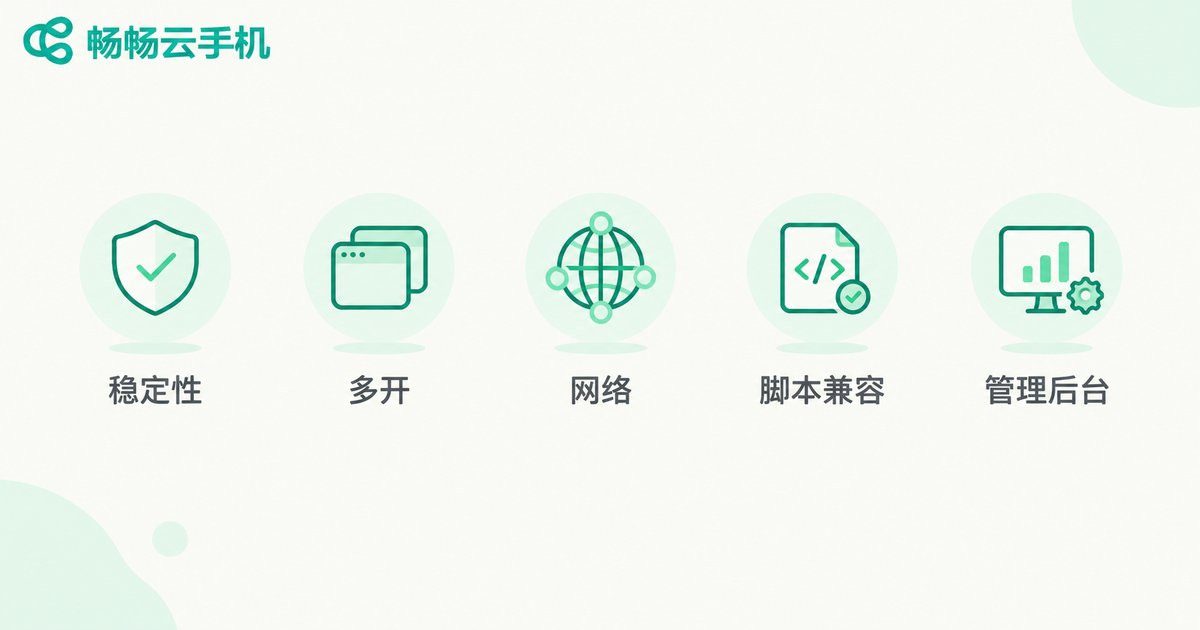
1. Stability. The core requirement of idling is simple: do not drop. Check whether instances restart unexpectedly, whether the screen freezes after long runs, and whether cloud tasks keep running after the client disconnects. Stability is the one criterion you cannot compromise on.
2. Multi-instance capacity and specs. If you plan to idle several accounts at once, look at how many instances one account can open and how much CPU and memory each instance gets. A heavy 3D game and a casual puzzle game need completely different levels of hardware.
3. Network quality. The network quality and line type of the cloud data center directly determine latency and drop rate. Run one instance for two or three hours and watch whether the screen refreshes smoothly and whether it reconnects frequently.
4. Script and tool compatibility. A cloud phone is a standard Android environment, so most automation tools install directly. But details such as the Android version, whether external apps can be installed, and whether files can be imported will decide whether your tool actually runs.
5. Management console. Once you run multiple instances, batch operations save the most time: batch install, batch start, batch reboot, and a single view of every instance status. A well-designed console keeps long-term management costs low.
Game Idling Setup: From Zero to Running
Once you have chosen a platform, the setup is straightforward. Follow this order:
- Define your goal. Are you farming daily quests, collecting resources, or running a fixed route? Different goals require very different tap pacing and run duration.
- Pick suitable specs. Make sure memory is sufficient first, then consider resolution. Sharper visuals put more load on rendering and cost more during long runs.
- Install the game and your automation tool. Log into the app store inside the cloud instance or install the package directly, and complete account verification the first time you log in.
- Configure the automation flow. Set the tap interval a little generously so there is enough wait time between actions, preventing the script from tapping the next spot before the screen has loaded.
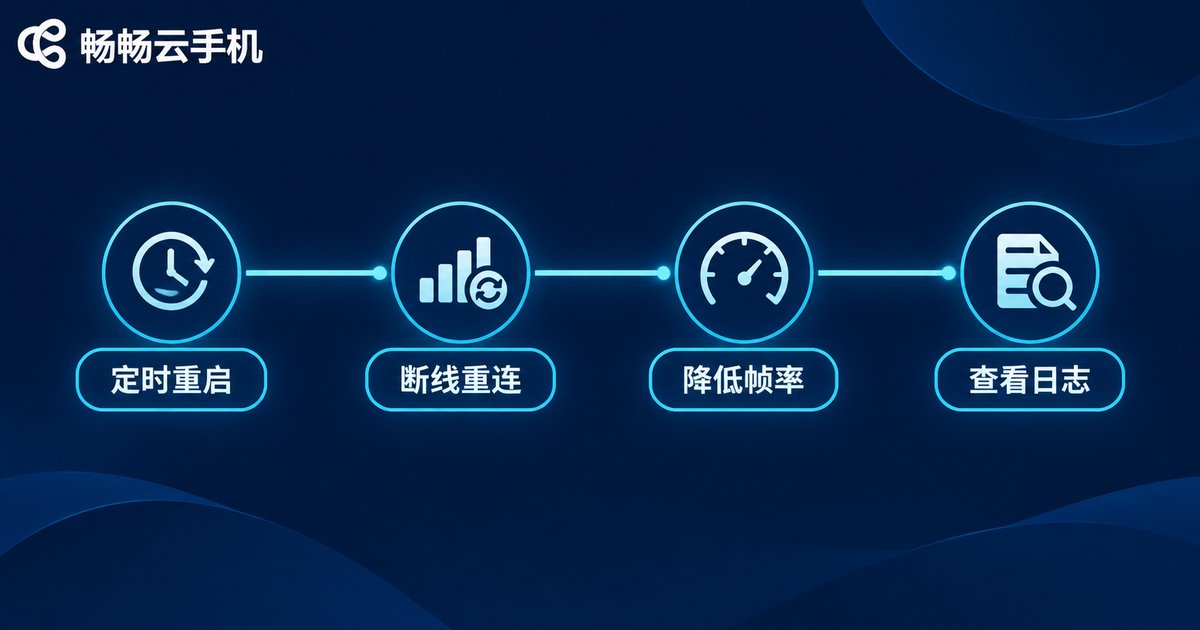
- Enable auto-reconnect and a watchdog routine. This is the key step for long runs, letting the tool recover automatically when it detects an abnormal state.
- Watch the log for one to two hours. Run a small test first to confirm the script no longer gets stuck on the same screen, then scale out to more instances.
Setup Details That Keep Long Runs Alive
Running long matters more than running fast. These small details directly affect whether you can keep going for a full day:
- Scheduled reboots. Restart the instance every 12 to 24 hours to clear memory fragmentation and avoid slowdowns over time.
- Reduce unnecessary rendering load. Set resolution and frame rate to just enough. A steady picture is worth more than a pretty one.
- Close background apps. Keep only the game and the automation tool in the cloud instance so nothing else competes for memory.
- Mind the tap frequency. Tapping too fast can look abnormal and may also overwhelm the UI. Slowing down a little is often more stable.
- Protect the account. Bind the necessary security verification so that logging in from multiple devices does not trigger a check that interrupts idling.
- Check status regularly. Even with automated protection, glance at the instance list once a day to confirm every instance is healthy.
Multi-Instance and Batch Management: Where Efficiency Comes From
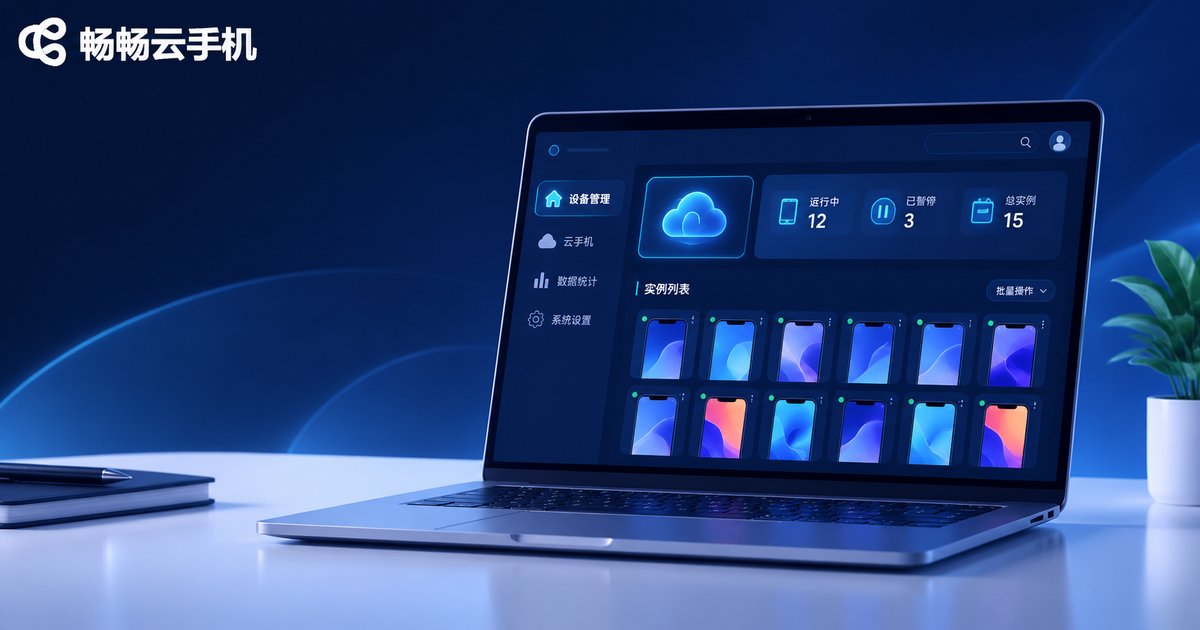
Idling one instance is about patience; idling many is about management. Once the instance count grows, the biggest time sink is not configuration but switching between screens one by one. When evaluating a platform, look for batch install and batch start, instance grouping, a unified view of running screens, and fast instance rebuilds. When an instance hits an unrecoverable problem, rebuilding it from a saved configuration is far cheaper than spending half an hour repairing it.
Also, do not roll out everything at once. Get one instance through the full flow first, let it run for a day, and then scale up from two to four instances so problems are easy to isolate.
Recommended: ccloudphone
ccloudphone offers exactly this kind of cloud Android environment: instances run on data center servers, and you can view the screen and operate apps through the client at any time for continuous idling. It works much like a physical phone, supports installing Android apps directly, suits scenarios such as game idling and keeping apps online for long periods, and lets you manage multiple instances at once so you can scale up step by step.
FAQ
Q: Is idling on a cloud phone the same as on my own phone?
The logic is identical: the same game running in an Android environment. The difference is that a cloud phone does not occupy your local device or depend on your home network and power, which makes long runs much less of a hassle.
Q: How many accounts can one cloud phone handle?
Typically one instance maps to one account environment. To keep several accounts online at the same time, run one account per instance and add more instances, which also keeps management clear.
Q: If I close the client mid-run, does idling stop?
No. Apps on a cloud phone run on cloud servers, so closing the local client only ends your screen view while the cloud task keeps running.
Q: How often should I reboot during long runs?
Restart the instance every 12 to 24 hours so memory usage returns to normal and stuttering or frozen screens become less likely.
Q: The script keeps getting stuck on the same screen. What should I do?
First check whether the tap interval is too short, then confirm whether a resolution change shifted the positions the script recognizes. A longer interval and a fixed resolution usually solve it.
Q: Does running multiple instances slow each one down?
Usually not, since each instance has its own compute and memory resources. If things clearly slow down, the specs of that single instance are probably too low, so upgrade it or reduce the number of apps running at once.


