
Cloud Phone Game Idle Guide: Graphics Settings, Reconnection, and Progress Saving
Why Idle Games Fit Cloud Phones
Many idle games rely on long online sessions: offline rewards, resource gathering, training queues, and night events all depend on a device staying active. Running the game on a Changchang Cloud Phone instance can reduce the need to keep your local phone screen on, while you check and control the instance through the client. To make idle play more reliable, set up three things early: graphics, reconnection, and progress saving.
Before You Start: Prepare the Cloud Instance
First, check the official Changchang Cloud Phone website for instance activation and client login instructions, then complete the basic setup as described. After entering the game, log in, finish the tutorial, and claim starter resources before changing idle settings. A simple checklist:
- Confirm the cloud instance is running and the client connection is stable.
- Log in to the game account and bind a phone number or official account.
- Enable in-game auto battle, auto pickup, and auto recycle options.
- Record key progress such as level, resources, and quest stage.
Graphics Settings: Clear Enough, Stable First
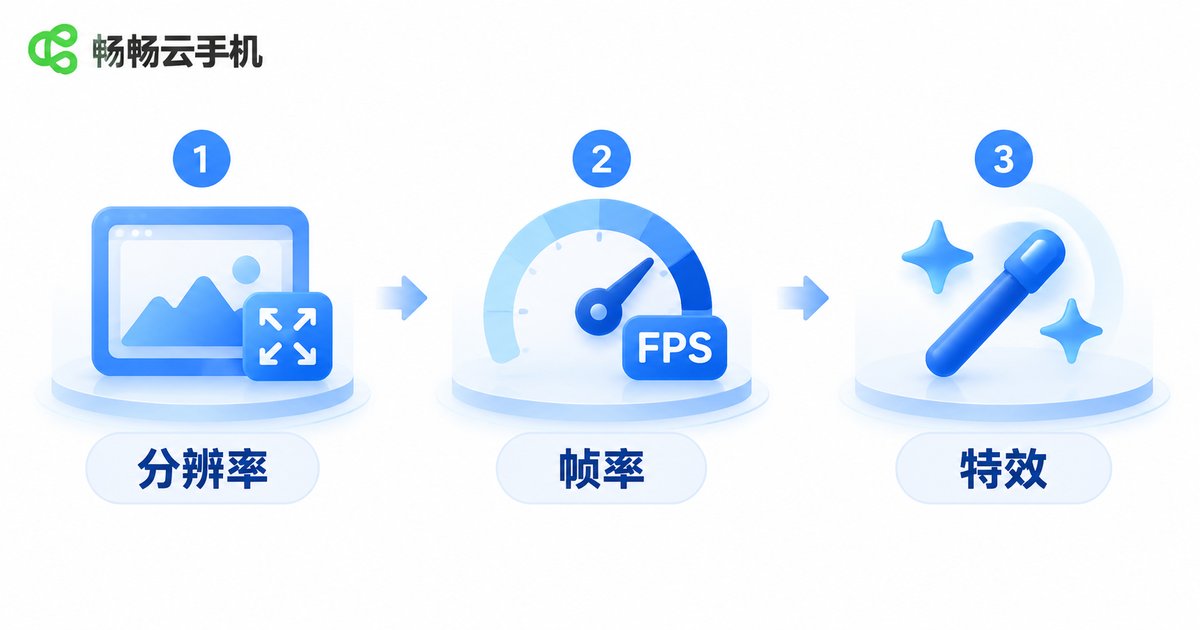
Idle play does not need maximum graphics. Higher settings put more rendering pressure on the cloud instance, which can lead to stutter, heat, or reconnects during long sessions. Follow a simple rule: clear enough, stable first. Make sure you can see the character and buttons, then adjust frame rate and effects based on the game type.
| Setting | Recommended | Why |
|---|---|---|
| Resolution | 720P or 1080P as needed | Sharper image, but more resource use |
| Frame rate | 30 FPS for idle, 60 FPS for manual play | Balances smoothness and stability |
| Effects | Turn off dynamic shadows, anti-aliasing, high-detail textures | Reduces GPU load |
| Display mode | Lock landscape or portrait | Prevents mis-taps and screen resets |
If the game has no separate graphics menu, check the instance display settings in the Changchang Cloud Phone client. Available options depend on the actual client version. After adjusting, watch for 10 to 20 minutes to confirm stable frame rate, readable visuals, and unobstructed buttons before starting a long idle session.
Reconnection: Check the Network, Then the Instance
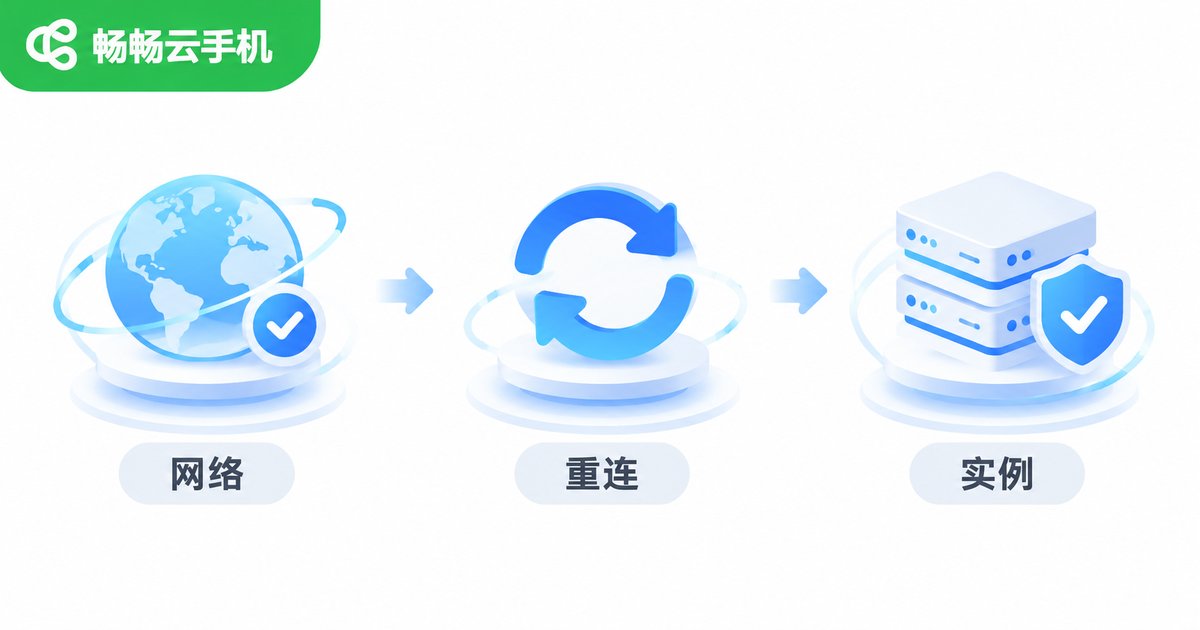
Unexpected disconnects are the biggest risk in idle play. When a disconnect happens, avoid repeated logins, which may trigger game security checks. Troubleshoot in order:
- Check instance status: confirm the cloud instance is still running and the client can connect.
- Check local network: switch to stable Wi-Fi or mobile data, and avoid weak-signal environments.
- Enable game reconnect: turn on auto reconnect or resume-on-disconnect options in the game settings.
- Restart the game process: if the screen freezes after reconnecting, close and reopen the game instead of clearing app data.
In the Changchang Cloud Phone client, check instance status and connection quality regularly. If the client offers background keep-alive or reconnect options, enable them according to official instructions. During long sessions, avoid frequent account switching, repeated graphics changes, and running multiple high-load apps at the same time.
Progress Saving: Account Binding First, Cloud Save as a Bonus
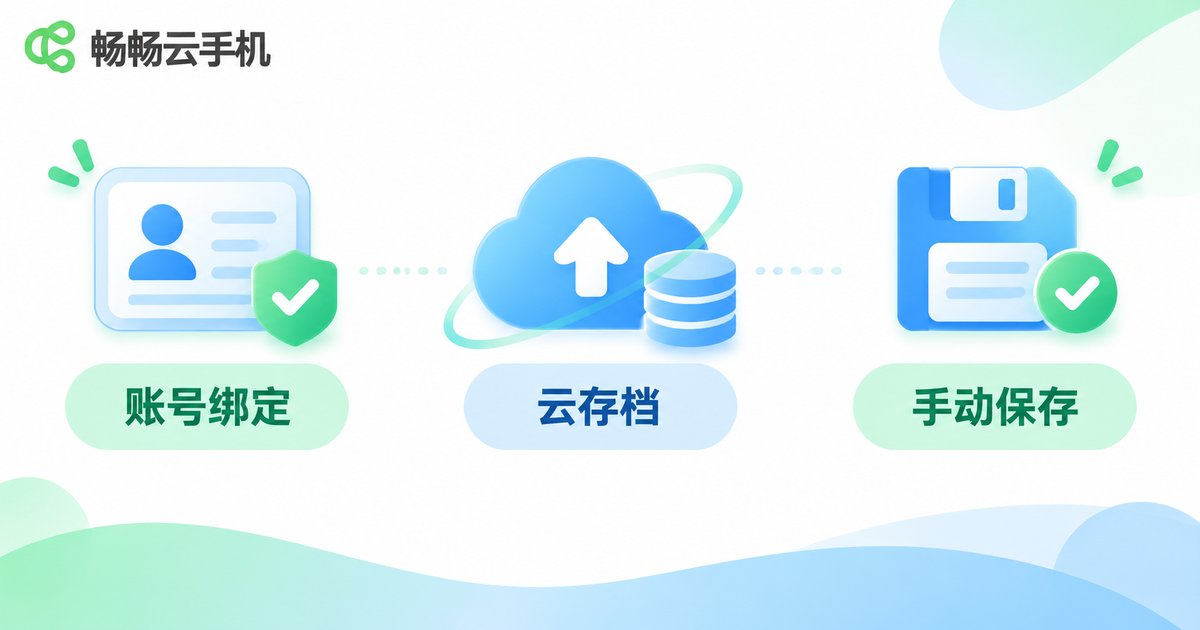
A cloud phone is a runtime environment. Whether progress is saved still depends on the game account system and save mechanics. Treat account binding as the baseline: bind a phone number, official account, or another login method supported by the game. If the game offers cloud save, enable it and confirm synchronization.
| Save Method | Suggested Frequency | Notes |
|---|---|---|
| In-game cloud save | After each key milestone | Confirm sync before exiting |
| Account binding | During first login | Avoid temporary accounts |
| Manual save | Before logging out or switching devices | Return to the main screen or safe zone first |
| Progress notes | Once a day | Record level, resources, and quest stage |
When exiting, use the in-game exit button when possible, and avoid force-closing during a save. Do not clear game data or reset the cloud instance casually. If the client provides backup, snapshot, or restore features, follow the official website and client instructions and rely on the actual available functions.
Practical Tips for Changchang Cloud Phone
Changchang Cloud Phone (ccloudphone) provides cloud phone instances that users can connect to and manage through a client, which fits idle scenarios that need long online sessions. Before use, visit the official Changchang Cloud Phone website to review current features and setup details, then follow the steps above for graphics, reconnection, and saving. Do not trust unofficial packages, invite codes, or so-called internal benefits; check the official website and client for accurate information.
Also, follow the game terms of service. A cloud phone is a runtime tool, not a replacement for in-game security checks or account protection. Enable two-factor verification, bind trusted devices, and update passwords regularly to reduce account risk.

FAQ
Q: Is higher graphics quality always better for cloud phone idle play?
A: No. Long-term stability matters more. Keep visuals clear enough, and turn off heavy effects such as shadows and anti-aliasing first.
Q: What should I do if the game does not respond after reconnecting?
A: Confirm the cloud instance is running, then check your local network. If the screen is frozen, close and reopen the game instead of logging in repeatedly.
Q: Can the cloud phone save progress by itself?
A: Do not rely on that alone. Bind your game account and enable in-game cloud save whenever possible. The cloud phone provides the runtime environment, while saving depends on the game mechanics.
Q: Can idle play continue after my local phone is turned off?
A: Cloud instances usually run on the server side, while the local client is mainly for viewing and control. Whether you can close the client or keep the session running depends on the service and game mechanics; follow Changchang Cloud Phone official instructions.
Q: What scenarios suit Changchang Cloud Phone?
A: Idle scenarios that need long online sessions and less local screen-on time or heat pressure are good candidates. Follow game rules and use the service reasonably.


