
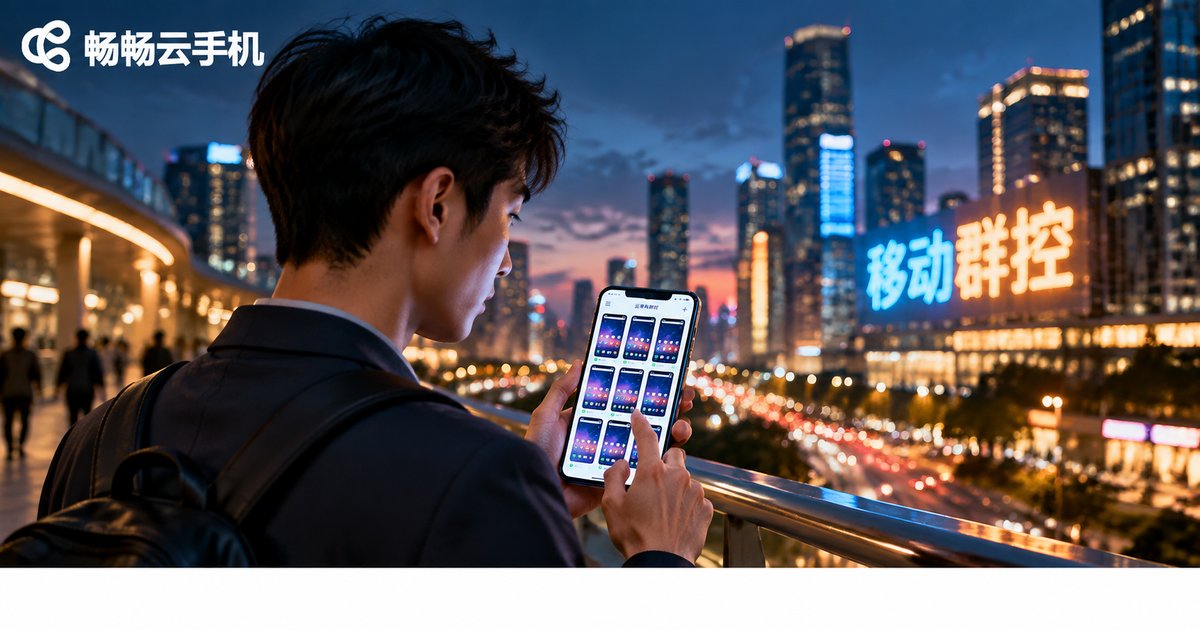
Who Is Mobile Cloud Phone Group Control For? On-the-Go Operations Scenarios When You Can't Stay at a Computer
1. First, What Exactly Is Mobile Cloud Phone Group Control?
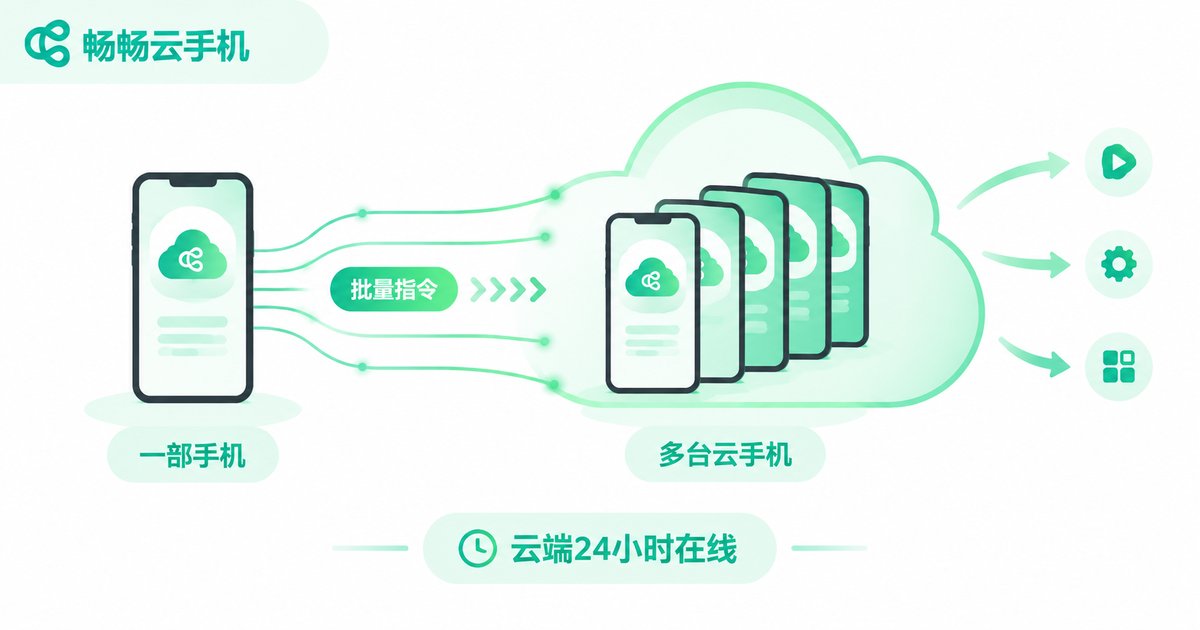
Many people still picture 'group control' as an office with a row of physical phones, a PC that never sleeps, and a tangle of USB cables. Mobile cloud phone group control moves all of that into the cloud—every 'phone' is actually a virtual phone running in a cloud data center, and the real phone in your hand is just a portable remote console.
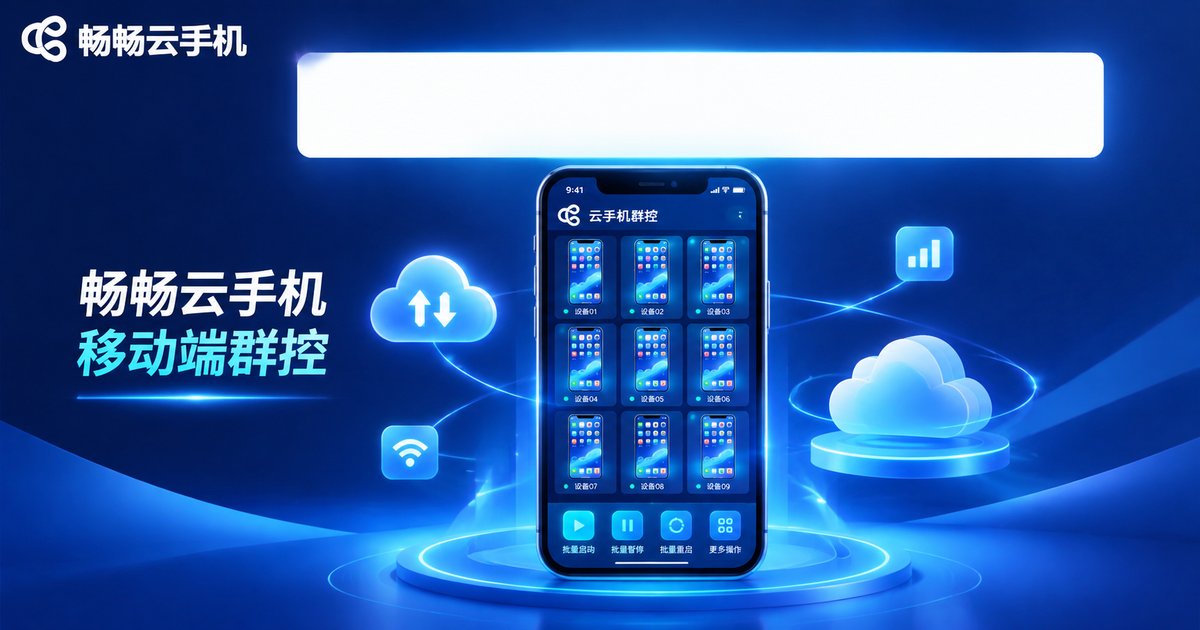
Open the cloud phone app and you can view many cloud phone screens at once: tap into any single device for fine-grained control, or send batch commands—install apps across the board, run tasks in sync, or clear backgrounds all at once. Because cloud phones run in the data center around the clock, it makes no difference whether your local phone is locked, offline, or riding the subway—cloud tasks keep running.
2. Being 'Tied to a Computer' Is the Hidden Cost of Daily Operations
PC-based group control looks stable, but anyone who has used it knows how firmly it chains you to a desk:
1. You must be present. The moment an account throws a verification prompt, a task stalls, or a message needs a reply, everything waits until you are back in front of the computer.
2. The computer must stay on. Keeping a PC running 24/7 means electricity bills, fan noise, and hardware wear—plus the constant worry of a power cut or dropped connection.
3. Every trip becomes dead time. During business trips, commutes, or dinners, devices sit idle and tasks stall; you return to a backlog that takes hours to clean up.
4. Scaling is messy. Every extra device means another phone, another cable, another chunk of desk space.
The root cause is simple: the control end is pinned to one physical location. Mobile group control exists to set you free from that location.
3. Six Types of Users Who Benefit Most from Mobile Group Control
Not everyone needs group control—but the following users quickly find it hard to live without:
| User Type | Typical Needs | What Mobile Group Control Changes |
|---|---|---|
| Game studios / grinders | Multi-account idle farming, daily quests, events | Clear stamina and claim rewards on the commute—the cloud never drops |
| Social media matrix operators | Multi-platform, multi-account posting and engagement | Batch publish and reply from a phone, never miss an update |
| Multi-store e-commerce teams | Watching several shops, messages and order alerts | Handle messages anywhere, never miss an order |
| Game boosters | Rotating through many accounts in shifts | Cloud relay: people change, devices and progress stay |
| App promotion / field teams | Managing demo devices, batch installs | One phone orchestrates everything, fast on-site deployment |
| SMB managers | Unified checks on staff devices and accounts | Remote inspection without an office PC |
The common thread: many accounts, fragmented tasks, and rarely sitting at a computer. Check all three boxes and mobile group control was practically built for you.
4. Four Real-World Scenarios When You Can't Stay at a Computer
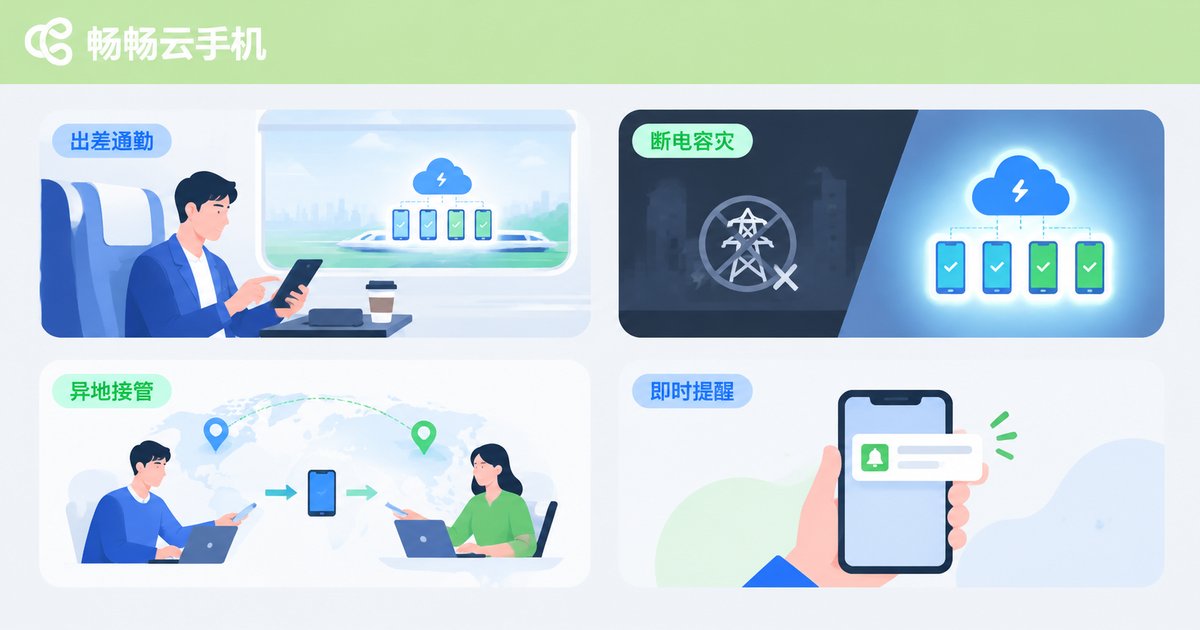
Scenario 1: Handling surprises on a business trip or commute. An account throws an alert mid-ride on the high-speed train. Instead of stewing helplessly, you open that cloud phone on your handset, fix it in a minute or two, and the workflow rolls on.
Scenario 2: Holidays away, with the cloud as a safety net. Home for the holidays without a computer? Cloud phones keep running in the data center; daily routines are handled in the cloud while you spend a few minutes a day inspecting everything from your phone.
Scenario 3: Disaster recovery when local power or network dies. An office breaker trips or the home Wi-Fi drops and a PC-based setup goes completely dark. Cloud phones live in the data center, so local failures never touch your tasks—power comes back, you open your phone, and everything is exactly as you left it.
Scenario 4: Team collaboration and remote handover. A colleague is on leave; you take over their cloud phones from another city using your phone. Data lives in the cloud, so handover no longer depends on 'that particular computer.'
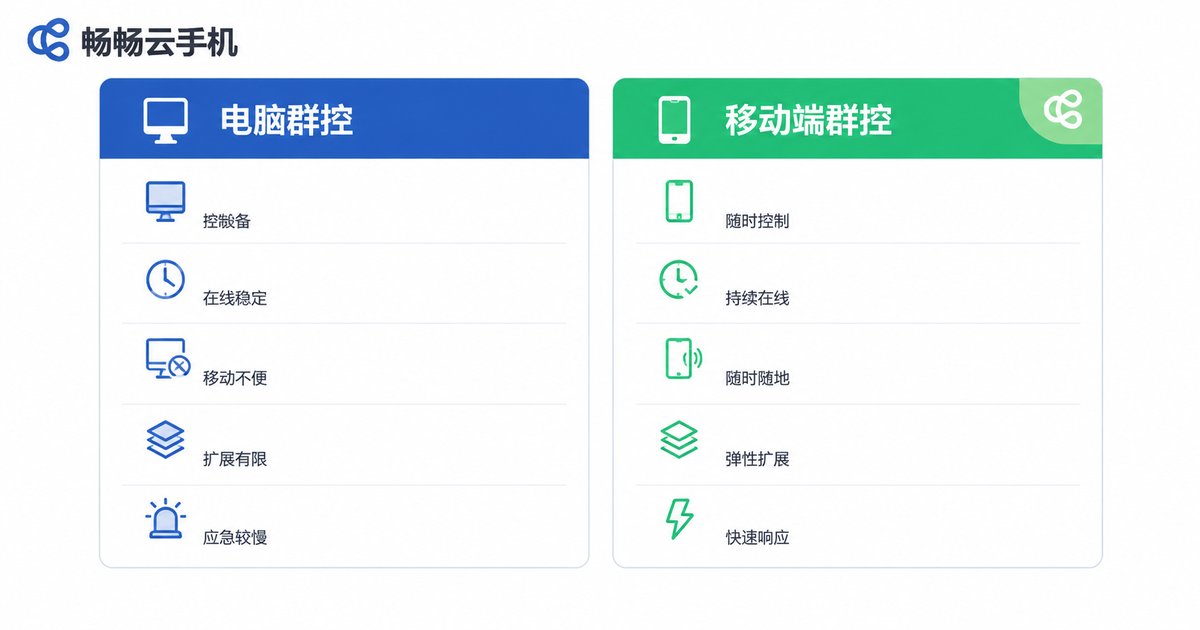
5. Mobile Group Control vs Traditional PC Group Control
| Aspect | Traditional PC Group Control | Mobile Cloud Phone Group Control |
|---|---|---|
| Control end | A PC that must stay on | Just one smartphone |
| Uptime | Depends on the PC and local network | Cloud runs 24/7 |
| Mobility | Pinned to a desk | Manage from anywhere |
| Scaling | Buy more phones, cables, and hubs | Add or remove cloud phones on demand |
| Emergency response | Offline the moment you leave the PC | Get alerts and act from your phone |
| Local failure impact | A power or network cut stops everything | Cloud keeps running regardless |
6. How to Build Your Mobile Group Control Workflow with ccloudphone
Taking ccloudphone as an example, the whole setup takes just a few steps:
Step 1: Visit the ccloudphone official website, register an account, and activate cloud phones as needed.
Step 2: Install the ccloudphone app on your own phone, log in, and add the cloud phones you want to manage to your group control list.
Step 3: Batch-configure once—install apps and dispatch tasks across all devices in one go.
Step 4: Let tasks run resident in the cloud. Travel, clock out, live your day—and check every cloud phone's live screen from your phone anytime.
Step 5: Respond to alerts on the spot, lock your screen, and move on. Operations shift from 'staring at screens' to 'routine patrols.'
7. Four Details That Keep Mobile Group Control Stable
1. Tier your tasks. Set key alerts for core accounts and lower the patrol frequency for peripheral ones, so attention goes where it matters.
2. Lean on the cloud. Anything that can idle-run in the cloud should never depend on a local machine being powered on; the local end is only for viewing and deciding.
3. Mind your network. Mobile operations depend on connectivity—do critical actions over Wi-Fi or a strong signal whenever possible.
4. Patrol status regularly. Spend a fixed time each day reviewing every cloud phone's status from your phone, and catch problems while they are small.
FAQ
Q: Does controlling phones from a phone feel laggy?
The cloud phones themselves run in the data center, so demands on your local handset are minimal; smoothness mainly depends on your network. Most cloud phone apps let you adjust streaming resolution, and routine group control works fine on ordinary 4G/5G.
Q: How many cloud phones can one phone control at once?
It depends on how many cloud phones you activate and the provider's group control capabilities. ccloudphone's mobile app supports batch management and synced operations across multiple cloud phones; for exact limits, refer to the official website.
Q: If my computer shuts down, do tasks on the cloud phones stop?
No. Cloud phones run in the provider's data center, independent of your local devices—shutting down or disconnecting your computer does not interrupt cloud tasks.
Q: Can I mix mobile and desktop access?
Yes. Log in with the same account on different devices; cloud phone data and progress are stored in the cloud, so you can switch seamlessly anywhere.
Q: Is this friendly to beginners with no technical background?
Absolutely. Mobile group control needs no server room, no cables, and no special skills—register, activate cloud phones, and follow the in-app guide to get started.


