
Cloud Phone Microphone Not Working: Permissions, Input Devices, and Client Settings
Start Here: Three Very Different Symptoms
When people say the microphone is not working inside a cloud phone during a voice meeting, voice chat, or recording session, they are usually describing one of three completely different situations — and each one has its own troubleshooting path. Spend ten seconds identifying which one you are facing; it will save you half the work.
First: the other side hears nothing at all and the level meter never moves. This is almost always a permission or input-device problem.
Second: they hear you, but the sound is very quiet or choppy, as if you were speaking underwater. This usually points to low gain or an unstable upload connection.
Third: an app inside the cloud phone reports that no microphone was detected. This is typically a permission issue inside the cloud instance, not on your local device.
Cause One: Missing Permissions Stop the Audio at the Source
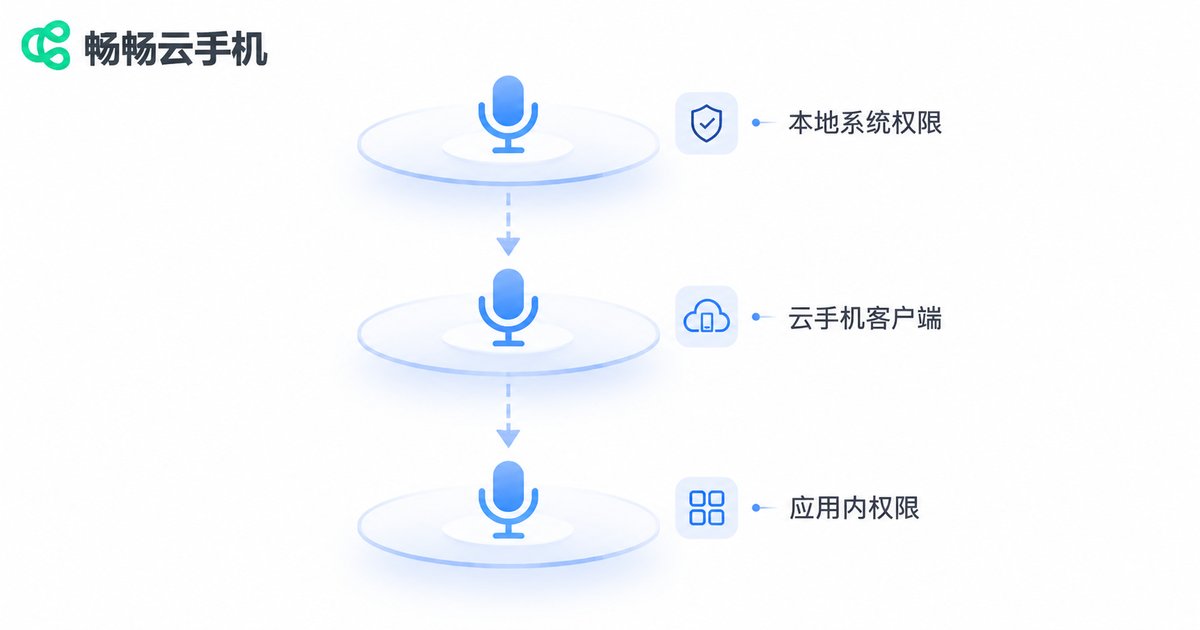
The audio path of a cloud phone looks like this: local microphone → local client → cloud instance → app inside the cloud phone. If any layer in that chain lacks permission, the sound stops right there. That is why you should always troubleshoot from the outside in.
Local operating system: on Android and iOS, allow the cloud phone client to access the microphone in system settings. On Windows, go to Settings → Privacy & security → Microphone, allow desktop apps to access the microphone, and make sure the master switch is on. On macOS, open System Settings → Privacy & Security → Microphone and tick the client.
Apps inside the cloud phone: this is the layer most people forget. The first time you launch a voice app inside the cloud phone, it asks for permission once. If you tapped deny by accident, it usually will not ask again, and the result is a client that looks completely normal but transmits no sound. Open Settings → Apps → Permission Manager inside the cloud phone and enable the microphone for that app manually.
Cause Two: The Wrong Input Device Is Listening
Many desks have a USB microphone plugged in, Bluetooth earbuds connected, and a laptop with a built-in microphone array, all at once. The system default input is not necessarily the device you are actually speaking into, so you talk into A while the system listens to B.
On Windows, right-click the volume icon in the taskbar → Sound settings → Input, and confirm the selected device matches the one you are using. Speak and watch whether the level bar moves. On macOS, open System Settings → Sound → Input and watch the input level meter the same way. If the level bar does not move, the operating system is not receiving any sound at all — and at that point there is no reason to keep changing cloud phone settings.
Two more traps worth knowing: Bluetooth headsets switch to a low-bandwidth channel in call mode, which can degrade or mute the audio, so test with a wired headset first. And some USB microphones have a physical mute button or a status LED that shows they are muted — easy to overlook.
Cause Three: Audio Options Switched Off in the Client
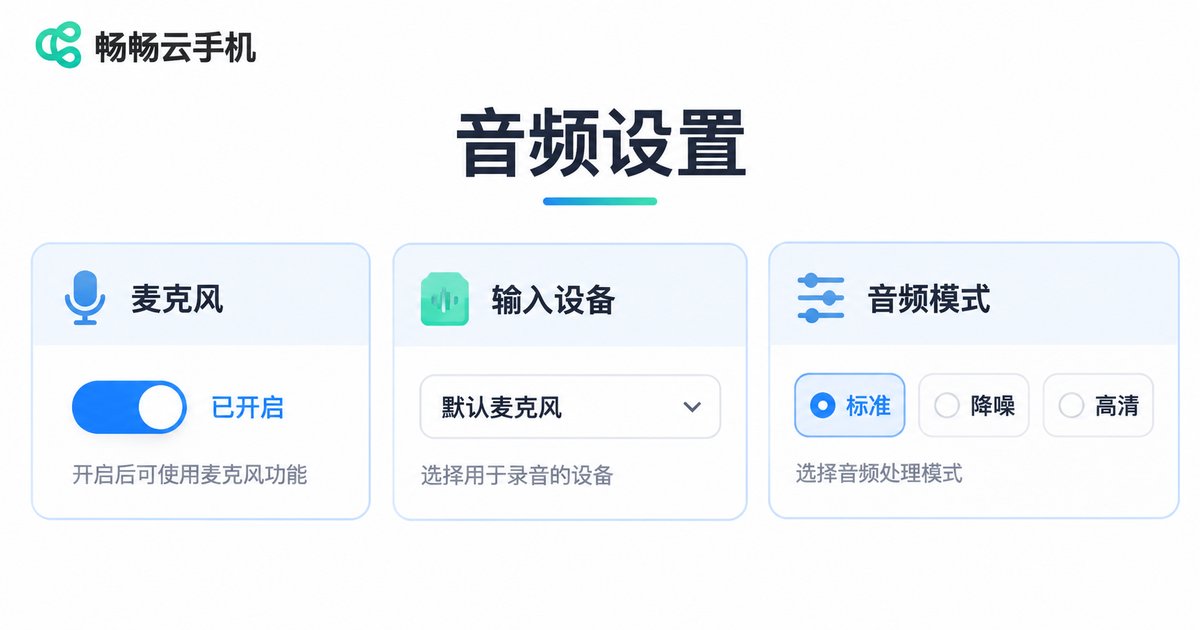
If permissions and devices are fine but audio still does not reach the cloud, check the audio switches inside the client. There are three common places to look.
1. The master microphone toggle. Many cloud phone clients place a microphone icon in the toolbar, and it may be off by default. You have to tap it, and the icon should be highlighted before anything is actually captured.
2. The audio input mode. Some clients offer modes such as voice call, music, or off. If the client is set to off or output-only, the microphone will never upload.
3. The app's own settings. Meeting and voice apps usually have their own audio input selector. It should be set to system default or microphone, not to something like speaker mix.
Two Details That Are Easy to Miss
Unstable upload bandwidth. Voice is a real-time stream. However fast your download link is, an unstable upload will still show up as the other side hearing nothing. Check the live network status in the client, or simply retry on a more stable connection.
A device held by another program. If another meeting app, screen recorder, or voice assistant is running locally, it may hold the microphone exclusively, leaving the cloud phone client with nothing. Close those programs and reconnect — the audio often comes back immediately.
Quick Self-Diagnosis Table
| Symptom | Most likely cause | What to do |
|---|---|---|
| Nobody hears you, level meter still | Local system permission not granted | Allow the client to access the microphone in system settings |
| Local level meter does not move | Wrong input device or hardware mute | Switch the default input, check the mute button |
| Local works, cloud phone is silent | In-app permission denied inside the cloud phone | Enable the microphone for that app in cloud phone settings |
| Toolbar microphone icon is greyed out | Client microphone toggle is off | Tap the microphone icon in the toolbar |
| Choppy or uneven volume | Unstable upload or Bluetooth channel | Use a wired headset, move to a stable network |
| Only one app has no sound | Wrong audio input source inside that app | Change it back to the system default microphone |
Choose a Cloud Phone With a Complete Audio Path
Troubleshooting is not hard on its own — repeated troubleshooting is what costs time. If your cloud phone client handles audio input poorly, for example with no dedicated microphone toggle, no input device selection, or unclear permission prompts, the same problems will keep coming back.
ccloudphone runs a full Android environment in the cloud, with a microphone toggle and audio input options built into the client, a clear layer structure, and explicit permission prompts. When the sound disappears, you can immediately tell which layer is causing it. Whether you are running voice social apps, joining online meetings, or automating tasks that require recording, a client with a complete and transparent audio path lets you spend your time on actual work instead of on troubleshooting.
FAQ
Q: Local recording works perfectly, but the cloud phone has no sound. What should I do?
First check whether the microphone permission was ever denied inside the cloud phone, then check whether the microphone toggle in the client toolbar is on. These two steps resolve the vast majority of local-works-cloud-silent cases.
Q: Why does the audio disappear after I connect Bluetooth earbuds?
Bluetooth headsets switch to a low-bandwidth channel in call mode, and some devices briefly drop the microphone during that switch. Test with a wired headset first to confirm whether Bluetooth is the culprit, then consider replacing the headset or changing the system input device.
Q: An app inside the cloud phone says no microphone was detected. Is the client unsupported?
Not necessarily. The more common cause is that the permission for that app inside the cloud instance was never granted. Open Settings → Apps → Permission Manager inside the cloud phone and allow the microphone manually.
Q: I granted microphone access to one app. Do other apps need it too?
Yes. Permissions inside the cloud phone are managed per app, exactly like on a physical device, so each new voice app needs its own authorization.
Q: The volume is very low and cuts in and out. Is the microphone broken?
Probably not. Check whether your upload connection is stable, whether you are on a Bluetooth headset, and whether the input gain in the system or the app has been turned down. Working through these in order usually finds the cause within minutes.


