
Cloud Phone Audio Out of Sync: Audio Latency, Network Buffering, and Device Troubleshooting
Why Cloud Phones Suffer From Audio Desync
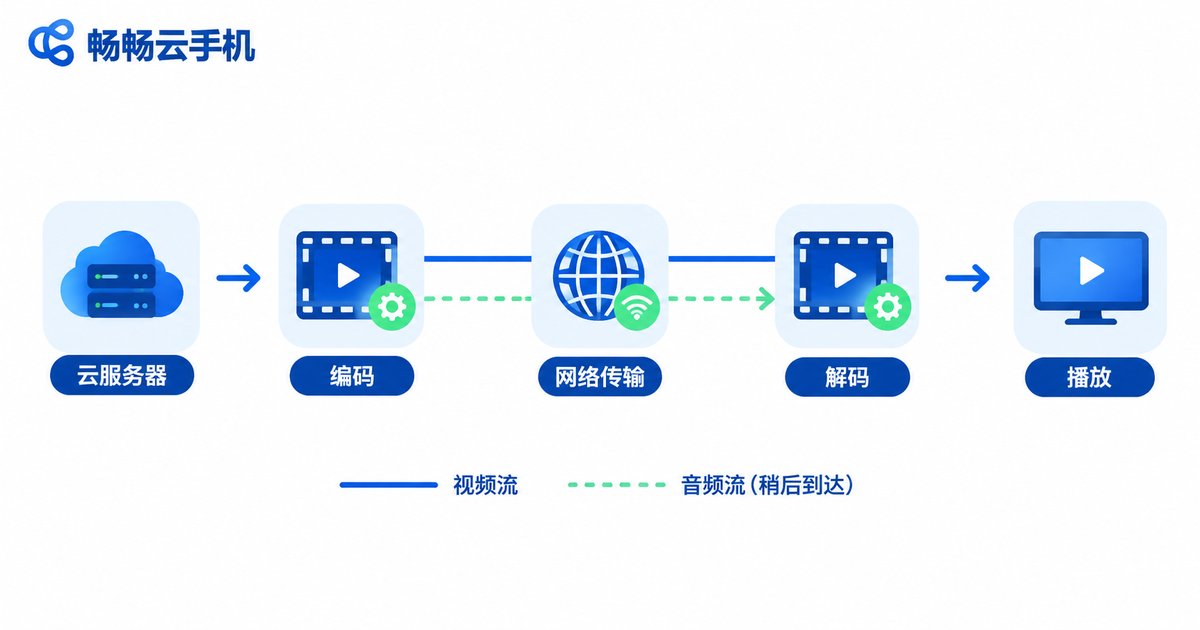
Between a cloud phone and the device in your hands sits a long chain. A server in the cloud runs the app and renders the picture, then video and audio are compressed and encoded separately, sent across the network, decoded by the client, and finally played back. Every link in that chain takes time, and because video and audio travel on two different channels, any slowdown on one side pushes them out of alignment.
Here is the simple version: video frames are large and travel as big parcels, while audio packets are small but sent very frequently as many tiny parcels. Big parcels are more likely to be held up by network jitter, and small parcels are more likely to pile up in the receiver's buffer. The result is that you see a mouth move but hear nothing yet.
Human hearing is extremely sensitive to timing. In general, when audio lags behind video by more than 100 to 150 milliseconds, most people notice something feels off. Beyond 250 milliseconds, it clearly affects both viewing and control.
Three Common Causes: Latency, Buffering, and Device Issues
Before you rush to switch networks, most out-of-sync audio can be sorted into the three categories below. Match your symptoms to the table first, then work on the right cause.
| Problem Type | Typical Symptom | Common Offset | Where to Look First |
|---|---|---|---|
| Network buffering | Audio stutters, then suddenly catches up or falls behind | Over 300ms | Packet loss, jitter, bandwidth swings |
| Audio latency | Video is smooth but audio is consistently half a beat late | 100-300ms | Bluetooth headphones, system audio effects |
| Device-side issue | Only happens on one device or one client | Varies | Client version, background apps, battery saver |
Step 1: Decide Whether Audio Lags or Leads
This single judgment determines every step that follows, and it takes only a few seconds of observation.
Video arrives first, audio follows: the audio channel buffer is too long, or the receiver is applying extra audio processing. Focus on Bluetooth headphones, spatial audio, and client audio buffer settings.
Audio arrives first, video freezes: the video channel is waiting for data, usually caused by insufficient bandwidth or packet loss triggering retransmission. Audio did not change; the picture was simply slowed down. Focus on network quality and quality settings.
Step 2: Troubleshooting Network Buffering
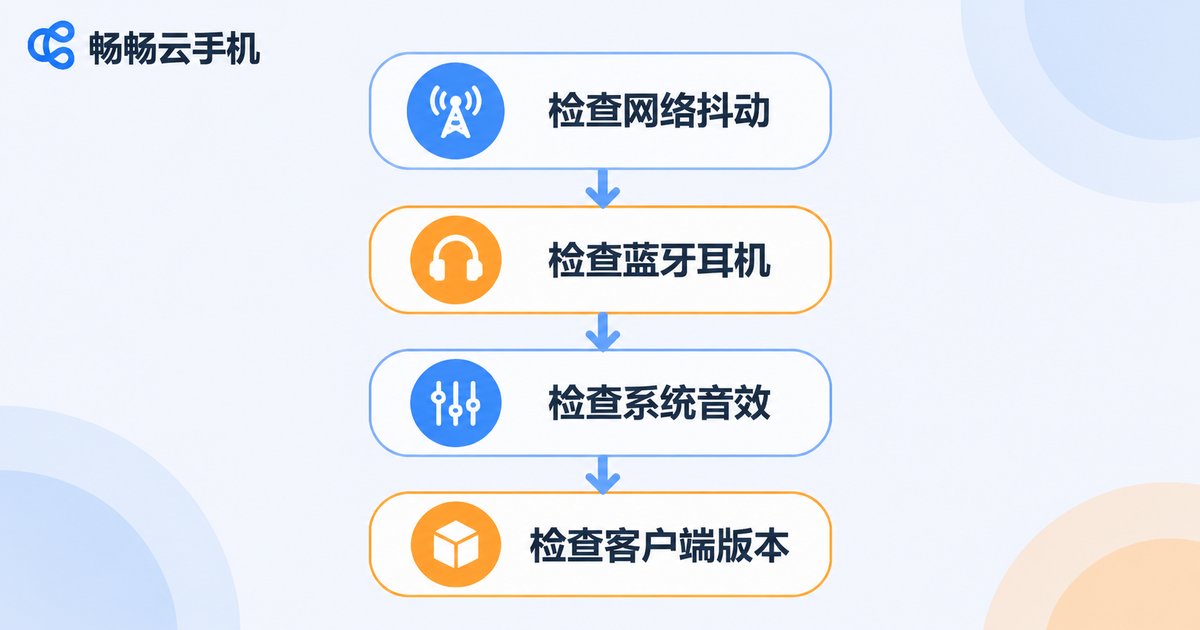
Networking is the most common culprit behind cloud phone audio desync, especially during peak hours or on public Wi-Fi. Check the following in order:
1. Look at packet loss and jitter, not just speed. A speed test reflects peak throughput, but what matters for a cloud phone is stability. If latency swings up and down, even plenty of bandwidth will stutter.
2. Prefer 5GHz Wi-Fi or a wired connection. The 2.4GHz band is crowded, and jitter increases sharply after passing through walls. Stay close to the router and avoid two walls in between.
3. Pause other heavy traffic on the same network. Background downloads, cloud sync, and screen casting all compete for bandwidth and make audio packets queue.
4. Lower the cloud phone's resolution and frame rate slightly. A lower bitrate means smaller video packets, less network pressure, and a smoother audio channel.
5. Switch to a closer node. The greater the distance to the node, the higher the round-trip latency, which forces a longer buffering strategy.
Step 3: Troubleshooting the Device and Client
Once networking is ruled out, turn your attention to the device in your hands and the client itself.
Bluetooth headphones are the easiest link to overlook. Standard Bluetooth audio codecs carry an inherent delay of roughly 150 to 250 milliseconds, and that stacks on top of the cloud phone's own transmission delay. Test with wired headphones once; if the problem disappears immediately, you have found the cause.
Turn off system audio enhancements. Spatial audio, Dolby effects, and headphone enhancement all add an extra audio processing pass, and that processing time becomes extra latency. Disable them all while testing.
Check battery saver and background restrictions. Battery saver throttles client threads, and when the audio thread is deprioritized, playback timing drifts. Whitelist the cloud phone client while testing and keep it in the foreground.
Update the client and restart the instance. Older clients may use an unreasonable audio buffering strategy. Clearing the cache and restarting the cloud phone instance resolves most accumulated anomalies.
Step 4: Tuning Recommendations by Scenario
Gaming: prioritize network stability. You can lower image quality, but do not push the frame rate too low. Shooters and rhythm games are extremely latency-sensitive, so use wired headphones and close background apps.
Watching video: real-time demands are lower and longer buffering is acceptable, so prioritize clarity. If audio lags half a beat, it is usually a client buffering strategy issue, and restarting the instance is enough.
Voice meetings: disable all audio enhancements, use wired headphones or the device speaker, and avoid the double delay of the Bluetooth path.
Live streaming and screen recording: recorded desync is often not a playback problem but a timestamp alignment problem between the two recorded tracks. Play the file locally first, then decide whether to adjust recording settings.
Practical Tips for ccloudphone
If you are using ccloudphone, these points will help reduce the odds of audio desync:
Use the official client and keep it updated. The official client is specifically optimized for audio buffering and network jitter, while third-party or outdated builds are more prone to audio and video channels drifting apart.
Choose the nearest server node. Pick a node with the shortest physical distance in the instance list to reduce round-trip latency, which in turn allows a shorter audio buffer.
Adjust image quality to match your network. When the network is average, prioritize smoothness rather than the highest quality tier. The overall audio-video sync experience is better.
Restart the instance when something feels wrong. A restart clears caches and temporary state, making it the cheapest and often fastest fix.
Frequently Asked Questions
Q: Why does desync only happen with Bluetooth headphones?
Bluetooth audio codecs carry inherent delay, typically 150 to 250 milliseconds. The cloud phone chain adds its own delay, and the two combined exceed what the human ear tolerates. Switching to wired headphones usually fixes it immediately.
Q: My speed test is fast, so why is audio still out of sync?
Speed only reflects the bandwidth ceiling, while cloud phones depend more on latency and jitter. With plenty of bandwidth but unstable latency, audio packets still queue up, which shows as audio that is sometimes fine and sometimes offset. Watch latency fluctuation and packet loss instead.
Q: There is only a tiny offset. Do I need to fix it?
If the offset is under 100 milliseconds, most people will not notice and you can leave it alone. If it affects your control feel, such as in a rhythm game where beats do not line up, work through the steps above.
Q: Does lowering image quality really improve sync?
Yes. A lower quality setting reduces video bitrate, relieves network congestion, and lets video frames skip the queue, which also keeps the audio channel flowing more freely.
Q: Only one specific app has audio desync. Why?
This is most likely the app's own audio output strategy rather than the cloud phone chain. Try restarting the app, or switch the output mode in the client's audio settings to test.


