

Cloud Phone MDM Integration Tutorial: Bulk Device Enrollment and Compliance Policy Deployment
Why Integrate Cloud Phones with MDM?
As mobile work and cloud-based operations become the norm, more and more enterprises are using cloud phones to run business apps, system testing, and batch operations. But once the device count grows, who manages them and how becomes a real challenge: Should screen-lock passwords be enforced? Can apps from unknown sources be blocked? How do you clean up device data when staff changes?
MDM (Mobile Device Management) is the industry-standard answer. By bringing cloud phone instances under a unified MDM system, enterprises can enroll devices in bulk, deploy compliance policies consistently, and track device status in real time — managing hundreds or even thousands of cloud phones as if they were a single, controllable, auditable device.
Preparation Before Integration
Sort out the following four things before formal integration to avoid detours:
1. Take stock of your devices: List all cloud phone instances to be managed, recording each instance's serial number (SN), department, and purpose. This is the data foundation for bulk enrollment.
2. Set up MDM platform access: Make sure the MDM admin account has device enrollment and policy management permissions; if you manage a large fleet, apply for API credentials in advance.
3. Organize device identifiers: Log in to your cloud phone console to review instance details. Taking ChangChang Cloud Phone (ccloudphone) as an example, you can view and manage multiple instances centrally from the console, then fill in the device information according to the template required by your MDM platform.
4. Plan your policy baselines: Decide in advance which policies apply to which departments and use cases — for example, mandatory screen-lock passwords for office devices, relaxed installation permissions for test devices, and screenshot blocking for sensitive devices.
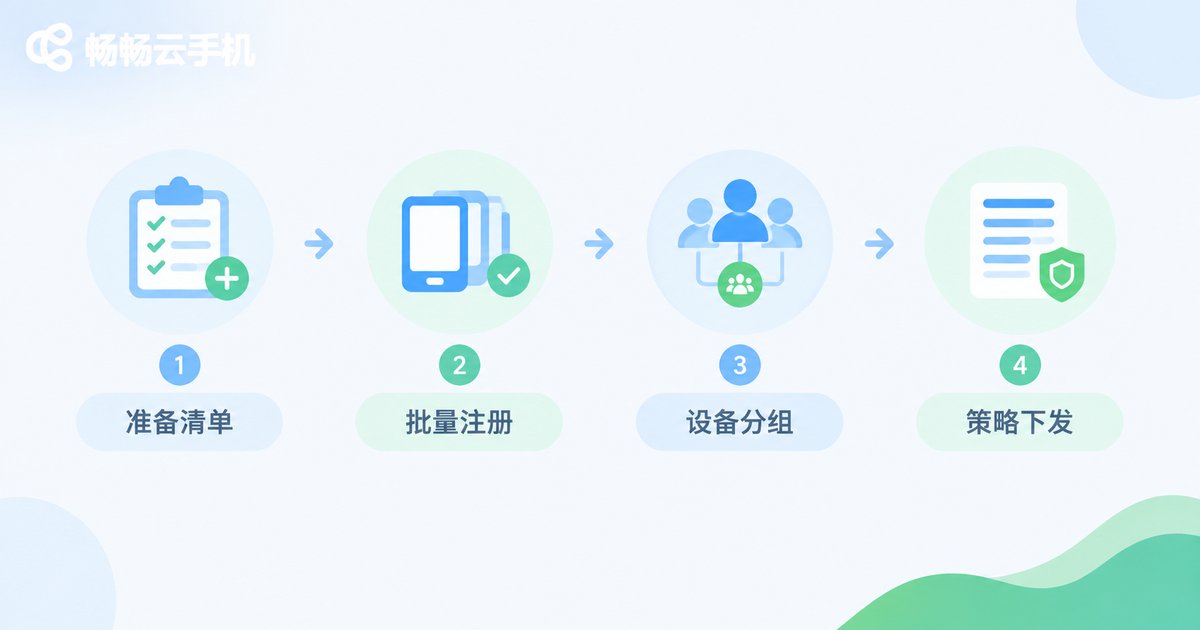
Step 1: Bulk Device Enrollment
Bulk enrollment is the first procedure in bringing cloud phones under MDM management. There are three common methods, each with different efficiency and skill requirements:
| Enrollment Method | Efficiency | Best For | Skill Level |
|---|---|---|---|
| Console bulk import (CSV) | High | Tens to hundreds of devices | Low |
| API integration | Highest | Thousands of devices or automation | Medium |
| Manual one-by-one | Low | A few temporary devices | None |
Take the most common method, CSV bulk import, as an example. The standard workflow looks like this:
# Bulk enrollment workflow (pseudocode)
1. Compile the instance list from the cloud phone console: SN, model, notes
2. Complete the MDM import template: group, policy template, owner
3. Upload the file; the system validates format and duplicates automatically
4. Confirm submission, wait for enrollment receipts, review failures
If you manage thousands of devices or need integration with internal asset systems, API integration is the better route: call the bulk enrollment API to submit the device list, poll for enrollment results, then sync successfully enrolled device IDs back to your internal system. Once this flow runs as a scheduled task, newly created cloud phone instances are enrolled automatically with no manual work required.
Step 2: Device Grouping and Tagging
Do not rush to deploy policies right after enrollment — group your devices first. With good grouping, every subsequent policy can be deployed and updated in batches by group, dramatically reducing maintenance costs. Three common grouping dimensions:
· By department: marketing, R&D, and customer service each form a group, so policies follow the org structure;
· By purpose: office, testing, and operations devices are managed separately with different permissions;
· By risk level: confidential or highly sensitive devices form their own group under the strictest controls.
It also helps to tag devices (project name, owner, activation date, etc.) for easy filtering and batch operations later.
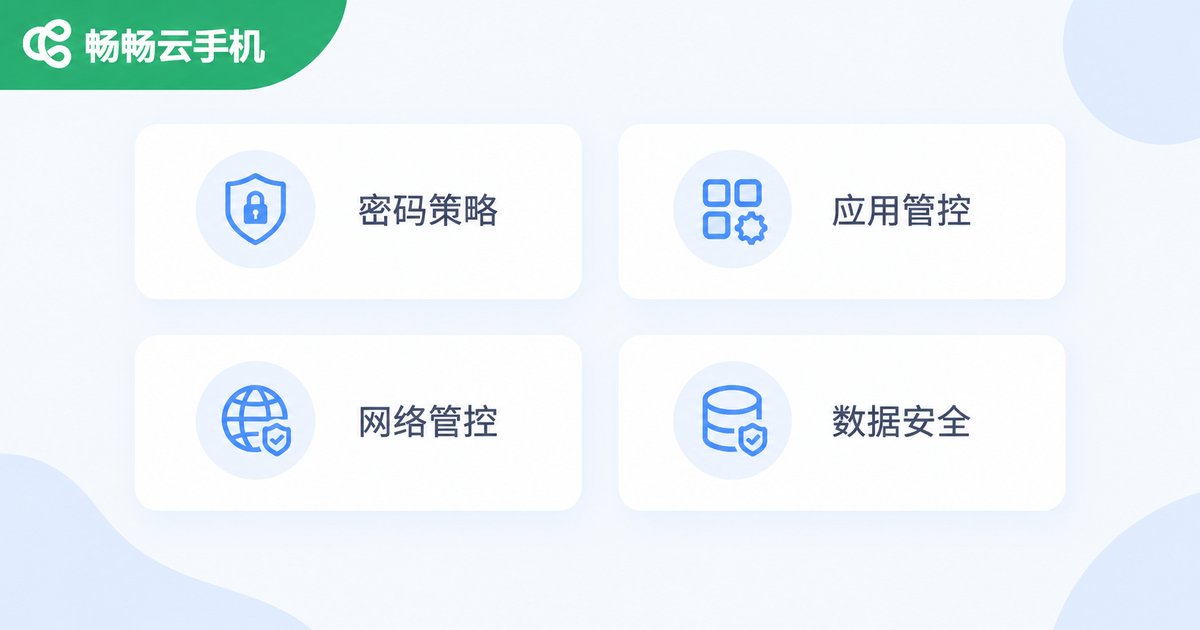
Step 3: Deploying Compliance Policies
Policies are the soul of an MDM system. A complete enterprise compliance policy usually covers four major categories:
1. Device security policies: enforce screen-lock passwords with complexity rules, limit failed attempts, enable data encryption, and set idle auto-lock timeouts.
2. App control policies: configure app whitelists or blacklists to block apps from unknown sources; highly sensitive devices can run in a dedicated kiosk mode that allows only business apps.
3. Network access policies: restrict devices to approved domains or network segments, block high-risk sites, and tighten network permissions dynamically outside working hours.
4. Data loss prevention policies: block screenshots and data copying, restrict file sharing channels, and retain remote lock and remote wipe capabilities for one-click response to abnormal devices.
Once policies are configured, simply select the target group and deploy. Run a gray-scale validation on a small batch of devices first, then roll out to everyone after confirming normal business is unaffected — this avoids policy conflicts that could disable devices in bulk.
Step 4: Monitoring and Compliance Auditing
Policy deployment is not the finish line — continuous operation closes the management loop:
· Compliance dashboard: review the daily device compliance rate, and follow up on devices with failed policy deployments;
· Anomaly alerts: automatic alerts for devices offline for extended periods, tampered policies, or detected non-compliant apps;
· Regular audits: export monthly compliance reports as the basis for security audits and policy optimization.
Once the cloud phone instance lifecycle is fully connected with MDM device status, you achieve automatic enrollment of new devices and automatic deregistration of retired ones — and the whole management system truly comes alive.
FAQ
Q: Can cloud phones be managed by MDM like physical devices?
Yes. A cloud phone is essentially an Android device running in the cloud. As long as its device identifier is recognized by the MDM platform and enrollment completes, it can receive policies, report status, and execute remote commands just like a physical device.
Q: What if bulk enrollment reports duplicate device identifiers?
First check whether the list contains duplicated rows from copy-paste errors. If an instance identifier is genuinely abnormal, contact your cloud phone provider to verify — never fabricate serial numbers manually, or all subsequent policy matching will go wrong.
Q: How long does it take for a policy to take effect?
Online devices usually apply policies within minutes; offline devices pull the latest policy automatically the next time they come online. After bulk deployment, wait one sync cycle before checking the overall compliance rate.
Q: Do I have to modify devices one by one when policies change?
No. As long as your grouping is clear, editing the group policy and redeploying covers every device in the group — that is exactly the value of careful grouping up front.
Q: Any vendor suggestions to make this easier?
Choose a cloud phone service that supports batch management operations, such as ChangChang Cloud Phone (ccloudphone). You can view and batch-manage multiple instances from its console, and combined with MDM bulk import or API integration, the whole process requires almost no coding.


