How to Register a Cloud Phone Account? Registration Process and Precautions Explained
What Is a Cloud Phone Account and Why Do You Need One?
A cloud phone is simply a virtual Android device that runs on remote cloud servers. Just like a physical phone, it has a complete system where you can install apps and play games, but all the computing happens in the cloud, consuming none of your local storage or battery. Since every cloud phone is an independent environment, registering an account is the first step: the account verifies your identity, stores the devices under your name, and keeps your app data and usage history, so you can pick up where you left off from any phone or computer.
What to Prepare Before Signing Up
The registration process itself is simple. Preparing the following items in advance will make everything go smoothly:
1. A phone number you use regularly: mainstream cloud phone platforms use a mobile number plus SMS verification code to create accounts. Use a number you keep long term so you can receive notifications and recover your password later.
2. A stable network connection: signing up requires fetching a verification code online, so operate over Wi-Fi or a strong mobile signal to avoid failed verification.
3. A device that can install the app: an Android phone, an iPhone, or a desktop browser all work, and the same account can be used across devices afterwards.
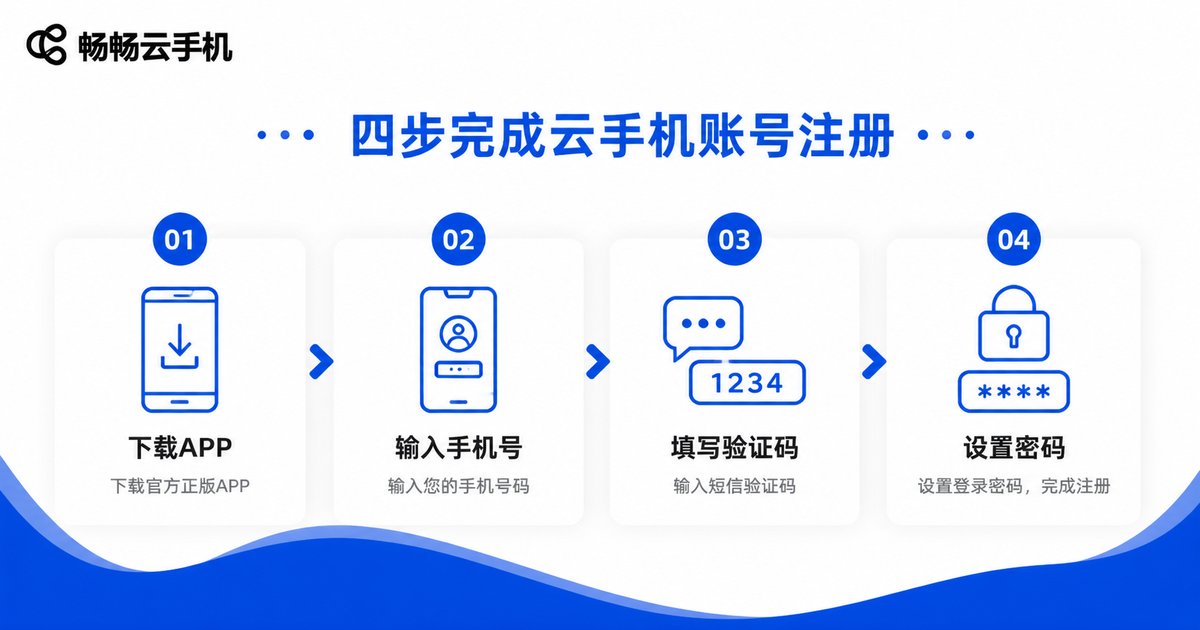
Step-by-Step Cloud Phone Registration Process
Here is the complete sign-up flow, using ChangChang Cloud Phone (ccloudphone) as an example. The whole process usually takes only one or two minutes:
Step 1: Get the official app. Download the app from the official ccloudphone website or a legitimate app store, or simply open the official website in a desktop browser and click the sign-up button.
Step 2: Enter your phone number. Type your mobile number on the registration page, agree to the user agreement, and tap get verification code.
Step 3: Enter the SMS code. Within seconds you will receive a text message containing the code. Fill it into the input box. If it does not arrive after a while, tap resend.
Step 4: Set your password. Choose a password that contains both letters and numbers, avoiding overly simple combinations such as pure digits or your birthday, then click sign up to finish creating the account.
Step 5: Log in and add a cloud phone. After registration you are logged in automatically. Follow the guide in the console to add your first cloud phone device and start using it.
Important Tips During Registration
Registration is easy, but the following details are worth attention and can save you trouble later:
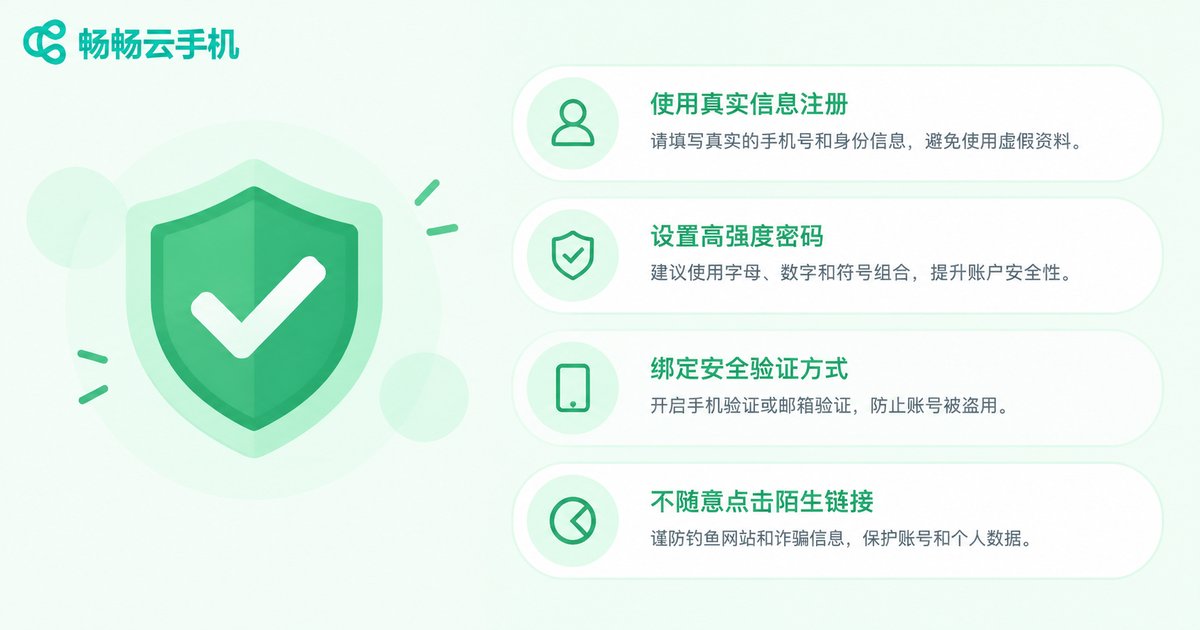
1. Use official channels only. Always download the app from the official website or legitimate app stores to avoid counterfeit software that could leak your account information.
2. One account per person; avoid bulk sign-ups. Cloud phone platforms generally require one account per phone number. Mass-registering extra accounts may trigger risk controls and affect normal usage.
3. Protect your verification code and password. An SMS code is like a temporary key, so never share it with anyone. Change your password periodically and avoid reusing the same password across platforms.
4. Keep a record of your registration details. Note down the phone number you registered with. Your app data and game progress are all tied to the account, and losing it can be a real headache.
5. Pay attention to device rules. If you need multiple cloud phones after signing up, you can add them in the console as needed, subject to the platform's current rules.
Common Registration Problems and Solutions
| Problem | Possible Cause | Solution |
|---|---|---|
| Verification code not received | SMS blocked, weak signal, or too many requests | Check spam and blocked messages, switch networks, wait and retry |
| Number already registered | The phone number was used before | Log in with that number directly, or recover the account via forgot password |
| Code shown as incorrect | Expired or mistyped code | Request a new code and enter it promptly within the validity period |
| Registration page won't load | Network fluctuation or outdated app version | Switch networks or update the app to the latest version |

What to Do After Registration
Once registered and logged in, you will enter the ChangChang Cloud Phone console. Here you can use your cloud phone just like a real one: install apps, log into games, and keep tasks running around the clock. Cloud devices stay online 24/7, so tasks on your cloud phone continue even when your own phone is switched off. New users are advised to install their frequently used apps first, get familiar with the basic operations, and then add more cloud devices as needed. If you run into any issue during registration or usage, contact ChangChang Cloud Phone customer support through official channels.
Frequently Asked Questions
Q: Does registering a cloud phone account cost money?
No, creating an account is free. After signing up you can log into the console and view the available cloud phone devices, then choose a service plan based on your actual needs.
Q: Can one phone number register multiple cloud phone accounts?
Generally, one phone number corresponds to one account. If you need multiple cloud phones, simply add more devices under the same account instead of registering again.
Q: What should I do if I forget my password?
Click forgot password on the login page, receive a verification code on your registered phone number, and set a new password.
Q: Can I register a cloud phone account on a computer?
Yes. Just open the official website in a desktop browser to complete registration, then use the same account to log in on both the mobile app and the web.
Q: What if registration is flagged as risky or restricted?
First confirm that you are using an official channel and your own regular phone number. If the problem persists, contact official customer support for assistance.