

Cloud Phone Logs and Operation Records: How to Locate Issues and Manage Them
A Cloud Phone Isn't a Black Box — Logs Are Its Dashcam
A cloud phone runs on a server in a data center. You can see what happens on the screen, but not what happens behind it. When things go wrong — lag, disconnects, interrupted tasks, account anomalies — saying “it feels off” rarely gets you anywhere. Logs and operation records are the most objective source of evidence you have: they show who did what, what the system returned, and whether connection state changed.
The problem for most teams isn't a lack of logs. It's not knowing where to look, which layer to read, and in what order. Let's break that down.
1. Five Common Categories of Cloud Phone Logs
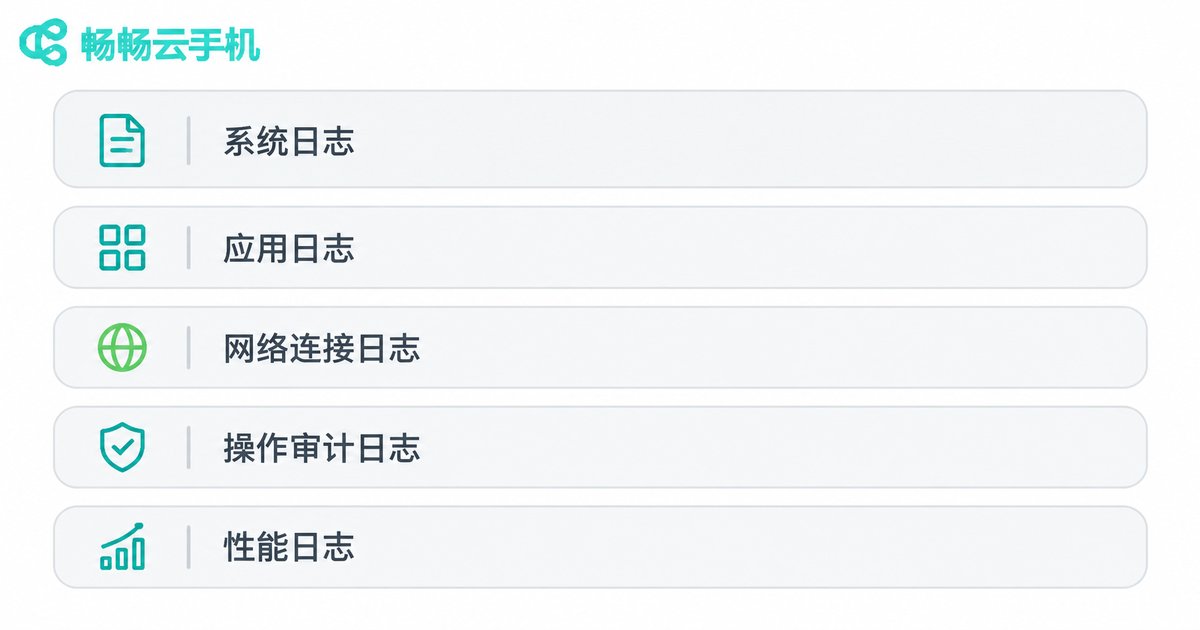
Sorting logs into layers makes troubleshooting far faster. In day-to-day work, five categories cover most needs:
| Log type | What it records | Typical use |
|---|---|---|
| Device and system logs | Boot, reboot, service status, abnormal exits | Judging whether the device itself is stable |
| Application logs | App launch, crashes, permission requests, background scheduling | Diagnosing crashes and interrupted tasks |
| Network and connection logs | Connection setup, drops, latency spikes, reconnect counts | Locating disconnects and stuttering screens |
| Operation audit logs | Who did what to which device and when | Tracing human error |
| Performance and resource logs | Trends in CPU, memory, storage and temperature | Spotting long-term resource pressure |
Operation audit logs are the most overlooked and often the most decisive. Plenty of “the device broke itself” cases turn out, on review, to involve someone rebooting it earlier, changing a setting, or confusing two devices.
2. Three Places to Look, Each With a Purpose
1. The management console. This is where you see the big picture: device list, running status, connection state, and the operations performed under your account. For teams working together, checking the console for recent actions can rule out half the possibilities in seconds.
2. Inside the cloud phone. Open the device itself to check app information and running state in system settings, and finer application activity through developer options. This layer answers a key question: is it this device, or is it every device?
3. Export and retain your own copy. Export records you need to watch over time into files and bring them into your own spreadsheets or monitoring tools. This matters most for performance data — a single day tells you little, but a week reveals a pattern.
3. A Four-Step Troubleshooting Loop
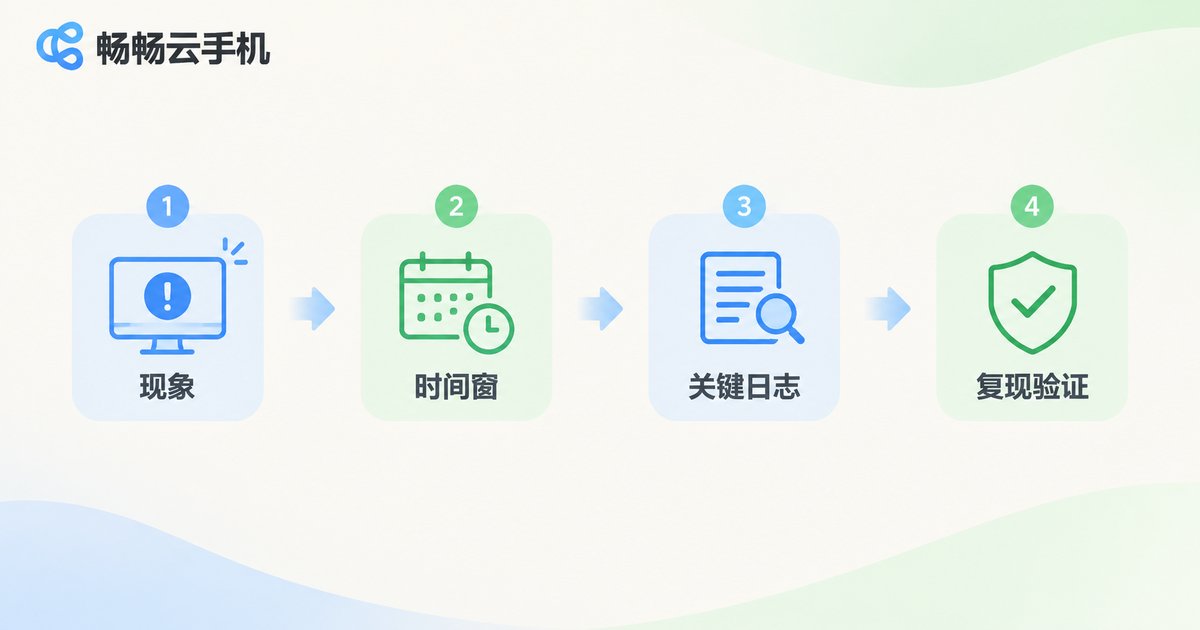
Step one: describe the symptom precisely. Don't write “it was laggy today.” Write “around 10:12, dragging on device A was visibly delayed for about five minutes.” The more specific the description, the less time you waste later.
Step two: lock the time window. Start from the moment of the problem and leave a buffer on both sides. Most issues begin before they become visible — memory creeping up, reconnect counts gradually rising.
Step three: read from the outside in. Check operation records first (did anyone touch it?), then connection logs (any drops or reconnects?), then device logs (any reboots or service errors?), and finally application logs (any crashes or permission failures?). Get the order wrong and you'll drown in application logs.
Step four: reproduce and compare. Run the same scenario again and place both records side by side. The difference is usually the cause; if there's no difference, you haven't found the full set of trigger conditions yet.
Suggested order of investigation:
Symptom (time + device + exact behaviour)
  -> Operation records: did anyone act on it during this window
  -> Connection logs: drops, reconnects, latency spikes
  -> Device logs: reboots, service errors
  -> Application logs: crashes, denied permissions
  -> Reproduce once and compare the two records
4. Common Symptoms and Where to Look First
| Symptom | Check first | Likely direction |
|---|---|---|
| Stuttering screen, delayed input | Connection logs + performance logs | Network fluctuation, device resource pressure |
| Sudden disconnect, reconnect needed | Connection logs + operation records | Network switch, session taken over, manual reboot |
| App crashes or won't open | Application logs + system logs | Version compatibility, low memory, missing permission |
| Task stops halfway | Operation records + application logs | Accidental stop, background process cleared, storage full |
| Team members disagree on device state | Operation audit logs | Same device operated by several people at once |
5. Practical Advice for Managing Operation Records
Separate permissions — not everyone should be able to reboot. Split viewing from acting. Day-to-day members observe, while critical actions stay with a small group. Fewer accidental changes means fewer things to investigate.
Make key actions leave a trace. Rebooting, reinstalling, deleting devices and changing configuration should map back to a specific person and a specific time. That single record is the fastest way to rule things out.
Export regularly and set a retention period. Export operation records and key performance data weekly or monthly, and align retention with your review rhythm. Logs on the platform are convenient, but tracing something from two months ago is safer with a local copy.
Mask before you share. Records may contain account details or device identifiers. Clean them before external discussions or support tickets — it protects you and speeds up the conversation.
Tie changes to records. Whenever you adjust a configuration or roll out a new app, note the time. Later, when you review logs, you'll know which fluctuations you caused and which are genuinely abnormal.
6. Put “Can I Check It?” on Your Selection Checklist
When choosing a cloud phone, people look at specs and pricing first and rarely ask: when something goes wrong, what can I actually see? Treat log and operation-record visibility as a hard requirement, not a nice-to-have.
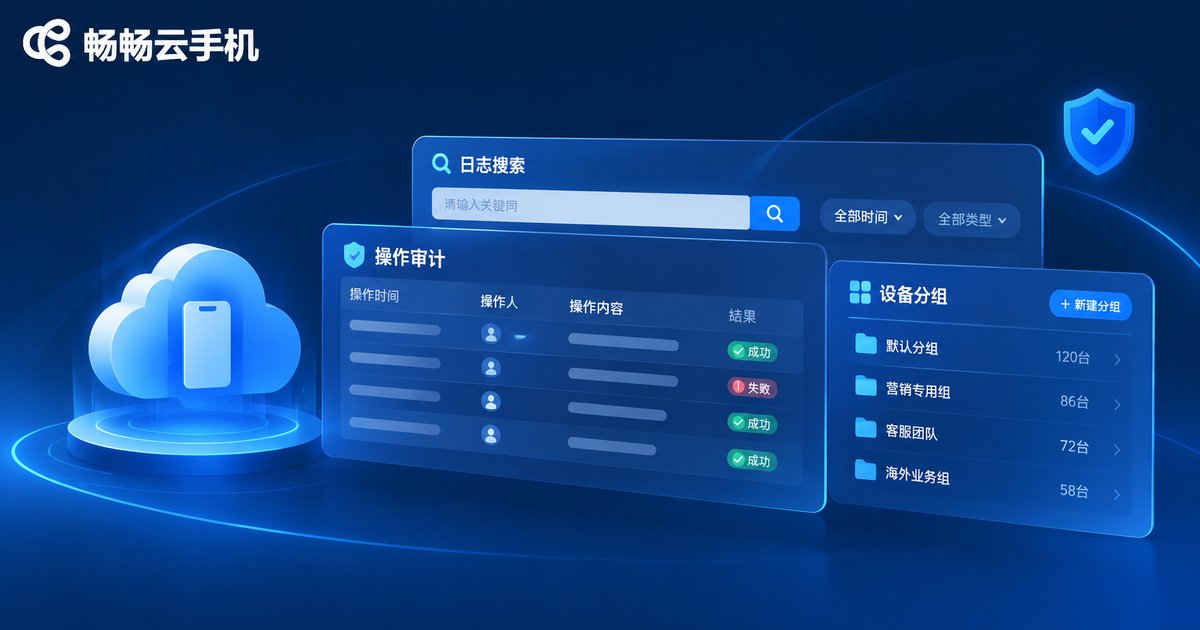
With ccloudphone, device management and activity records live in the same console, multiple cloud phones can be managed together by group, and when something looks wrong you can follow the timeline back through operations and state changes instead of jumping between screens. For teams running cloud phones at scale over long periods, that predictability — being able to find it and understand it — matters more than another number on a spec sheet.
Frequently Asked Questions
Q: There's nothing in the logs for the exact minutes when the problem happened. What now?
First confirm the time window matches the device's time zone, then check that you're looking at the right device or group. If it really is empty, the cause may sit further out — such as your local network — so compare how other devices behaved during the same window.
Q: How long should operation records be kept?
It depends on usage intensity. A week or two is enough for personal review; for shared devices and team collaboration, archive monthly and align retention with your internal review and handover rhythm.
Q: Can non-technical people read these records?
Absolutely. Start with four fields only — time, device, action, result — and you'll rule out most human causes. Bring in a technical colleague when you need to dig into the application layer.
Q: What should a small team do first?
Two things: give every device a clear name or number, and require a one-line note for key actions. Both cost almost nothing and noticeably speed up future troubleshooting.
Q: Do logs help with account security?
Yes. Logins at unusual hours and actions on unfamiliar devices leave traces in the operation records. A regular glance is far more effective than a post-incident investigation.


