
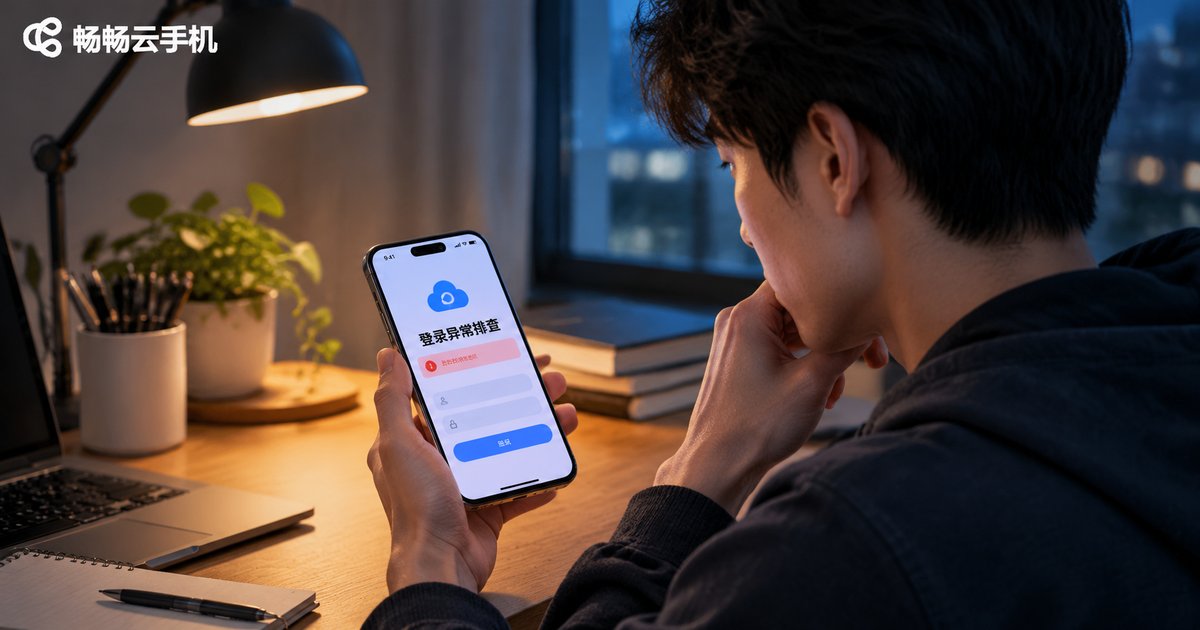
How to Troubleshoot Cloud Phone Login Issues: Account, Network and Verification Checklist
First, Identify the Three Root Causes of Login Failures
Cloud phone login failures look frustrating, but almost all of them fall into three categories: account issues (wrong password, abnormal account status), network issues (connection timeouts, restricted networks), and verification issues (codes not arriving, device verification failing). Match your symptom to one of these categories first, then troubleshoot in the right direction.
| Common Symptom | Likely Cause | What to Check |
|---|---|---|
| Password error message | Typos or mixed-up accounts | Check case sensitivity and account type |
| Endless loading spinner | Unstable network or blocked ports | Switch networks and reboot the router |
| Verification code missing | Filtered SMS or wrong number | Check blocked messages and resend |
| Account locked message | Repeated failures triggered security rules | Wait for unlock or contact support |
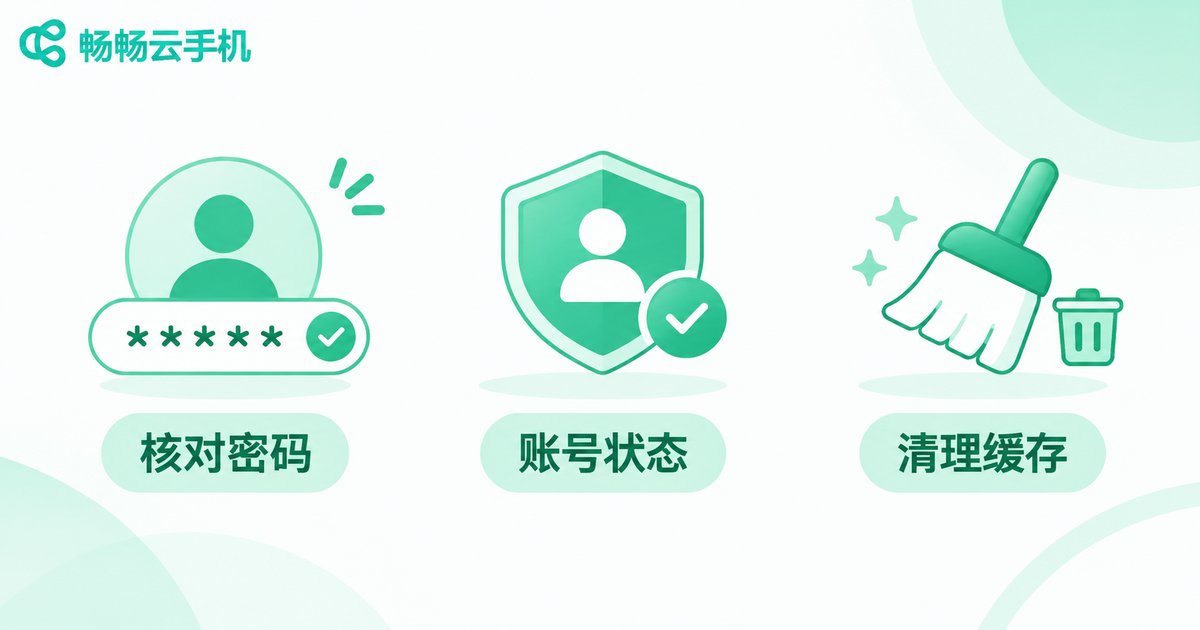
Step 1: Check Account Issues
Account problems are the most common and the easiest to fix. Go through the following checks one by one:
1. Verify your username and password. Check whether Caps Lock is on, whether your keyboard is in the wrong language mode, and whether there are extra spaces at the end of your input. A phone number and an email address are two separate accounts, so make sure you use the one you registered with.
2. Confirm your account status. If you see a message saying the account is locked or restricted, it is usually triggered by too many failed password attempts in a short time. In most cases it unlocks automatically after a waiting period, or you can appeal through official support.
3. Clear the app cache and try again. Corrupted local cache can cause abnormal login states. Log out, clear the cache, then sign in again with your credentials. This alone often solves the problem.
4. Use the password recovery flow if needed. Reset your password via your registered phone number or email, then log in with the new password. Avoid repeatedly guessing the old one, which may trigger a temporary lock.
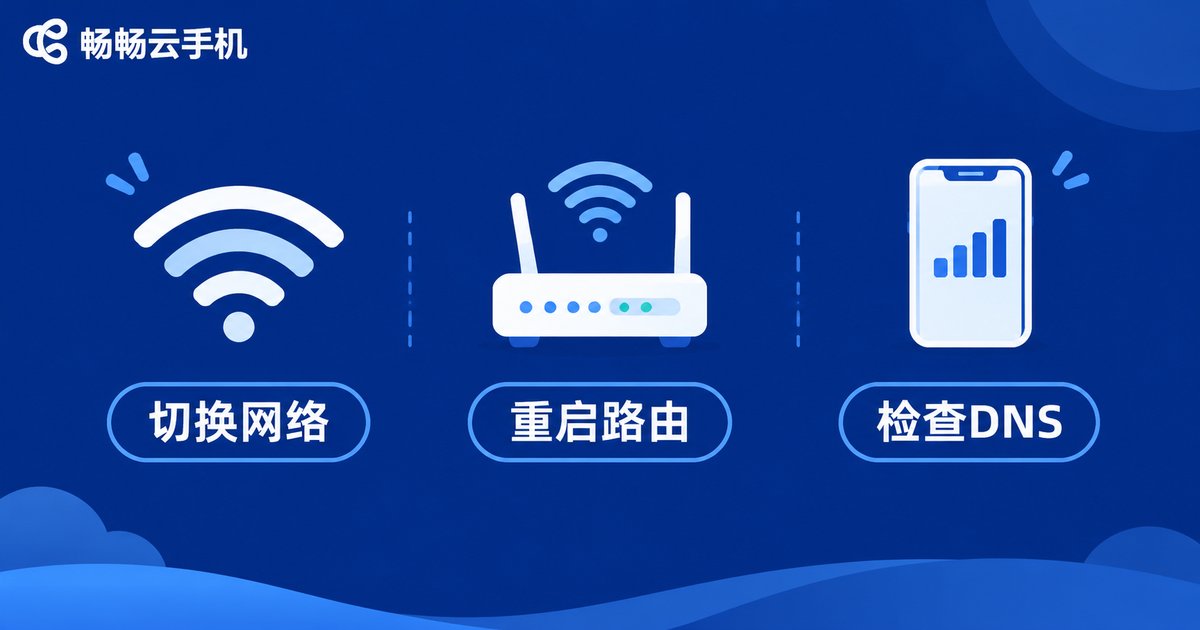
Step 2: Check Network Issues
If your credentials are correct but the app reports a connection timeout or network error, the problem is most likely in the network layer:
1. Test your current connection first. Open a browser and visit any website, or check whether other apps can go online. If nothing connects, the issue is your local network, not the cloud phone.
2. Switch network environments. Toggle between Wi-Fi and mobile data. Some corporate or campus networks restrict specific ports, preventing the cloud phone client from establishing a connection.
3. Reboot your router or change DNS. Routers that have been running for a long time often become unstable, and a reboot usually helps. DNS resolution failures can also block the connection, so try a public DNS service.
4. Check security software. Some firewall or security apps restrict background connections. Whitelist the cloud phone client and try again.
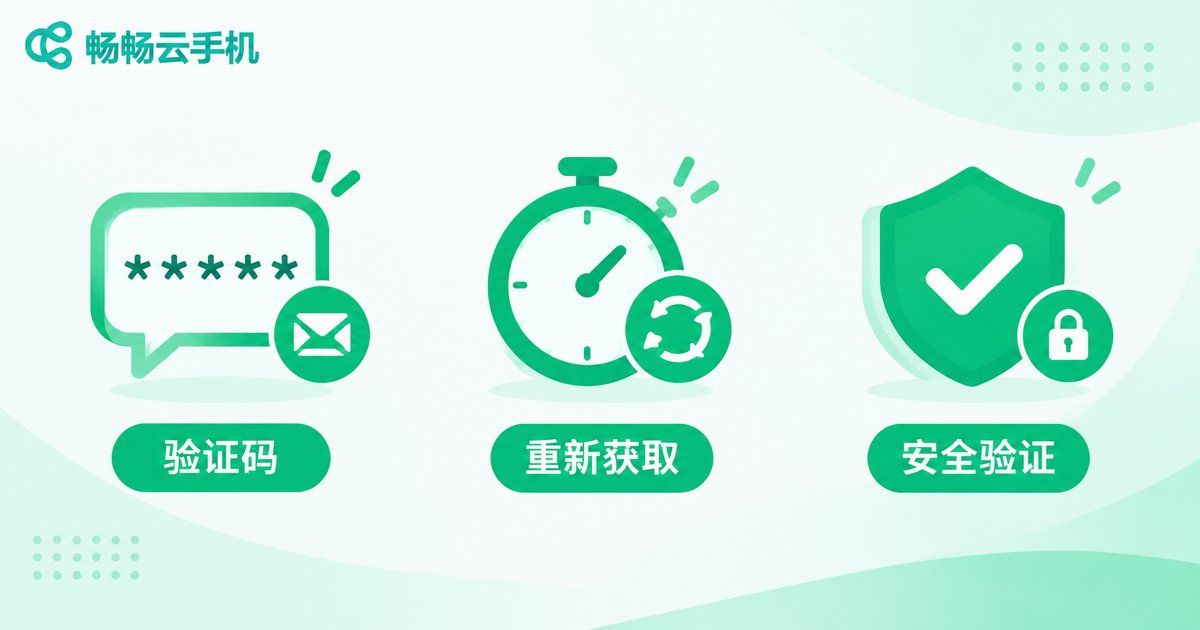
Step 3: Check Verification Issues
If you have reached the verification step, your account and network are basically fine. Focus on the following:
1. Verification code not arriving: Confirm the phone number is correct, check whether the SMS was filtered into a spam folder, and move to an area with better signal before requesting a new code.
2. Code expired or incorrect: Verification codes are valid for a very short time, so enter them as soon as they arrive. If you requested several codes, always use the latest one.
3. New device verification failing: Logging in from a new phone or location may trigger a second verification step. Follow the on-screen instructions; if it keeps failing, switch networks and try again.
4. Frequent verification prompts: Repeated login attempts or being signed in on multiple devices can trigger risk controls. Log out on the original device first, wait a few minutes, then try again.
Do Not Overlook the Client Itself
If account, network, and verification all check out but login still fails, inspect the app itself:
1. Outdated version: Old versions may be incompatible with the server. Update to the latest version from the official channel.
2. Corrupted installation: Uninstall and download a fresh copy from the official source; avoid installers from unknown websites.
3. Incorrect system time: A large deviation between your phone clock and standard time breaks security checks. Enable automatic time sync.
An Eight-Step Checklist You Can Follow
Here is the whole process condensed into a checklist. Execute in order and most login issues will be resolved:
1. Verify username and password, watching for case and spaces; 2. Confirm the account is active and not locked; 3. Clear cache or reinstall the client; 4. Test whether your local network works; 5. Compare Wi-Fi and mobile data; 6. Reboot the router or change DNS; 7. Check verification code delivery and validity; 8. Update the client to the latest version.

Choose the Right Platform to Avoid Login Hassles
Beyond troubleshooting, choosing a cloud phone platform with a stable login experience and solid account security matters just as much. ChangChang Cloud Phone (ccloudphone) offers a streamlined login flow and reliable account protection, supports common verification methods, and provides official customer support when something goes wrong. If recurring login problems are wasting your time, ChangChang Cloud Phone is a choice worth prioritizing.
FAQ
Q: It says wrong password, but I am sure it is correct?
Check Caps Lock and keyboard language, and make sure you are not mixing up a phone-number account with an email account. After several failures, reset the password through the recovery flow instead of guessing again.
Q: The verification code never arrives. What should I do?
Confirm the phone number, check your spam or blocked messages, move to a place with better signal, and request a new code. If it keeps failing, switch networks or wait a few minutes.
Q: Why do I keep getting disconnected after logging in?
This is usually caused by an unstable network or the account being signed in on another device. Switch to a stable connection, review your logged-in devices, and change your password if necessary.
Q: I cannot log in after switching to a new phone?
First logins on a new device usually require security verification, so just follow the prompts. Also make sure the app is updated to the latest version.
Q: I tried everything and still cannot log in?
Note the exact error message and take a screenshot, then contact ChangChang Cloud Phone official support with your account details and the screenshot for faster diagnosis.


