
How to Log In to a Cloud Phone: Web, Desktop, and Mobile Login Guide
First, Understand What You Are Actually Logging Into
A cloud phone is not software installed on the device in your hand — it is a virtual phone running in the cloud. What you log into is your own cloud phone account. Once you are signed in, the screen is streamed in real time from the cloud to your browser, desktop client, or mobile app. So “logging in” happens at two levels: signing into the account, then entering the cloud device that belongs to you. Once that clicks, everything else follows.
Below we use ccloudphone as the example and walk through all three paths: web, desktop, and mobile.
Three Things to Prepare Before You Log In
No matter which method you choose, the preparation is the same. Sorting it out in advance saves most of the hassle.
| Item | What you need |
|---|---|
| A working account | A ccloudphone account registered with your phone number or email, with the password memorized |
| Stable network | At least 10 Mbps is recommended; Wi-Fi or 5G both work — avoid unstable public networks |
| Compatible environment | Web version needs a recent Chrome / Edge; desktop needs a matching OS version; mobile needs a mainstream iOS or Android version |
If two-factor authentication is enabled on your account, keep the phone or mailbox that receives the code nearby, otherwise you will get stuck at the verification step.
Web Login: Open a Browser and Go
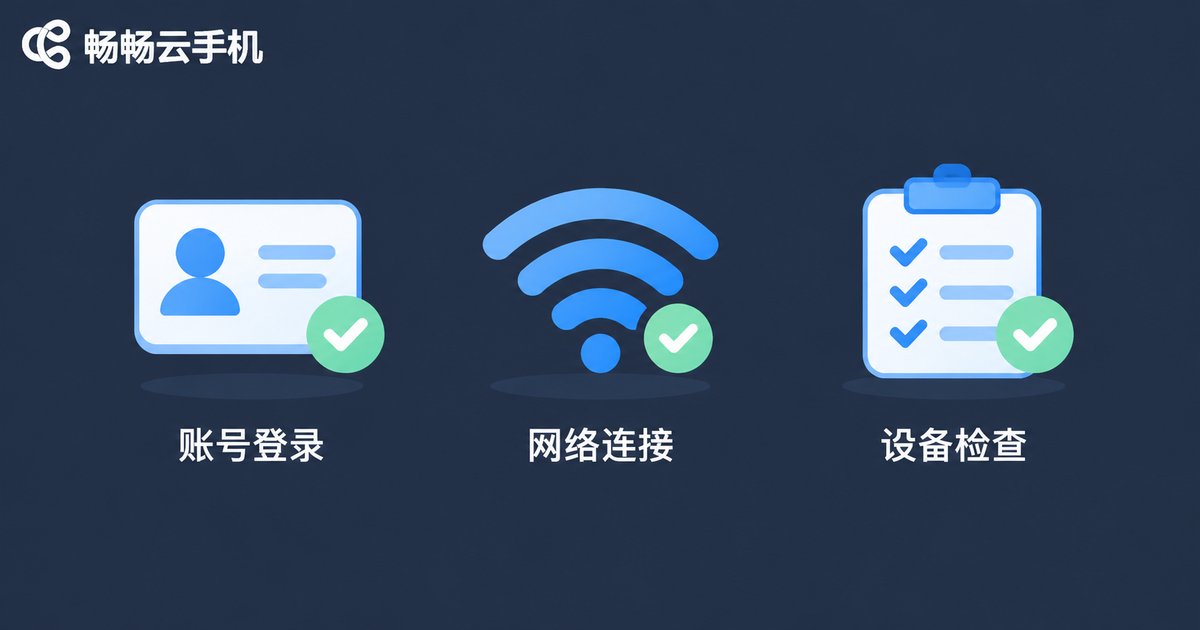
The web version is the lowest-effort option. It suits occasional use, borrowing someone else's computer, or any situation where you do not want to install software.
Steps:
1. Enter the official ccloudphone website in your browser's address bar.
2. Click the “Log in” entry in the top-right corner.
3. Enter your account and password, or choose SMS code login.
4. After verification you land in the console. Pick the cloud phone you want from the device list and click “Connect” or “Enter”.
5. After a few seconds the cloud phone screen appears in a browser window, and you can tap, swipe, and type just like on a real device.
The web version has browser requirements. If the page stays blank or buttons will not respond, it is usually an outdated browser — switching to the latest Chrome or Edge generally fixes it. Also make sure pop-up windows are allowed, otherwise the cloud phone window may be blocked.
Desktop Login: Better for Long Sessions
If you need to keep a cloud phone running for hours — app testing, multi-task management, or a long-running process — the desktop client is more stable than the browser, with more controllable latency and resource usage.
Steps:
1. Go to the download page on the official ccloudphone website and download the client for your operating system.
2. Complete the installation, and allow the necessary network and firewall permissions on first launch.
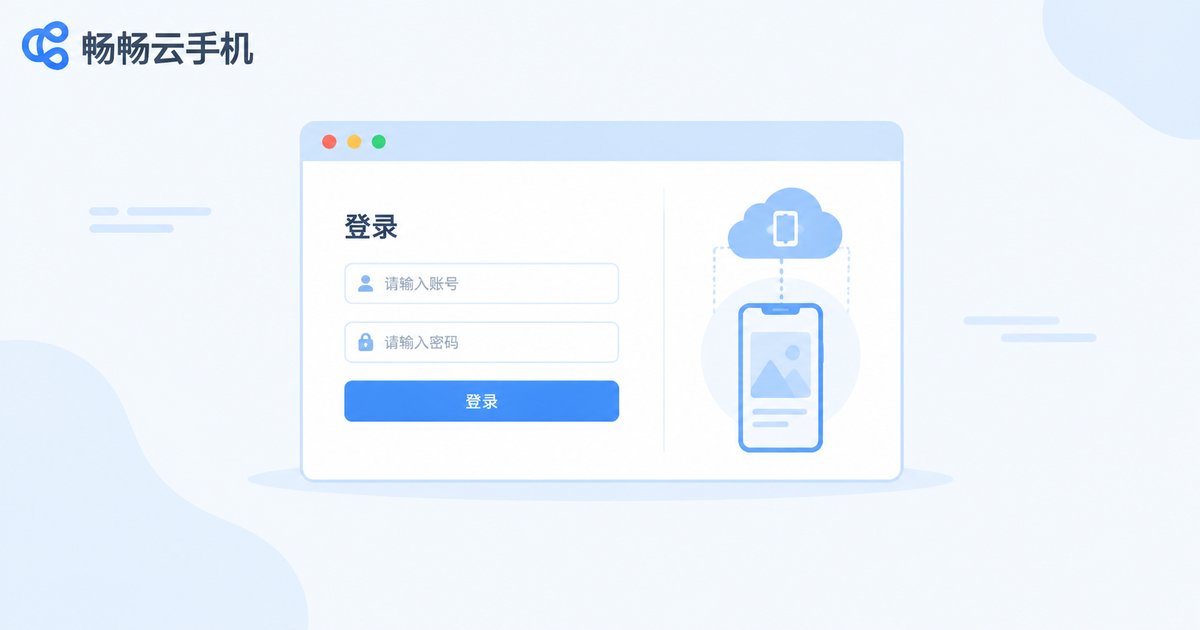
3. Open the client and sign in with your account and password, or use QR code login.
4. After signing in you will see the device list again; double-click the target cloud phone to enter.
5. In the client settings you can adjust image quality, frame rate, and hotkeys. Tune them to your network and the experience improves noticeably.
One thing people often miss: keep the client version aligned with the official website. If you have not updated in a long time and see a “version too low” message or a forced sign-out, download the latest build from the official site and install over the old one — your account data is not affected.
Mobile Login: Manage Your Cloud Phone from Your Phone
The mobile app is great for checking your cloud phone status anytime — a quick remote look while you are out, or handling a small task on the go.
Steps:
1. Search for ccloudphone in your phone's app store, or scan the QR code on the official website to download the official app.
2. Open the app after installation and go to the login page.
3. Enter your account and password, or use code-based login.
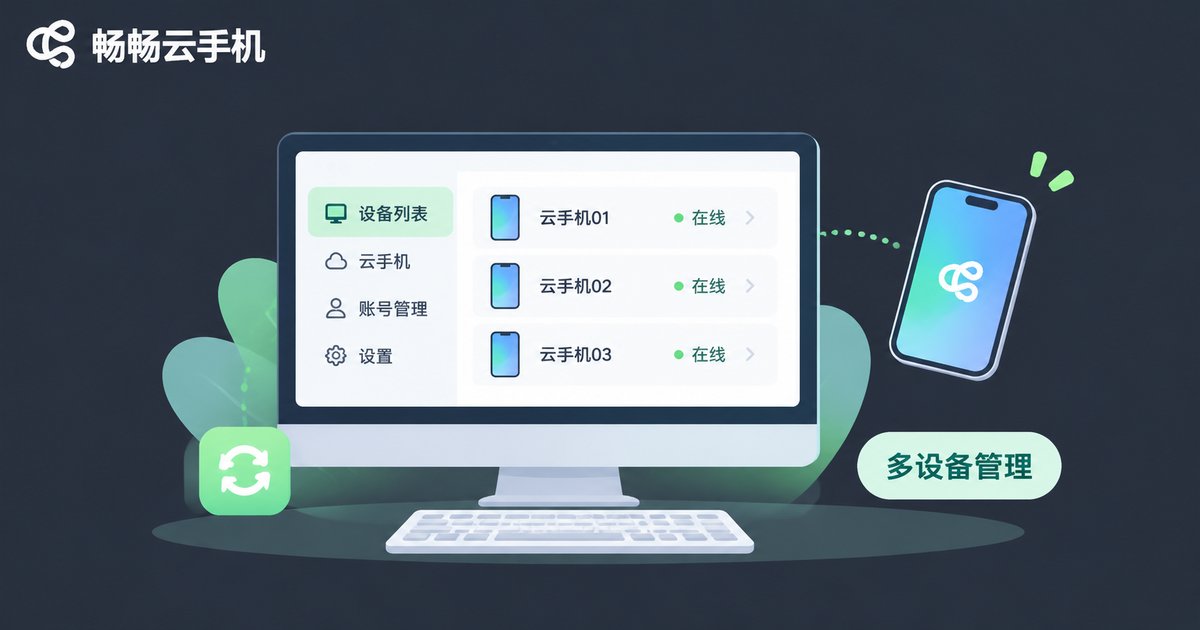
4. Once signed in you can view the device list and running status; tap to enter and operate the cloud phone remotely.
5. If you use it often, enable fingerprint or face login in the app settings to skip typing your password each time.
The most common pitfall on mobile is network switching: moving from Wi-Fi to cellular data can briefly drop the connection — just re-enter the device to recover. Also, since the cloud phone display is small on a phone, landscape mode gives you much more precise touch control.
Comparing the Three Login Methods
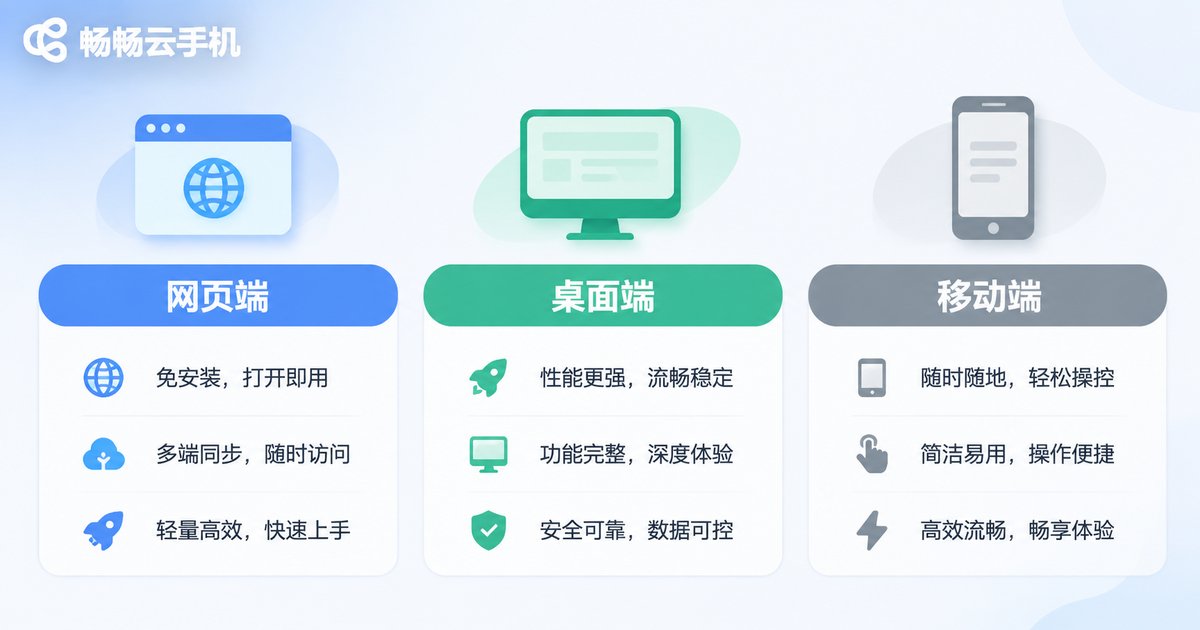
| Aspect | Web | Desktop | Mobile |
|---|---|---|---|
| Installation required | No | Yes | Yes |
| Best for | Occasional use, borrowed devices | Long sessions, professional use | Checking in, remote management |
| Stability | Fair | Good | Depends on network |
| Input | Mouse and keyboard | Mouse, keyboard, hotkeys | Touchscreen |
No single method is best for everyone. Choose by how long you use it and what you use it for — it is the same account, and you can switch between the three at any time.
Troubleshooting a Failed Login
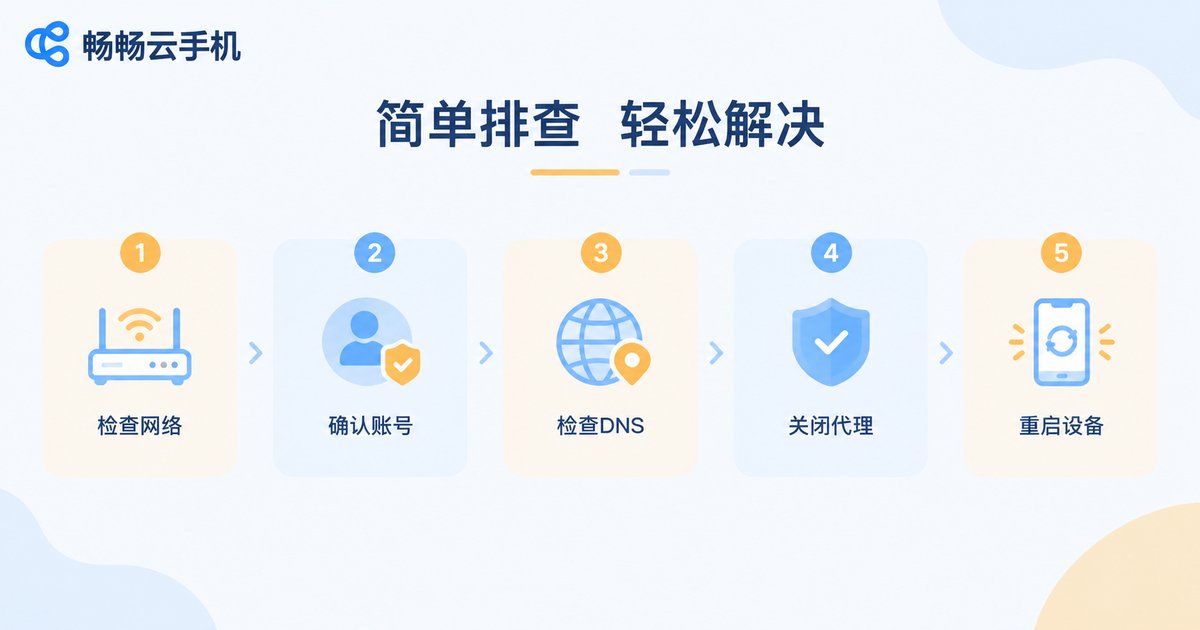
Most login problems can be solved on your own with the steps below before you contact support.
1. “Wrong account or password”: check capitalization and input method first, then try code-based login. If that works, your account is fine and the password was simply mistyped.
2. Page will not open or keeps loading: try another browser or another network to rule out local network or cache issues.
3. No devices after login: confirm you signed into the right account, and check whether the device is powered off or restarting; refresh the device list in the console.
4. “Version too low”: update to the latest official build — older versions may no longer be compatible.
5. Verification code not arriving: check that the phone number is correct, that the SMS is not being filtered, and retry after a minute.
If none of that works, screenshot the error message and contact official support — it speeds things up considerably.
Account Security After You Log In
Your cloud phone often holds app data and usage history, so account security is worth two extra minutes.
Three habits help: use a strong password and change it periodically; enable two-factor authentication; and never tick “remember password” on a shared computer — remember to log out when you are done. ccloudphone lets you review login records, so if you spot an unfamiliar device, change your password and end the abnormal session right away.
Frequently Asked Questions
Q: Can I use the same account on web, desktop, and mobile?
Yes. All three sign into the same account and open the same cloud phone — only the entry point differs.
Q: The cloud phone screen is laggy after login. What should I do?
Check your local bandwidth first, then lower image quality and frame rate in the client settings. On the web version, close other tabs that are consuming bandwidth.
Q: I forgot my password. Can I still log in?
Yes. Choose “Forgot password” on the login page and reset via your bound phone number or email, or sign in with a verification code and change the password afterwards.
Q: Do I need to log in again on a new computer?
Yes, you need to sign in again, but your devices and data live in the cloud — switching machines changes nothing.
Q: Does logging in drain my local phone's performance?
Very little. The actual computing happens in the cloud; your local device mainly handles display and input.
Q: Can the account be signed in on multiple devices at once?
This depends on ccloudphone's account rules. Check the latest device-limit documentation in the official help center to avoid unexpected sign-outs.


