
How to Register a Cloud Phone Account: Phone Number Binding, Verification Codes, and Login Settings
The registration step gets people stuck more often than you would expect
Most first-time cloud phone users do not get blocked by specs or pricing — they get blocked in the one minute it takes to sign up. The phone number is entered and the verification code never arrives; the code finally shows up, and nobody remembers how the login password should be set. Once a cloud phone account is bound, every login, every device management action, and every saved session revolves around that account, so getting step one right means smooth sailing afterwards.
This article splits cloud phone registration into four steps: finding the entry point, binding a phone number, handling the verification code, and setting up login. Each step explains exactly what to do and where to look when something stalls.
Three things to confirm before you start
Spending half a minute on the following three points before you register saves a lot of back-and-forth later.
- Which number to use: pick a phone number you actually use and plan to keep. Temporary numbers or one-time SIM cards make password recovery and unbinding painful down the road.
- Which device to use: you can register on a phone or a desktop browser. The account is universal and not tied to a device.
- What you plan to do afterwards: if you intend to run apps or long tasks on a cloud phone over time, sort out your password and login devices on the day you register rather than after something goes wrong.
Step 1: Find the official registration entry point
There are plenty of similarly named things online, so confirm the source before you register. CCloudPhone (ccloudphone) offers a registration entry on its official website and inside its client, and both run on the same account system — an account created on the website can log straight into the client, and vice versa.
Two principles are worth remembering: never install a package downloaded from an unfamiliar group chat, and only type your verification code into the official page — never forward it to anyone. Legitimate platform staff will not ask you for a code, and anyone who does should be treated as a fraudster.
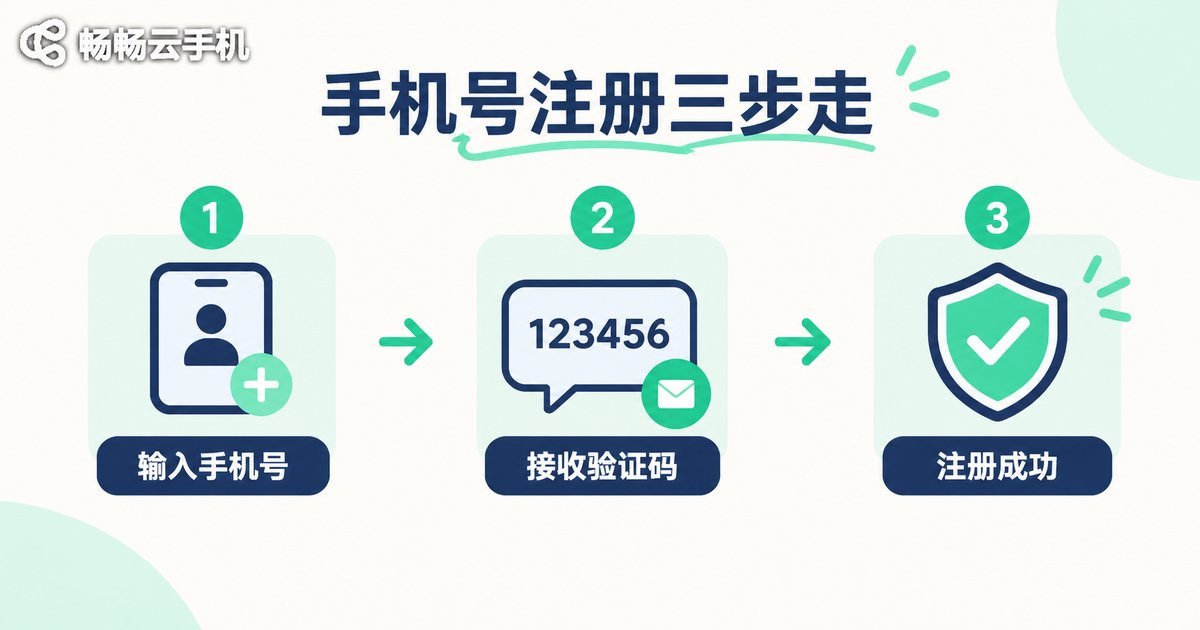
Step 2: Binding your phone number
Binding really is only three actions: enter the phone number, tap to request a code, and enter the code to finish. The flow is short, but a few details determine whether it succeeds.
- Follow the format shown on the page: usually an 11-digit mobile number is enough. You do not need to add a country code, spaces, or dashes yourself — those extra characters are often the real reason the page reports a formatting error.
- One number maps to one primary account: later, when you log in on several devices, you use the same account each time. No need to register again.
- The number must be able to receive SMS long term: if you change numbers and forget to unbind, the account can become a shell you cannot get back into. Handle the binding before you switch numbers.
After successful binding, the page usually shows a partially masked number, exposing only the first three and last four digits. Seeing that state means the number is attached to the account.
Step 3: If the verification code does not arrive, troubleshoot in this order
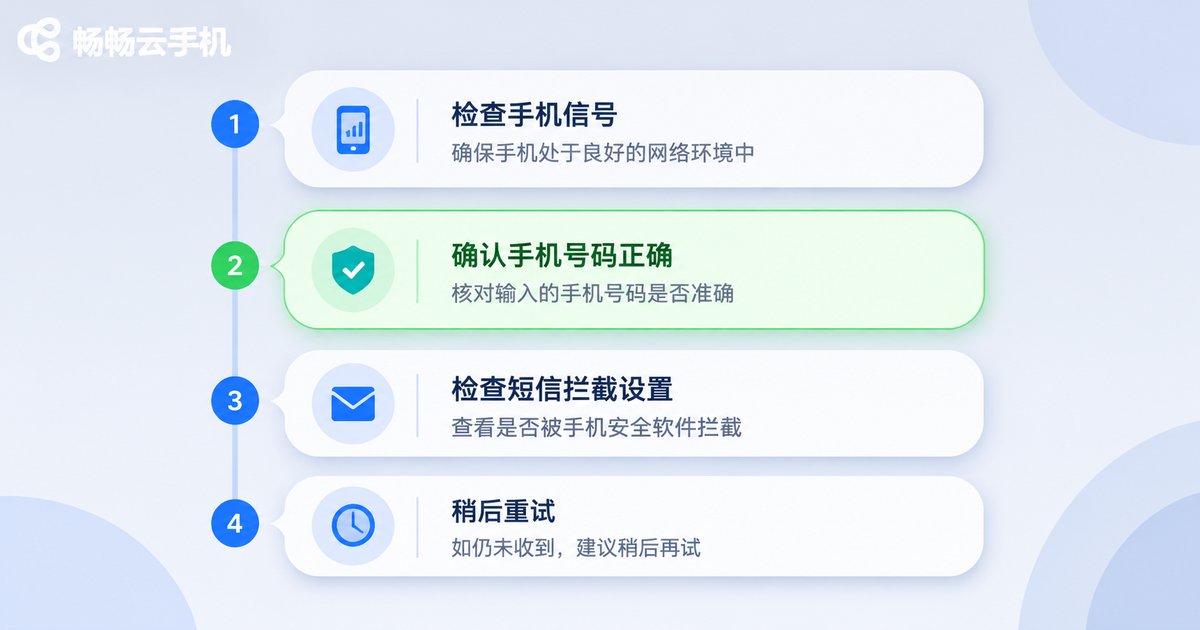
A missing verification code is the most common blocker, and in the vast majority of cases the system is not broken — it is one of the causes below. Checking them in order is far more useful than hammering the request button.
| Symptom | Likely cause | What to do |
|---|---|---|
| Page says it was sent, but no SMS arrives | SMS channel delay, or the message was filtered | Wait 60 seconds and request again, and check your spam and blocked-message folders |
| Repeated requests do nothing | Too many requests in a short window triggered rate limiting | Stop for one to two minutes and try again. Do not tap repeatedly |
| Other SMS arrives, but never the code | The number is flagged as a marketing segment by the carrier or a security app | Review blocking rules in your phone settings, and contact platform support to check the number status |
| Page says the code is incorrect | Whitespace picked up when copying, or the code expired | Type it manually instead of pasting, and remember codes are usually valid for only a few minutes |
| Switching device or browser makes no difference | The number itself is in an abnormal state | Try another number registered to you, to confirm whether the issue is specific to one number |
Two more points are easy to miss: a code is generally single-use, so it is dead once used; and after it expires you must request a new one — the old code will never pass. If troubleshooting still leaves you empty-handed, give support the time of the attempt, the phone number, and the exact message on screen; that speeds things up considerably.
Step 4: Login settings and account security
Binding is only the beginning. Login settings are what decide whether the whole thing feels smooth. Start with these three points.
- A strong password you can still remember: sufficient length with upper case, lower case, and digits is enough. There is no need to invent a string of gibberish you cannot recall. What matters more is not reusing the same password across platforms.
- Turn on remember-me only on private devices: on a shared or temporary computer, log out when you are done instead of taking the shortcut.
- Treat the account as your key: CCloudPhone cloud phones run in the cloud, so after logging into the same account, multiple devices see the same set of cloud phone instances. That makes the account itself the key to those devices — lending it out is the same as handing over the key.
One small habit is also worth building: after your first successful login, take a moment in account settings to confirm the bound phone number is correct and that a backup method is in place. The more complete the information, the easier account recovery will be later.

Frequently Asked Questions
Q: Do I have to use a phone number to register a cloud phone account?
Mainstream registration methods all centre on a phone number, because the number both receives verification codes and acts as a key credential for password and account recovery. Registering with a number you use long term is the least troublesome choice.
Q: Can one phone number register multiple accounts?
Usually one number maps to one primary account. If you genuinely need several accounts, confirm the current rules with official support first rather than experimenting repeatedly, which can trigger restrictions.
Q: If the code never arrives, can I skip this step?
No. Phone number binding is the foundation of account security, and the verification step is mandatory. Instead of retrying blindly, work through the table above in order, and if that fails, contact support with the time of your attempt and the number.
Q: I changed my phone number — can I still use the old account?
Yes, but you need to go through the account information change process. Complete the change while the old number can still receive SMS, otherwise the verification step becomes very awkward.
Q: Are accounts registered in the client and on the website separate?
No. CCloudPhone uses a single account system across its website and client. After registering on either one, you can log in directly on the other without registering twice.
Q: What if I forget my login password?
Reset it using a verification code sent to your bound phone number. This is exactly why we keep stressing the use of a number you actually use — as long as the number is in your hands, the account is not lost.


