
Cloud Phone Live Streaming: Stream Prep, Aspect Ratio & Audio Settings
Why More Streamers Are Moving to Cloud Phones
The idea behind cloud live streaming is straightforward: move the act of broadcasting off your local device and into the cloud. Your phone or laptop only handles display and control, while capture, encoding and pushing the stream all happen on an Android instance running in a data center. The payoff is concrete — no overheating, no sudden power or network drops, and the ability to stay online for hours. One terminal can also manage several cloud phones at once.
But cloud streaming is not the same as screen recording. A recording only needs to look sharp; a live stream needs its parameters, framing and audio sync to be right. Here is the breakdown across three areas: preparation, aspect ratio and audio.
Before You Go Live: Five Things to Confirm
1. Get the stream URL and stream key. Your platform hands you a URL that usually starts with rtmp plus a key. A mistyped address is the single most common cause of a failed connection — watch for stray spaces when you copy it.
2. Choose the right protocol. RTMP has the widest compatibility and works with almost every platform. SRT holds up better on unstable networks but needs platform support. If you are just starting out, use RTMP.
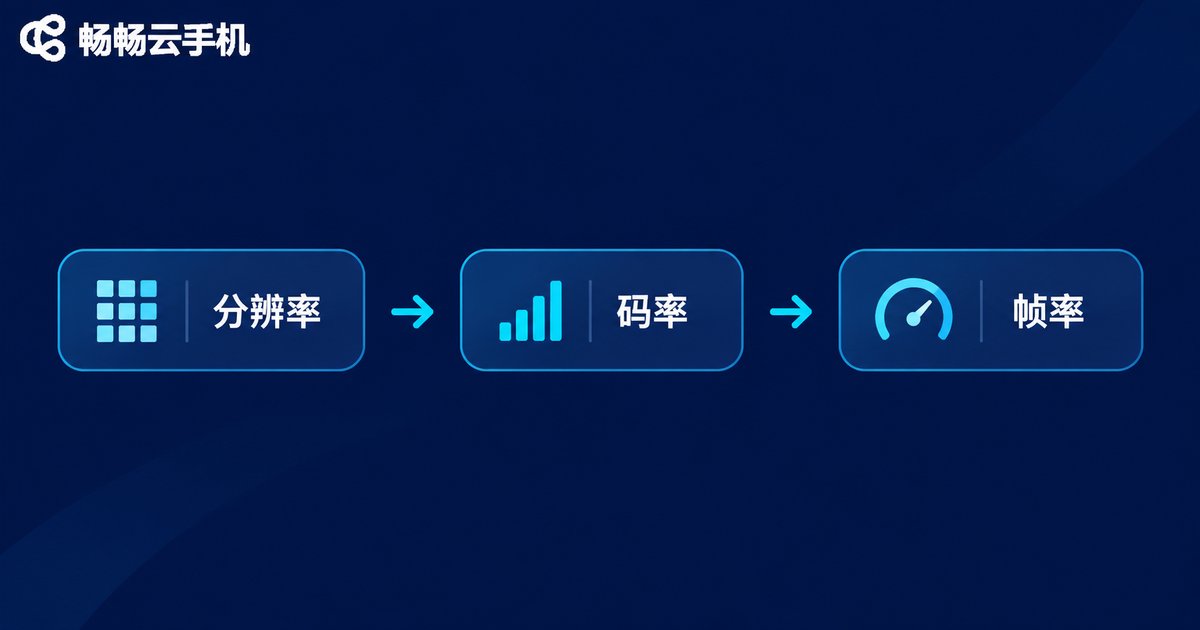
3. Pick a quality tier. Resolution and bitrate are a pair. Max out the resolution without enough bitrate and you get blocky artifacts; push the bitrate too high and your upload bandwidth gives out.
| Tier | Vertical resolution | Recommended bitrate | Frame rate | Best for |
|---|---|---|---|---|
| Standard | 720 × 1280 | 1.5 – 2 Mbps | 25 fps | Weak networks, talking-head streams |
| HD | 1080 × 1920 | 3 – 4 Mbps | 30 fps | Most everyday broadcasts |
| Ultra HD | 1080 × 1920 | 5 – 6 Mbps | 60 fps | Games, fast motion |
4. Check your upload bandwidth. A simple rule: upload speed should be at least 1.5× your bitrate. Streaming at 4 Mbps means you want 6 Mbps of headroom, not a connection running at its ceiling.
5. Do a 10-minute test stream. Watch two numbers while testing: dropped frame rate and actual bitrate fluctuation. If dropped frames keep climbing, your bandwidth or cloud instance cannot keep up — step the bitrate down one tier and try again.
Aspect Ratio: Vertical, Horizontal or Square
Choosing a ratio is easy once you accept one rule: match the platform where your audience actually watches. Vertical is the default posture for mobile live streaming; horizontal suits content that needs a wide canvas.
| Ratio | Common resolution | Best for |
|---|---|---|
| 9 : 16 vertical | 1080 × 1920 | Live commerce, talking head, performance, short-video platform streams |
| 16 : 9 horizontal | 1920 × 1080 | Gameplay, courses, multi-person panels, desktop viewers |
| 1 : 1 square | 1080 × 1080 | Live streams embedded in some e-commerce pages |
One detail that gets overlooked: your cloud phone resolution must match your stream resolution. If the instance renders at 720 × 1280 while the stream is set to 1080 × 1920, the system stretches the image and everything looks soft, especially text edges. Changing the instance display setting solves more than any post-processing tweak.
For vertical streams, also mind the safe area. Platform status bars at the top and comment inputs at the bottom will cover part of the frame, so keep key text and product details within the middle third.
Audio Settings: Where Most Broadcasts Fall Apart
Viewers will forgive a slightly soft image, but audio problems make them leave. A cloud stream has a longer audio chain than a local one, so there is more to check.
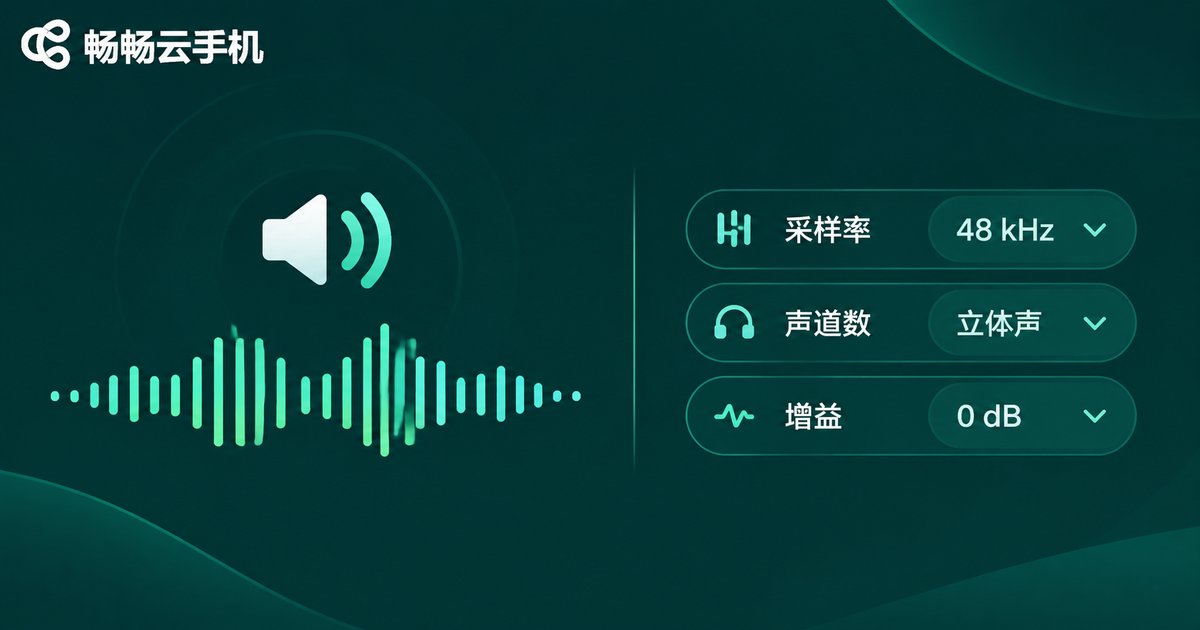
Sample rate and bitrate: use 44.1 kHz or 48 kHz with AAC encoding. 128 kbps is plenty clear for speech; music-heavy content can go up to 192 kbps.
Channel choice: mono is more bandwidth-efficient and easier to follow for pure talking-head content. Use stereo when you have background music or two-person dialogue.
Gain control: keep peaks around -6 dB rather than riding at 0 dB. Clipping cannot be fixed in post, and definitely not live.
Pick the right audio source. This is the most frequent mistake on cloud phones. Select internal or system audio as the input in your streaming app, otherwise viewers only hear your voice and never hear the music or sound effects playing inside the app.
Audio-video sync: cloud streaming adds an extra network hop, so audio often runs slightly ahead of the picture. Use the audio delay compensation in your streaming app to nudge it back — usually 100 to 300 milliseconds is enough.
Running All Three Steps on Ccloud Phone
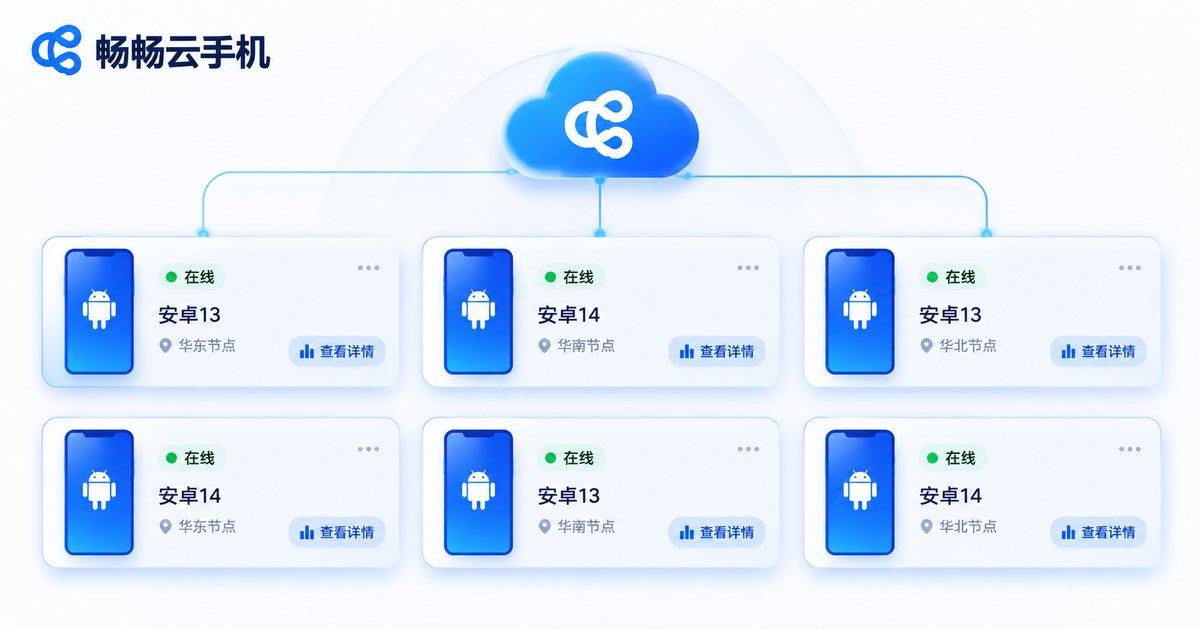
Ccloud Phone (ccloudphone) provides Android instances running in the cloud, while your local device simply renders the display and sends input. That makes it a good fit for live streaming, hosting and testing scenarios that need to stay online for long periods. Following the logic above, the practical order looks like this:
Step one, configure the instance. Create a cloud phone instance in the console, open its display settings, and set the resolution to match your stream. Use 1080 × 1920 for vertical and 1920 × 1080 for horizontal. This step sets the ceiling on your final image quality.
Step two, install your streaming tool. Install the streaming app inside the cloud phone, enter the URL and key from your platform dashboard, and choose a quality tier from the table above rather than maxing everything out.
Step three, tune the audio. In the streaming app audio settings, select internal or system audio, set 48 kHz and AAC at 128 kbps, and bring gain to around -6 dB while you monitor. Confirm both music and voice come through, then fine-tune A/V sync.
If you run a matrix of channels, multi-instance and group control features let you manage several cloud phones together and copy settings across in one pass instead of editing them one by one. Before going live on your main channel, do a quick check on a secondary account to confirm framing, audio and latency are all correct.
FAQ
Q: The stream keeps failing to connect. What do I check first?
A: Three things in order — whether the stream URL has extra spaces or a missing key, whether the cloud phone network is working, and whether the account is already streaming somewhere else (a single stream URL usually cannot accept a second connection).
Q: The picture works but viewers cannot hear app audio. How do I fix it?
A: Nine times out of ten the audio source is wrong. Change the streaming app input from microphone to internal or system audio, then restart the stream and listen again.
Q: My vertical stream is cropped at the top and bottom. What now?
A: First confirm both the cloud phone instance and the stream are set to 9 : 16, then check whether your streaming app has cropping or fill enabled. Keeping key content inside the center safe area avoids most of this.
Q: How high should the bitrate be?
A: It depends on upload bandwidth and content type. 3 to 4 Mbps handles everyday talking-head streams, while fast-moving gameplay can go to 5 or 6 Mbps — but always leave 1.5× headroom instead of running at your limit.
Q: Will a cloud phone drop offline during long sessions?
A: A stable cloud instance combined with sensible bitrate settings is the foundation of long broadcasts. A test stream of at least ten minutes, while watching dropped frames and connection status, is far more effective than fixing things after you go live.


