
Cloud Gaming on a Cloud Phone: Graphics, Latency, Controllers and Data Usage Explained
What Cloud Gaming Actually Moves to the Cloud
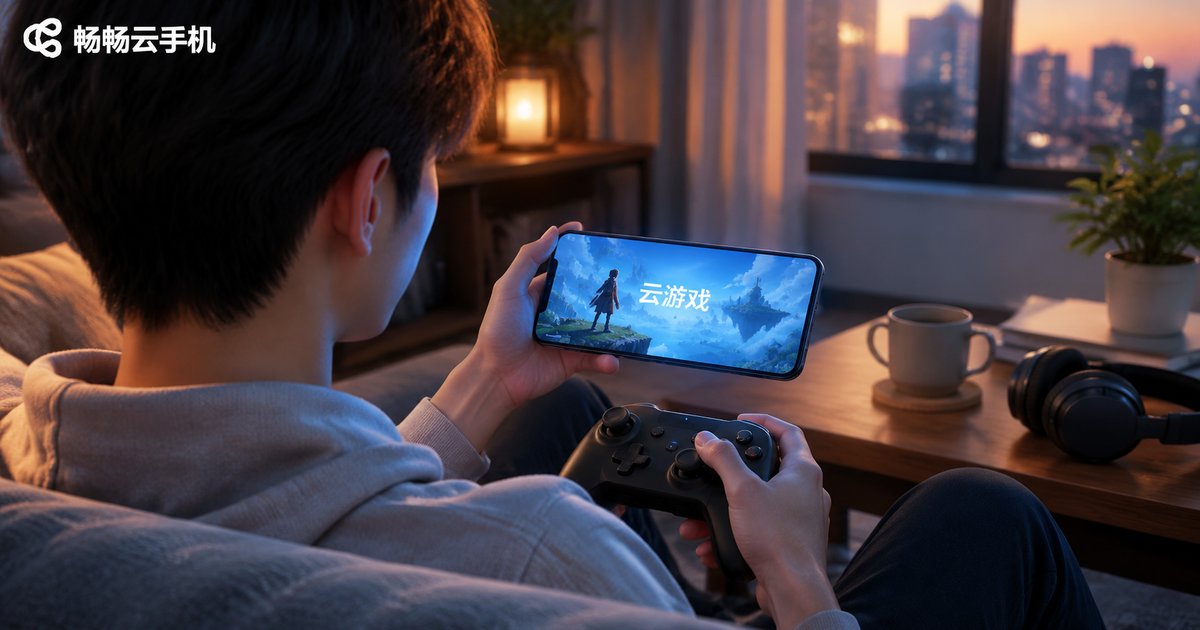
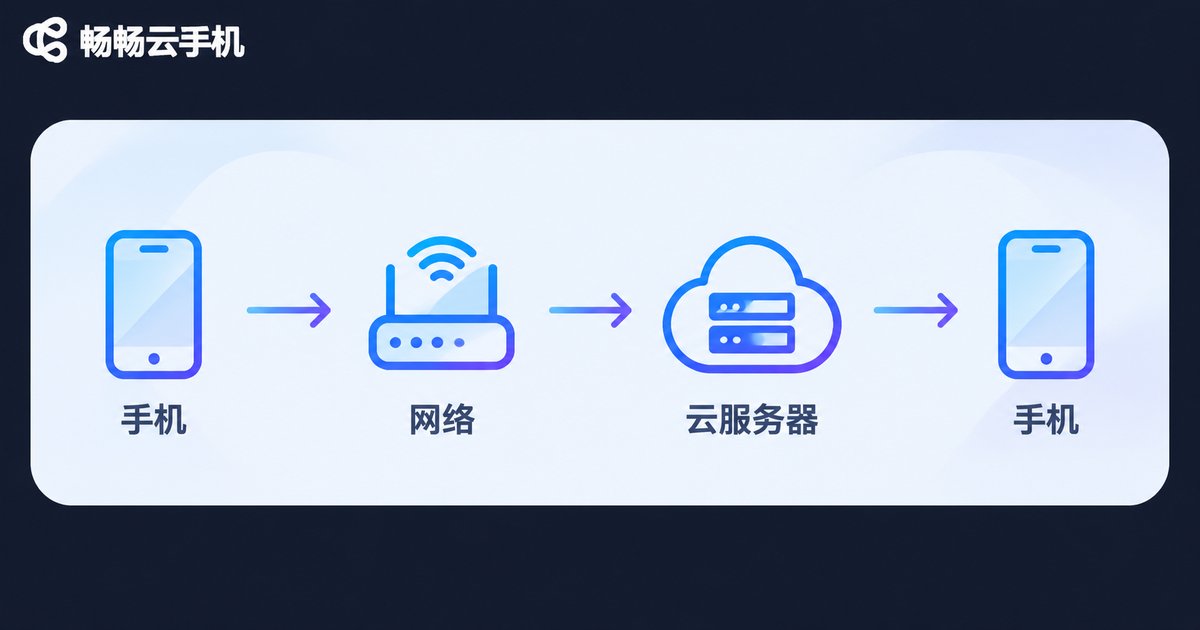
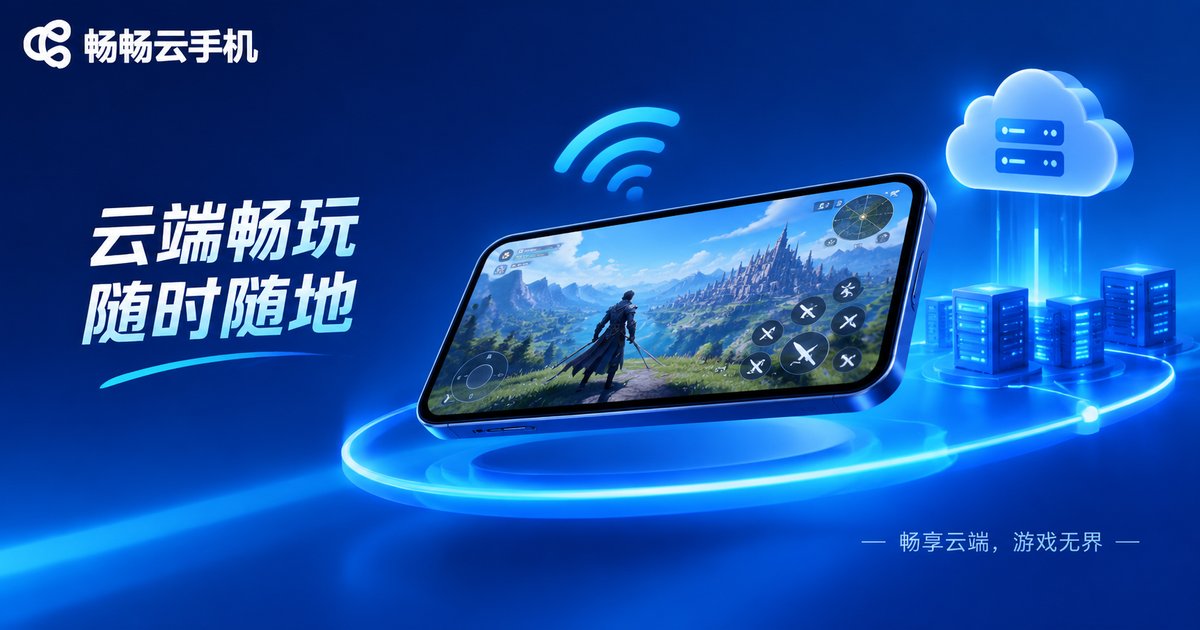
First-time cloud gamers on a cloud phone usually ask three things: why the picture looks a bit soft, why the controls feel half a beat late, and whether the data allowance will disappear in an hour. All three come from the same design: cloud gaming renders the game on a remote server and encodes the frames into a live video stream sent to your phone. Your phone does not draw the game, it just decodes and displays it.
Once that clicks, graphics, latency and data usage stop being vague feelings and become things you can calculate.
1. Graphics: Bitrate and Frame Rate Decide Sharpness
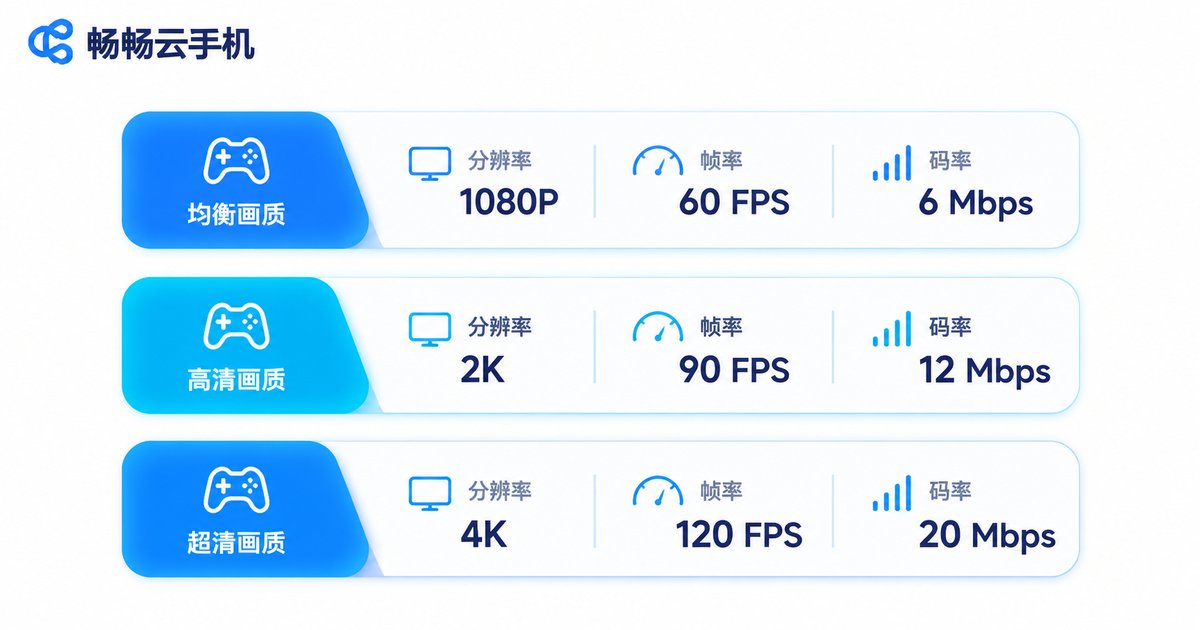
Because the picture is a video stream, it is defined by three settings: resolution (how many pixels), bitrate (how much data per second) and frame rate (how many frames per second).
Bitrate is the one people overlook. Two streams both labelled 1080p will look very different at 3Mbps versus 10Mbps, especially when you whip the camera around — low bitrate produces blocky smearing and macroblocking that looks like a frozen video. So when choosing a cloud phone, look at how high a bitrate it lets you set, not just the GPU name in the spec sheet.
| Preset | Resolution | Frame rate | Reference bitrate | Best for |
|---|---|---|---|---|
| Smooth | 720p | 30fps | 3-4 Mbps | Mobile data, story and card games |
| Balanced | 1080p | 30fps | 5-6 Mbps | Home WiFi, most mobile titles |
| HD | 1080p | 60fps | 8-10 Mbps | 5G or WiFi 6, action and shooters |
| Ultra | 2K | 60fps | 12-16 Mbps | Tablets, fixed broadband |
A practical rule: the genre decides the priority. For action, shooters and racing, drop resolution to 1080p to keep 60fps — stutter hurts the feel far more than a slightly softer image. For turn-based and idle games, 720p at 30fps is plenty and saves bandwidth.
2. Latency: Four Stages Between Your Thumb and the Picture
Latency is where cloud gaming lives or dies. Every input passes through four stages before you see the result:
- Input upload: the key press travels from your phone to the server
- Cloud rendering: the server draws the frame and encodes it
- Return path: the video stream travels back to your phone
- Local decode and display: your phone decodes and the screen refreshes
Many people assume the server GPU is the bottleneck, but the return path usually dominates. Physical distance sets the floor: connecting from Beijing to a server in Shanghai costs a dozen milliseconds just in round-trip fibre travel, while a same-city node removes most of that.
| Connection | Typical round trip | Real-world feel |
|---|---|---|
| 5GHz WiFi + same-region node | 20-40ms | Close to local play |
| Wired broadband + WiFi 6 | 20-50ms | Excellent, fine for shooters |
| 5G + cross-region node | 40-80ms | Good, slightly noticeable |
| Weak 4G signal | 80-150ms | Clearly laggy, not for competitive play |
A simple diagnostic: if the image is sharp but inputs feel delayed, the problem is network round trip and jitter. If inputs feel responsive but the picture stutters and smears, the problem is insufficient bitrate or weak local decoding. The fixes point in completely different directions.
3. Controllers: Who Should Use On-Screen Keys and Who Needs a Gamepad
There are usually three ways to control a cloud game, and picking the wrong one hurts more than picking the wrong graphics preset.
On-screen keys: tap the glass directly. Great for card, turn-based, simulation and idle games. Zero cost, instant start, but your fingers cover the screen and mis-taps are common in action titles.
Key mapping with a Bluetooth gamepad: physical buttons are mapped onto the cloud phone's virtual keys, and most clients support custom mapping. The gamepad connects to your local phone over Bluetooth, which adds only a few milliseconds locally — negligible next to tens of milliseconds of network latency.
Gamepad-first play: best for shooters, fighting and racing games. Analog sticks allow fine directional adjustments and triggers have real travel, far more precise than sliding on glass.
Buying advice: a standard Bluetooth-layout gamepad covers almost everything. Before buying, confirm your cloud phone client supports custom key mapping and gamepad detection. If you hold the phone horizontally, a gamepad with a phone clip makes a real difference to wrist comfort.
4. Data Usage: How Much an Hour Really Costs
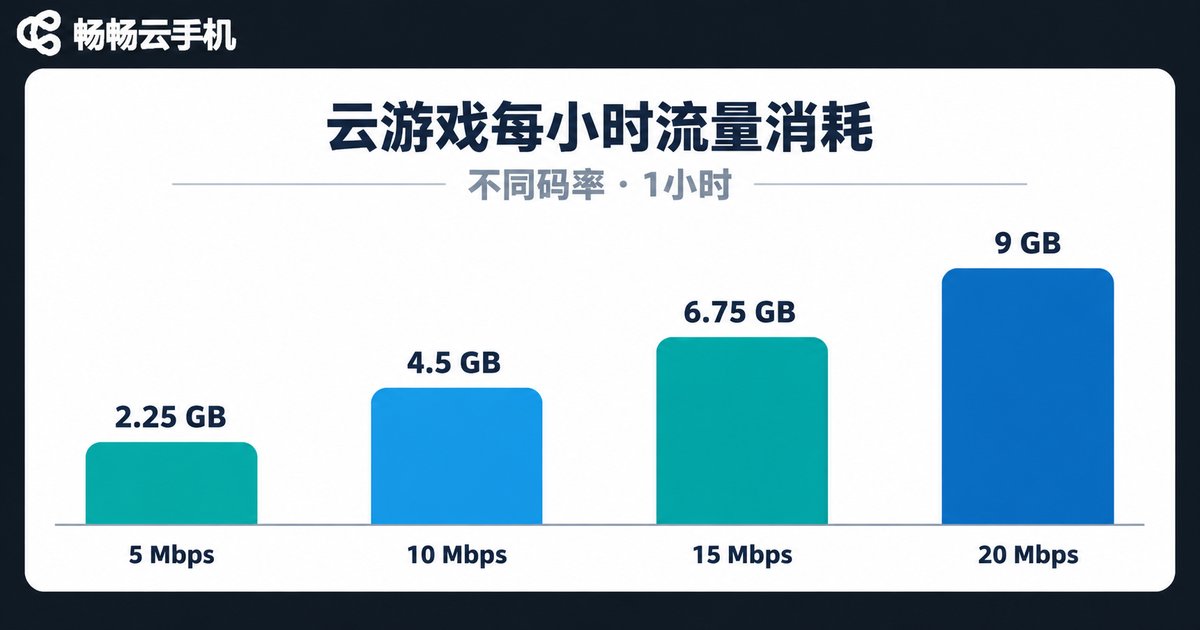
Cloud gaming data is easy to estimate. The formula is simple: GB per hour ≈ bitrate (Mbps) × 3600 ÷ 8 ÷ 1024. Double the bitrate and you double the data. There is no hidden trick.
| Preset | Reference bitrate | Data per hour (theoretical) | Data per hour (realistic) |
|---|---|---|---|
| 720p 30fps | 3-4 Mbps | 1.3-1.8 GB | About 1.5-2 GB |
| 1080p 30fps | 5-6 Mbps | 2.2-2.7 GB | About 2.5-3 GB |
| 1080p 60fps | 8-10 Mbps | 3.5-4.4 GB | About 4-5 GB |
| 2K 60fps | 12-16 Mbps | 5.3-7 GB | About 6-8 GB |
Three traps to avoid. First, real usage is typically 10-20% higher than theory because of audio, protocol overhead and retransmissions. Second, a cloud phone left running in the background keeps streaming frames, so exit the session when you finish. Third, playing HD presets on mobile data can easily burn four to five GB an hour, so use WiFi for HD at home and switch to 720p when you are out.
5. Putting the Settings in Your Hands: How CcloudPhone Approaches It
CcloudPhone (ccloudphone) takes a direct approach to cloud gaming: graphics and frame rate are exposed to the user, so you pick based on your current network. Run high resolution and high frame rate on home WiFi, switch to a low-bitrate preset when you head out — you are not locked into one fixed configuration.
Client-side key mapping combined with a Bluetooth gamepad moves mobile game controls onto physical buttons, which makes a visible difference in shooters and racing games. Because rendering happens in the cloud, your local phone only decodes and displays, so the handset itself does not need to be powerful — even a phone from a few years ago can keep up, as long as the screen and network cooperate.
A recommended tuning order: set frame rate first (keep 60fps for competitive games), then resolution (720p is genuinely fine on a small screen), and finally raise bitrate to the point where the image stops smearing, leaving the rest of your bandwidth for stability.
Frequently Asked Questions
Q: How fast does my connection need to be for cloud gaming on a cloud phone?
720p at 30fps needs roughly a stable 4Mbps, and 1080p at 60fps is better with 10Mbps or more. But stability matters more than peak speed — jitter and packet loss cause worse stutter than a modest bandwidth shortfall.
Q: Why do I see macroblocking and smearing?
Usually insufficient bitrate or network jitter. Lower the resolution or frame rate in the client first; if that fixes it, bandwidth was the issue. Also prefer 5GHz WiFi and avoid 2.4GHz interference.
Q: Does a Bluetooth gamepad add latency?
It adds a few milliseconds, far less than the tens of milliseconds of network round trip, so it is practically imperceptible. Network quality and node distance dominate the feel.
Q: How much data does cloud gaming use per hour?
About 1.5-2GB at 720p, 4-5GB at 1080p 60fps, and more at 2K. Use WiFi for high presets and low-bitrate presets on mobile data.
Q: Can a low-spec phone run it?
Yes. Rendering happens in the cloud and the local device only decodes and displays, so mid-range and older phones work fine — though hardware decoding capability and screen quality directly affect how it looks.


