

Cloud Phone & Cloud PC: Download, Installation, Connection Methods and Experience
So What Exactly Is a Cloud Phone and a Cloud PC?
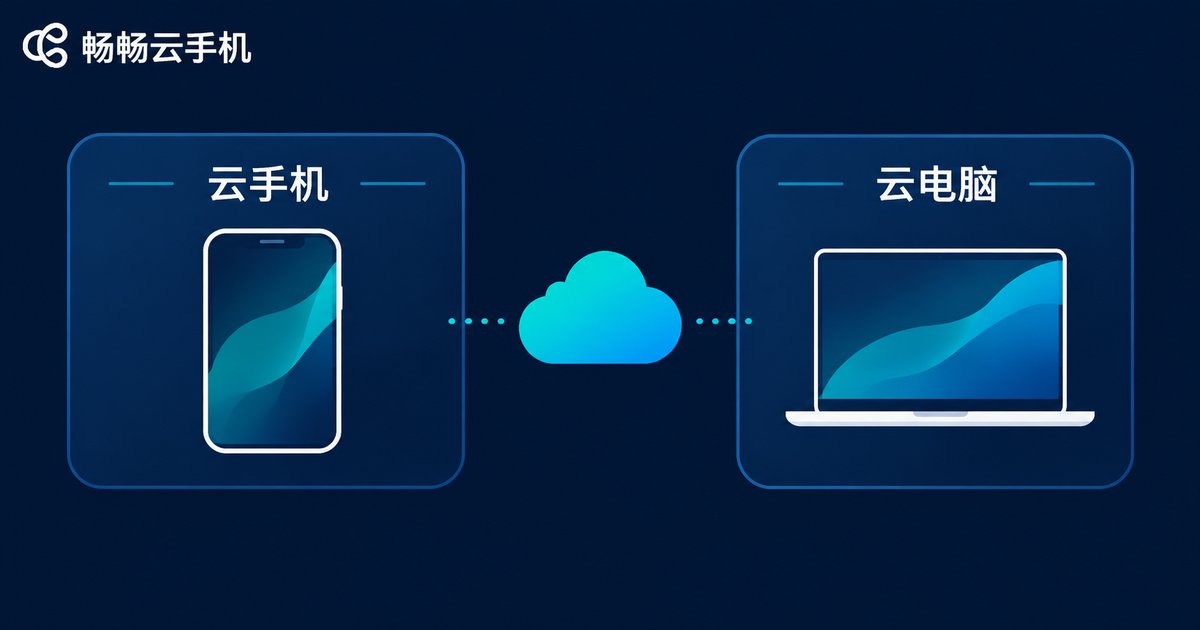
Most people are a little confused the first time they hear these two terms. Put simply: a cloud phone is an Android handset that lives in a data center, and a cloud PC is a Windows computer that lives in a data center. The device in your hands only displays the picture and sends your taps and swipes upstream — all the real computing happens in the data center.
That means even a five-year-old laptop or a budget handset can run demanding software smoothly. This is the core value of cloud phones and cloud PCs: moving the compute from your hands to the cloud.
The difference between the two comes down mainly to use cases:
| Item | Cloud Phone | Cloud PC |
|---|---|---|
| Operating environment | Android | Windows desktop |
| Typical uses | Idle gaming, app multi-instance, social media operations, app testing | Office suites, design and editing, remote work |
| Control method | Touch, keyboard and mouse mapping | Keyboard and mouse, pen tablet |
| Demand on local device | Very low | Very low |
Download and Install: Three Steps to Get Started
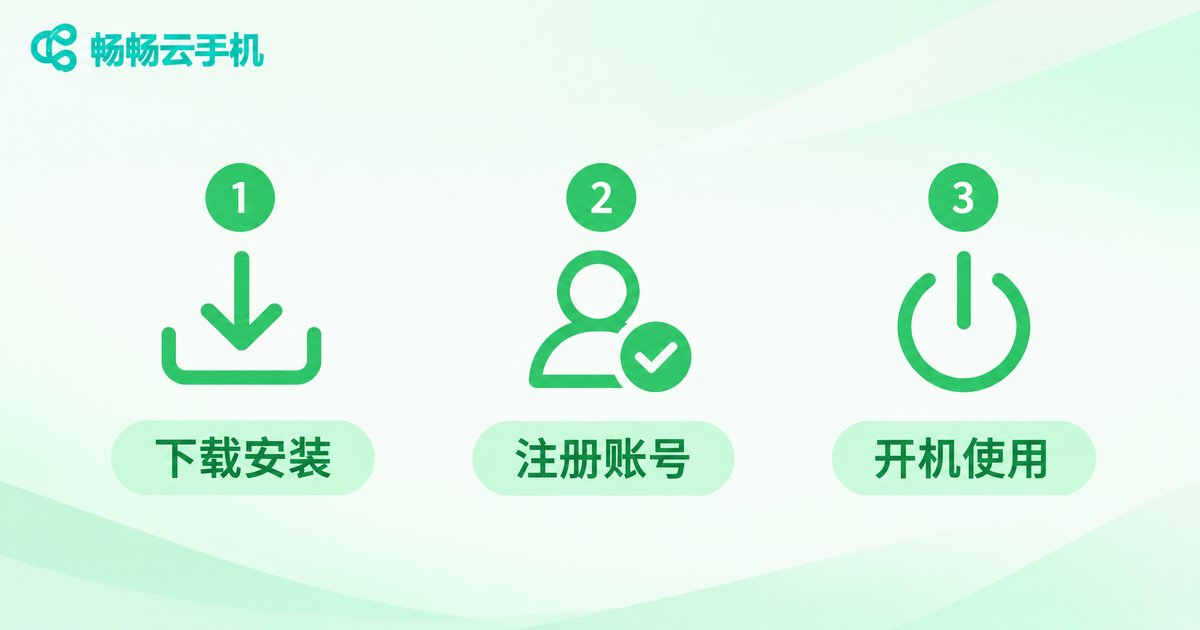
Whichever cloud phone service you choose, the process is basically the same and takes three steps.
Step one: download the client. Always download from the official website rather than clicking a random installer on a third-party site. Reputable services offer Windows, macOS, Android, iOS and a web version — pick whichever matches the device you have. Installers are usually a few dozen to a couple hundred megabytes and finish in a minute or two on an ordinary home connection.
Step two: register and sign in. A phone number is enough; enter the verification code and you are in. Some services also accept email registration. It is worth setting a strong password, since your cloud devices hang off that account.
Step three: choose a configuration and power on. In the console you will see a list of available cloud devices. Pick one, confirm the spec, hit power on, and within roughly fifteen seconds to a minute the screen loads and you can start opening apps just like on a real phone.
A few small details matter during installation: avoid installing to the system drive; allow the network permission prompt on first launch, otherwise the stream may not connect; corporate and campus networks sometimes block long-lived connections, so try a different network first if you cannot get through.
Connection Methods: Four Common Routes
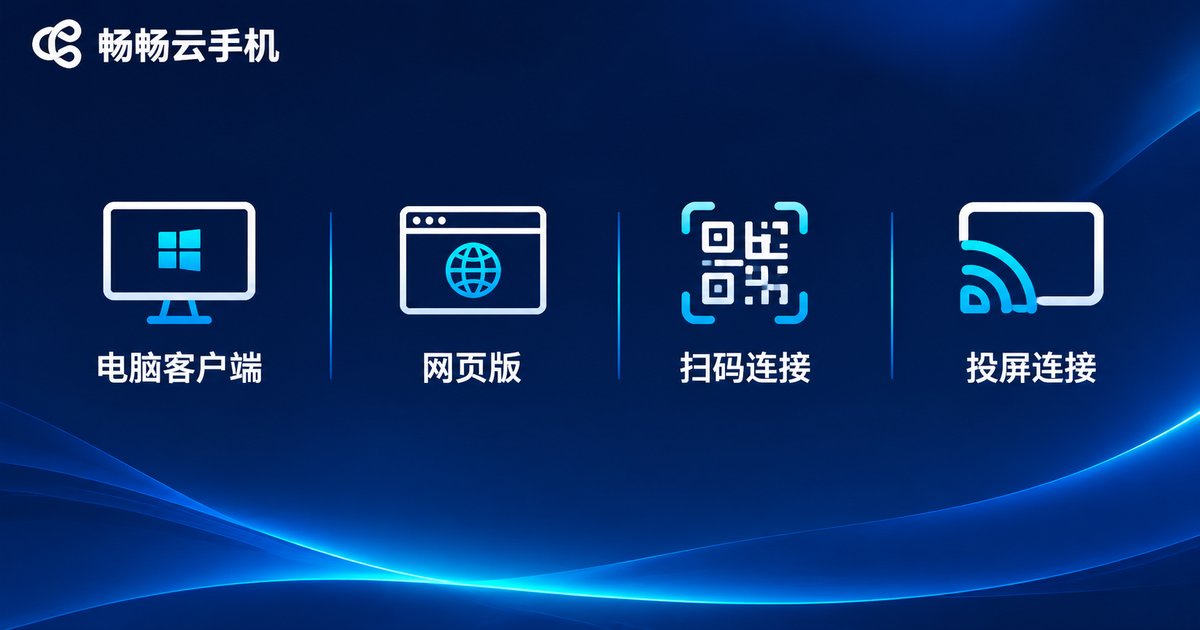
Once installed, how do you actually get connected? There are four mainstream routes:
| Method | Best for | Advantages | Watch out for |
|---|---|---|---|
| Desktop client | Daily, fixed use | Most stable, keyboard mapping and file transfer | Needs installing first |
| Web version | Quick access, shared computers | No install, just open a browser | Depends on browser performance |
| QR code sign-in | Switching devices quickly | Takes seconds to hand over | Your phone must be signed in |
| Casting and sharing | Presentations and collaboration | Big screen, multiple viewers | Better on a local network |
For everyday use, the desktop client is the best default: fullest feature set and lowest latency. When you are travelling or borrowing someone else's computer, the web version or a QR sign-in is far more convenient — your cloud devices do not disappear just because you changed machines.
Real-World Experience: Latency, Image Quality and Stability
Whether the experience feels good comes down to three things: latency, image quality and stability.
Latency. The rule of thumb is that anything under 50 ms is basically imperceptible — swipes and taps feel responsive. Between 50 and 100 ms you notice a slight lag, but it is perfectly fine for video and documents. Above 100 ms, gaming and precision work start to feel awkward. So when choosing a service, prioritise data center nodes close to your region.
Image quality. This depends mainly on resolution and bitrate. Text work does not demand much; video, photos and design work do. Most clients offer smooth, balanced and high-definition presets — balanced is the safest choice on an average connection.
Stability. This is where cloud phones differ most from local handsets. A local phone worries about battery, heat throttling and background apps being killed; a cloud instance stays online as long as the provider's data center is healthy. You can close the client and it keeps running in the cloud.
| Scenario | Suggested network | What it feels like |
|---|---|---|
| Video and social apps | 20 Mbps or more | Clear picture, barely noticeable that it is remote |
| Idle mobile gaming | 30 Mbps or more, under 60 ms | Stays online for hours, no phone heating |
| Switching between instances | 50 Mbps or more | Moving between devices feels smooth |
| Mobile office work | 20 Mbps or more | Documents and web browsing feel near-local |
Where a Cloud Phone or Cloud PC Pays Off Most
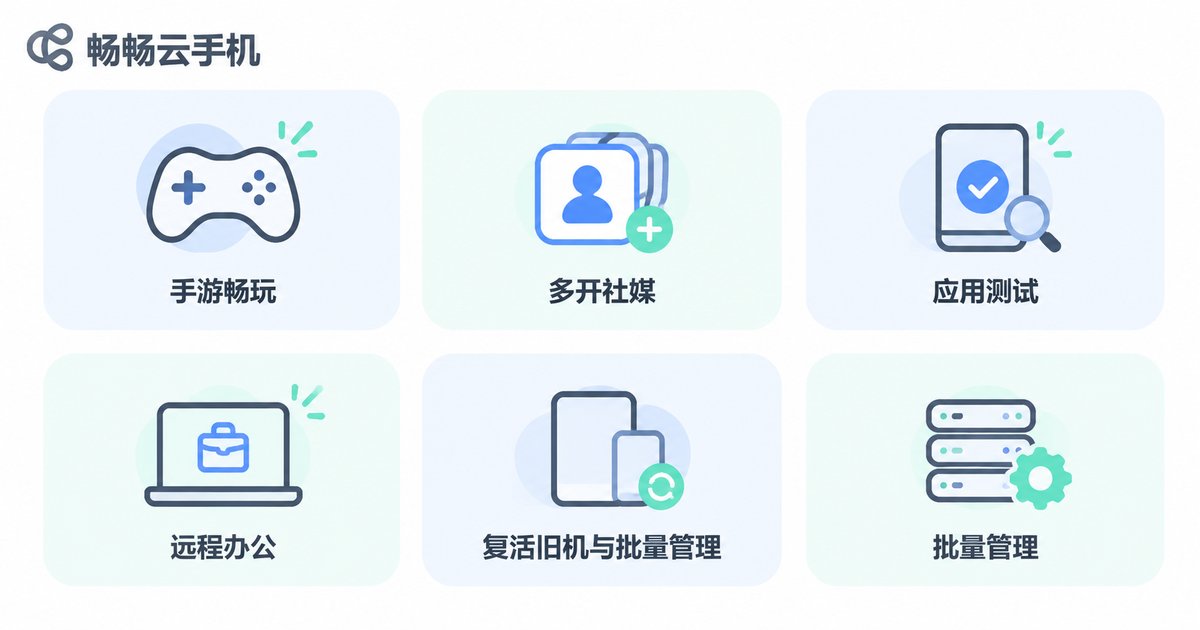
Idle gaming and multi-instance play. The game runs in the cloud, so your local phone does not need to stay lit all night, overheat or drain its battery. On the commute you can connect for a moment and check progress.
Social media and e-commerce multi-account operations. When you need to maintain several accounts at once, run each in its own cloud instance — clean separation, and no local storage consumed.
App compatibility testing. Developers and QA teams often need several Android versions. Cloud instances can be spun up quickly and reset at any time, far more flexible than buying physical handsets.
Business trips and remote work. Borrow a computer, sign in, and your familiar Windows desktop is there with all files in the cloud — no USB sticks required.
Giving old devices a second life. An old laptop that cannot run modern software can still act as a display for a cloud desktop and get the job done.

What to Check When Choosing a Cloud Phone Service
There are plenty of options on the market. Focus on a handful of points: whether cloud instances support 24/7 online hosting, whether multi-instance and batch management are available, which platforms the client covers, how close the data center nodes are to you, and how quickly support responds when something goes wrong.
ccloudphone (畅畅云手机) is a fairly common choice in this category: it provides cloud Android instances, supports multi-instance use and long-duration online hosting, and can be accessed from desktop, mobile and the web. For specific instance specifications, available configurations and pricing, check the official website for the latest details — these are adjusted from time to time, so the official site is the most reliable reference.
One more piece of advice: do not commit to a long plan on day one. Run the smallest configuration for a day or two first, check the latency in your region and whether your daily apps feel smooth, and upgrade only once you are satisfied. That is the easiest way to avoid disappointment.
FAQ
Q: Will a cloud phone feel laggy?
It depends mostly on your network. On a wired home connection with latency under 50 ms, everyday video, chat and idle apps feel no different from local. If it clearly stutters, first check whether you are on public Wi-Fi or connecting to a distant node.
Q: How fast does my connection need to be?
10 Mbps is enough to use it, 20 Mbps is comfortable, and 50 Mbps is recommended for multi-instance use or HD video. Mobile 4G works too, but keep an eye on data usage.
Q: Does the cloud instance keep running after I close the client?
Usually yes. Offline hosting is one of the main advantages — the client is just a display, and tasks keep running in the cloud instance. Sign in again and you will see the progress.
Q: Can I use a cloud PC from my phone?
Yes. Install the client on your phone, sign in, and your Windows desktop appears. An external keyboard and mouse make it much better, and it is handy for urgent files and email.
Q: Is it safe to keep data in the cloud?
Reputable services apply account authentication and encrypted transport. Set a strong password, enable two-factor verification where available, avoid saving passwords on shared computers, and keep a local backup of anything important.
Q: What if installation fails or I cannot connect?
First confirm the installer came from the official website, then check whether a firewall or corporate network is blocking long-lived connections, and try a different network. If it still fails, send the official support team a screenshot of the error — these issues are usually diagnosed quickly.


