
Cloud Phone & Cloud Desktop: Entry Points, Workflow, and FAQs
First, the basics: a cloud phone is not a cloud desktop
People often type both terms into the search bar at once, but they describe two different cloud services. Put simply:
A cloud phone is a complete Android device running in a cloud data center. You see its screen on your own phone, tablet or computer, and every tap and swipe is sent to the cloud in real time. It uses none of your local storage and none of your battery, and it stays online as long as you leave it running.
A cloud desktop is a Windows or Linux desktop running in the cloud and controlled with a mouse and keyboard. It suits office work, documents and desktop software.
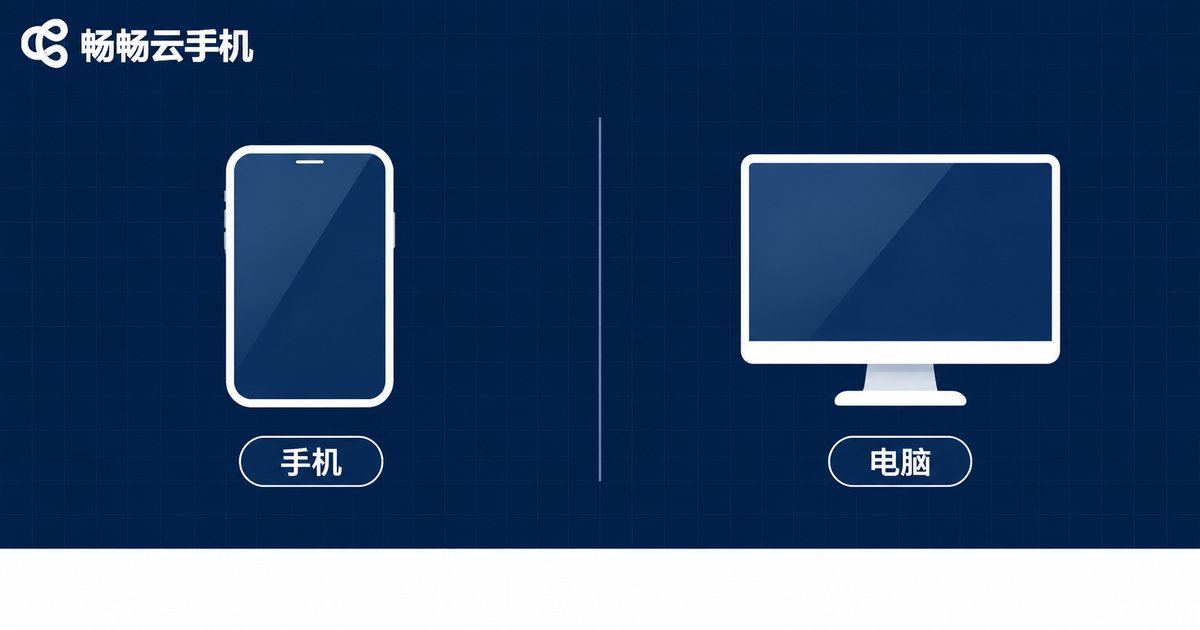
One table makes the difference clear:
| Item | Cloud phone | Cloud desktop |
|---|---|---|
| System in the cloud | Android | Windows / Linux |
| How you control it | Touch and swipe | Mouse and keyboard |
| Typical uses | Mobile games, multiple app accounts, app testing | Remote work, documents, professional software |
| Local device needed | Anything that plays video | Video plus a keyboard and mouse |
| Always on | Runs until you shut it down | Runs until you shut it down |
The short version: run mobile apps, choose a cloud phone; run desktop software, choose a cloud desktop.
Entry points: where to find it
Taking CcloudPhone (ccloudphone) as an example, there are usually three entry points to the cloud phone and cloud desktop features. Pick the one that matches how you work:
Entry 1: the web console. Open your browser, go to the CcloudPhone website, sign up, log in and enter the console. The cloud phone modules sit right in the navigation. Creating instances, checking status and connecting to the screen all happen here, and this is the entry point with the fullest set of controls, so it is the best place to start on day one.
Entry 2: the desktop client. If you spend hours in front of a computer, install the desktop client. It keeps the connected screen in its own window, so you can work with local files on one side and the cloud device on the other, and keyboard and mouse mapping feels more natural.
Entry 3: the mobile app. If you just want a quick look on your phone or need to check a single account now and then, the mobile app is the easiest route. Log in and your device list is right there.
Good to know: all three entry points use the same account. An instance you create in the client shows up in the web console as well, with the same status, so you never have to wonder whether things are in sync.
The workflow: from sign-up to your first tap
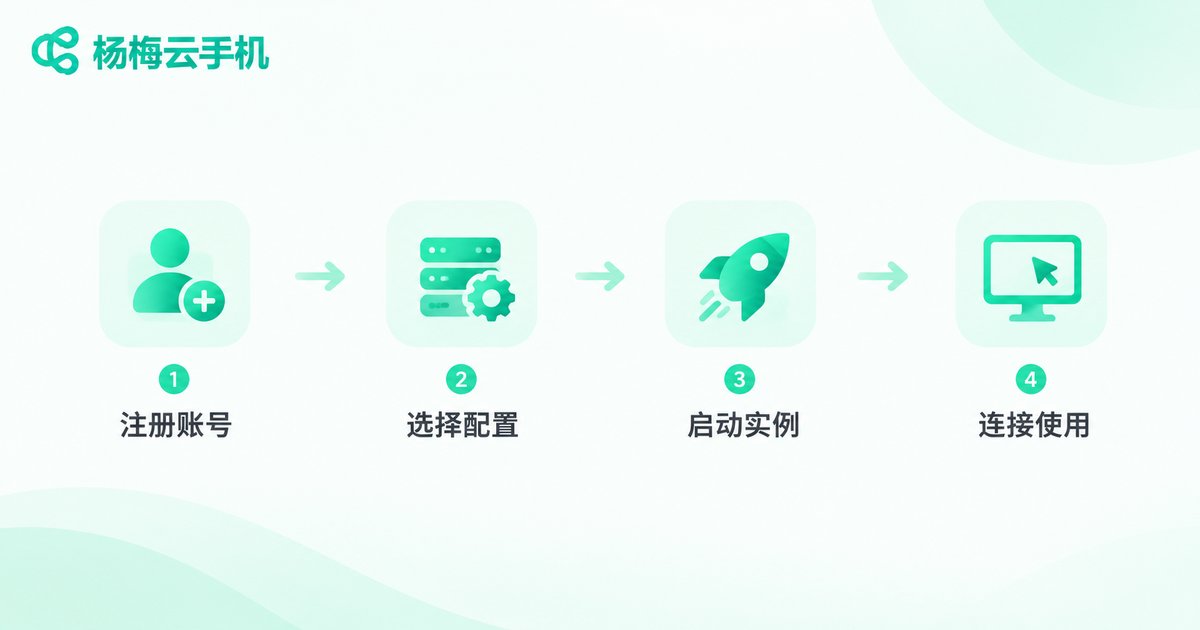
There are really only six steps, and a first run usually takes about ten minutes:
Step 1: sign up and log in. Register with your phone number and enter the console. Give your devices clear names now; it saves time later when the list grows.
Step 2: choose a spec. Match it to your purpose. For a single idle app or a quick functional test, the basic tier is enough. For demanding games, move up to a tier with more CPU and memory. Higher is not automatically better; the right size is the cheapest one that does the job.
Step 3: create an instance. Pick a system image in the console, confirm the spec and create it. Within anything from tens of seconds to a few minutes, the status changes to running.
Step 4: connect. Click the connect button on the device card and the screen opens in a window. The first connection loads the display, so a few seconds of waiting is normal.
Step 5: install apps and move files. Open the app store inside the cloud device, or upload an installation package from the console. If an account needs to stay logged in, log in before you disconnect.
Step 6: shut it down when you are done. Hit shutdown when you finish. Leaving an instance running for days without using it is the easiest way to waste money.
Where it genuinely helps
Game idling and multiple accounts. Quests need online time, and a cloud phone does not depend on the device in your hand. Turn your screen off and it keeps running in the cloud.
App testing. Testers no longer need a drawer full of real handsets. A few cloud phones with different specs cover different Android versions and device profiles.
Social media and e-commerce operations. Keep each account in its own cloud phone, with separate environments that stay easy to manage.
Remote work. Files and software live in the cloud desktop, so logging in from another device lets you pick up where you left off without copying anything around.
Short projects. Release the instance when the work is done instead of buying hardware for a one-off need.
Small habits that make it smoother
Network first. The cloud screen travels over the network, so a stable Wi-Fi or mobile connection matters more than anything else. If the picture stutters, check the network before blaming the spec.
Upload large files instead of dragging them. Use the upload feature rather than slowly dragging files across a remote screen; it is faster and more reliable.
Shut down in time. Close it when you finish and start it again next time. It takes seconds.
Separate account permissions. On a shared team account, give each member only the permissions they need so nobody accidentally touches someone else's instance.
Frequently asked questions
Q1: Can I use a cloud phone and a cloud desktop under one account?
Yes. In the CcloudPhone console they are separate product entry points under the same account, so one login covers creating and managing both, with no second registration.
Q2: Does a cloud phone feel laggy?
Two things decide it: network and spec. On a stable connection, everyday tapping and swiping feels close to a local device. For heavy games, choose a higher tier, otherwise smoothness will suffer.
Q3: If my connection drops, does the cloud device shut down?
No. A dropped connection only means you cannot see the screen. The instance keeps running, and you reconnect when your network is back, with no interruption to the task.
Q4: Can I install the desktop software I need in a cloud desktop?
Generally yes. Install and run it inside the cloud system much as you would on a normal computer. Check the system version and spec requirements before you start.
Q5: Where is my data stored, and is it safe?
Data lives in the storage of your cloud instance and stays with it. Before releasing an instance, download anything important to your local device so it is not cleaned up along with it.
Q6: Can I control a cloud desktop from my phone?
You can connect, but a desktop is designed for a desktop layout. Adding a keyboard and mouse makes it far more efficient.
Q7: Do I need extra hardware, and how is it billed?
No extra hardware is needed; any device that can go online and play video will do. For the current spec tiers and pricing, refer to the price page on the CcloudPhone website.
Cloud phone and cloud desktop sound alike, but they lead in two directions: one runs Android apps, the other runs a computer desktop. Decide what you actually need to run, pick the right entry point and spec, and remember to shut down when you finish. That covers most of the beginner pitfalls.


