
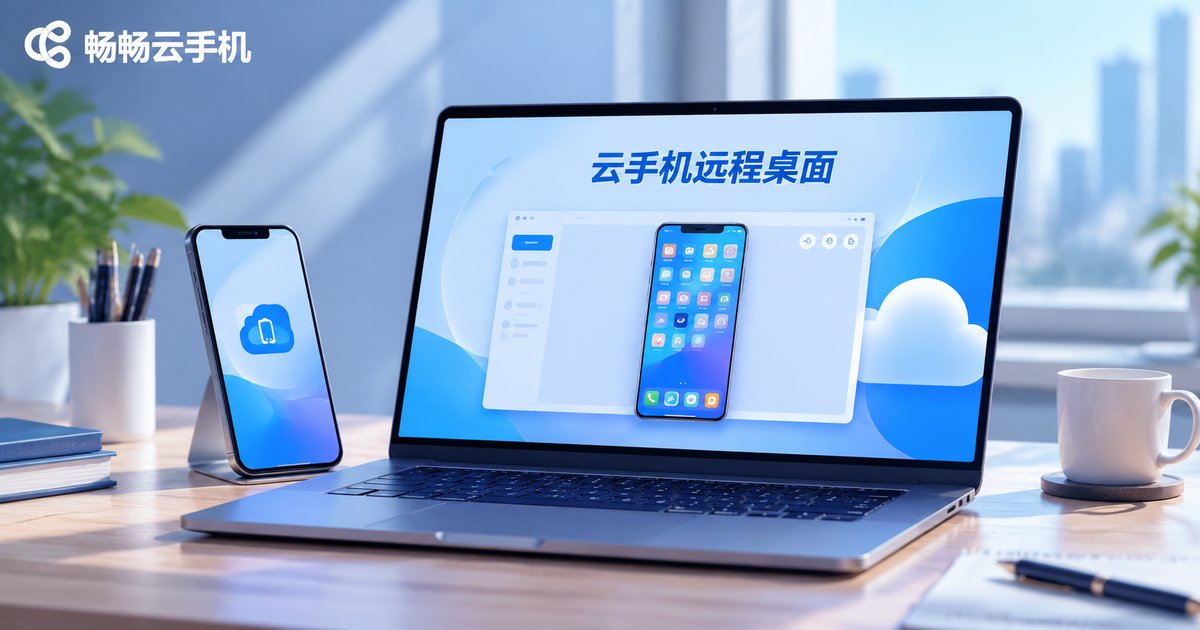
Cloud Phone Remote Desktop: Connecting to PC, Display Settings, and Operation Guide
Many people assume a cloud phone can only be used on a phone. With remote desktop, you can send the cloud phone screen to a computer and control it with a mouse and keyboard. The larger display makes everyday tasks more efficient. This guide uses ccloudphone as an example to explain how to connect to a PC, adjust display settings, and operate the cloud phone day to day.
What Is Cloud Phone Remote Desktop?
A cloud phone is a virtual phone that runs in the cloud. Apps, data, and tasks are handled remotely. Remote desktop streams the cloud phone screen to your computer and sends your mouse and keyboard input back to the cloud. You do not need to install many apps locally, and you can manage the cloud phone on a bigger screen.
Typical uses include checking cloud phone status on a PC, handling messages in social apps, testing how apps behave at different resolutions, and reducing local battery drain during long-running tasks.
Before Connecting to Your PC
Check three things first. You need a ccloudphone account that can log in normally. Your computer network should be stable; a wired connection or reliable Wi-Fi is recommended. Also confirm that your cloud phone instance is running. If you connect through a browser, use a recent version of Chrome or Edge and allow clipboard and full-screen permissions.
Steps to Connect to a Computer
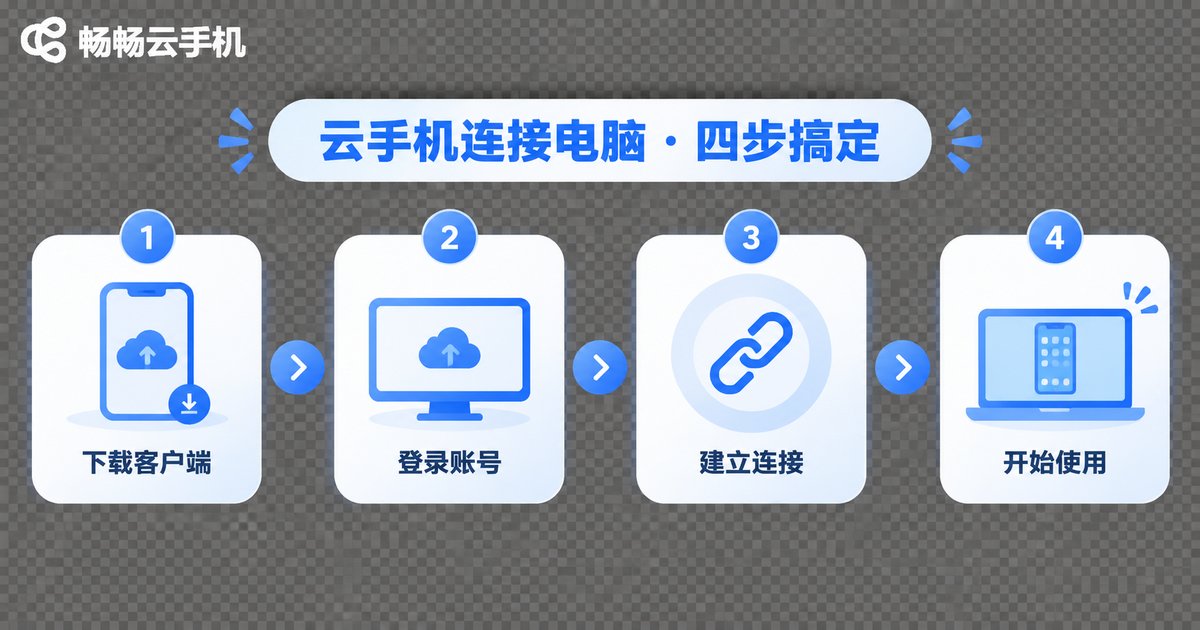
First, log in to the ccloudphone console in your computer browser, or sign in to the same account in a supported client. Second, select the cloud phone instance you want to use from the device list and open remote desktop. Third, wait for the screen to load; the first connection may take a few seconds to over ten seconds. Fourth, switch to full screen if needed and enable keyboard and mouse mapping. Fifth, check sound, clipboard, and file transfer permissions.
If the screen keeps loading, refresh the page, switch networks, or restart the cloud phone instance. Avoid clicking the connect button repeatedly, as this may create multiple connection requests.
Display Settings: Resolution, Frame Rate, and Quality
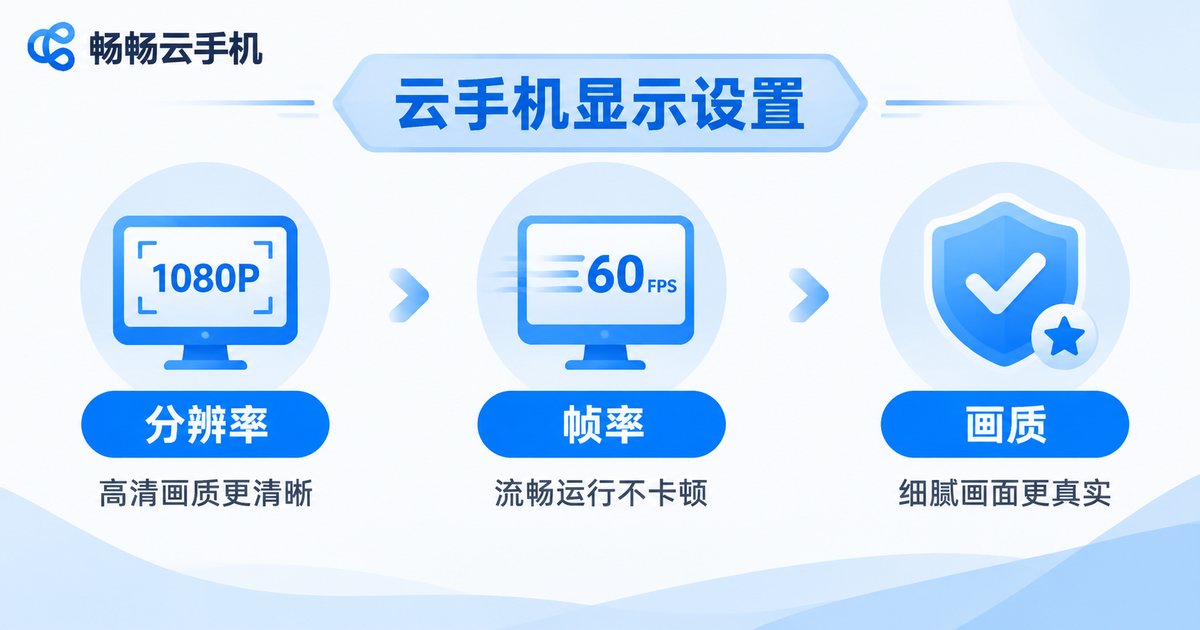
Display settings directly affect smoothness and clarity. A higher resolution looks sharper but uses more bandwidth. A higher frame rate feels smoother but requires a more stable network. For daily work and messaging, choose balanced mode. Switch to high quality when watching video or giving an app demonstration.
| Mode | Best For | Suggested Settings |
|---|---|---|
| Smooth | Weak networks, long-running tasks | Lower resolution, medium frame rate |
| Balanced | Daily work, chat, browsing | Medium resolution, stable frame rate |
| High Quality | Demos, video, detail checks | Higher resolution, higher frame rate |
Keyboard and Mouse Mapping
After connecting, the mouse usually simulates touch clicks and the keyboard can enter text. In some scenarios, you need to enable keyboard and mouse mapping so that computer keys are mapped to cloud phone actions. Test single click, double click, long press, and swipe before regular use. If Chinese text input does not sync, try the input method inside the cloud phone or paste text through the clipboard.
Common operations include full-screen toggle, back to home, volume adjustment, screenshot, and screen rotation. Button positions may vary slightly between clients; follow the actual interface.
Practical Tips
To keep the connection stable, close large downloads while remote desktop is running. If you will be away for a long time, you can exit remote desktop while keeping the cloud phone running. When handling sensitive information such as account passwords, use a trusted network and keep your account secure.
FAQ
Q: Do I need to keep my computer on while using cloud phone remote desktop?
No. The cloud phone runs in the cloud, so tasks can continue after you close the computer or exit remote desktop. You can check the status the next time you log in.
Q: What should I do if the screen lags after connecting?
Check your local network first, then lower the resolution or frame rate and close other bandwidth-heavy programs. If lag continues, try another network or restart the cloud phone instance.
Q: Can I connect to a cloud phone from my phone?
Yes. Remote desktop supports multiple devices. A computer is better for large-screen and keyboard-mouse use, while a phone is more convenient for checking on the go.
Q: How do I reset display settings if I change them by mistake?
Restore the default values in remote desktop settings, or select balanced mode again.


