

Cloud Phone Video Editing: Uploading, Exporting, and Storage Explained
What Cloud Phone Video Editing Actually Is
Anyone producing short videos, e-commerce product clips, or batch mashups runs into the same wall: footage piles up, phone storage runs out, and editing stutters and heats up the device. A cloud phone solves this directly — it is an Android phone running in the cloud that you control remotely from your computer or your own phone. The editing app runs in the cloud, the footage lives in the cloud, and the finished cut is exported from the cloud. Your local device only displays the screen and passes your taps through.
Cloud editing simply applies that setup to video work: upload footage into the cloud phone, open the editing app there to cut, caption, score, and export. Nothing eats local storage, and local hardware barely matters. An old laptop or a budget phone can handle it as long as the connection holds up.
Uploading Footage: Three Routes, Pick by Scenario
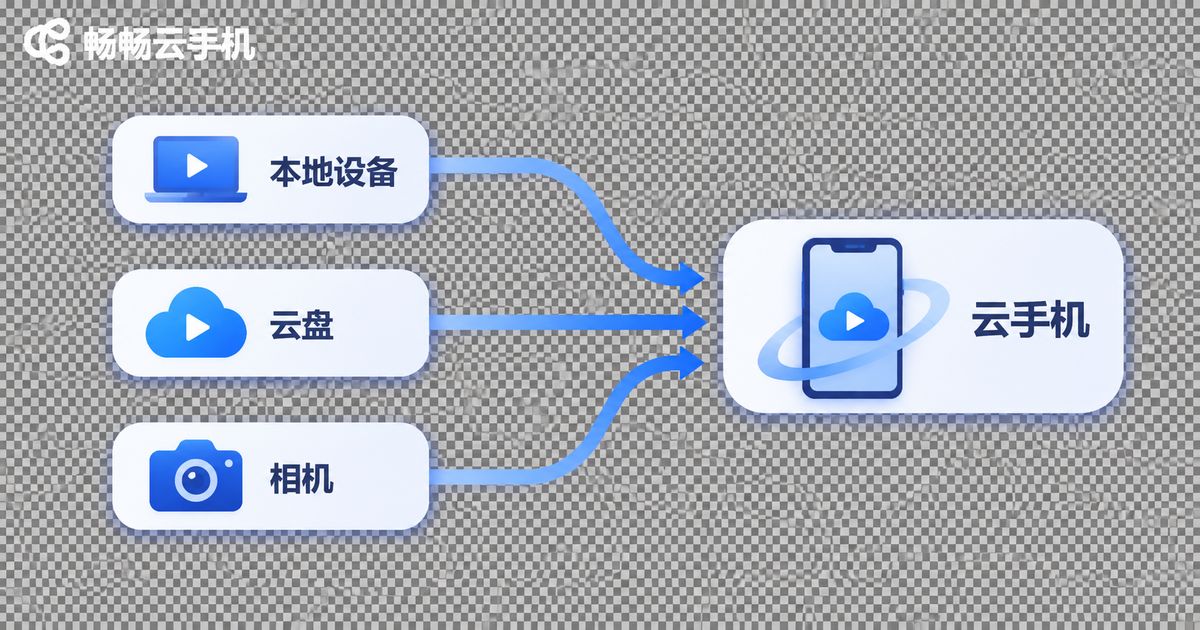
Step one is getting the footage into the cloud phone. There are three common routes:
Download inside the cloud phone. Sign in to your cloud drive, asset library, or photo account inside the cloud phone and pull files down to its local directory. Best when your footage already sits in a cloud drive.
Relay through a shared space. Upload from your computer into the cloud phone file manager or shared folder, then open it on the cloud phone side. The easiest option for large batches.
Upload while shooting. Sync footage to the cloud as it is captured, then refresh on the cloud phone and it is there. Useful for teams that must publish the same day.
Two things to watch: check file formats first — MP4 and MOV are the safest bets with mainstream editors, while obscure containers may not be recognized; and send large files in batches, since a single tens-of-gigabytes transfer is far more likely to drop.
Editing and Export: The Flow Is Familiar
Once you are inside the cloud phone, everything works like the Android phone in your hand: open the editor, create a project, import clips, drag the timeline, add captions, lay in music, build transitions. The difference is that all of that computing happens in the cloud. Your local device just shows the screen and clicks the buttons.
A few practical export habits:
Match resolution to purpose. For vertical clips published on mobile, 1080×1920 is plenty. For footage that will be re-edited later, export a higher-bitrate version as a master copy.
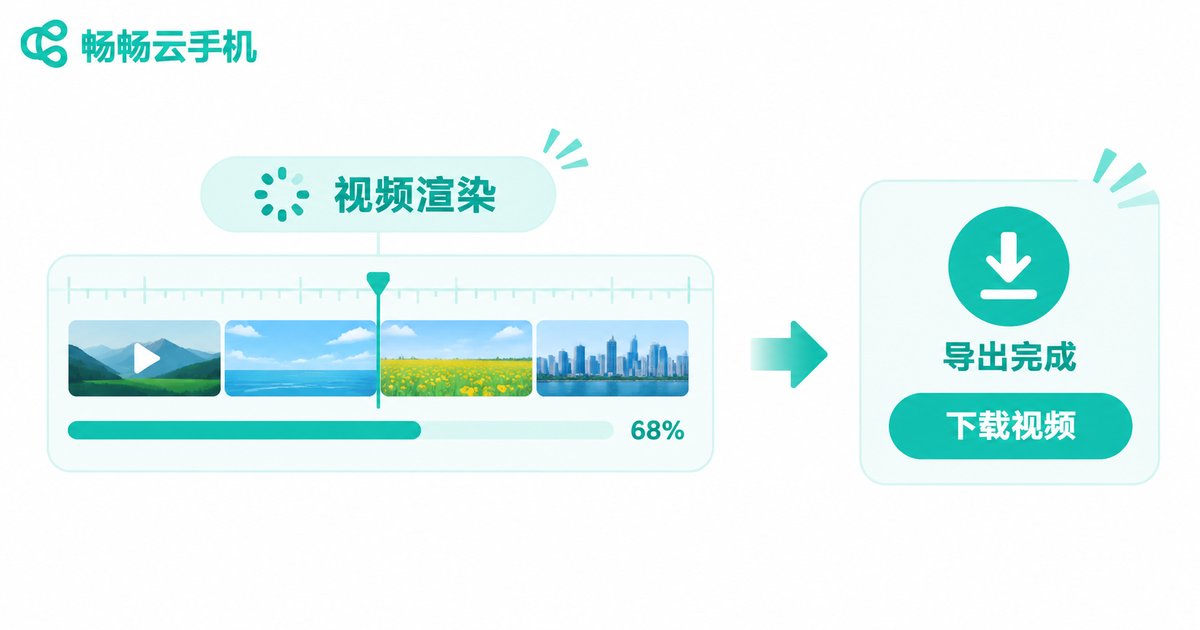
Export straight to the cloud. Send the finished file into the cloud phone storage, then download or distribute from there. No repeated clearing of local space.
Do not babysit long tasks. A cloud phone stays online around the clock, so slow renders can run in the background while you do something else and pick up the result later.
How Storage Works: One Table Says It All
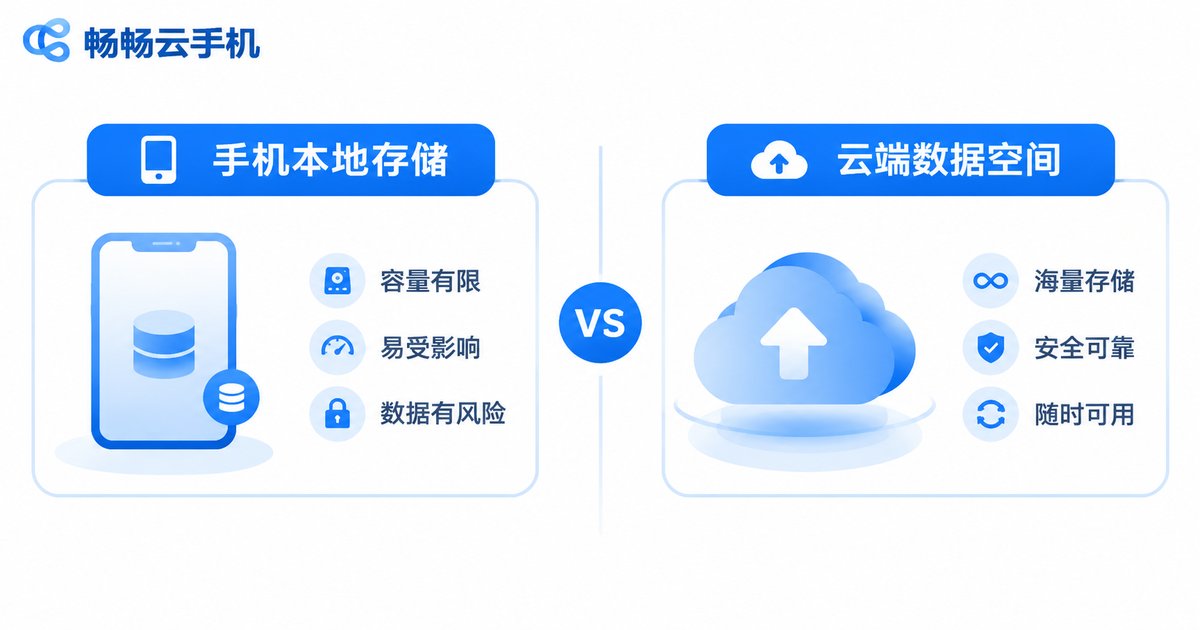
To understand storage, separate it into two buckets: system space for installing apps and holding runtime cache, and data space for footage and finished files. Editing mostly consumes the second — a single 4K clip or one exported master is substantial.
| Item | Local phone editing | Cloud phone editing |
|---|---|---|
| Footage storage | Occupies phone storage, constant cleanup | Stored in cloud data space |
| Export destination | Lands locally, then must be moved | Exports directly to cloud space |
| Multiple projects | Tight space, stutter risk | Runs in cloud, projects stay isolated |
| Device dependency | Limited by local performance | Local device only displays and clicks |
Practical habits: clear the cache and already-exported intermediate files in the cloud phone regularly; keep footage and finished cuts in separate folders per project; archive or delete retired projects so the data space stays clean.
Why Use Ccloudphone for Cloud Editing
Ccloudphone provides exactly this kind of cloud Android device: it runs in the cloud, stays online around the clock, and takes up no local storage. For video creators the value comes down to three points. Footage and finished files live in cloud space, so your local phone stops deleting photos to free up a few gigabytes. Long editing and rendering jobs run in the cloud, so your local device does not heat up or drain its battery. Multiple cloud phones can stay online at the same time, which suits teams that need to split batch production work.
For specific configurations and usage, refer to the official ccloudphone website and pick the spec that matches your editing workload.
FAQ
Q: Will editing on a cloud phone lag?
Smoothness depends mostly on your network. Use a stable Wi-Fi or high-speed connection; your local device only handles display, so the load on it is light.
Q: Is there a size limit on uploads?
Uploads are constrained by the cloud phone data space capacity. Send large footage in batches and clear intermediate files once they are no longer needed.
Q: Where does the exported video go?
It is exported to the cloud phone data space by default. From there you can download it locally or distribute it directly, so no large local buffer is required.
Q: Can I continue editing after switching devices?
Yes. Projects and footage live in the cloud. Log into the same cloud phone from another computer or phone and your progress is exactly where you left it.
Q: Who is this best suited for?
E-commerce product videos, batch mashups, short-video matrix operations, and any creator whose local device is short on storage.


