

Cloud Phone Cloud Storage: How to Upload, Download and Manage Your Space
First, Where Does a Cloud Phone Actually Keep Your Files?
People trying a cloud phone for the first time usually ask the same question: I can see the screen, but I can't touch the device — so where do the photos, installers and downloaded files actually live? The answer is simple: on a virtual disk in the cloud. A cloud phone is a virtual device running on a server. What you see on your screen is a live stream of that remote device, and its file system, photo album and download folder all live in the cloud.
That makes three everyday skills essential: uploading, downloading and managing space. Here they are, in order.
Uploading: Three Common Ways to Get Files In
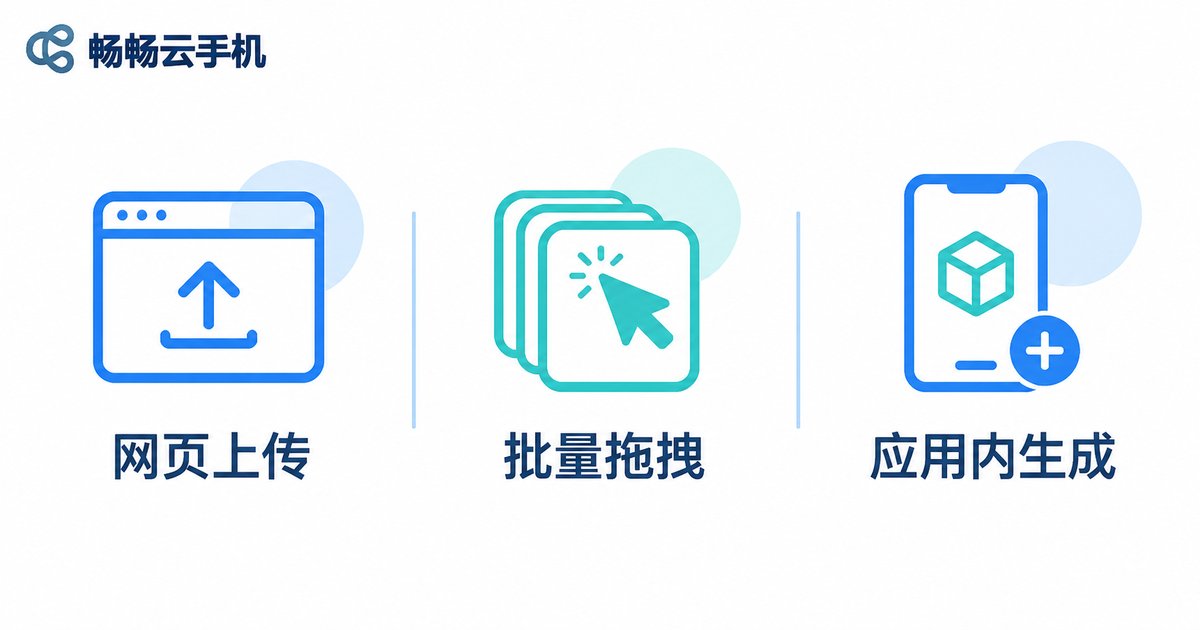
1. Upload from the dashboard. Sign in to the CcloudPhone web console or desktop client, open the file manager for your instance and pick the files from your computer. This works well for installers, documents and a handful of images.
2. Batch drag and drop. Select several files — or an entire folder — and drag them into the file manager window. They are queued and uploaded one after another. When you are organising a media pack or importing dozens of pictures at once, this is the fastest route.
3. Files born inside the cloud phone. Plenty of files are created inside the device itself: screen recordings, spreadsheets exported by an app, screenshots. These never need uploading because they already live in the cloud. Just pull them out when you need them.
One small warning: check the file size before you upload. Sending a few hundred megabytes of archives over and over wastes cloud disk space and slows the whole process down.
Downloading: Bringing Cloud Files Back to Your Device
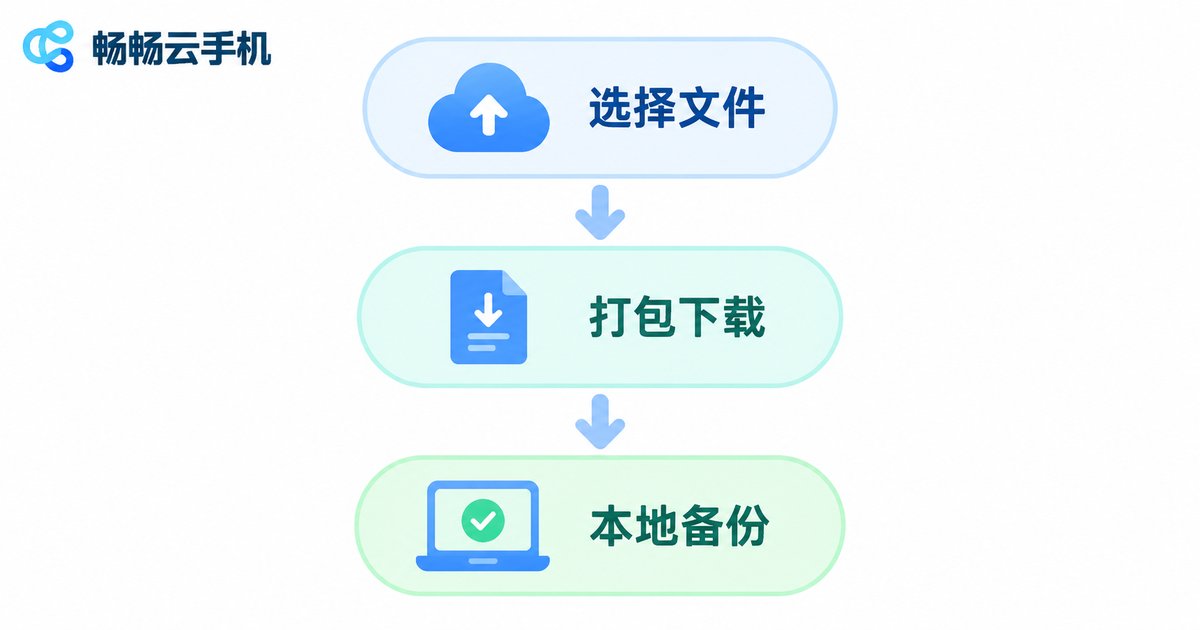
Downloading runs the opposite way. Find the file in the file manager, tick it, hit download, and it travels from the cloud to the computer or phone you are using.
A few habits that make it faster:
· Bundle scattered small files into a single archive before downloading — far quicker than clicking one by one.
· Check the free space on your local drive first so a transfer doesn't die halfway through.
· Download important files to your own device regularly. A second copy is always a good thing.
Managing Space: Three Steps to Keep Your Cloud Drive Healthy
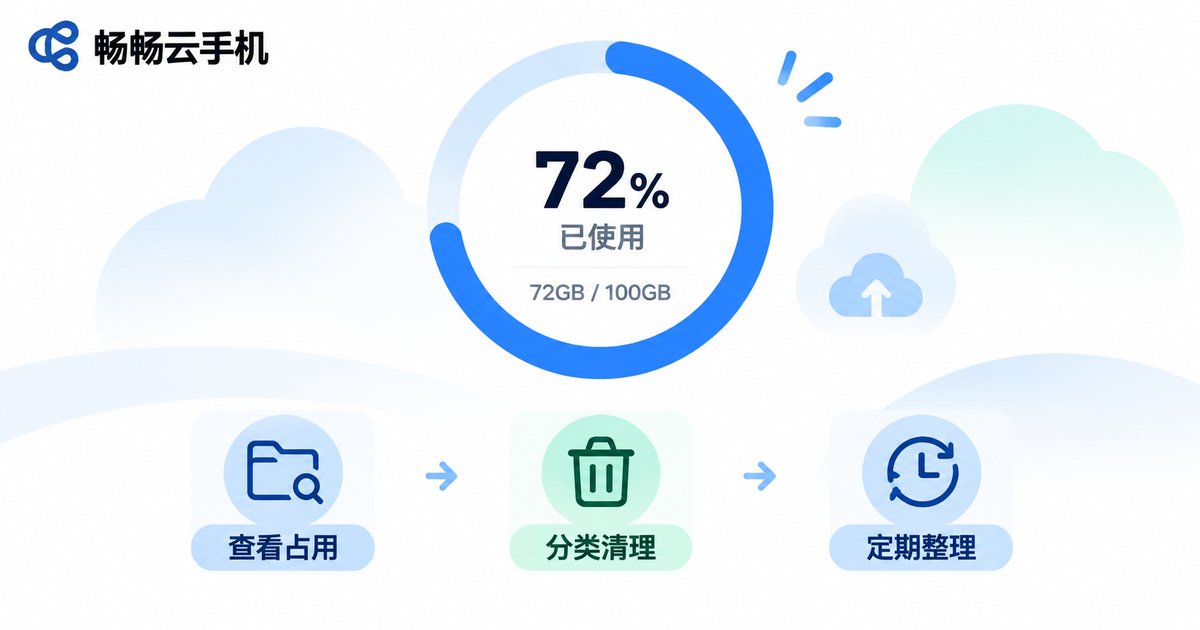
Step one: see what is actually taking up room. Open the file manager and sort by size. The biggest offenders are rarely photos — they are app caches, screen recordings and leftover installers. The cache of one large game can weigh as much as thousands of images.
Step two: clean by category. Cache files are safe to delete because apps rebuild them automatically. Delete installers the moment you finish with them. For videos and screenshots, keep the important ones, download them locally, then remove them from the cloud. Be careful not to delete an app's data directory by mistake — you may have to sign in again or lose local progress.
Step three: make it a routine. Spend a few minutes each week clearing the download and screenshot folders. Uninstall apps you no longer use, then delete the leftover folders. A steady rhythm is far easier than a panic clean-up when space runs out.
Local Storage vs Cloud Storage: Which Fits Which Job
| Point | Local phone storage | Cloud phone storage |
|---|---|---|
| Capacity | Limited by hardware; expanding means a new device | Chosen by configuration, easier to adjust |
| Device dependency | Files travel with that one phone | Sign in from another device and it is all there |
| Running cost | Uses your memory, battery and disk | Computation happens in the cloud; the device just displays |
| Best for | Daily photos, chat history, files you carry around | Multi-app setups, long sessions, bulk asset management |
The two are not in competition. Keep frequent, private, on-the-go files locally; keep large files and anything that must keep running in the cloud. That split works well for most people.
Practical File Management Tips on CcloudPhone
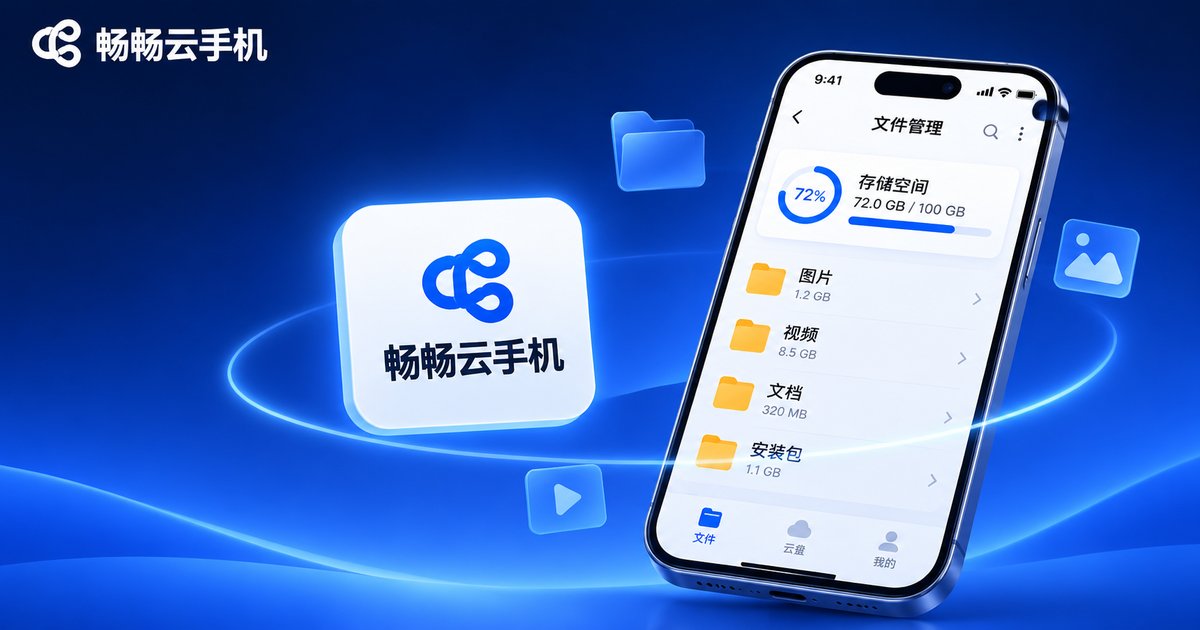
CcloudPhone (ccloudphone) provides virtual phone instances that run in the cloud, with their file systems stored there too. The file manager in the web console and desktop client lets you upload, download and clean up in one place, so the heavy lifting stays in the cloud — multiple apps, long-running sessions, bulk asset sorting — while your own device is spared the storage and performance burden.
A few habits worth adopting right away:
1. Create fixed folders for different file types — installers, assets, backups — so nothing gets lost later.
2. Before you release an instance, download anything important first.
3. Glance at your storage usage every week or two instead of waiting for it to fill up.
4. If space is tight long term, pick a larger storage configuration when creating or changing an instance. Check the official CcloudPhone website for current specifications.
Frequently Asked Questions
Q: Will I lose the files stored on my cloud phone?
Files sit on the instance's virtual disk, so they stay available as long as the instance exists. If an instance is released, its disk is wiped with it — download anything important beforehand.
Q: Uploads feel slow. What can I do?
Check your local upload bandwidth first. Send large files in batches rather than all at once, and compress hundreds of small files into one archive — that is usually faster than sending them individually.
Q: Can I upload an entire folder at once?
Yes. Drag the folder into the file manager window and the files inside are queued automatically, with the directory structure preserved.
Q: What should I do when storage runs out?
Sort by size and clear caches, screen recordings and leftover installers first — that usually frees a lot. If you need more room long term, choose a larger storage configuration when creating or changing an instance; check the official site for details.
Q: Can I share a file straight from the cloud phone?
The safer route is to download it to your own device and share from there. That keeps the file under your control and avoids handing out access to a device you manage.


